1. Вступ
This manual provides comprehensive instructions for the safe and efficient use of your MARKLIFE P50 Portable Bluetooth Thermal Label Printer. Please read this manual thoroughly before operating the device and retain it for future reference.
2. Інформація про безпеку
- Не розбирайте, не ремонтуйте та не модифікуйте пристрій.
- Тримайте пристрій подалі від води, вологи та високих температур.
- Use only MARKLIFE approved labels and accessories.
- Уникайте дотику до друкуючої головки одразу після друку, оскільки вона може бути гарячою.
- Зберігати в недоступному для дітей місці.
3. Вміст упаковки
Перевірте наявність усіх предметів у вашій упаковці:
- Принтер етикеток MARKLIFE P50
- 3 Rolls of Labels (2x 1.57"x1.18" white gap labels, 1x 2"x2" circle gap label)
- Зарядний кабель USB-C
- Посібник користувача (цей документ)
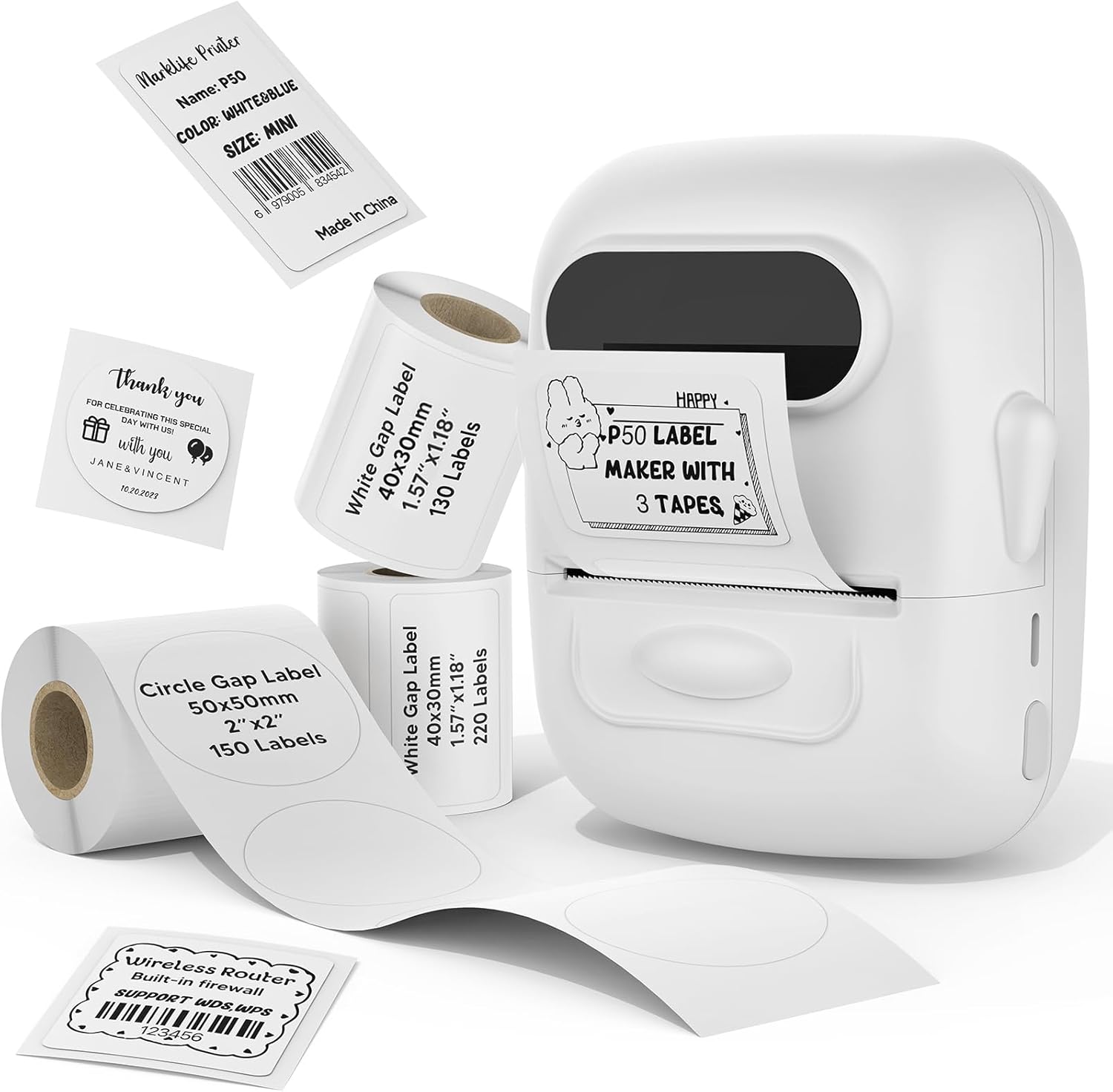
Image: MARKLIFE P50 Label Printer and various label rolls included in the package.
4. Продукт закінчивсяview
The MARKLIFE P50 is a compact, portable thermal label printer designed for various labeling needs. It connects wirelessly via Bluetooth to your smartphone or tablet and can also connect to a Windows PC via USB. It utilizes thermal printing technology, requiring no ink, and supports black and white printing only.

Image: The MARKLIFE P50 printer being placed into a handbag, highlighting its portable design and built-in 1200mAh battery with Type-C charging.
5. Налаштування
5.1 Зарядка пристрою
Before first use, fully charge the printer using the provided USB-C cable and a compatible power adapter (not included). The charging indicator light will show the charging status.
5.2 Завантаження етикеток
- Відкрийте кришку відсіку для етикеток.
- Вставте рулон етикеток друкованою стороною догори.
- Ensure the label edge is aligned and extends slightly out of the printer slot.
- Close the cover firmly. The printer will automatically detect the label type and size.

Image: Illustration of label loading and compatible label widths (0.59 to 2.24 inches) for the P50 printer.
5.3 App Installation and Bluetooth Pairing (for Mobile Devices)
- Download the "Marklife" app from your device's app store (iOS or Android).
- Turn on the P50 printer.
- Увімкніть Bluetooth на своєму смартфоні або планшеті.
- Open the Marklife app and follow the on-screen instructions to connect to your P50 printer. The app will typically detect the printer automatically.
5.4 PC Connection (for Windows)
For Windows PC connectivity, download the official software from the MARKLIFE website. Connect the printer to your PC using the USB-C cable. The software will guide you through the printing process.

Image: The P50 label printer connected to both a laptop and a smartphone, illustrating its support for mobile and PC devices.
6. Операція
6.1 Базовий друк (через застосунок)
- Ensure the printer is powered on and connected to the Marklife app.
- Select a template or create a new label design within the app.
- Enter your desired text, add images, barcodes, or QR codes.
- Adjust print settings (e.g., quantity, density) as needed.
- Tap the "Print" button in the app to initiate printing.

Image: Various label applications, such as clothing tags with barcodes, handmade soap labels, and price tags for baked goods, demonstrating the printer's versatility.
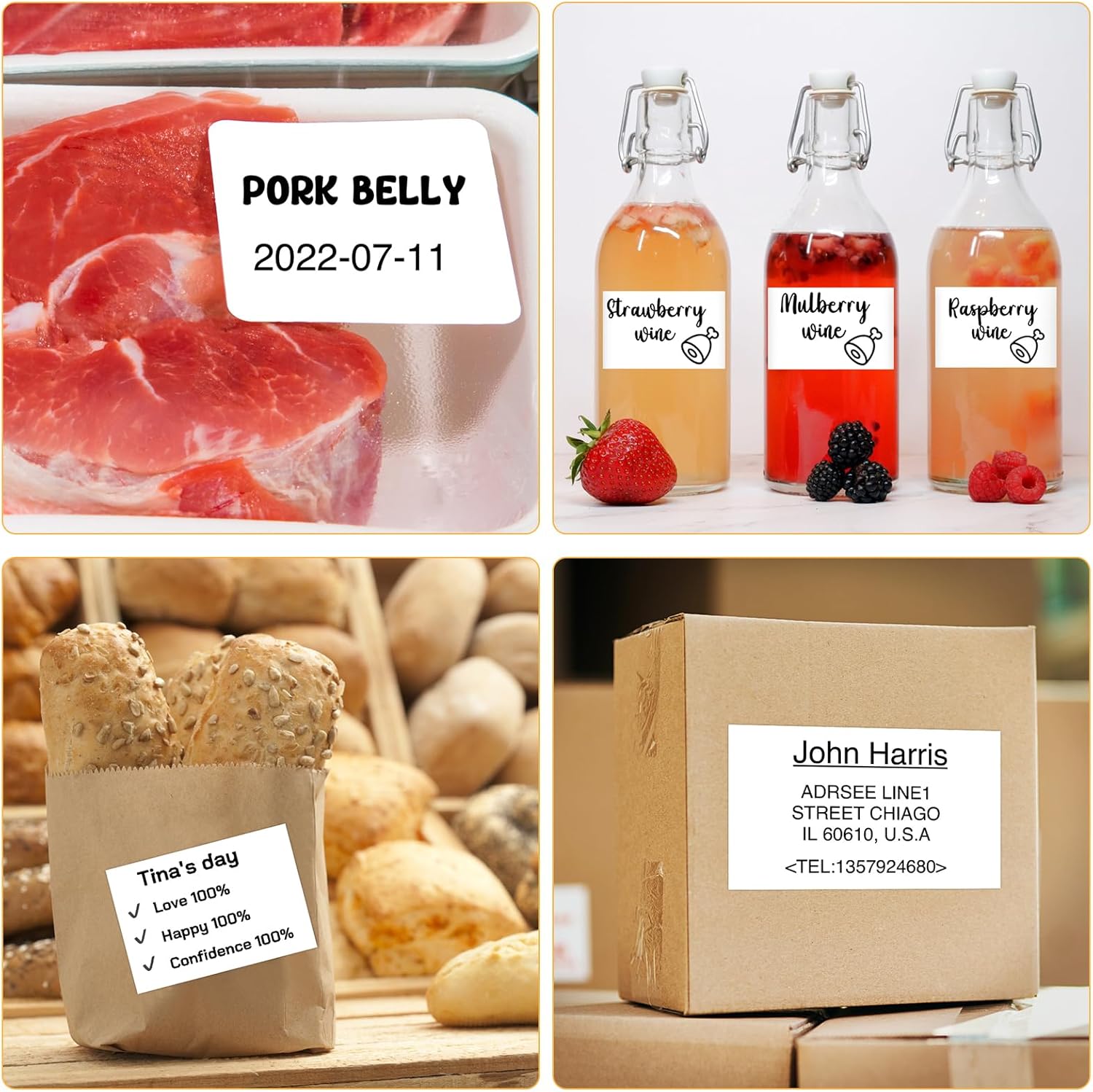
Зображення: Прamples of labels for food items (pork belly, beverages) and a shipping address label, showcasing different label content possibilities.
6.2 Пакетний друк
The Marklife app supports batch printing for multiple copies of the same label or sequential labels. Refer to the app's specific instructions for detailed steps on batch printing functionality.

Image: The MARKLIFE P50 printer actively printing multiple barcode labels in a batch, demonstrating stable printing over a long duration.
7. Технічне обслуговування
- Очищення друкувальної голівки: Злегка протріть м’якою тканиною без ворсу dampened with alcohol to gently wipe the print head. Ensure the printer is off and cooled down before cleaning.
- Очищення зовнішньої частини: Wipe the printer's exterior with a soft, dry cloth. Do not use harsh chemicals.
- Зберігання етикеток: Store label rolls in a cool, dry place away from direct sunlight to preserve their quality.
8. Вирішення проблем
| проблема | Можлива причина | Рішення |
|---|---|---|
| Принтер не вмикається | Низький заряд батареї або проблема з живленням | Charge the printer using the USB-C cable. |
| Не вдається підключитися через Bluetooth | Bluetooth off, app issue, or printer not discoverable | Ensure Bluetooth is enabled on your device. Restart the printer and the app. Try re-pairing. |
| Погана якість друку | Dirty print head, incorrect label loading, or low print density setting | Clean the print head. Re-load labels correctly. Adjust print density in the app. |
| Етикетки не подаються належним чином | Improper label loading or label jam | Open the cover, re-seat the label roll, ensuring it's aligned. Clear any jammed labels. |
9. Технічні характеристики
| Особливість | Деталь |
|---|---|
| Модель | P50 |
| Технологія друку | Теплові |
| Підключення | Bluetooth, USB |
| Сумісні пристрої | Android, iOS, Windows PC |
| Максимальний розмір носія | 2 дюйми (57 мм) |
| Print Width Range | 0.59 дюйма - 2.24 дюйма (15 мм - 57 мм) |
| Вихід на принтер | Монохромний (чорно-білий) |
| Акумулятор | Built-in 1200mAh (rechargeable) |
| Порт зарядки | USB-C |
| Розміри продукту | 4 см (Г) x 3 см (Ш) x 2 см (В) (приблизно) |
| Вага товару | 6 унцій (приблизно) |
10. Гарантія та підтримка
The MARKLIFE P50 Label Printer comes with a limited warranty. For warranty details, technical support, or customer service inquiries, please refer to the official MARKLIFE webсайт або зверніться безпосередньо до служби підтримки клієнтів. Зберігайте чек про покупку як підтвердження покупки.
Виробник: МАРКЛАЙФ


