1. Вступ
Дякуємо за покупкуasing the Yifeng Wireless Keyboard. This keyboard offers versatile connectivity options, supporting both 2.4 GHz USB wireless and Bluetooth connections. It is designed for multi-device use, allowing simultaneous pairing with up to four devices and quick switching between them. Featuring a comfortable scissor-switch mechanism and an integrated stand, it enhances productivity across various platforms including Windows, iOS, and Android devices.
2. Інформація про безпеку
- Не піддавайте клавіатуру впливу рідин або екстремальних температур.
- Уникайте самостійного розбирання або спроб ремонту пристрою.
- Зберігати в недоступному для дітей місці.
- Для заряджання використовуйте лише USB-кабель із комплекту постачання.
3. Вміст упаковки
Будь ласка, перевірте наявність усіх елементів:
- Yifeng Wireless Keyboard
- USB-кабель для зарядки
- 2.4 GHz USB Receiver (may be stored in the keyboard's battery compartment)
- Посібник користувача (цей документ)
4. Налаштування
4.1. 2.4 GHz USB Wireless Connection
- Locate the 2.4 GHz USB receiver. It is often stored in a dedicated slot on the keyboard.
- Підключіть USB-приймач до вільного USB-порту на вашому комп’ютері або пристрої.
- Увімкніть клавіатуру за допомогою вимикача живлення (зазвичай розташований збоку або ззаду).
- The keyboard should automatically connect to your device. If not, press the dedicated 2.4GHz connection key (often labeled with a '4' or '2.4G' icon) to activate pairing mode.
4.2. Підключення Bluetooth
- Переконайтеся, що клавіатура заряджена та увімкнена.
- Press and hold one of the Bluetooth channel keys (e.g., Bluetooth 1, Bluetooth 2, або Bluetooth 3) for 3-5 seconds until the indicator light flashes, indicating pairing mode.
- On your device (tablet, smartphone, PC), go to Bluetooth settings and enable Bluetooth.
- шукати available devices. The keyboard should appear as "Yifeng Keyboard" or similar.
- Виберіть клавіатуру для сполучення. Дотримуйтесь будь-яких підказок на екрані, таких як введення коду сполучення.
- Після сполучення індикатор перестане блимати та світитиметься постійно протягом кількох секунд.
4.3. Multi-Device Pairing
This keyboard supports connecting up to 4 devices simultaneously: one via 2.4 GHz USB and three via Bluetooth. Follow the steps above to pair each device to a different channel (2.4GHz, Bluetooth 1, Bluetooth 2, Bluetooth 3).
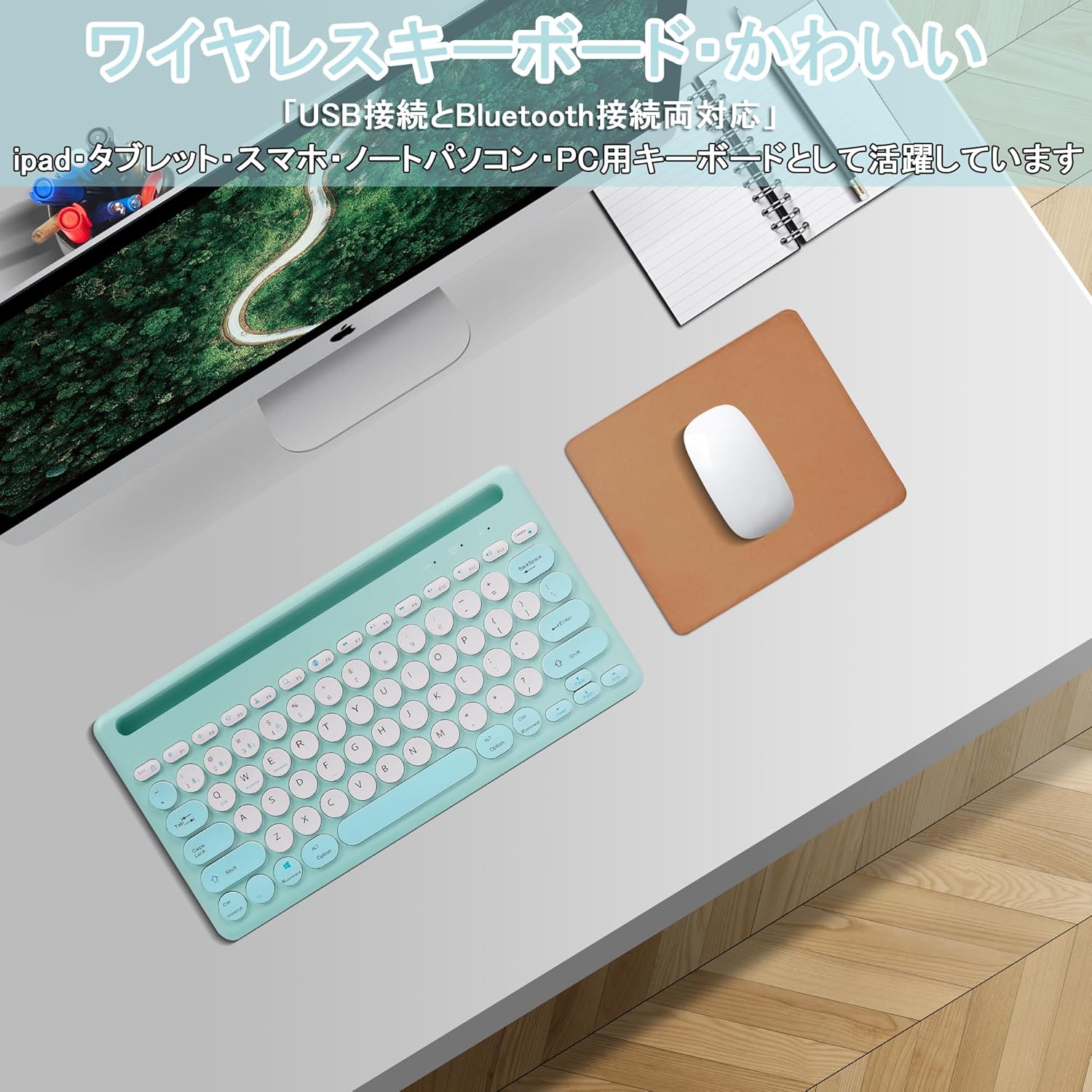
Image: The Yifeng Wireless Keyboard connected to a tablet, smartphone, and laptop, demonstrating its multi-device pairing capability.
5. Інструкція з експлуатації
5.1. Перемикання між підключеними пристроями
To switch between your paired devices, simply press the corresponding connection key:
- Прес Bluetooth 1 to switch to the first Bluetooth device.
- Прес Bluetooth 2 to switch to the second Bluetooth device.
- Прес Bluetooth 3 to switch to the third Bluetooth device.
- Натисніть 2.4 ГГц key (often labeled with a '4' or '2.4G' icon) to switch to the USB wireless device.
5.2. System Compatibility Switching
The keyboard supports Windows, iOS, and Android operating systems. Use the dedicated system keys to optimize key functions for your current device:
- Прес Fn + Q для iOS.
- Прес Fn + W для Android.
- Прес Fn + E для Windows.
5.3. Заряджання клавіатури
The keyboard features a built-in rechargeable lithium-ion battery. A single full charge provides approximately 30 days of continuous use.
- Connect the included USB charging cable to the charging port on the keyboard.
- Підключіть інший кінець USB-кабелю до джерела живлення USB (наприклад, USB-порту комп'ютера, настінного USB-адаптера).
- Індикатор заряджання світитиметься під час заряджання та вимкнеться після повного заряджання.

Image: The Yifeng Wireless Keyboard connected to a power strip via its USB charging cable, indicating the rechargeable feature.
5.4. Використання вбудованої підставки
The keyboard includes an integrated stand slot at the top, designed to hold your tablet or smartphone upright. This allows for comfortable viewing and typing, making it ideal for document creation, chatting, or watching media while commenting.
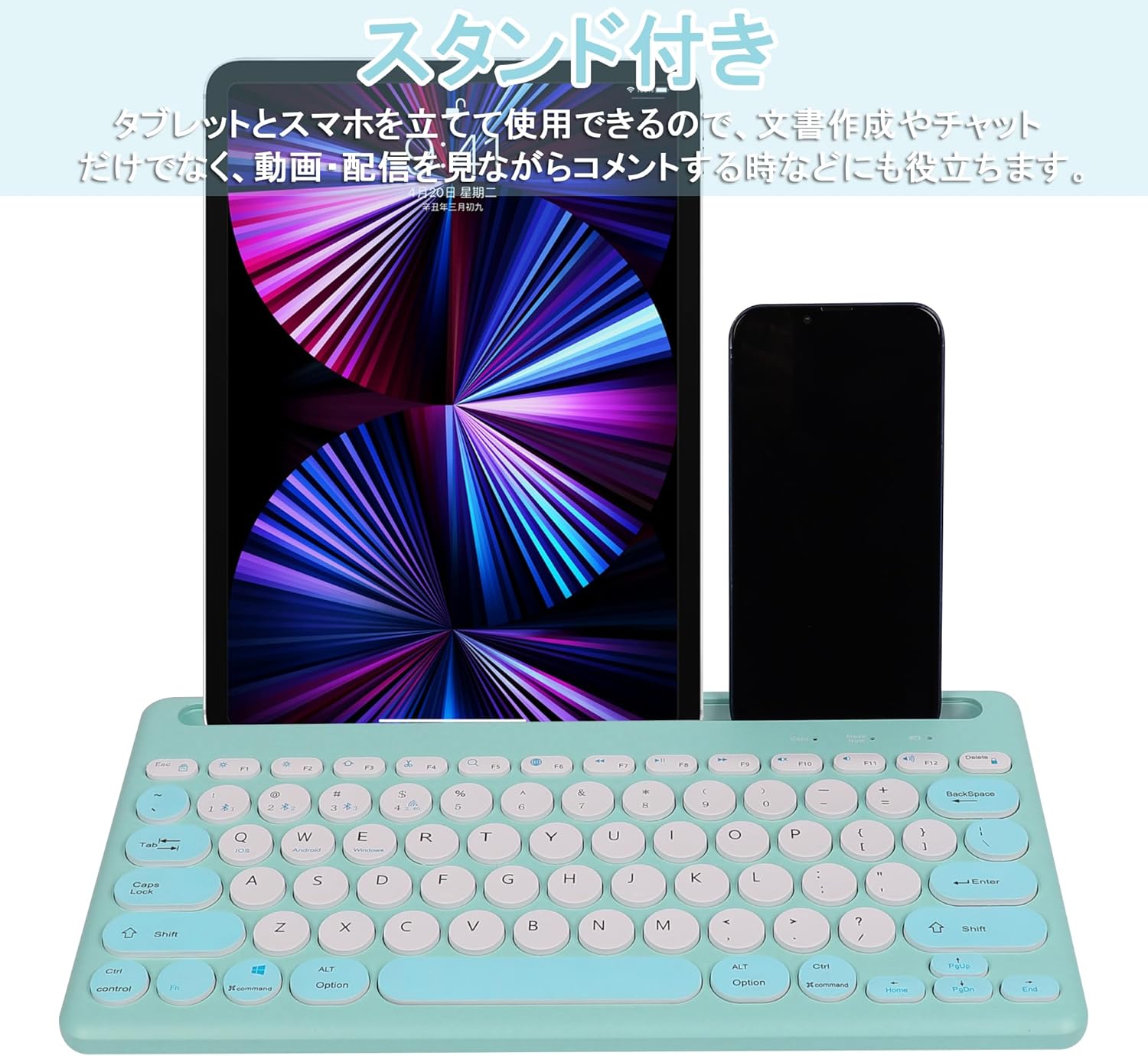
Image: The Yifeng Wireless Keyboard with a tablet and smartphone securely positioned in its integrated stand, demonstrating its utility for multi-device setups.
6. Технічне обслуговування
- Clean the keyboard regularly with a soft, dry cloth. For stubborn dirt, a slightly damp можна використовувати тканину, щоб волога не потрапила на клавіатуру.
- Уникайте використання агресивних хімікатів або абразивних засобів для чищення.
- Store the keyboard in a cool, dry place when not in use.
- The keyboard features anti-slip pads on the back for stable use. Ensure these pads are clean and intact for optimal stability.

Image: The underside of the Yifeng Wireless Keyboard, highlighting the four anti-slip pads designed for stable placement on various surfaces.
7. Вирішення проблем
7.1. Клавіатура не підключається
- Перевірте живлення: Переконайтеся, що клавіатура увімкнена та має достатній заряд батареї.
- Повторна пара: For Bluetooth, delete the keyboard from your device's Bluetooth list and attempt to pair again. For 2.4 GHz USB, try plugging the receiver into a different USB port.
- Перемикати канали: Ensure you have selected the correct channel (Bluetooth 1/2/3 or 2.4GHz) for your device.
- Bluetooth пристрою: Verify that Bluetooth is enabled on your device and that it is discoverable.
7.2. Клавіші не реагують
- Рівень заряду батареї: Зарядіть клавіатуру, якщо батарея розряджена.
- Режим системи: Ensure the keyboard is set to the correct operating system mode (Windows, iOS, Android) using Fn + Q/W/E.
- Перешкоди: Перемістіть клавіатуру ближче до свого пристрою та подалі від інших бездротових пристроїв, які можуть створювати перешкоди.
7.3. Проблеми із заряджанням
- Перевірка кабелю: Ensure the USB charging cable is securely connected to both the keyboard and the power source.
- Джерело живлення: Спробуйте інший USB-порт або адаптер для розетки.
- Світловий індикатор: If the charging indicator light does not turn on, the cable or power source may be faulty.
8. Технічні характеристики
| Бренд | Yifeng |
| Номер моделі | AMWS0584A-L |
| Технологія підключення | Bluetooth, 2.4 GHz Wireless (USB) |
| Сумісні пристрої | Tablets, Smartphones, PCs, Laptops (Windows, iOS, Android) |
| Розкладка клавіатури | QWERTY (розкладка США) |
| Ключовий механізм | Ножиці-перемикач |
| Особливість | Rechargeable, Integrated Stand, Multi-Pairing (4 devices) |
| Тип батареї | Літій-іонний акумулятор 1 (в комплекті) |
| Термін служби батареї | Приблизно 30 днів (на одному заряді) |
| Розміри | 33.7 х 16.7 х 2.9 см |
| вага | 820 г |
| Включені компоненти | USB кабель |
9. Гарантія та підтримка
Цей продукт поставляється з a Гарантія якості 1 років from the date of purchase. In case of initial defects or malfunctions occurring within the warranty period, we offer return or exchange services.
Should you encounter any issues or require assistance, please contact us directly through your purchase platform:
- Іди до свого Історія замовлень.
- Select the order for this product.
- Натисніть на Зв'язатися з продавцем.
Our support team will be happy to assist you.


