1. Вступ
Thank you for choosing the PeriPage A6 Mini Portable Thermal Printer. This compact and versatile device allows you to print photos, labels, notes, lists, and more directly from your smartphone or PC. With its high-resolution thermal printing technology, you can enjoy clear and crisp prints without the need for ink cartridges. This manual provides essential information on setting up, operating, maintaining, and troubleshooting your new printer.
3. Вміст упаковки
Перевірте наявність усіх предметів у вашій упаковці:
- PeriPage A6 Mini Printer
- Рулон термопаперу
- USB кабель
- Посібник користувача

Image: Contents of the PeriPage A6 Mini Printer package, showing the printer, a roll of thermal paper, a USB charging cable, and the user manual.
4. Продукт закінчивсяview
4.1 Основні характеристики
- Ultra HD Printing: 304 DPI resolution for clear and detailed prints.
- Безчорнильний термодрук: No ink cartridges required, reducing operating costs.
- Багатофункціональний: Supports printing of photos, labels, notes, lists, QR codes, web сторінки тощо.
- Підключення Bluetooth: Seamless wireless connection to iOS and Android smartphones.
- Портативний дизайн: Compact and lightweight with a built-in 1000mAh rechargeable battery.
- Універсальна підтримка паперу: Compatible with various thermal paper types including standard, sticky, transparent, and colorful options.
4.2 Компоненти принтера
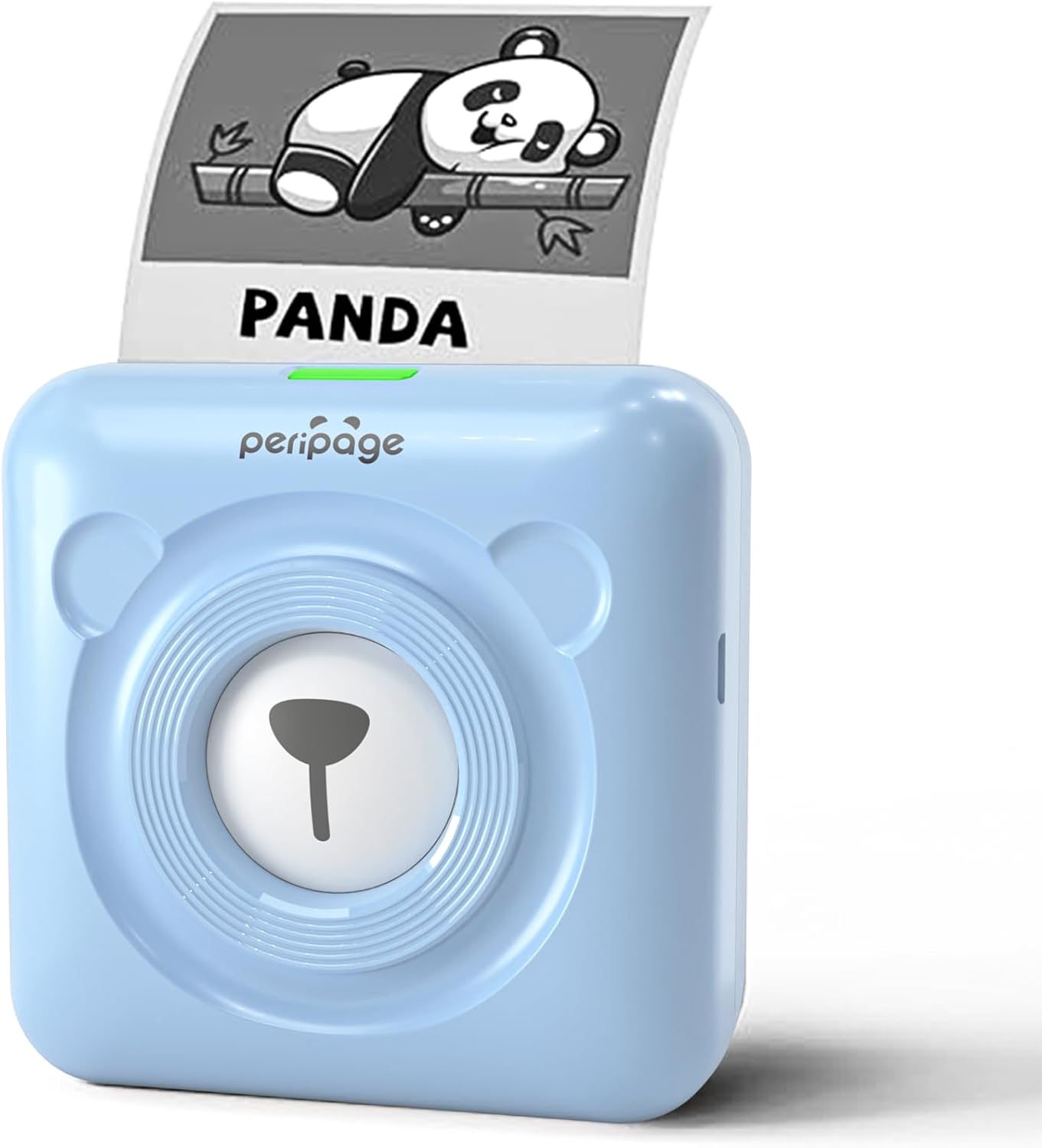
Image: The PeriPage A6 Mini Printer in blue, demonstrating a printed output. The printer features a bear-like design on its front.

Image: A visual comparison highlighting the superior print resolution of the PeriPage A6 Mini Printer (304 DPI) compared to a standard definition printer, showing finer details in the printed image.
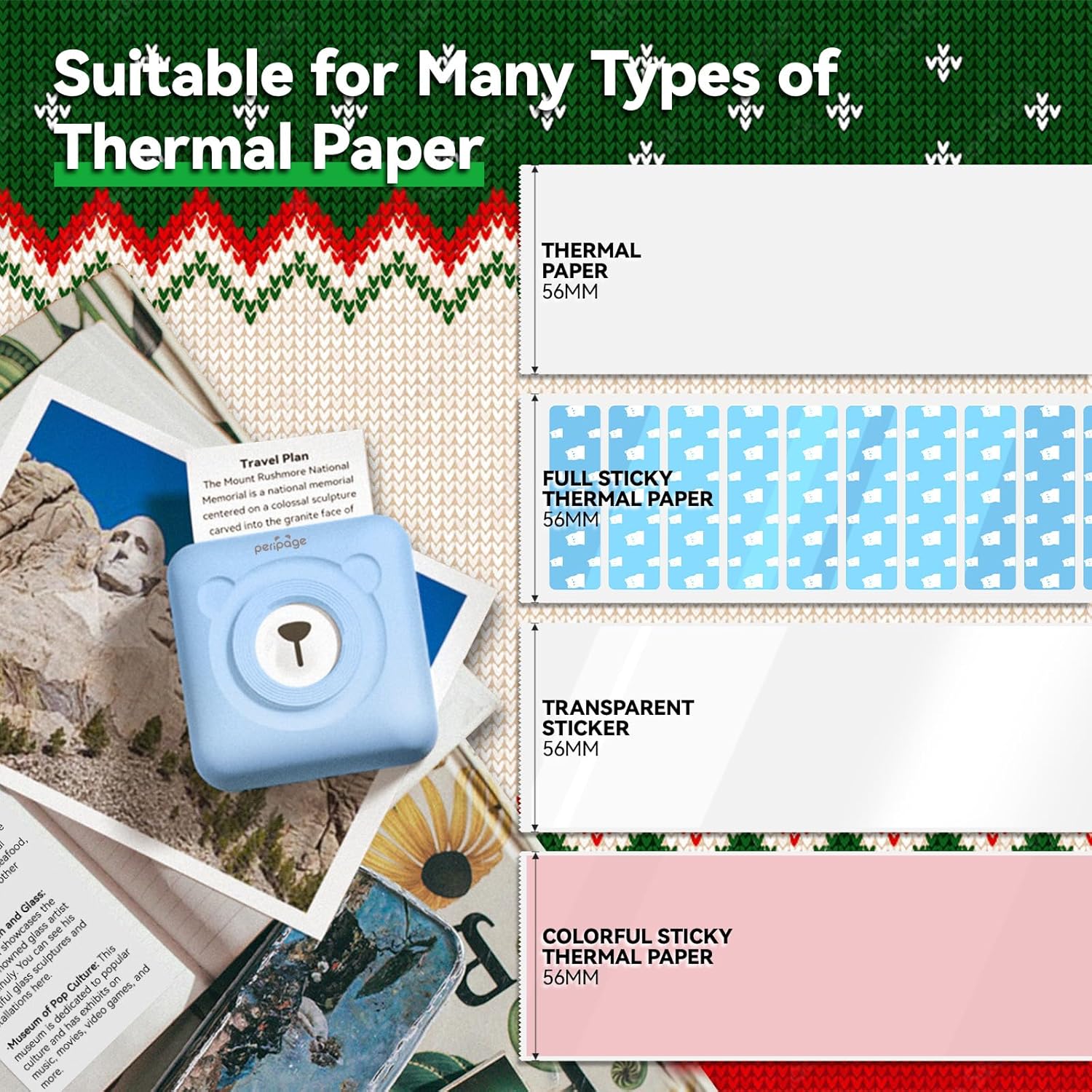
Image: An illustration showing the different types of thermal paper that can be used with the PeriPage A6 Mini Printer, such as standard thermal paper, full sticky thermal paper, transparent stickers, and colorful sticky thermal paper, all 56mm wide.
5. Посібник із налаштування
5.1 Заряджання принтера
Before first use, fully charge the printer using the provided USB cable. Connect the USB cable to the printer's charging port and the other end to a USB power adapter (not included) or a computer's USB port. The indicator light will show charging status.
5.2 Встановлення термопаперу
- Open the printer cover by gently sliding the release button or pressing the designated area.
- Вставте рулон термопаперу у відсік для паперу, переконавшись, що сторона для друку спрямована до друкуючої головки.
- Pull a small amount of paper out beyond the print head.
- Щільно закрийте кришку принтера, доки вона не зафіксується на місці.
5.3 Downloading the PeriPage App
The PeriPage A6 Mini Printer requires the official PeriPage APP for full functionality. You can download it via:
- Searching for "PeriPage" in your device's APP store (Apple App Store for iOS, Google Play Store for Android).
- Scanning the QR code provided in the instruction manual or on the product packaging.
- Visiting the official download page: https://www.ileadtek.com/download/app/peripage.html

Image: A guide illustrating two methods to download the PeriPage App: searching on Google Play or Apple App Store, or scanning a QR code.
5.4 Connecting to Your Device (Bluetooth)
- Ensure your PeriPage A6 printer is turned on.
- Увімкніть Bluetooth на своєму смартфоні.
- Open the PeriPage App. The app will guide you to connect to the printer.
- Select your printer from the list of available Bluetooth devices within the app. The printer's name usually starts with "PeriPage".
- Once connected, the app will indicate a successful connection.

Image: A visual representation of connecting the PeriPage A6 Mini Printer to a smartphone via the PeriPage App, showing the app interface and Bluetooth icon.
6. Інструкція з експлуатації
The PeriPage App offers a wide range of functions to maximize your printer's utility.
6.1 Basic Printing Steps (via App)
- Увімкніть принтер: Натисніть кнопку живлення на принтері.
- Open the PeriPage App: Ensure your printer is connected via Bluetooth.
- Select Printing Type: On the app's homepage, choose the type of content you wish to print (e.g., Photo Print, Label Print, Notes, Web Page Printing, OCR Text Recognition).
- Import/Create Content: Select the image, text, or template you want to print. The app provides various fonts and themes.
- Налаштування параметрів (необов’язково): Modify print density, size, or other parameters as needed.
- Друк: Tap the print button in the app. The printer will begin printing.

Image: A five-step visual guide demonstrating the printing process using the PeriPage App: 1. Press button to boot, 2. Enter PeriPage app, 3. Import file, 4. Connect via Bluetooth, 5. Get printed document.
6.2 Сценарії використання
The PeriPage A6 is suitable for a variety of applications:
- кухня: Print labels for jars and containers.
- дослідження: Print study notes, lists, or quick references.
- Фотографії: Print black and white photos for journaling or scrapbooking.
- Наклейки своїми руками: Create custom stickers for various purposes.
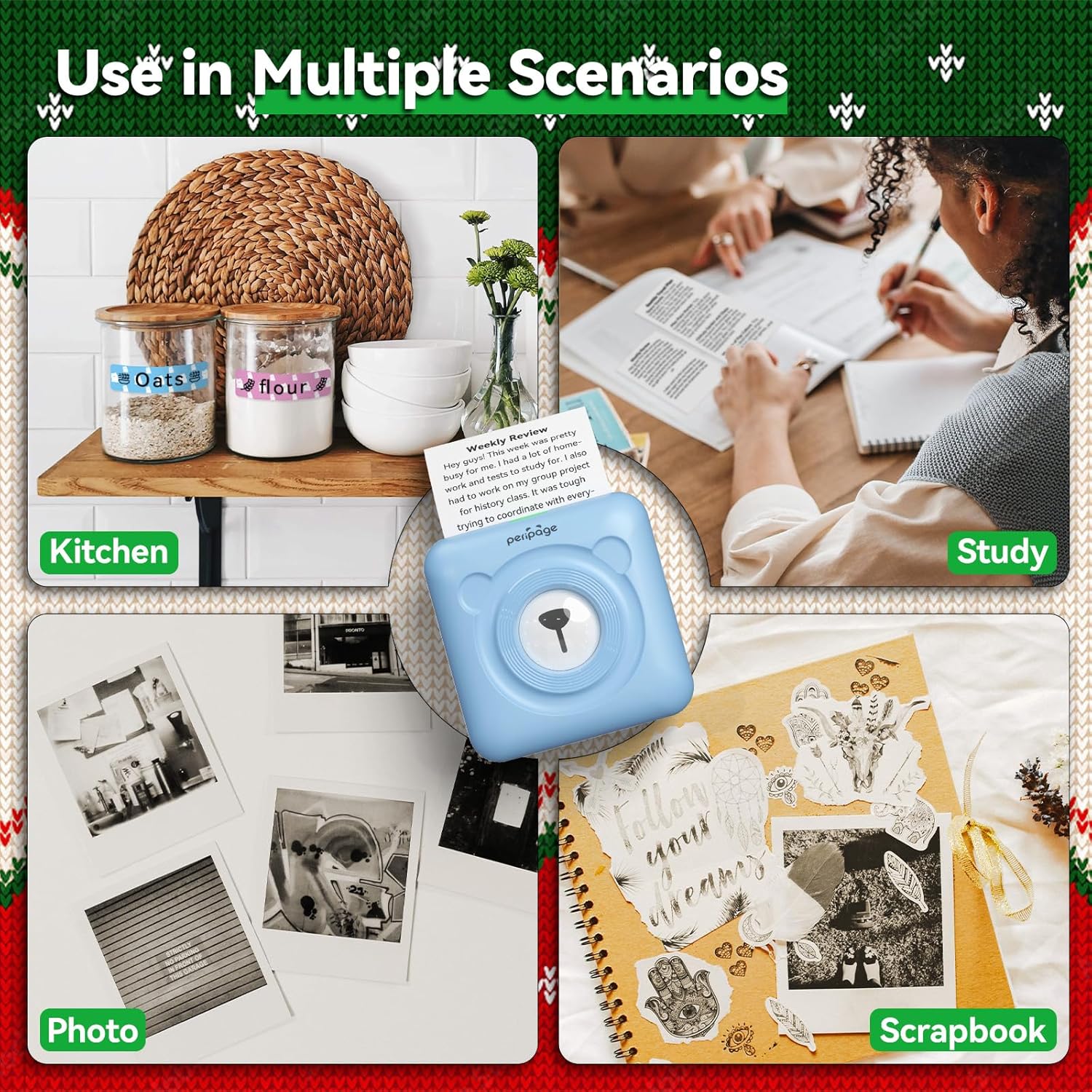
Зображення: Прamples of the PeriPage A6 Mini Printer's use in multiple scenarios, including creating kitchen labels, printing study notes, printing photos, and enhancing scrapbooks.
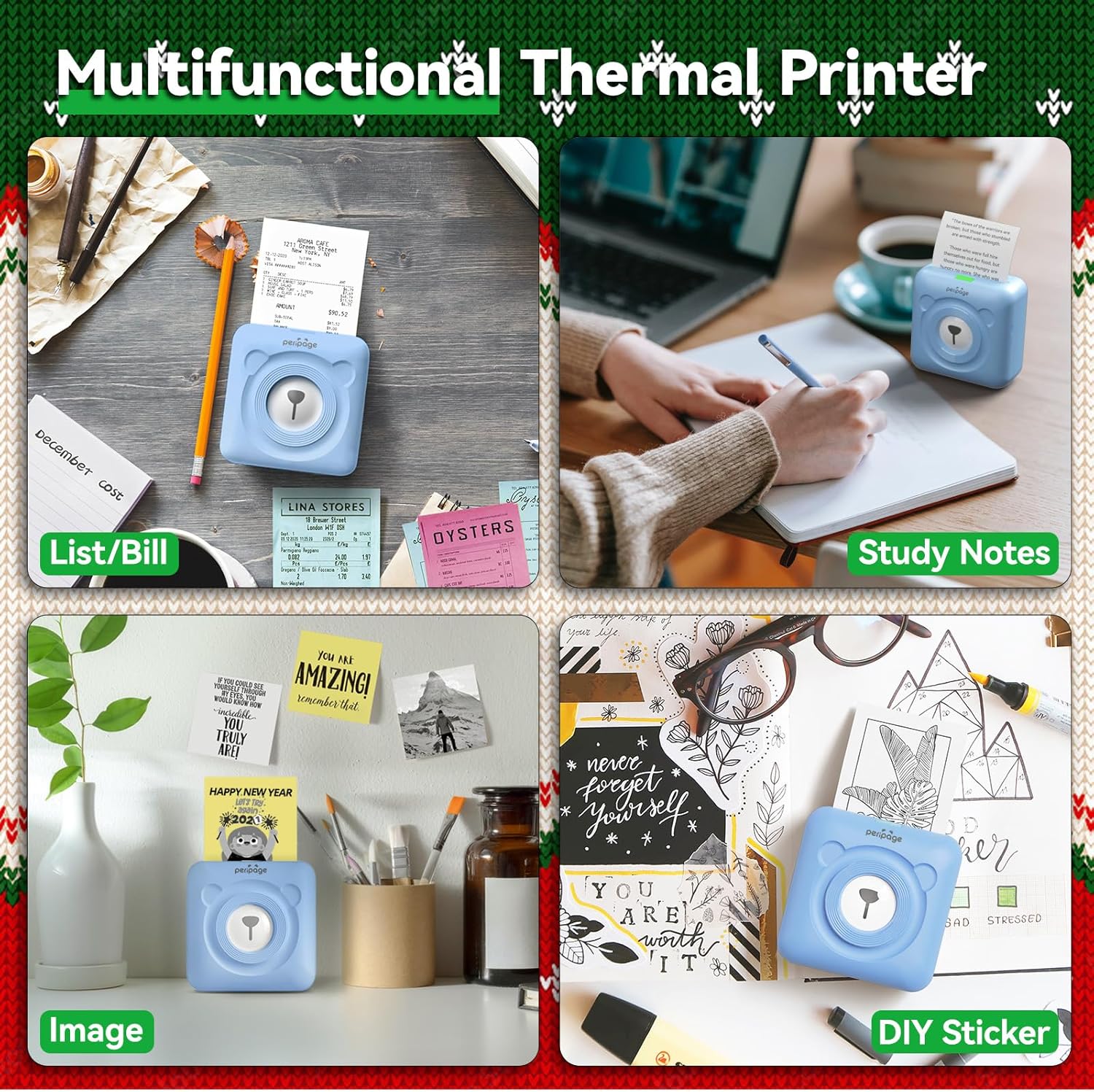
Image: A display of the PeriPage A6 Mini Printer's multifunctional thermal printing capabilities, showing its use for lists/bills, study notes, images, and DIY stickers.
7. Технічне обслуговування
7.1 Очищення принтера
To ensure optimal print quality and prolong the life of your printer, regular cleaning is recommended.
- Turn off the printer and disconnect the power cable before cleaning.
- Використовуйте м’яку, суху тканину без ворсу, щоб протерти зовнішню частину принтера.
- For the print head, gently wipe it with a cotton swab lightly dampзмочений ізопропіловим спиртом. Дайте йому повністю висохнути перед використанням.
- Не використовуйте абразивні засоби чи розчинники.
7.2 Догляд за акумулятором
- Charge the printer regularly, even if not in use, to maintain battery health.
- Уникайте частого повного розряджання акумулятора.
- Зберігайте принтер у прохолодному, сухому місці, якщо він не використовується протягом тривалого часу.
8. Вирішення проблем
If you encounter issues with your PeriPage A6 Mini Printer, refer to the following common problems and solutions:
| проблема | Можлива причина | Рішення |
|---|
| Принтер не вмикається | Низький заряд батареї; кнопка живлення натиснута неправильно | Зарядіть принтер; натисніть і утримуйте кнопку живлення кілька секунд. |
| Не вдається підключитися через Bluetooth | Bluetooth вимкнено; принтер не видно; проблема з додатком | Ensure Bluetooth is enabled on your phone; Restart printer and phone; Reinstall PeriPage App. |
| Poor print quality / Faint prints | Paper installed incorrectly; Low battery; Dirty print head; Expired thermal paper | Reinstall paper with printing side facing up; Charge printer; Clean print head; Use new thermal paper. |
| Зминання паперу | Paper not inserted straight; Too much paper pulled out | Open cover and carefully remove jammed paper; Reinsert paper correctly. |
| App is buggy or freezes | Збій програмного забезпечення; застаріла версія програми | Close and reopen the app; Check for app updates; Reinstall the app. |
9. Технічні характеристики
| Особливість | Деталь |
|---|
| Бренд | PeriPage |
| Назва моделі | Перісторія А6 |
| Технологія друку | Теплові |
| роздільна здатність | 304 DPI |
| Підключення | Bluetooth, USB |
| Сумісні пристрої | Smartphones (iOS & Android), PC, Laptops |
| Максимальний розмір носія | 57mm (width) x 30mm (roll diameter) |
| Акумулятор | Літій-іонний акумулятор 1000 мАг (в комплекті) |
| Вага товару | 5.6 унції (160 грама) |
| Розміри продукту | 2.95" Г x 2.95" Ш x 1.57" В |
| Включені компоненти | Папір |
10. Гарантія та підтримка
10.1 Інформація про гарантію
Please note that this product is listed with Без гарантії. For specific details regarding returns or defects, please refer to the retailer's policy where the product was purchased.
10.2 Підтримка клієнтів
For further assistance, technical support, or inquiries not covered in this manual, please contact PeriPage customer service through their official website or the contact information provided by your retailer. Ensure you have your product model number (A6) and purchase details ready when contacting support.


