1. Вступ
This manual provides detailed instructions for the installation, operation, and maintenance of your Spedal MINIEYE AC1 Dash Cam. Please read this manual thoroughly before using the device to ensure proper functionality and safety. The MINIEYE AC1 is designed to record your driving journey in high definition and offers advanced features for enhanced road safety.
2. Продукт закінчивсяview
2.1 Основні характеристики
- 1944P Ultra Full HD Recording: Захоплює чітке відеоtage with a 140° wide-angle field of view.
- AI ADAS (Advanced Driver-Assistance System): Provides real-time alerts for collision avoidance.
- Вбудований G-сенсор: Automatically detects sudden movements or impacts and locks footage.
- Цілодобовий моніторинг паркування: Monitors your vehicle even when parked (requires hardwire kit, sold separately).
- Потужне нічне бачення: Ensures clear recordings in low-light conditions.
- Циклічний запис: Перезаписує найстаріший footage when the memory card is full, ensuring continuous recording.
- APP Control: Керування налаштуваннями, view фуtage, and download videos via a dedicated mobile application.
2.2 Вміст упаковки
Перевірте, чи всі перелічені нижче предмети присутні у вашій упаковці:
- MINIEYE AC1 Dash Cam Unit
- Автомобільний зарядний пристрій
- Кабель живлення
- Кабель монітора
- Host Base
- GPS модуль
- Електростатична наклейка
- Лом (для прокладання кабелю)
- Бульбашковий рівень
- Free 32GB TF Card (MicroSD Card)
- Посібник користувача (цей документ)
2.3 Компоненти пристрою
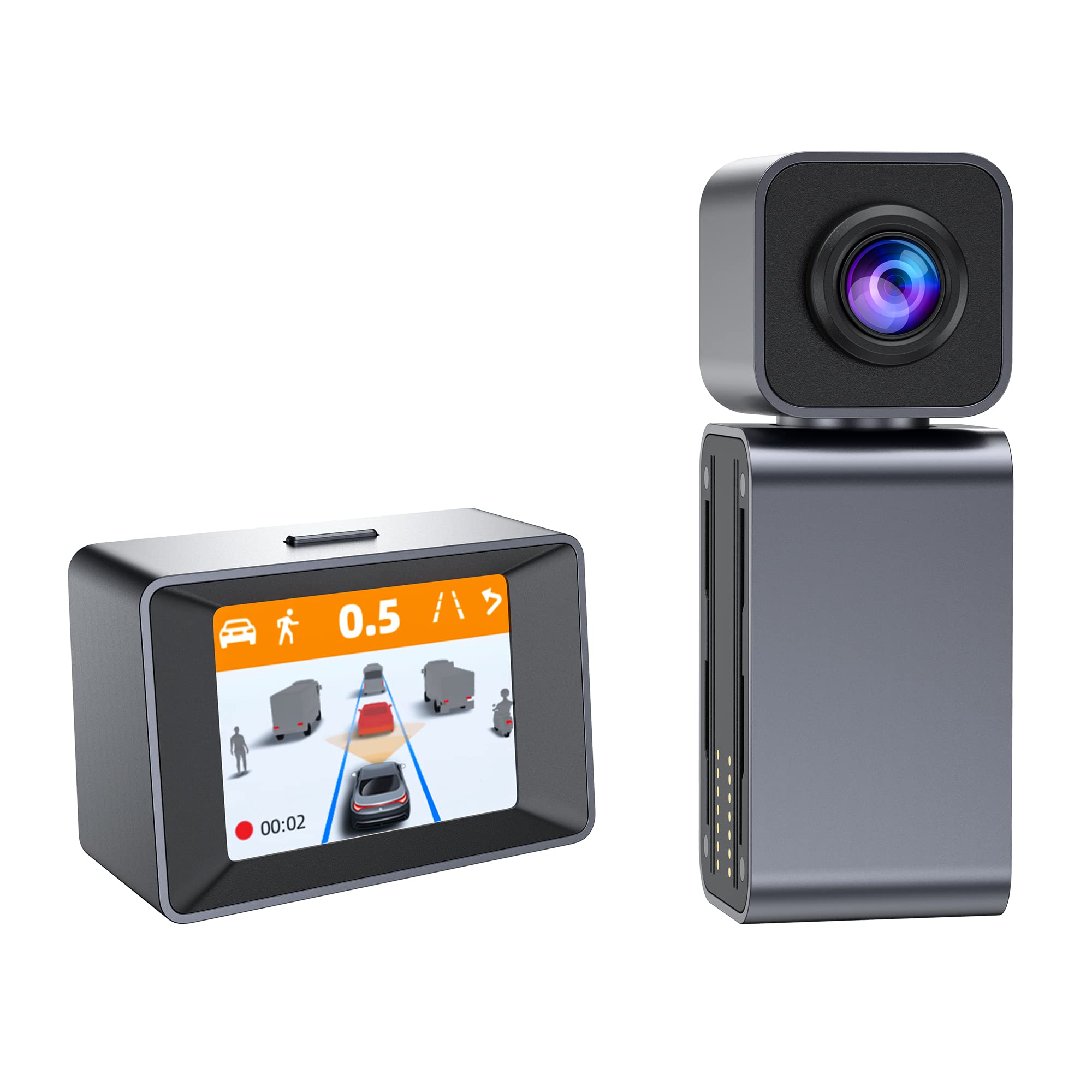
Image: The MINIEYE AC1 Dash Cam showing the main recording unit with its lens and the separate display unit. The display unit shows a simulated traffic scenario with distance warnings, illustrating the ADAS functionality.
3. Налаштування
3.1 Встановлення
- Підготуйте лобове скло: Очистіть ділянку на лобовому склі, де буде встановлено відеореєстратор. Переконайтеся, що вона без пилу та жиру.
- Нанесення електростатичного стікеру: Нанесіть електростатичну наклейку на очищену ділянку. Це допоможе легко видалити її та запобіжить утворенню залишків на лобовому склі.
- Attach Host Base: Secure the host base to the electrostatic sticker. Use the bubble level to ensure the base is level for optimal camera angle.
- Mount Dash Cam: Attach the MINIEYE AC1 Dash Cam unit to the host base.
- Вставте TF-карту: Insert the provided 32GB TF card into the designated slot on the dash cam. Ensure it is inserted correctly until it clicks into place.
- Підключіть живлення: Connect the power cable to the dash cam and route it along the windshield edge and dashboard using the crowbar to tuck it neatly. Plug the car charger into your vehicle's cigarette lighter socket.
- Connect Monitor (if applicable): If using an external monitor, connect it using the monitor cable.
- Підключення GPS-модуля: Attach the GPS module to the dash cam for location and speed data recording.
3.2 Початкове увімкнення та налаштування
- Увімкнення: Start your vehicle. The dash cam will automatically power on and begin recording.
- Формат TF карти: It is recommended to format the TF card upon first use and periodically thereafter to ensure optimal performance. This can usually be done through the device settings or the mobile app.
- Відрегулюйте кут камери: Adjust the camera lens to ensure it captures the road ahead clearly, covering the desired field of view.
3.3 Налаштування керування програмами
- Завантажити додаток: шукати the "MINIEYE" in your smartphone's app store (iOS or Android) and install it.
- Підключіться до Wi-Fi: Enable Wi-Fi on your smartphone and connect to the dash cam's Wi-Fi network. The network name and password can typically be found in the dash cam's settings or manual.
- Підключити пристрій: Open the MINIEYE app and follow the on-screen instructions to pair your dash cam.
- Налаштувати налаштування: Use the app to adjust recording resolution, G-sensor sensitivity, parking monitoring settings, and other preferences.
4. Інструкція з експлуатації
4.1 Базовий запис
Once powered on, the MINIEYE AC1 automatically begins continuous loop recording. Video files are saved in segments (e.g., 1, 3, or 5 minutes) to the TF card. When the card is full, the oldest unprotected files перезаписуються.
4.2 G-сенсор та екстрений запис
The built-in G-Sensor detects sudden impacts or rapid acceleration/deceleration. When triggered, the current video segment is automatically locked and saved to a protected folder, preventing it from being overwritten by loop recording. The sensitivity of the G-Sensor can be adjusted via the mobile app.
4.3 Моніторинг паркування
With the optional hardwire kit (not included), the dash cam can monitor your vehicle while parked. If an impact or motion is detected, the dash cam will automatically record a short video segment. Ensure this feature is enabled and configured in the app settings.
4.4 ADAS (Advanced Driver-Assistance System)
The AI ADAS features provide real-time alerts to enhance driving safety:
- Попередження про лобове зіткнення (FCW): Alerts you if you are approaching a vehicle ahead too quickly.
- Попередження про виїзд зі смуги руху (LDW): Повідомляє вас, якщо ваш автомобіль виїжджає зі смуги руху без увімкнення поворотників.
- Front Vehicle Start Alert: Informs you when the vehicle in front of you has started moving after a stop.
These alerts are typically visual on the display and/or audible. Calibration may be required for optimal ADAS performance.
4.5 Viewстворення та завантаження Footage
Фуtage може бути viewed directly on the dash cam's display (if available) or more conveniently through the MINIEYE mobile application. Use the app to browse recorded videos, download important clips to your smartphone, or share them.
5. Технічне обслуговування
- Очистіть лінзу: Регулярно протирайте об'єктив камери м'якою тканиною без ворсу, щоб забезпечити чітку якість відео.
- Формат TF карти: Format the TF card every 2-4 weeks to prevent data corruption and maintain optimal recording performance. Back up any important files перед форматуванням.
- Оновлення прошивки: Check the MINIEYE app or official website periodically for firmware updates. Keeping your dash cam's firmware updated ensures access to new features and performance improvements.
- Зберігання: Якщо відеореєстратор не використовується протягом тривалого часу, зберігайте його в прохолодному, сухому місці, захищеному від прямих сонячних променів.
6. Вирішення проблем
- Відеореєстратор не вмикається:
- Перевірте підключення автомобільного зарядного пристрою та переконайтеся, що роз'єм прикурювача автомобіля працює.
- Ensure the power cable is securely connected to the dash cam.
- Проблеми зі записом (наприклад, зависання, пошкодження files):
- Відформатуйте картку TF.
- Try a different high-speed (Class 10 or U1/U3) TF card.
- Ensure the TF card is not full of locked files.
- Проблеми з підключенням програми:
- Переконайтеся, що Wi-Fi відеореєстратора увімкнено.
- Перезавантажте і відеореєстратор, і смартфон.
- Verify you are connecting to the correct Wi-Fi network and using the correct password.
- ADAS Alerts Not Functioning:
- Ensure ADAS features are enabled in the app settings.
- Perform ADAS calibration if available in the app.
- Переконайтеся, що об'єктив камери чистий і не засмічений.
7. Технічні характеристики
| Особливість | Деталь |
|---|---|
| Назва моделі | MINIEYE AC1 |
| Бренд | Спедаль |
| Роздільна здатність захоплення відео | 1944p |
| Реальний кут View | 140 градусів |
| Технологія підключення | USB, Wireless (for App Control) |
| Спосіб контролю | додаток |
| Тип монтажу | Всмоктувальне кріплення |
| Тип обслуговування автомобіля | автомобіль |
| Виробник | Shenzhen Youjia Innov Tech Co., Ltd |
8. Гарантія та підтримка
For warranty information, technical support, or service inquiries, please refer to the warranty card included with your product or visit the official Spedal website. You may also contact Spedal customer service directly through the contact information provided on their website or within the MINIEYE mobile application.
Зберігайте підтвердження покупки для гарантійних претензій.


