1. Продукт закінчивсяview
The AZZA CSAZ-280B Spectra Black is an ATX Mid Tower gaming case designed to house various computer components. It features a tempered glass side panel and a steel right panel. This manual provides instructions for the proper installation and maintenance of your computer components within this case.

Зображення 1.1: Передній лівий view of the AZZA CSAZ-280B Spectra Black case, showcasing the tempered glass side panel and the front panel design with integrated RGB lighting.
Ключові характеристики:
- Left Panel: Tempered glass with rubber mounts for secure installation.
- Right Panel: Solid steel panel.
- Motherboard Compatibility: Supports ATX, Micro-ATX, and ITX motherboards.
- Drive Bays: Up to three 2.5" drive bays and up to two 3.5" drive bays.
- Maximum CPU Cooler Height: Up to 170 mm.
- Maximum Video Card Length: Up to 290 mm.
2. Налаштування та встановлення компонентів
Follow these steps for proper installation of your computer components into the AZZA CSAZ-280B case. Ensure the system is powered off and unplugged before beginning any installation.
2.1 Підключення передньої панелі вводу/виводу
The top panel of the case features various input/output ports and controls for convenient access.

Зображення 2.1: Зверху вниз view of the case's front I/O panel, indicating the Power button, LED control button, Audio jacks (Mic and Headphone), two USB 2.0 ports, and one USB 3.0 port.
- Кнопка живлення: Натисніть, щоб увімкнути або вимкнути систему.
- Світлодіодна кнопка: Controls the RGB lighting effects of the case.
- Аудіороз'єми: Окремі порти для мікрофона та навушників.
- Порти USB 2.0: Two ports for connecting USB 2.0 devices.
- Порт USB 3.0: One port for connecting USB 3.0 devices, offering faster data transfer speeds.
2.2 Встановлення приводу
The case supports both 3.5" HDDs and 2.5" SSDs. Refer to the images below for drive bay locations.

Зображення 2.2: Внутрішній view showing the lower drive cage, capable of holding one 3.5" HDD or one 2.5" SSD, and an additional dedicated 3.5" HDD bay.

Зображення 2.3: Внутрішній view showing two dedicated 2.5" SSD mounting brackets located behind the motherboard tray.
- For 3.5" HDDs: Install drives into the designated 3.5" drive cage located at the bottom front of the case. Secure with screws.
- For 2.5" SSDs: Install drives into the dedicated 2.5" mounting brackets behind the motherboard tray or in the lower drive cage. Secure with screws.
2.3 Встановлення відеокарти
Корпус підтримує відеокарти довжиною до 290 мм.

Зображення 2.4: Внутрішній view illustrating the maximum supported length for a video card, which is 290mm.
- Зніміть необхідні кришки слотів PCI-E із задньої панелі корпусу.
- Carefully insert the graphics card into the PCI-E slot on your motherboard.
- Закріпіть відеокарту до корпусу гвинтами.
2.4 Fan Installation and Airflow
Proper fan placement ensures optimal cooling performance. The case supports various fan configurations:
- Спереду: Supports 3 x 120mm fans or 2 x 140mm fans.
- Вгорі: Підтримує 2 вентилятори 120 мм.
- задній: Підтримує 1 вентилятор 120 мм.
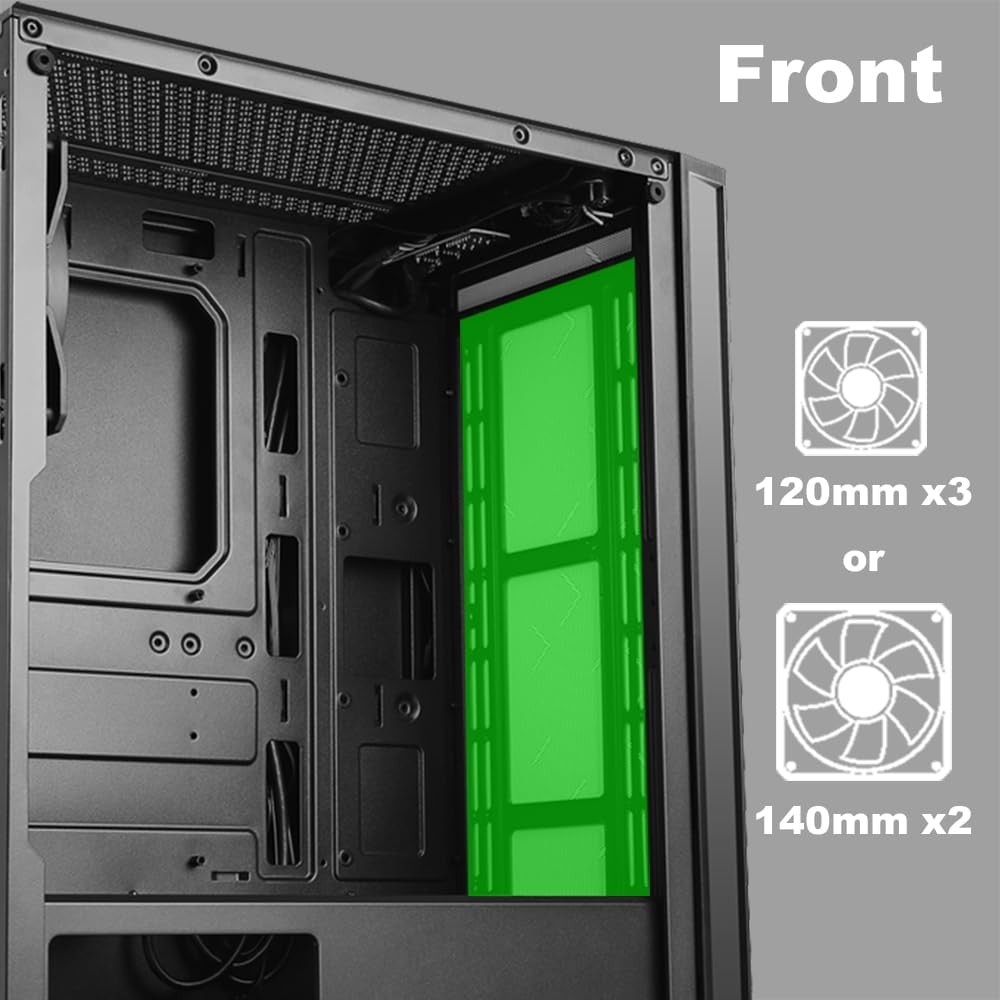
Зображення 2.5: Внутрішній view of the front panel, highlighting the mounting locations for up to three 120mm fans or two 140mm fans.

Зображення 2.6: Внутрішній view of the top panel, showing the mounting locations for up to two 120mm fans.

Зображення 2.7: Внутрішній view of the rear panel, indicating the mounting location for one 120mm fan.
- Identify the desired fan mounting locations (front, top, rear).
- Secure fans to the case using appropriate fan screws.
- Connect fan power cables to the motherboard or a fan controller.
2.5 Встановлення блоку живлення
The power supply unit (PSU) mounts at the bottom of the case.
- Slide the PSU into the designated compartment at the bottom rear of the case.
- Закріпіть блок живлення до корпусу за допомогою гвинтів ззаду.
- Route power cables through the cable management cutouts to reach your components.
3. Інструкція з експлуатації
3.1 Увімкнення/вимкнення живлення
To power on your system, press the power button located on the top I/O panel. To power off, either shut down through your operating system or press and hold the power button for several seconds.
3.2 LED керування
Use the dedicated LED button on the top I/O panel to cycle through various lighting modes and colors for the integrated RGB elements of the case.
4. Технічне обслуговування
Регулярне технічне обслуговування допомагає забезпечити оптимальну продуктивність та довговічність компонентів вашого ПК.
- Очищення від пилу: Періодично очищуйте пилові фільтри та внутрішні компоненти за допомогою стисненого повітря. Перед очищенням переконайтеся, що система вимкнена та відключена від мережі.
- Управління кабелем: Ensure cables are neatly routed to prevent obstruction of airflow and to maintain a clean interior.
- Panel Care: Clean the tempered glass panel with a soft, lint-free cloth and a mild glass cleaner. Avoid abrasive materials.
5. Вирішення проблем
У цьому розділі розглядаються поширені проблеми, з якими ви можете зіткнутися.
- Система не вмикається:
- Перевірте, чи всі кабелі живлення (24-контактний ATX, 8-контактний живлення процесора, живлення графічного процесора) надійно підключені до материнської плати та компонентів.
- Переконайтеся, що вимикач живлення знаходиться в положенні «УВІМК.».
- Перевірте, чи кабель кнопки живлення на передній панелі правильно підключений до роз'єму на передній панелі материнської плати.
- Fans Not Spinning / LEDs Not Lighting Up:
- Confirm fan power cables are properly connected to the motherboard or fan controller.
- Ensure LED cables are correctly connected to the motherboard's RGB header or the case's LED controller.
- Press the LED button on the top I/O panel to cycle through modes or turn on the lighting.
- USB-порти не працюють:
- Check that the USB 2.0 and USB 3.0 headers from the front panel are correctly plugged into the corresponding ports on your motherboard.
- Аудіороз'єми не працюють:
- Ensure the HD Audio cable from the front panel is securely connected to the HD Audio header on your motherboard.
6. Технічні характеристики
Detailed technical specifications for the AZZA CSAZ-280B Spectra Black case.
| Особливість | Специфікація |
|---|---|
| Назва моделі | CSAZ-280B SPECTRA BLACK |
| Тип корпусу | Середній вежі |
| Сумісність материнської плати | ATX, Micro-ATX, ITX |
| матеріал | Пластик, Загартоване скло |
| Колір | чорний |
| Розміри (Д x Ш x В) | 19.69 x 17.32 x 9.84 дюймів |
| Вага товару | 11 фунта |
| Відсіки для накопичувачів 2.5 дюйма | До 3 |
| Відсіки для накопичувачів 3.5 дюйма | До 2 |
| Максимальна висота процесорного кулера | 170 мм |
| Максимальна довжина відеокарти | 290 мм |
| Передні порти вводу-виводу | 2 x USB 2.0, 1 x USB 3.0, Audio, Mic, Power, LED Control |
| Підтримка переднього вентилятора | 3 х 120 мм або 2 х 140 мм |
| Підтримка найкращих фанатів | 2 х 120 мм |
| Підтримка заднього вентилятора | 1 х 120 мм |
| Монтаж джерела живлення | Нижнє кріплення |
7. Гарантія та підтримка
7.1 Політика повернення
Цей товар підлягає 30-денній політиці повернення для відшкодування коштів або заміни, згідно з умовами продавця.
7.2 Технічна підтримка
For technical assistance or inquiries regarding your AZZA product, please visit the official AZZA website or contact their customer support channels. You can find more information and contact details by visiting the Магазин AZZA на Amazon.


