вступ
This manual provides essential information for setting up, operating, maintaining, and troubleshooting your Acer Veriton X4680G Desktop Computer. Please read this document thoroughly before using the product to ensure proper function and longevity. Keep this manual for future reference.
Вміст упаковки
Перевірте наявність усіх елементів в упаковці:
- Acer Veriton X4680G Desktop PC
- USB клавіатура
- USB миша
- Шнур живлення
- Документація (Короткий посібник, Гарантійний талон)
Продукт закінченийview
Familiarize yourself with the physical components of your desktop computer.
Фронт View
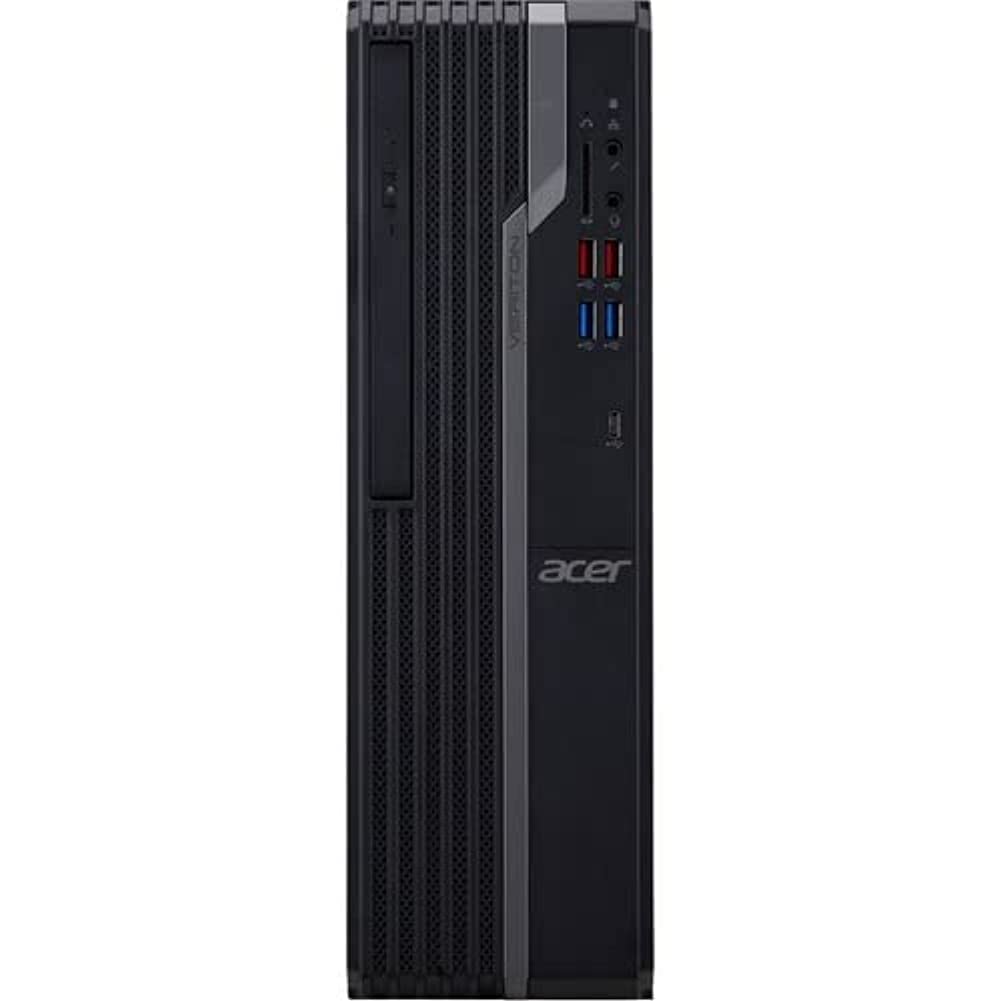
This image displays the front of the Acer Veriton X4680G desktop computer, highlighting the optical drive, front USB ports (including USB 3.2 and USB 2.0), audio jacks, and the power button. The 'Veriton' branding and Acer logo are visible on the chassis.
Задня View

This image shows the rear panel of the Acer Veriton X4680G, detailing the various input/output ports. These include multiple USB ports, Ethernet port, audio jacks, video output ports (VGA, DisplayPort), and the power input connector. Expansion slots are also visible.
Налаштування
Follow these steps to set up your new desktop computer.
1. Підключення периферійних пристроїв
- Монітор: Connect your monitor to one of the video output ports (VGA or DisplayPort) on the rear of the computer using the appropriate cable.
- Клавіатура та миша: Підключіть USB-клавіатуру та мишу до будь-яких доступних USB-портів на передній або задній панелі комп’ютера.
- Мережа: For a wired internet connection, connect an Ethernet cable from your router or modem to the Ethernet port on the rear of the computer. For wireless, ensure your system has Wi-Fi enabled.
- Аудіо: Connect speakers or headphones to the audio output jack on the front or rear panel.
2. Підключення живлення
- Connect the power cord to the power input on the rear of the computer.
- Підключіть інший кінець шнура живлення до заземленої електричної розетки.
3. Початкове увімкнення
- Press the power button located on the front panel of the computer.
- The computer will boot up, and the Windows 10 Pro operating system will load. Follow any on-screen instructions for initial setup, such as language selection and user account creation.
Інструкція з експлуатації
Guidance for basic operation of your Acer Veriton X4680G.
Windows 10 Pro
Your computer comes pre-installed with Windows 10 Pro. This operating system provides a familiar interface for managing files, running applications, and browsing the internet. Utilize the Start Menu for quick access to programs and settings.
Using the Optical Drive (DVD-Writer)
The integrated DVD-Writer allows you to read and write CDs and DVDs.
- To open the tray, press the eject button on the drive face.
- Помістіть диск у лоток етикеткою догори.
- Gently push the tray back into the computer until it clicks shut.
- The operating system will typically prompt you for action or automatically play media.
USB порти
The computer features multiple USB 2.0 and USB 3.2 ports for connecting external devices such as external hard drives, printers, and other peripherals. USB 3.2 ports offer faster data transfer speeds.
Технічне обслуговування
Regular maintenance helps ensure optimal performance and extends the lifespan of your computer.
прибирання
- Зовні: Використовуйте м'який, damp cloth to wipe the exterior surfaces. Avoid harsh chemicals.
- Віддушини: Periodically use compressed air to clear dust from the ventilation grilles to prevent overheating.
- екран: For monitors, use a specialized screen cleaner and a microfiber cloth.
Оновлення програмного забезпечення
Оновлюйте операційну систему та драйвери, щоб забезпечити безпеку та продуктивність.
- Оновлення Windows: Regularly check for and install Windows updates via the Settings app.
- Оновлення драйверів: Visit the Acer support webсайт для отримання найновіших драйверів для вашої конкретної моделі.
Резервне копіювання даних
Регулярно створюйте резервні копії важливих даних fileна зовнішній диск або хмарне сховище, щоб запобігти втраті даних.
Усунення несправностей
У цьому розділі розглядаються поширені проблеми, з якими ви можете зіткнутися.
Немає живлення
- Переконайтеся, що шнур живлення надійно підключено як до комп’ютера, так і до електричної розетки.
- Перевірте справність електричної розетки, підключивши інший пристрій.
- Check the power supply unit (PSU) switch on the rear of the computer, if present, to ensure it is in the 'On' position.
Немає зображення на моніторі
- Переконайтеся, що кабель живлення монітора підключено, а монітор увімкнено.
- Check that the video cable (VGA or DisplayPort) is securely connected to both the computer and the monitor.
- Ensure the monitor's input source is set correctly (e.g., VGA, DisplayPort).
Уповільнення системи
- Закрийте непотрібні програми, що працюють у фоновому режимі.
- Check disk space; a full drive can impact performance.
- Запустіть перевірку на віруси, щоб перевірити наявність шкідливого програмного забезпечення.
- Переконайтеся, що Windows та драйвери оновлені.
Технічні характеристики
Detailed technical specifications for the Acer Veriton X4680G Desktop Computer.
| Особливість | Специфікація |
|---|---|
| Процесор | Intel Core i7-11700 Octa-core (8 Core) 2.50 GHz |
| ОЗУ | 8 ГБ DDR4 SDRAM |
| Зберігання | 256 GB PCI Express SSD |
| Операційна система | Windows 10 Pro |
| Графічна карта | Графіка Intel Iris Xe |
| Оптичний привід | DVD-Writer |
| Бездротове підключення | 802.11ax, Bluetooth |
| Порти USB 2.0 | 4 |
| Розміри (ДxШxВ) | 16.34 x 19.49 x 6.69 дюймів |
| Вага товару | 14.52 фунта |
| Колір | чорний |
Гарантія та підтримка
Your Acer Veriton X4680G Desktop Computer is covered by a limited warranty. Please refer to the warranty card included in your package for specific terms and conditions, including warranty period and coverage details.
For technical support, driver downloads, or further assistance, please visit the official Acer support website or contact Acer customer service. Have your product model number (DT.VWEAA.003) and serial number ready when seeking support.
Примітка: Гарантійні умови можуть відрізнятися залежно від регіону.


