вступ
The eero Pro 6E system provides a whole-home mesh Wi-Fi 6E network, designed to deliver fast, reliable internet connectivity across your entire space. This system utilizes the new 6 GHz band for compatible devices, offering lower latency and increased bandwidth. This manual will guide you through the setup, operation, maintenance, and troubleshooting of your eero Pro 6E system.

This image displays the eero Pro 6E system, consisting of three white, square-shaped Wi-Fi units, alongside a $100 Amazon.com Gift Card. The eero logo is visible on each unit.
Налаштування
Setting up your eero Pro 6E system is a straightforward process using the eero mobile application.
1. Підготовка до встановлення
- Завантажте додаток eero: шукати "eero" in your device's app store (iOS or Android) and download the application.
- Unpack Your eero Devices: Remove all eero units, power adapters, and the Ethernet cable from the packaging.
- Locate Your Modem: Ensure your existing internet modem is powered on and connected to your internet service.
2. Connect the First eero
- Disconnect Old Router: If you have an existing Wi-Fi router, disconnect it from your modem.
- Connect eero to Modem: Connect one of your eero Pro 6E units to your internet modem using the provided Ethernet cable. Plug one end into any Ethernet port on your modem and the other end into either Ethernet port on the eero unit.
- Power On eero: Connect the eero unit to a power outlet using its power adapter. The LED indicator on the eero will turn white.
- Open eero App: Launch the eero app on your smartphone and follow the on-screen instructions to create an account and set up your first eero.
3. Add Additional eero Units
- Розміщення: Place your additional eero units in central locations within your home, ensuring they are within range of another eero unit. Avoid placing them in enclosed spaces or near large metal objects.
- Увімкнення: Plug each additional eero unit into a power outlet. The LED indicator will turn white.
- Add in App: In the eero app, tap the '+' icon or navigate to 'Add an eero device' and follow the prompts to add each unit to your network. The app will confirm when each eero is successfully added.

A hand holds a smartphone showing the eero app's setup interface, indicating successful connection. An eero Pro 6E unit is visible on a wooden surface next to the phone, illustrating the ease of installation.
Operating Your eero Network
Once your eero network is set up, the eero app becomes your primary tool for managing and monitoring your Wi-Fi.
eero App Features
- Перехід мережіview: View connected devices, network speed, and the status of each eero unit.
- Гостьовий доступ: Create a separate Wi-Fi network for guests, providing secure access without sharing your main network password.
- Батьківський контроль: Manage internet access for specific devices or profiles, including scheduling and content filtering (requires eero Secure subscription).
- Пріоритетність пристрою: Prioritize bandwidth for specific devices to ensure optimal performance for critical tasks like gaming or video conferencing.
- Розумний домашній центр: The eero Pro 6E acts as a smart home hub, allowing you to control compatible Thread and Zigbee devices with Alexa. It also functions as a border router for Thread-enabled devices.
eero TrueMesh Technology
eero's patented TrueMesh technology intelligently routes network traffic to reduce drop-offs and eliminate dead spots. This ensures a consistent and strong Wi-Fi signal throughout your home, even as you move between rooms.

A family is shown in a modern living room, with a father and child using a laptop, another child playing on a tablet, and a television displaying content. This illustrates the eero Pro 6E system's capability to support multiple devices simultaneously for activities like streaming and browsing.
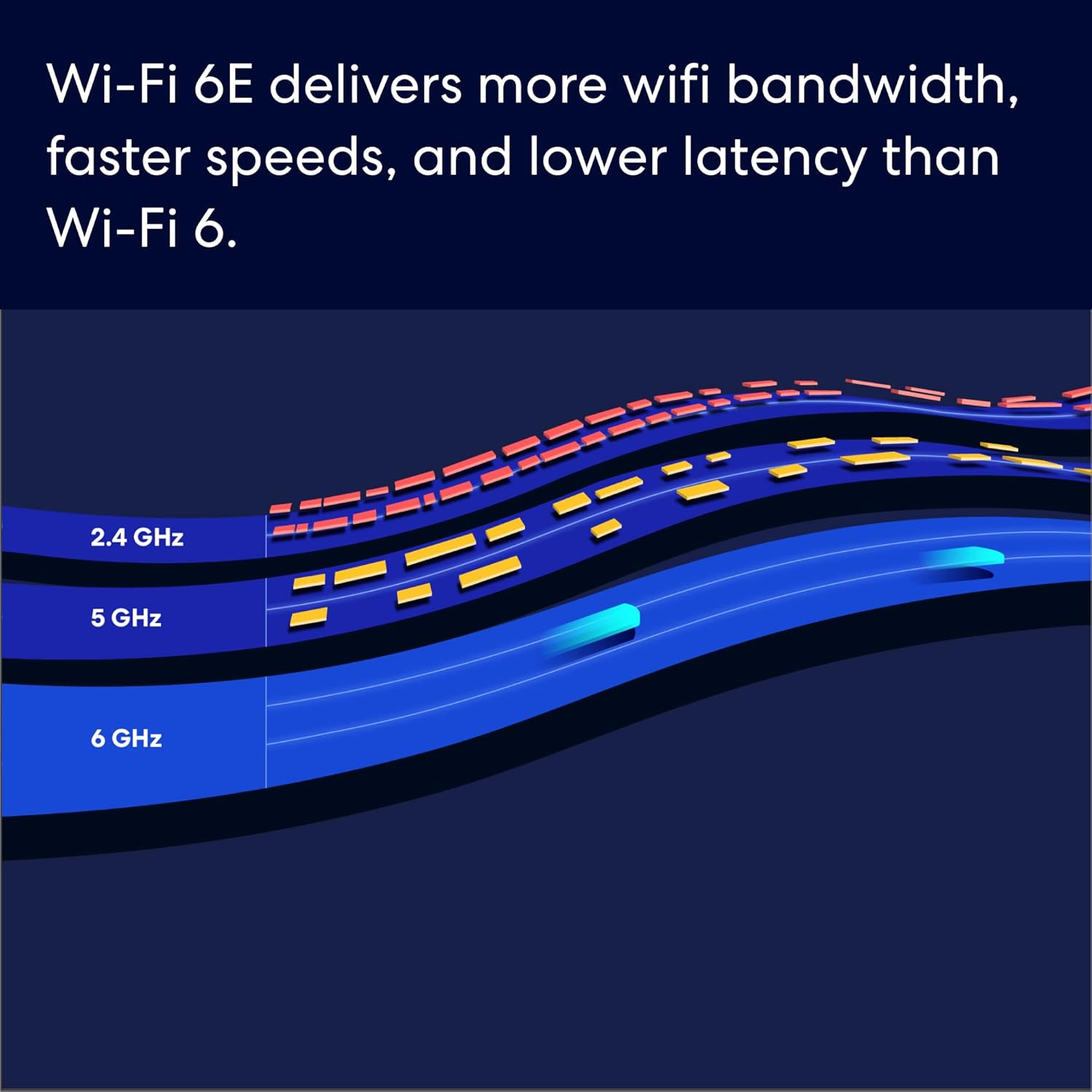
This graphic depicts the different Wi-Fi frequency bands (2.4 GHz, 5 GHz, and 6 GHz) as lanes on a highway, with the 6 GHz band offering significantly more bandwidth and less congestion, highlighting the benefits of Wi-Fi 6E technology.
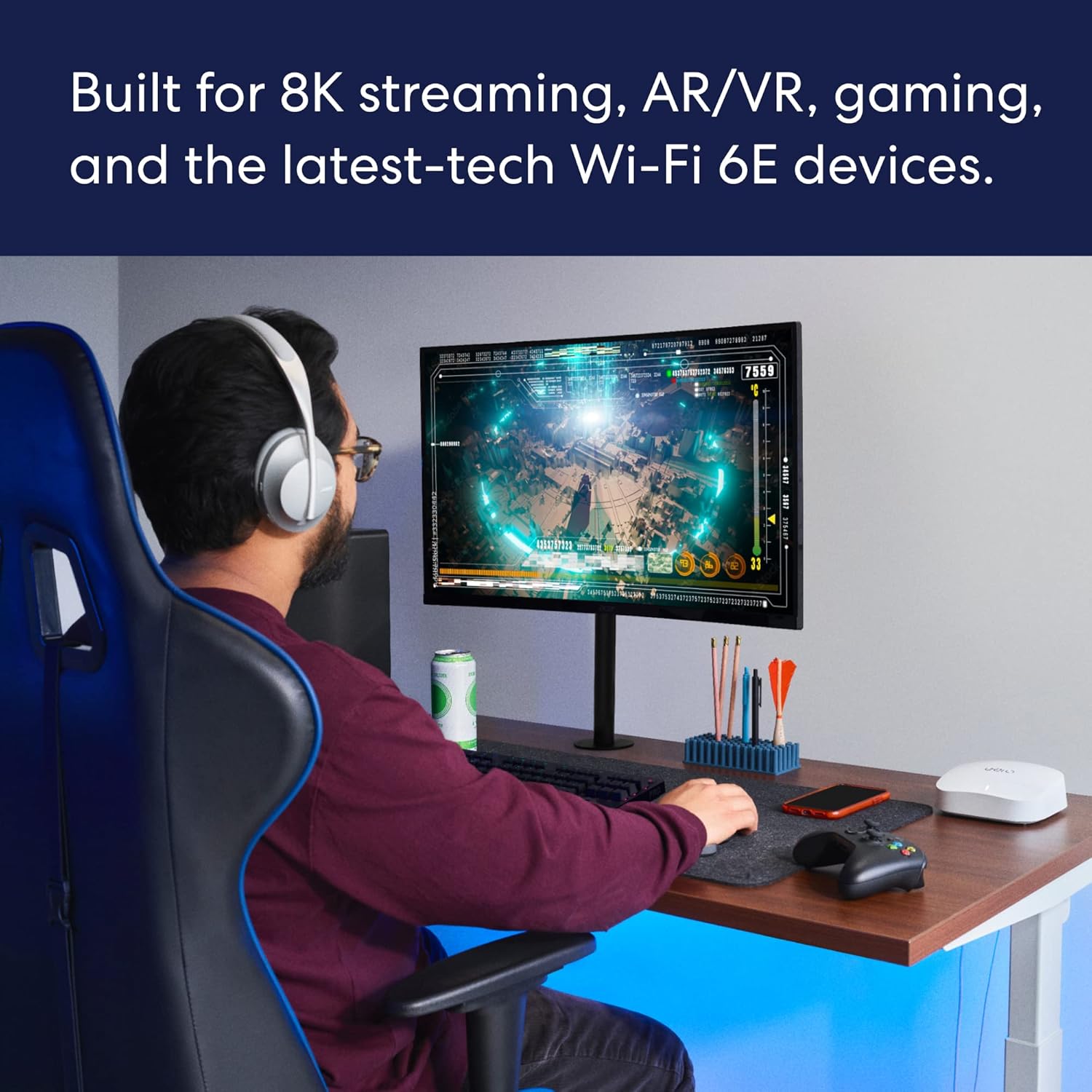
A person is engrossed in a video game on a large monitor, wearing headphones, with an eero Pro 6E unit visible on the desk. This image emphasizes the system's suitability for demanding applications like 8K streaming, AR/VR, and gaming due to its low latency and high speeds.

An architectural diagram of a multi-story house illustrates how multiple eero units provide seamless Wi-Fi coverage across different rooms and floors, eliminating dead spots and supporting over 100 connected devices within a 6,000 sq ft area.
Технічне обслуговування
Maintaining your eero Pro 6E system ensures optimal performance and longevity.
- Автоматичні оновлення: eero devices receive automatic software updates to enhance security, improve performance, and add new features. Ensure your eero units remain powered on and connected to the internet for these updates to occur.
- Прибирання: Gently wipe the exterior of your eero units with a soft, dry cloth. Avoid using liquid cleaners or abrasive materials. Ensure ventilation ports are clear of dust.
- Оптимальне розміщення: Періодично переview the placement of your eero units. Ensure they are not obstructed by large objects, placed in enclosed cabinets, or near other electronics that could cause interference.
Усунення несправностей
If you encounter issues with your eero network, try the following troubleshooting steps.
Поширені проблеми та рішення
- Немає підключення до Інтернету:
- Check if your modem is working correctly. Power cycle your modem by unplugging it for 30 seconds and then plugging it back in.
- Ensure the Ethernet cable between your modem and the primary eero is securely connected.
- Restart your primary eero unit by unplugging its power adapter for 10 seconds and plugging it back in.
- Повільні швидкості:
- Run a speed test using the eero app to verify your internet speed.
- Check the placement of your eero units. Ensure they are not too far apart or obstructed.
- Temporarily disable any VPNs or security software on your device to see if they are affecting speed.
- Пристрій не підключається:
- Ensure the device is within range of an eero unit.
- Перезавантажте проблемний пристрій.
- Перевірте, чи використовуєте ви правильний пароль Wi-Fi.
Resetting Your eero
If troubleshooting steps do not resolve the issue, you may need to reset an eero unit or your entire network. Consult the eero app or support resources for specific instructions on soft and hard resets, as these procedures can vary.
Технічні характеристики
- Стандарт Wi-Fi: Wi-Fi 6E (802.11ax)
- Частотні діапазони: 2.4 ГГц, 5 ГГц, 6 ГГц
- Maximum Network Speed: Up to 2.3 Gbps (combined wired and wireless)
- Дротове підключення: Each eero unit features two Ethernet ports (one 2.5 Gigabit, one 1 Gigabit)
- Покриття: Up to 6,000 sq ft (with 3-pack)
- Підключені пристрої: Підтримує понад 100 пристроїв
- Розумний домашній центр: Built-in Thread and Zigbee support, works with Alexa
- Безпека: WPA3, automatic security updates
Підтримка та гарантія
Підтримка клієнтів
For further assistance, eero offers world-class customer support. You can reach them via:
- телефон: +1-877-659-2347 (US)
- Електронна пошта: support@eero.com
Additional resources and FAQs can be found on the official eero webсайт.
Гарантія на товар
Your eero Pro 6E system is covered by a limited warranty. Please refer to the warranty documentation included with your product or visit the eero webсайт для отримання детальних умов щодо покриття, тривалості та процедур подання претензій.


