Продукт закінченийview
The Intel NUC 11 Extreme Kit (NUC11BTMi9) is a high-performance barebone mini PC designed for gaming and demanding applications. It offers uncompromised performance within a compact form factor, allowing users to customize it with their preferred RAM, storage, and operating system.

Рисунок 1: Передній кут view of the Intel NUC 11 Extreme Kit, showcasing its compact design and the illuminated skull logo.
Вміст упаковки
Перш ніж продовжувати налаштування, перевірте наявність усіх елементів у комплекті:
- Intel NUC 11 Extreme Kit (NUC11BTMi9) Barebone System
- Шнур живлення США
- Документація (Короткий посібник, Інформація з безпеки)
Note: Additional components such as RAM, storage drives, and operating system are sold separately and are required for full system functionality.
Посібник із налаштування
This section outlines the steps required to set up your Intel NUC 11 Extreme Kit. As a barebone system, it requires the installation of memory (RAM) and storage (SSD) before initial use.
1. Встановлення пам'яті (ОЗП)
- Unscrew and remove the top cover of the NUC chassis.
- Locate the DDR4 SO-DIMM slots on the motherboard.
- Align the notch on the SO-DIMM module with the notch in the slot.
- Insert the module at a 45-degree angle and press down firmly until the retaining clips snap into place.
- Repeat for additional memory modules if applicable.
2. Installing Storage (SSD)
The NUC 11 Extreme Kit supports M.2 NVMe SSDs.
- Знайдіть слоти M.2 на материнській платі.
- Вставте твердотільний накопичувач M.2 у слот під кутом.
- Обережно натисніть на SSD-диск і закріпіть його за допомогою наданого гвинта.
- The system also supports Serial ATA/600 interface for additional storage options.
3. Підключення периферійних пристроїв
Connect your monitor, keyboard, mouse, and other peripherals to the appropriate ports. The system features 12 USB ports for extensive connectivity.
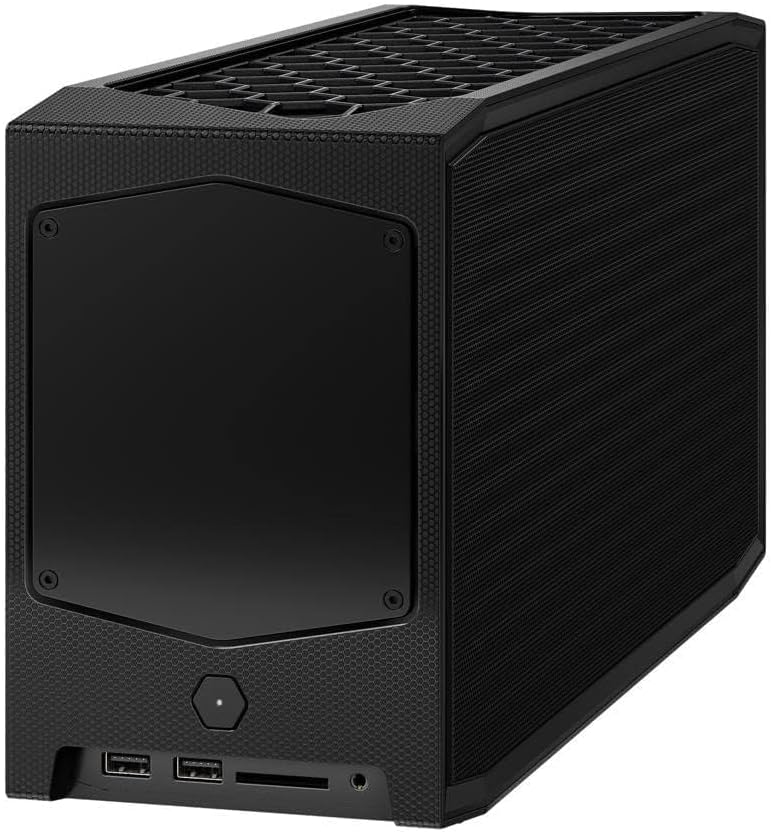
Малюнок 2: Задня частина view of the Intel NUC 11 Extreme Kit, highlighting the array of input/output ports for connecting external devices.
- Дисплей: Connect your monitor using HDMI or DisplayPort.
- USB пристрої: Use the available USB ports for keyboard, mouse, external drives, etc.
- Мережа: Connect an Ethernet cable for wired network access, or use the integrated Wi-Fi.
- Аудіо: Підключіть динаміки або навушники до аудіороз'ємів.
4. Підключення живлення
Connect the provided power cord to the NUC and then to a power outlet.
5. Встановлення операційної системи
Once RAM and storage are installed, you will need to install an operating system (e.g., Windows 10, Linux) from a bootable USB drive or disc.
Інструкція з експлуатації
This section provides basic instructions for operating your Intel NUC 11 Extreme Kit.
Увімкнення/вимкнення
- Увімкнення: Натисніть кнопку живлення, розташовану на передній панелі пристрою. Індикатор живлення засвітиться.
- Вимкнення живлення:
- Стандартне вимкнення: Використовуйте функцію завершення роботи операційної системи.
- Примусове вимкнення: Press and hold the power button for 5-10 seconds until the unit powers off. Use this only as a last resort.
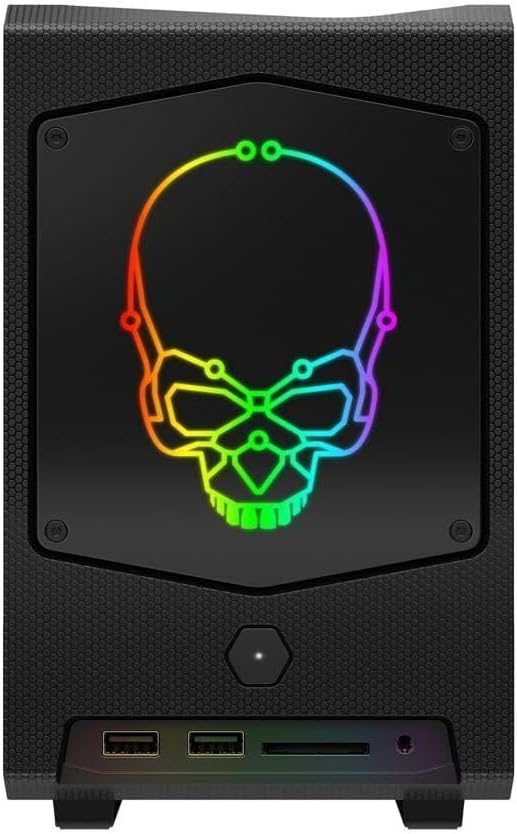
Малюнок 3: Спереду view of the Intel NUC 11 Extreme Kit, showing the power button and front panel connectivity options.
Підключення USB-пристроїв
The NUC 11 Extreme Kit offers numerous USB ports (up to 12) for connecting various peripherals. Devices can be connected or disconnected without needing to shut down the system.
Доступ до BIOS/UEFI
To access the BIOS/UEFI settings, power on the system and repeatedly press the F2 key during startup. This allows configuration of boot order, system settings, and hardware diagnostics.
Технічне обслуговування
Proper maintenance ensures the longevity and optimal performance of your Intel NUC 11 Extreme Kit.
- Прибирання: Regularly clean the exterior with a soft, dry cloth. Use compressed air to clear dust from vents and fan areas to ensure proper airflow and prevent overheating. Ensure the system is powered off and unplugged before cleaning.
- Оновлення програмного забезпечення: Keep your operating system, drivers, and BIOS/UEFI firmware updated to the latest versions. Visit the official Intel support website for driver downloads specific to the NUC11BTMi9 model.
- Вентиляція: Ensure the NUC is placed in a well-ventilated area, away from direct sunlight or heat sources. Do not block the ventilation openings.
- Резервне копіювання даних: Регулярно створюйте резервні копії важливих даних на зовнішній диск або хмарне сховище, щоб запобігти їх втраті.
Усунення несправностей
This section provides solutions to common issues you might encounter with your Intel NUC 11 Extreme Kit.
Немає живлення / Система не вмикається
- Ensure the power cord is securely connected to both the NUC and a working power outlet.
- Перевірте справність розетки, підключивши інший пристрій.
- Якщо ви використовуєте подовжувач або мережевий фільтр, переконайтеся, що він увімкнений.
Немає виводу дисплея
- Check that the monitor is powered on and the video cable (HDMI/DisplayPort) is securely connected to both the NUC and the monitor.
- Спробуйте інший відеокабель або монітор, якщо він є.
- Ensure RAM modules are properly seated in their slots. Reseat them if necessary.
Система зависає або аварійно завершує роботу
- Переконайтеся, що система має достатню вентиляцію та не перегрівається.
- Update your operating system and device drivers to the latest versions.
- Запустіть інструмент діагностики пам'яті, щоб перевірити наявність проблем з оперативною пам'яттю.
- Check the health of your storage drive.
Периферійний пристрій не виявлено
- Спробуйте підключити периферійний пристрій до іншого USB-порту.
- Переконайтеся, що драйвери периферійного пристрою встановлені та оновлені.
- Перезапустіть систему.
Технічні характеристики
Below are the key technical specifications for the Intel NUC 11 Extreme Kit (NUC11BTMi9).

Малюнок 4: Сторона view of the Intel NUC 11 Extreme Kit, illustrating its physical dimensions.
| Особливість | Специфікація |
|---|---|
| Номер моделі | NUC11BTMi9 |
| Процесор | Intel Core i9-11900KB Octa-core (8 Core) @ 3.3 GHz |
| Memory (RAM) Type | DDR4 SDRAM (Barebone - user installable) |
| Інтерфейс зберігання | M.2 (SSD), Serial ATA/600 |
| Графічний співпроцесор | Графіка Intel UHD |
| Розмір оперативної пам'яті відеокарти | 8 GB (Integrated) |
| Бездротове підключення | Bluetooth, WiFi |
| USB порти | 12 |
| Operating System (Pre-installed) | None (Supports Windows 10) |
| Вага товару | 5 фунта |
| Розміри упаковки | 21.1 x 15 x 13.6 дюймів |
| Колір | чорний |
| Перша доступна дата | 13 жовтня 2021 р |
Гарантія та підтримка
Intel provides a limited warranty for its NUC products. For detailed warranty information, technical support, driver downloads, and troubleshooting resources, please visit the official Intel support webсайт.
You can typically find support by searching for "Intel NUC support" or by visiting Intel's Official Support Page.
When contacting support, please have your product model number (NUC11BTMi9) and serial number ready.


