1. Вступ
This manual provides comprehensive instructions for setting up, operating, maintaining, and troubleshooting your Intel NUC 10 Performance NUC10i5FNKN Barebone System. The Intel NUC (Next Unit of Computing) is a small form factor PC kit designed for flexibility and customization. As a barebone system, it requires the user to install memory (RAM), storage (SSD/HDD), and an operating system to become fully functional.
Please read this manual carefully before beginning the installation process to ensure proper setup and operation.

малюнок 1: Intel NUC 10 Performance NUC10i5FNKN Barebone System. This image shows the compact design of the NUC, featuring a black chassis with various ports on the front and ventilation on the side.
2. Що в коробці
Перевірте наявність усіх елементів в упаковці:
- NUC 10 Performance kit - NUC10i5FNKN
- US Cord (Power Adapter)
Note: Memory, storage, and operating system are not included and must be purchased separately.
3. Налаштування та встановлення
This section guides you through the physical installation of components and initial setup.
3.1. Встановлення пам'яті (ОЗП)
- Unscrew the bottom cover of the NUC chassis.
- Locate the DDR4 SO-DIMM slots on the motherboard.
- Align the notch on the SO-DIMM module with the notch in the slot.
- Insert the module at a 45-degree angle and push down until the retaining clips snap into place.
- Repeat for additional memory modules if applicable.
3.2. Installing Storage (SSD/HDD)
The NUC10i5FNKN supports both M.2 SSDs and 2.5-inch SATA drives.
3.2.1. Встановлення твердотільного накопичувача M.2
- Знайдіть слот M.2 на материнській платі.
- Remove the small screw at the end of the M.2 slot.
- Вставте твердотільний накопичувач M.2 у слот під кутом.
- Обережно натисніть на SSD-диск і закріпіть його гвинтом.
3.2.2. 2.5-inch SATA Drive Installation
- Mount the 2.5-inch drive into the drive bay bracket (if provided).
- Connect the SATA data and power cables from the motherboard to the drive.
- Secure the drive bay bracket within the chassis.
After installing memory and storage, reattach the bottom cover.
3.3. Підключення периферійних пристроїв
Connect your monitor, keyboard, mouse, and other necessary devices to the NUC.

малюнок 2: Front panel ports of the Intel NUC 10. This image highlights the front USB 3.1 Gen2 ports (Type-A and Type-C) for connecting various peripherals, along with the power button and headphone jack.

малюнок 3: Rear panel ports of the Intel NUC 10. This image displays the power input (19V), HDMI port, Ethernet port, two USB 3.1 Gen2 Type-A ports, and a USB-C port with Thunderbolt 3 support, allowing for diverse connectivity options.
- Монітор: Connect your display to the HDMI port on the rear panel. The NUC supports up to 4096x2304 resolution.
- Клавіатура/миша: Connect to any available USB ports (front or rear).
- Мережа: Connect an Ethernet cable to the RJ45 port for wired network access.
- Потужність: Connect the power adapter to the 19V DC input on the rear panel, then plug the power cord into an electrical outlet.
3.4. Встановлення операційної системи
Once all hardware is installed and peripherals are connected, you will need to install an operating system (e.g., Windows 10, Linux). Refer to the operating system's installation guide for detailed steps. You may need to create a bootable USB drive for installation.
4. Інструкція з експлуатації
4.1. Увімкнення/вимкнення живлення
- Увімкнення: Press the power button located on the front panel. The power button will illuminate when the system is on.
- Вимкнення живлення: Use the operating system's shutdown procedure. Alternatively, press and hold the power button for 4 seconds to force a shutdown (use only when necessary).

малюнок 4: Close-up of the Intel NUC 10 front panel, showing the illuminated power button. This button is used to turn the system on and off.
4.2. Using the SD Card Slot
The NUC 10 Performance features an SDXC card slot with UHS-II support on the left side panel. This allows for easy transfer of photos, videos, and other data from compatible memory cards.
- Вставте SD-карту в гніздо, доки вона не зафіксується на місці.
- To eject, push the card in slightly until it springs out.
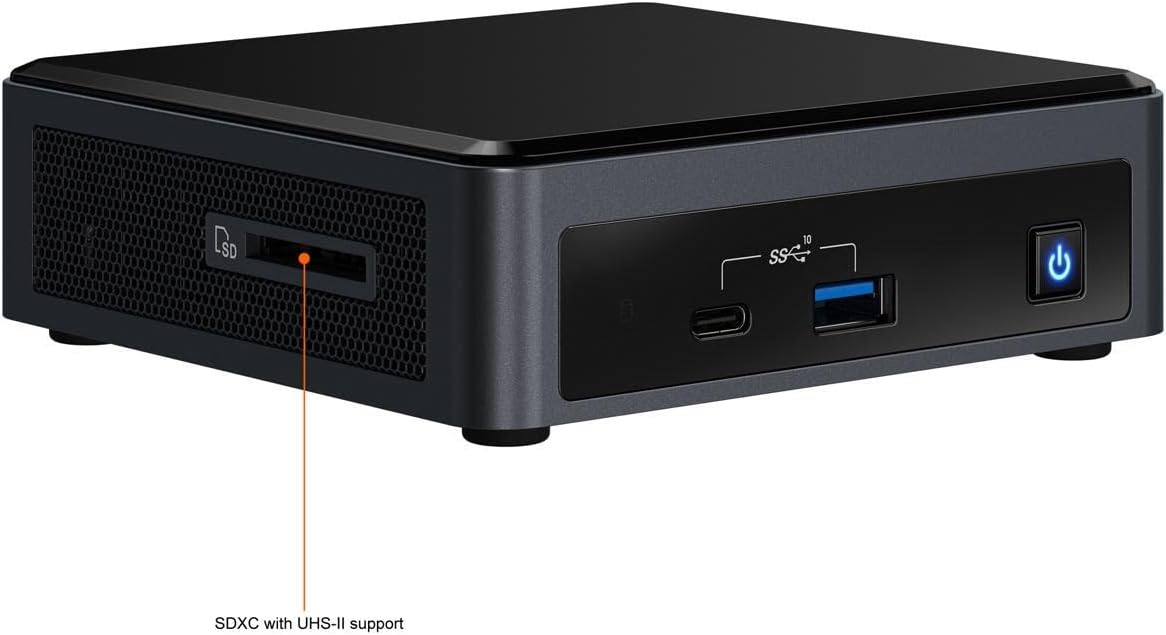
малюнок 5: сторона view of the Intel NUC 10, highlighting the SDXC card slot with UHS-II support. This slot provides convenient access for reading and writing data from SD cards.
4.3. Налаштування BIOS/UEFI
To access the BIOS/UEFI settings, press the F2 key repeatedly during startup. This allows configuration of boot order, system settings, and advanced features.
5. Технічне обслуговування
Proper maintenance ensures the longevity and optimal performance of your NUC.
5.1. прибирання
- Keep the NUC in a clean, dust-free environment.
- Періодично очищуйте зовнішню частину м’якою сухою тканиною.
- Use compressed air to gently clear dust from ventilation openings to maintain proper airflow and cooling. Ensure the system is powered off before cleaning.
5.2. Оновлення програмного забезпечення
- Regularly update your operating system, drivers, and BIOS/UEFI firmware. Visit the official Intel support website for the latest drivers and firmware for your NUC model.
- Keeping software up-to-date improves system stability, security, and performance.
6. Вирішення проблем
У цьому розділі розглядаються поширені проблеми, з якими ви можете зіткнутися.
6.1. Немає живлення
- Переконайтеся, що адаптер живлення надійно підключено як до NUC, так і до справної електричної розетки.
- Verify the power cord is fully inserted into the power adapter.
- Перевірте електричну розетку за допомогою іншого пристрою.
6.2. Немає виводу на дисплей
- Check that the monitor is powered on and the video cable (HDMI) is securely connected to both the NUC and the monitor.
- Переконайтеся, що монітор налаштовано на правильне джерело вхідного сигналу.
- If using multiple monitors, try connecting only one.
- Reseat the RAM modules to ensure they are properly installed.
6.3. Операційна система не завантажується
- Verify that the storage drive (SSD/HDD) is correctly installed and detected in the BIOS/UEFI settings.
- Check the boot order in BIOS/UEFI to ensure the correct drive is selected as the primary boot device.
- If you recently installed a new OS, ensure the installation media was created correctly.
Для отримання додаткової допомоги зверніться до служби підтримки Intel webсайту або зв’яжіться зі службою підтримки клієнтів.
7. Технічні характеристики
Key technical specifications for the Intel NUC 10 Performance NUC10i5FNKN:
| Особливість | Деталь |
|---|---|
| Номер моделі | NUC10i5FNKN |
| Процесор | Intel Core i5-10210U (10th Gen, 2.5 GHz) |
| Графіка | Графіка Intel UHD (інтегрована) |
| Максимальна роздільна здатність екрана | 4096x2304 |
| Тип оперативної пам'яті | DDR4 SDRAM (SO-DIMM slots) |
| Інтерфейс зберігання | SATA/600 (for 2.5" drives), M.2 (for SSDs) |
| USB порти | 7 (including USB 3.1 Gen2 Type-A and Type-C) |
| Ethernet | Гігабітний Ethernet |
| Розміри (ДxШxВ) | 6 x 5 x 4 дюймів |
| вага | 2.55 фунта |
| Operating System (Supported) | Windows 10 (та інші сумісні ОС) |
8. Гарантія та підтримка
8.1. Гарантія на продукт
This Intel NUC product is covered by Intel's standard limited warranty. For specific terms, conditions, and duration of your warranty, please refer to the warranty information included with your purchase or visit the official Intel webсайт. Зберігайте чек про покупку для гарантійних претензій.
8.2. Технічна підтримка
For technical assistance, driver downloads, firmware updates, and additional documentation, please visit the official Intel Support webсайт:
When contacting support, have your product model number (NUC10i5FNKN) and serial number ready.


