1. Вступ
This manual provides essential information for setting up, operating, maintaining, and troubleshooting your Lenovo IdeaPad 1 Laptop. Please read this guide thoroughly to ensure optimal performance and longevity of your device.
The Lenovo IdeaPad 1 is a versatile laptop designed for daily computing tasks, featuring a 15.6-inch Full HD display, an Intel Celeron N4500 processor, 8GB DDR4 RAM, and a 1TB PCIe SSD. It comes pre-installed with Windows 11 Professional.

Image 1.1: Lenovo IdeaPad 1 Laptop highlighting core specifications.
2. Посібник із налаштування
2.1 Розпакування та початковий огляд
Обережно вийміть ноутбук та всі аксесуари з упаковки. Перевірте наявність усіх компонентів:
- Ноутбук Lenovo IdeaPad 1
- Адаптер живлення та кабель
- Документація (цей посібник, гарантійна інформація)
Перевірте ноутбук на наявність будь-яких фізичних пошкоджень. Якщо виявлено будь-які пошкодження або відсутні компоненти, негайно зверніться до продавця або служби підтримки Lenovo.
2.2 Підключення до живлення
- Підключіть кабель живлення до адаптера живлення.
- Plug the power adapter into the power connector on the side of your laptop.
- Підключіть кабель живлення до заземленої електричної розетки.
Рекомендується повністю зарядити акумулятор перед першим використанням.
2.3 Перше завантаження та налаштування Windows 11
Open the laptop lid. The laptop features a Flip-to-Start function, which may power on the device automatically when the lid is opened. If not, press the power button located on the side or keyboard deck.

Image 2.1: The IdeaPad 1's design, emphasizing portability and the Flip-to-Start function.
Follow the on-screen instructions to complete the Windows 11 Professional setup. This includes selecting your region, keyboard layout, connecting to a Wi-Fi network, and creating a user account.
2.4 Підключення периферійних пристроїв
Your IdeaPad 1 laptop offers various ports for connecting external devices:
- Порти USB: Connect USB devices such as mice, keyboards, or external storage drives to the USB 2.0, USB 3.2 Gen 1, or USB-C 3.2 Gen 1 ports. Note that the USB-C port supports data transfer only.
- Порт HDMI: Use the HDMI 1.4b port to connect to an external monitor or TV.
- Кард-рідер: Вставте сумісні карти пам’яті для передачі даних.
- Комбінований роз'єм для навушників/мікрофона: Connect a headset with a 3.5mm jack for audio input and output.

Image 2.2: Connectivity options on the IdeaPad 1.
3. Інструкція з експлуатації
3.1 Увімкнення/вимкнення живлення та режим сну
- Увімкнення: Open the lid or press the power button.
- Вимкнути: Натисніть кнопку «Пуск» у Windows, потім виберіть «Живлення» > «Завершити роботу».
- Режим сну: Закрийте кришку або натисніть кнопку «Пуск», потім «Живлення» > «Сон».
3.2 Використання дисплея
The 15.6-inch Full HD (1920x1080) Anti-glare display provides clear visuals. Adjust brightness using the function keys (usually F5 and F6) or through Windows display settings.

Image 3.1: The IdeaPad 1's display quality for multimedia.
3.3 Клавіатура та сенсорна панель
The laptop features a full-size, non-backlit English keyboard. The integrated touchpad supports multi-touch gestures for navigation. Refer to Windows settings for customizing touchpad sensitivity and gestures.
3.4 Аудіо та зв'язок
The IdeaPad 1 includes Dolby Audio™ speakers for enhanced sound. For video calls, the integrated webcam and Smart Noise Cancelling feature help reduce background noise, improving communication clarity.
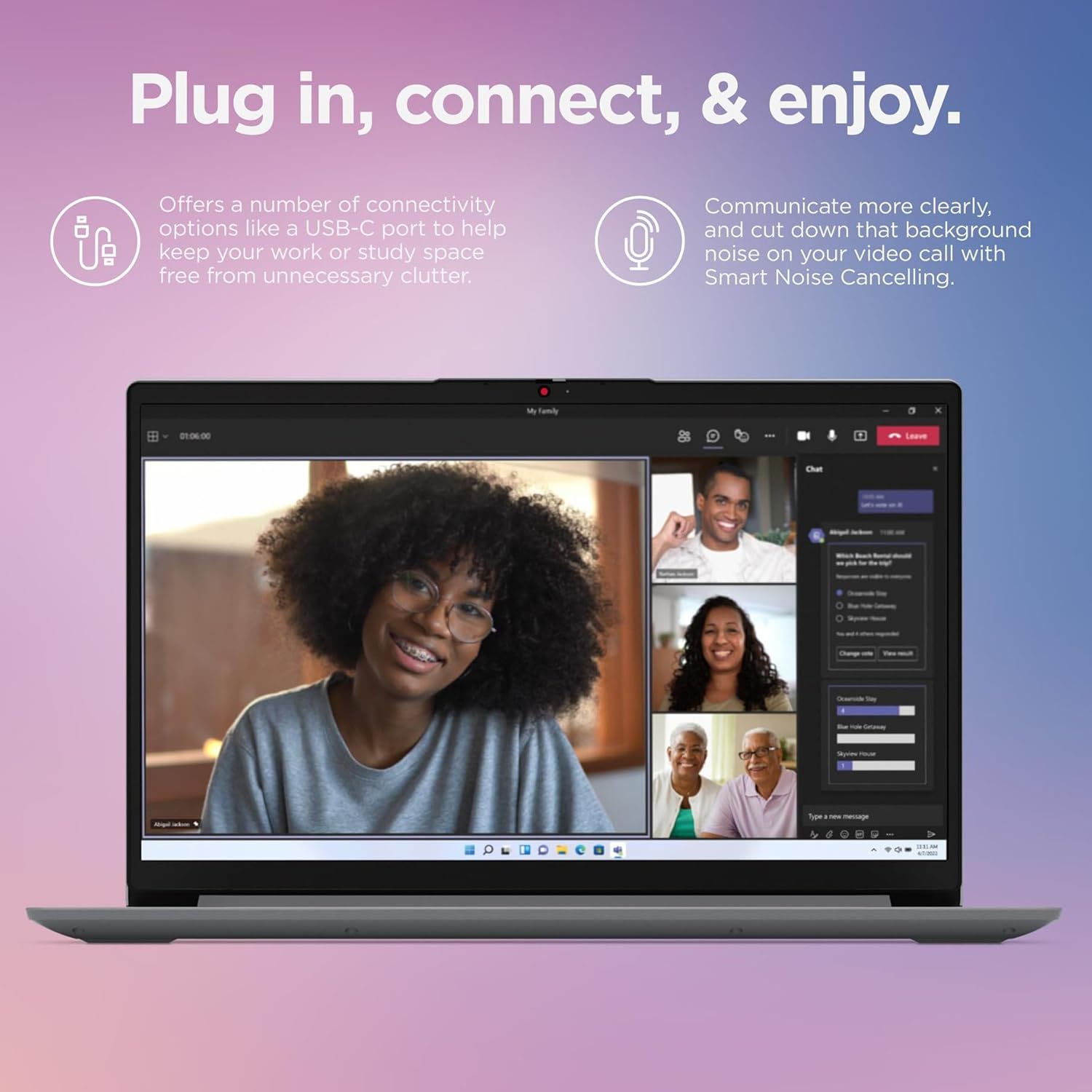
Image 3.2: The IdeaPad 1 in use for video conferencing.
3.5 Webcam Privacy Shutter
For enhanced privacy, your laptop is equipped with a physical privacy shutter for the 720p webcam. Slide the shutter to cover or uncover the camera lens as needed.
3.6 Rapid Charge Boost
The IdeaPad 1 supports Rapid Charge Boost, allowing you to quickly recharge your battery. This feature can provide up to 2 hours of battery life with just 15 minutes of charging.

Image 3.3: Features for productivity on the go, including rapid charging and webконфіденційність камери.
4. Технічне обслуговування
4.1 Очищення ноутбука
- екран: Злегка протріть м’якою тканиною без ворсу dampводою або засобом для чищення екранів. Не розпилюйте рідину безпосередньо на екран.
- Клавіатура та корпус: Використовуйте м’яку, суху тканину. Для стійкого бруду злегкаamp можна використовувати тканину, змочену м’яким мильним розчином, переконавшись, що рідина не потрапила в отвори.
- Порти: Використовуйте стиснене повітря, щоб обережно очистити порти від пилу.
Завжди вимикайте ноутбук та від’єднуйте його від мережі перед чищенням.
4.2 Догляд за акумулятором
- Уникайте екстремальних температур.
- Не розряджайте акумулятор часто повністю.
- Якщо ви зберігаєте ноутбук протягом тривалого часу, переконайтеся, що акумулятор заряджений приблизно на 50-60%.
4.3 Оновлення програмного забезпечення
Regularly check for and install Windows updates and Lenovo driver updates to ensure optimal performance, security, and compatibility.
4.4 Керування сховищем
Періодично переview та видаліть непотрібне files to maintain free space on your 1TB PCIe SSD. Utilize cloud storage or external drives for large files to optimize system performance.
5. Вирішення проблем
У цьому розділі розглядаються поширені проблеми, з якими ви можете зіткнутися під час використання ноутбука Lenovo IdeaPad 1.
5.1 Проблеми з живленням
- Ноутбук не вмикається: Ensure the power adapter is securely connected to both the laptop and a working electrical outlet. Try a different outlet. If the battery is completely drained, allow it to charge for at least 30 minutes before attempting to power on.
- Акумулятор не заряджається: Verify the power adapter and cable are not damaged. Check the power indicator light on the laptop.
5.2 Проблеми з дисплеєм
- Екран порожній: Ensure the laptop is powered on. Adjust screen brightness using function keys. If an external monitor is connected, try disconnecting it or switching display modes (Fn + F7, or similar key combination).
- Мерехтіння або спотворення зображення: Оновіть драйвери графіки. Якщо використовується зовнішній монітор, перевірте підключення кабелю.
5.3 Проблеми з підключенням
- Wi-Fi не підключається: Ensure Wi-Fi is enabled (check Windows settings or airplane mode). Restart your router and laptop. Update Wi-Fi drivers.
- Пристрій Bluetooth не підключається: Ensure Bluetooth is enabled on both devices. Make sure the device is in pairing mode and within range.
5.4 Проблеми з продуктивністю
- Ноутбук працює повільно: Close unnecessary applications. Check Task Manager for processes consuming high CPU or RAM. Ensure sufficient free space on the SSD. Run a malware scan.
- Зависання програм: Спробуйте перезапустити програму. Якщо система не реагує, виконайте примусове вимкнення, утримуючи кнопку живлення кілька секунд.
6. Технічні характеристики
Below are the technical specifications for the Lenovo IdeaPad 1 Laptop (Model B09CB87TZ1):
| Особливість | Деталь |
|---|---|
| Процесор | Intel Celeron N4500 (2 Cores, 4MB Cache, Up to 2.8GHz) |
| Дисплей | 15.6-inch Full HD (1920x1080) Anti-glare |
| Графіка | Інтегрована графіка Intel UHD |
| ОЗУ | 8 ГБ DDR4 |
| Зберігання | Твердотільний накопичувач PCIe ємністю 1 ТБ |
| Операційна система | Windows 11 Professional |
| Бездротове підключення | Wi-Fi 6 (11ax 2x2), Bluetooth 5.2 |
| Порти | 1x USB 2.0, 1x USB 3.2 Gen 1, 1x USB-C 3.2 Gen 1 (data transfer only), 1x HDMI 1.4b, Card reader, 1x Headphone/microphone combo jack (3.5mm), 1x Power connector |
| Клавіатура | Non-backlit, English |
| Webкулачок | 720p with Physical Privacy Shutter |
| Аудіо | Dolby Audio™ Speakers, Smart Noise Cancelling |
| Колір | Хмарно-сірий |
| Особливості | Flip-to-Start, Rapid Charge Boost |
7. Гарантія та підтримка
7.1 Гарантія на виріб
Your Lenovo IdeaPad 1 Laptop is covered by a standard manufacturer's warranty. For detailed information regarding warranty terms, duration, and coverage, please refer to the warranty card included with your product or visit the official Lenovo support webсайт.
7.2 Технічна підтримка
If you encounter issues that cannot be resolved using the troubleshooting steps in this manual, or require further assistance, please contact Lenovo technical support. You can find contact information and additional resources on the official Lenovo support webсайт:
Please have your laptop's serial number ready when contacting support, as this will help expedite the service process.


