StarTech.com 2 Port Dual Monitor HDMI KVM Switch
Model: SV231DHU34K6
1. Вступ
This instruction manual provides detailed information on the installation, operation, and maintenance of your StarTech.com 2 Port Dual Monitor HDMI KVM Switch. This device allows you to control two computers from a single set of peripherals, including two HDMI monitors, a keyboard, a mouse, and other USB devices, supporting resolutions up to 4K at 60Hz.
2. Інформація про безпеку
Будь ласка, прочитайте та зрозумійте всі інструкції перед використанням цього виробу. Недотримання цих інструкцій може призвести до ураження електричним струмом, пожежі або серйозних травм.
- Електричні небезпеки: Do not use damaged or frayed cables. Exposed wires can lead to electric shocks. Ensure all cables are properly connected and secured to prevent accidental disconnection.
- Накопичення тепла: Overloaded or tightly bundled cables can overheat and pose a fire hazard. Ensure adequate ventilation and avoid bundling power cables.
- Пошкодження: Завжди від’єднуйте адаптери, тримаючи за штекер, а не за кабель. Тягнучи за кабель, ви можете оголити дроти під напругою, що може призвести до ураження електричним струмом або опіків.
3. Продукт закінчивсяview
The StarTech.com SV231DHU34K6 KVM switch is designed to streamline your workspace by enabling control of two computers with dual 4K HDMI displays and shared USB peripherals. Its robust steel housing ensures durability.
3.1. Ключові характеристики
- Supports dual 4K (3840 x 2160) resolution at 60Hz per monitor.
- HDMI 2.0, HDCP 2.2, and HDR10 support.
- Integrated 2-port USB 3.0 Hub (5Gbps) for sharing peripherals.
- Four USB 2.0 HID ports for keyboard and mouse.
- Hotkey and front-panel push-button switching.
- EDID and HDCP signal emulation for fast, seamless switching.
- Supports stereo analog and 7.1 digital audio.
- OS Independent compatibility (Windows, Mac, Linux).
3.2. Передня панель

Малюнок 1: Макет передньої панелі
- HID USB Port: For connecting a keyboard or mouse.
- 5G USB Port: Для підключення високошвидкісних пристроїв USB 3.0.
- Computer Selection Buttons (1, 2): Press to switch to the corresponding computer.
- Кнопка ВИБІР: Used for various functions, including auto-scan activation.
3.3. Задня панель
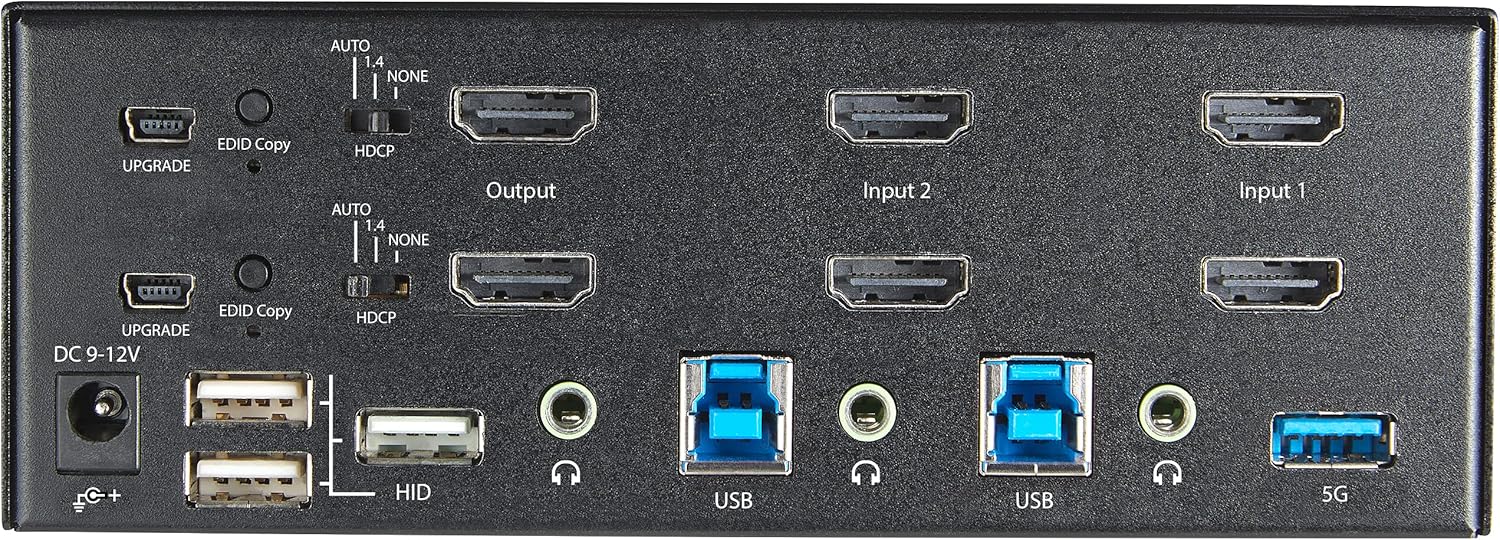
Малюнок 2: Розташування задньої панелі
- Вхідне живлення постійного струму 9-12 В: Підключіть адаптер живлення, що входить у комплект.
- Порт ОНОВЛЕННЯ: Для оновлень прошивки.
- EDID Copy Button/Switch: Manages Extended Display Identification Data.
- Перемикач HDCP: Manages High-bandwidth Digital Content Protection.
- Output (HDMI): Connect to your monitors.
- Input 1/Input 2 (HDMI): Connect to the HDMI outputs of your computers.
- USB (тип B): Connect to the USB 3.0 ports of your computers.
- HID USB Ports (Type-A): For additional keyboard/mouse connections or other low-power USB devices.
- Audio Jacks (3.5mm): For connecting speakers/headphones and microphones.
- 5G USB Port (Type-A): Для підключення високошвидкісних пристроїв USB 3.0.
4. Налаштування
4.1. Що в коробці
- 1 x KVM Switch (SV231DHU34K6)
- 1 x універсальний адаптер живлення (NA / JP, EU, UK, ANZ)
- 4 х гумові ноги
- 1 x Посібник із швидкого запуску
Note: HDMI cables, USB 3.0 Type-A to Type-B cables, and audio cables are not included and must be purchased separately.
4.2. Інструкції з підключення
Виконайте такі дії, щоб підключити KVM-перемикач:
- Підключення моніторів: Connect your two HDMI monitors to the 'Output' HDMI ports on the rear panel of the KVM switch.
- Підключення комп'ютерів (HDMI): Connect the HDMI outputs from Computer 1 to the 'Input 1' HDMI ports on the KVM switch. Repeat for Computer 2 and 'Input 2'. Ensure both HDMI outputs from each computer are connected for dual monitor support.
- Підключення комп'ютерів (USB): Connect the USB 3.0 Type-B ports on the KVM switch to the USB 3.0 Type-A ports on Computer 1 and Computer 2 using appropriate USB 3.0 cables. These connections enable keyboard, mouse, and USB hub functionality.
- Підключення периферійних пристроїв:
- Connect your keyboard and mouse to the 'HID' USB ports on the front or rear panel.
- Connect other USB devices (e.g., printer, scanner, webcam) to the '5G' USB 3.0 ports on the front or rear panel.
- Підключіть аудіо (додатково): If desired, connect your speakers/headphones and microphone to the 3.5mm audio jacks on the rear panel.
- Підключіть живлення: Connect the included universal power adapter to the 'DC 9-12V' power input on the rear panel, then plug it into a power outlet. The KVM switch will power on automatically.

Figure 3: KVM Switch with Ports for Connection
5. Керування KVM-перемикачем
5.1. Перемикання між комп'ютерами
You can switch between connected computers using either the front-panel push buttons or hotkey commands.
- Front-Panel Buttons: Press the '1' or '2' button on the front panel to directly switch to Computer 1 or Computer 2, respectively.
- Перемикання гарячих клавіш: Use keyboard hotkey combinations to switch computers. The default hotkey sequence is typically Scroll Lock, Scroll Lock, [1 or 2]. Refer to the Quick-Start Guide for a complete list of hotkey commands and customization options. A buzzer sound confirms the switch.
5.2. EDID and HDCP Emulation
The KVM switch includes EDID (Extended Display Identification Data) and HDCP (High-bandwidth Digital Content Protection) signal emulation. This feature ensures that your monitors remain synced and desktop settings are maintained when switching between computers, preventing display resolution changes or window rearrangement.
5.3. USB Hub Functionality
The integrated USB 3.0 hub allows you to share two USB 3.0 peripherals (connected to the 5G ports) and four USB 2.0 HID peripherals (connected to the HID ports) between the connected computers. Devices connected to these ports will function as if directly connected to the currently selected host computer.
5.4. Підтримка аудіо
The KVM switch supports both digital audio (via HDMI, 7.1 Channel Audio) and separate 3.5mm stereo analog audio (2 Channel Audio). Ensure your displays and sources support the desired audio format for full compatibility.
6. Технічне обслуговування
Щоб забезпечити довговічність та оптимальну роботу вашого KVM-перемикача, дотримуйтесь цих інструкцій з технічного обслуговування:
- Прибирання: Використовуйте м’яку суху тканину для очищення зовнішньої частини пристрою. Не використовуйте рідкі або аерозольні засоби для чищення.
- Вентиляція: Ensure the KVM switch is placed in a well-ventilated area. Do not block any ventilation openings.
- Управління кабелем: Keep cables organized and untangled to prevent damage and ensure proper airflow. Avoid excessive bending or crimping of cables.
- Зберігання: Якщо пристрій не використовується протягом тривалого часу, зберігайте його в прохолодному, сухому місці, подалі від прямих сонячних променів та екстремальних температур.
7. Вирішення проблем
Якщо у вас виникли проблеми з KVM-перемикачем, зверніться до наступних поширених проблем та рішень:
- Немає зображення або неправильна роздільна здатність:
- Ensure all HDMI cables are securely connected to both the KVM switch and your computers/monitors.
- Verify that your HDMI cables are rated for 4K 60Hz if you are using 4K displays. Longer cables (e.g., over 3m/10ft) may require higher quality or active cables.
- Check the display settings on your computers to ensure they are configured for the correct resolution and refresh rate.
- Try power cycling the KVM switch and monitors.
- Клавіатура/миша не реагує:
- Ensure the USB Type-B cables are securely connected from the KVM switch to your computers.
- Verify that your keyboard and mouse are connected to the designated HID USB ports.
- Спробуйте підключити клавіатуру/мишу безпосередньо до комп'ютера, щоб переконатися, що вони працюють.
- Some specialized keyboards/mice with advanced features may require direct connection or specific drivers.
- USB-пристрої не виявлено:
- Ensure the USB Type-B cables are connected from the KVM switch to your computers.
- Verify that the USB device is connected to the appropriate 5G USB 3.0 port.
- Some high-power USB devices may require an external power source or a powered USB hub connected to the KVM's 5G port.
- Проблеми зі звуком:
- Перевірте всі підключення аудіокабелю 3.5 мм.
- Verify audio output settings on your computers.
- Ensure your monitors or audio devices support the HDMI audio format being sent.
- Slow Switching Time:
- The KVM switch is designed for fast switching. If experiencing delays, ensure EDID and HDCP emulation are functioning correctly.
- Ensure all cables are of good quality and properly seated.
If the problem persists after attempting these solutions, please contact StarTech.com technical support.
8. Технічні характеристики
| Категорія | Специфікація |
|---|---|
| Номер моделі | SV231DHU34K6 |
| Порти KVM | 2 |
| Monitors Supported | 2 |
| Тип відео | HDMI 2.0 |
| Підтримувані дозволи | До 3840 x 2160 при 60 Гц |
| Підтримка HDCP | HDCP 2.2 |
| Підтримка HDR | HDR10 |
| USB-концентратор | 2-портовий USB 3.0 (5 Гбіт/с) |
| Порти USB HID | 4x USB 2.0 |
| Підтримка аудіо | HDMI (7.1 Channel), Analog Stereo (3.5mm) |
| Вибір порту | Push Button, Hotkeys |
| матеріал | сталь |
| Колір | чорний |
| Розміри продукту (Д x Ш x В) | 6.3 x 3.9 x 2.3 дюйми (16.0 x 10.0 x 5.8 см) |
| Вага продукту | 1.8 фунта (0.8 кг) |
| Джерело живлення | Адаптер змінного струму (в комплекті) |
| Вхідний об'ємtage | 100 - 240 AC |
| Споживана потужність | 36 Вт |
| Робоча температура | 0℃ до 40℃ (32℉ до 104℉) |
| Температура зберігання | -10℉ до 60℃ (14℉ до 140℉) |
| Вологість | Від 0% до 80% RH (без конденсації) |
9. Гарантія та підтримка
This StarTech.com KVM Switch (Model: SV231DHU34K6) is backed by a Гарантія 2 рік. StarTech.com also provides безкоштовна довічна технічна підтримкаЩоб отримати технічну допомогу або гарантійні претензії, відвідайте офіційний сайт StarTech.com. webабо зв’яжіться з їхньою командою підтримки клієнтів.
Для отримання додаткової інформації відвідайте: www.startech.com


