1. Вступ
This manual provides essential information for the safe and efficient operation of your GIGABYTE AORUS FO48U 48" 4K OLED Gaming Monitor. Please read this manual thoroughly before using the product and retain it for future reference. The AORUS FO48U is designed to deliver a high-performance visual experience with its 4K OLED display, fast refresh rate, and advanced features.
2. Інформація про безпеку
Дотримуйтесь наступних запобіжних заходів, щоб запобігти пошкодженню монітора та забезпечити безпеку користувача:
- Не піддавайте монітор впливу дощу або вологи, щоб уникнути небезпеки пожежі чи ураження електричним струмом.
- Не відкривайте монітор casing. Усередині немає деталей, які може обслуговувати користувач. Звертайтеся до кваліфікованого персоналу з будь-яким обслуговуванням.
- Розмістіть монітор на стійкій, рівній поверхні, щоб запобігти його падінню.
- Забезпечте належну вентиляцію навколо монітора. Не блокуйте вентиляційні отвори.
- Використовуйте лише адаптер живлення та кабелі, надані або зазначені виробником.
- Від’єднуйте монітор від розетки під час грози або якщо він не використовується протягом тривалого часу.
- Уникайте торкання екрана гострими предметами, щоб запобігти пошкодженню.
3. Вміст упаковки
Перевірте, чи всі перелічені нижче предмети входять до вашої упаковки:
- GIGABYTE AORUS FO48U 48" 4K OLED Gaming Monitor
- Силовий кабель
- Кабель HDMI 2.1
- Кабель DP 1.4
- USB 3.0 B to A cable
- Короткий посібник (QSG)
- Гарантійний талон
- AORUS Remote Control
4. Налаштування
4.1 Фізичне налаштування
The monitor can be set up using its included stand or a VESA-compatible wall mount.
Стенд в зборі:
Follow the instructions in the Quick Start Guide to securely attach the stand to the monitor base. Ensure all screws are tightened.
Настінне кріплення VESA:
The AORUS FO48U supports VESA wall mounts with a 300 x 300mm pattern. Remove the stand if already attached. Use appropriate screws and a VESA-compatible bracket (not included) to mount the monitor. Refer to your wall mount's instructions for specific installation steps.

Зображення: Задня частина view of the AORUS FO48U monitor, highlighting the VESA 300x300mm mounting points for wall installation.
4.2 З'єднувальні кабелі
Connect the necessary cables to the monitor's I/O ports. Ensure the monitor is powered off before connecting or disconnecting cables.

Зображення: Детальний бік view of the monitor's I/O ports, including USB 3.0, USB Upstream, USB Type-C (KVM), DisplayPort 1.4, HDMI 2.1, Headphone Jack, and Audio Line-Out.
- Підключення живлення: Підключіть кабель живлення до входу живлення монітора, а потім до розетки.
- Відео вхід: Connect your PC or gaming console using either the provided HDMI 2.1 cable or DisplayPort 1.4 cable. The monitor features two HDMI 2.1 ports and one DisplayPort 1.4.
- Підключення USB: Connect the USB 3.0 B to A cable from your PC to the monitor's USB Upstream port to enable the monitor's USB 3.0 ports and KVM functionality.
- USB Type-C (KVM): For KVM functionality, connect a USB Type-C cable (10Gbps Type-C cable required, not always included) from your device to the monitor's USB Type-C port. This allows control of multiple devices with a single keyboard and mouse connected to the monitor.
- Аудіовихід: Use the Headphone Jack or Audio Line-Out for external audio devices.
4.3 Початкове ввімкнення
After connecting all necessary cables, press the power button on the monitor to turn it on. The monitor will automatically detect the active input source. If no signal is detected, ensure your source device is powered on and correctly connected.
5. Інструкція з експлуатації
5.1 Навігація по екранному меню (OSD)
The monitor's settings can be adjusted using the OSD menu, typically accessed via a joystick or buttons on the monitor's rear or bottom edge, or with the included AORUS Remote Control.
- Use the joystick/buttons or remote to navigate through menu options.
- Press to select an option or enter a sub-menu.
- Move left/right or up/down to adjust values or select different settings.
- Press the back button or move the joystick in a specific direction (as indicated on-screen) to exit menus.
5.2 Основні характеристики
The AORUS FO48U offers several features for an enhanced viewдосвід гри та ігор:
- Роздільна здатність 4K UHD (3840x2160): Provides crisp, detailed visuals.
- Частота оновлення 120 Гц: Ensures smooth motion for gaming and fast-paced content.
- 1ms (GTG) Response Time: Мінімізує ореоли та розмиття руху.
- FreeSync Premium Support: Синхронізує частоту оновлення монітора з графічним процесором для гри без розривів.
- 10-bit Color / 98% DCI-P3 / 130% sRGB: Delivers accurate and vibrant color reproduction.

Image: Visual comparison demonstrating the difference between 1ms response time at 120Hz refresh rate and 5ms response time at 60Hz, illustrating smoother motion with higher specifications.
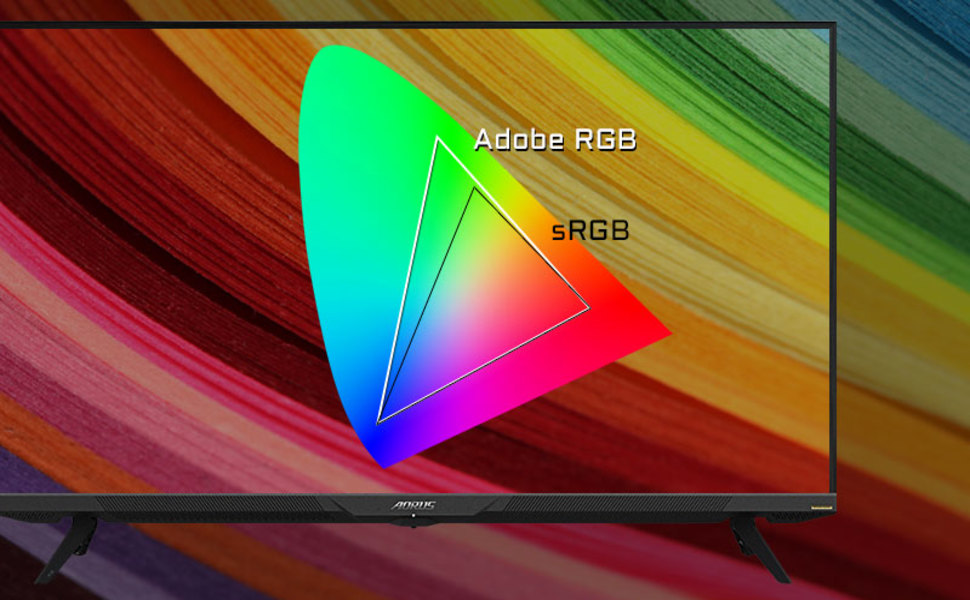
Image: A visual representation of color gamut, comparing Adobe RGB and sRGB color spaces, indicating the monitor's wide color coverage.
5.3 Особливості
The monitor includes several advanced features accessible via the OSD or OSD Sidekick software:
- OSD Sidekick: A software utility that allows you to control OSD settings directly from your desktop.
- Picture-in-Picture (PiP) / Picture-by-Picture (PbP): Display content from multiple sources simultaneously on the screen.
- Приладова панель: Real-time hardware information display (e.g., CPU/GPU temperature, fan speed).
- Чорний еквалайзер: Покращує видимість у темних зонах без надмірного експонування яскравих ділянок.
- Допомога в грі: Provides in-game enhancements like crosshairs, timers, and refresh rate counters.
- Space Audio: Offers 5 modes of audio experiences for immersive sound.
- KVM Feature: Allows you to control multiple devices (e.g., two PCs) connected to the monitor using a single keyboard and mouse. Connect devices via USB Type-C and USB 3.0 Upstream ports.

Image: A diagram showing how the Type-C KVM feature allows switching between a desktop PC and a laptop connected to the monitor using one keyboard and mouse.
6. Технічне обслуговування
6.1 Очищення монітора
To clean the monitor, first unplug the power cord. Use a soft, lint-free cloth lightly dampened with water or a mild, non-abrasive screen cleaner. Do not spray cleaner directly onto the screen. Avoid using alcohol, ammonia, or abrasive cleaners, as they can damage the screen surface.
6.2 Догляд за OLED-дисплеями та запобігання вигорянню
OLED displays are susceptible to image retention (burn-in) if static images are displayed for extended periods. To prolong the life of your OLED panel:
- Avoid displaying static images (e.g., desktop icons, taskbars, logos) for long durations.
- Utilize screen savers or dynamic wallpapers.
- Enable the monitor's built-in OLED care features (e.g., pixel shift, pixel refresh, logo luminance adjustment) through the OSD menu.
- Зменшуйте яскравість екрана, коли це не потрібно.
- Power off the monitor when not in use.
7. Вирішення проблем
Якщо у вас виникли проблеми з монітором, зверніться до наступних поширених проблем та способів їх вирішення:
| проблема | Можлива причина | Рішення |
|---|---|---|
| На екрані немає зображення | Power cable disconnected; Video cable disconnected or loose; Incorrect input source selected; Source device off. | Check power and video cable connections; Ensure source device is on; Select correct input source via OSD. |
| Зображення розмите або спотворене | Incorrect resolution; Video cable quality; Graphics card driver issues. | Set display resolution to 3840x2160; Use high-quality HDMI 2.1 or DP 1.4 cables; Update graphics drivers. |
| Screen randomly turns off/on | Loose video cable; Power supply issue; Monitor firmware issue; Source device instability. | Ensure video cables are securely connected; Try a different power outlet; Check for and install the latest monitor firmware updates from GIGABYTE's website; Test with a different source device. |
| Ні звуку | Volume too low or muted; Incorrect audio output selected; Audio cable disconnected. | Adjust monitor volume; Select correct audio output in PC settings; Ensure external speakers/headphones are connected. |
| KVM feature not working | Incorrect USB cable; USB Upstream cable not connected; Devices not properly configured. | Ensure a 10Gbps USB Type-C cable is used for Type-C connection; Connect the USB 3.0 B to A cable to your primary PC; Refer to the OSD Sidekick software for KVM setup. |
8. Технічні характеристики
Key technical specifications for the GIGABYTE AORUS FO48U monitor:
| Особливість | Деталь |
|---|---|
| Розмір екрана | 48 дюймів |
| Тип панелі | OLED |
| роздільна здатність | 3840 x 2160 (4K UHD) |
| Частота оновлення | 120 Гц |
| Час відгуку | 1 мс (GTG) |
| Колірна гамма | 98% DCI-P3 / 130% sRGB |
| Глибина кольору | 10-бітний |
| Viewкут нахилу | 178°(H)/178°(V) |
| Підключення | 2x HDMI 2.1, 1x DisplayPort 1.4, 1x USB Type-C (KVM), 2x USB 3.0, 1x USB 3.0 Upstream, Earphone Jack, Audio Line-Out |
| Доповідачі | 2x 15W, 1x 20W (Space Audio) |
| Гора VESA | 300 х 300 мм |
| Розміри (ШxВxГ) | 26.58 x 42.07 x 9.89 дюйма (з підставкою) |
| вага | 39.8 фунтів (з підставкою) |
9. Гарантія та підтримка
For detailed warranty information, please refer to the warranty card included in your product package or visit the official GIGABYTE website. For technical support, driver downloads, and further assistance, please visit the GIGABYTE support page or contact their customer service.
Офіційний представник GIGABYTE Webсайт: www.gigabyte.com


