1. Вступ
This manual provides detailed instructions for the setup, operation, and maintenance of your JADENS Thermal Shipping Label Printer, model JD-168. Please read this manual thoroughly before using the printer to ensure proper functionality and to maximize its lifespan.
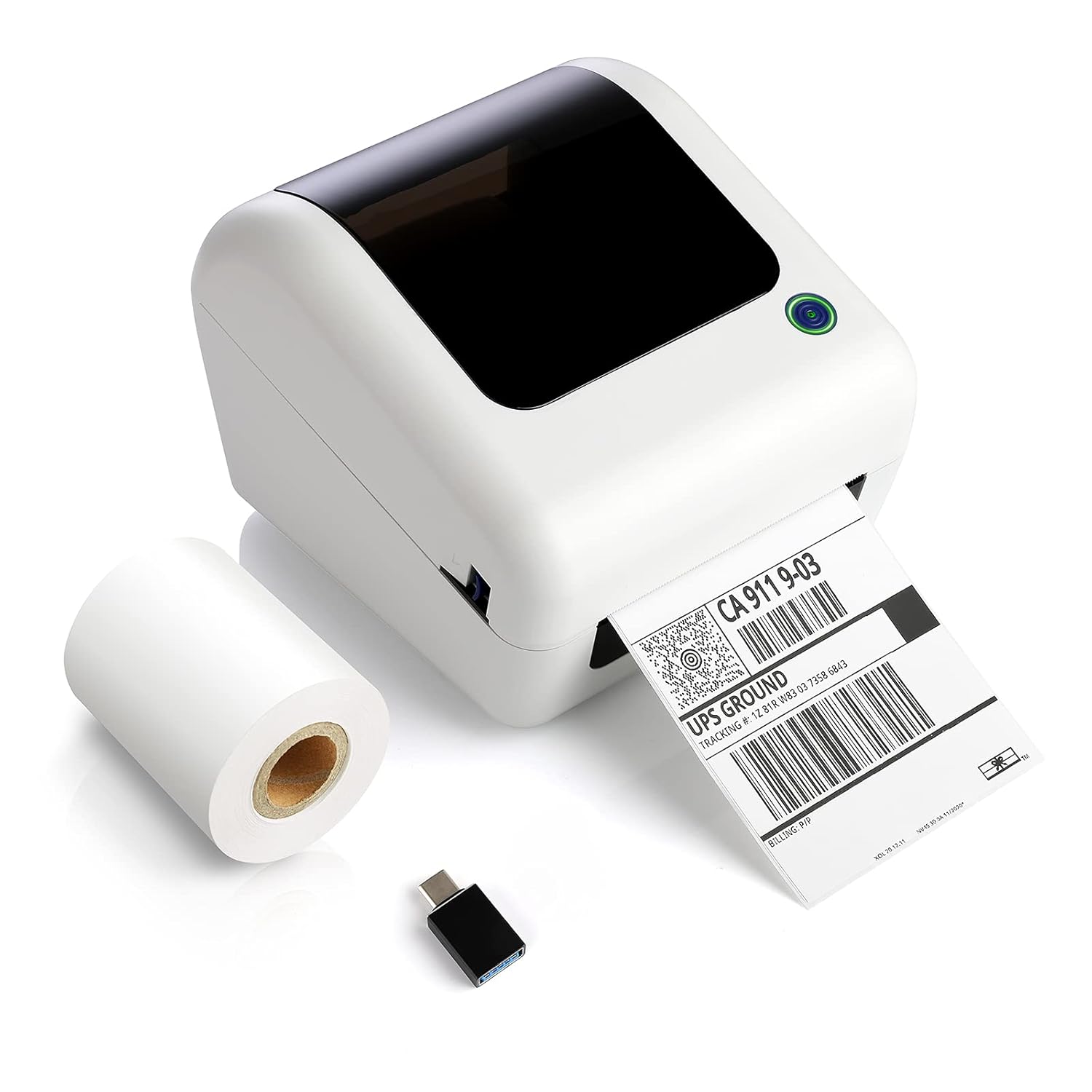
Image: The JADENS Thermal Shipping Label Printer JD-168, shown with a printed shipping label emerging from the front slot and a roll of blank thermal labels next to it. A USB adapter is also visible.
2. Вміст упаковки
Після розпакування, будь ласка, перевірте наявність усіх перелічених нижче предметів:
- JADENS Thermal Shipping Label Printer (Model JD-168)
- Адаптер живлення
- USB кабель
- U-disk (containing drivers and instruction videos)
- Короткий посібник
- 1 Roll of Thermal Labels (100 sheets)
3. Особливості продукту
- Прямий термодрук: Не потрібні чорнила чи тонер.
- Високошвидкісний друк: Up to 150mm/s (approximately 72 labels per minute).
- Широка сумісність етикеток: Supports thermal direct labels with widths from 1.57" to 4.1".
- Автоматична ідентифікація етикетки: Automatically detects label properties for accurate printing.
- Built-in Paper Bin: Space-saving design for both roll and fan-fold labels.
- Широка сумісність платформ: Works with major shipping and e-commerce platforms.

Зображення: Інфографікаasing the JADENS Thermal Label Printer's features, including built-in bin, easy operation, great compatibility, fast printing, high resolution, automatic label identification, multiple paper sizes, and no ink/toner requirement.
4. System Requirements & Compatibility
The JADENS JD-168 printer is designed for use with specific operating systems and platforms:
- Операційні системи: Windows 8 or later, Mac OS X v10.9 or later.
- Підключення: USB direct connection.
- Підтримувані платформи: Compatible with most major shipping and e-commerce platforms such as eBay, Amazon, Etsy, Pirateship, Endicia, ShipStation, Ordoro, and Shopify.
- Unsupported Systems: This printer does ні support Chromebook or Linux operating systems. Bluetooth connectivity is also ні підтримується.

Image: The JADENS printer connected via USB to a laptop, with icons indicating compatibility with Windows 7/8/10 and Mac OS X v10.9 or later. A warning states that Chromebook and Linux are not supported.

Image: A JADENS printer on a desk with Mac and Windows logos, emphasizing compatibility. Text clearly states "Support Windows (8,10 or later), MAC" and "Not Support Chromebook" and "Not Support Bluetooth."
5. Налаштування
5.1 Підключення принтера
- Розмістіть принтер на стійкій, рівній поверхні.
- Connect the power adapter to the printer's power port and then plug it into an electrical outlet.
- Connect the USB cable to the printer's USB port and the other end to your computer.
5.2 Встановлення драйвера
It is crucial to install the printer driver раніше attempting to print.
- Insert the provided U-disk into your computer's USB port.
- Знайдіть та запустіть інсталятор file for your operating system (Windows or Mac) from the U-disk.
- Дотримуйтеся вказівок на екрані, щоб завершити встановлення драйвера.
- Instructional videos are also available on the U-disk for visual guidance.

Image: A JADENS printer connected to a laptop via USB, with a visual cue suggesting a straightforward installation process.
5.3 Завантаження етикеток
The JD-168 printer supports both roll and fan-fold thermal labels.
- Відкрийте верхню кришку принтера.
- For roll labels: Place the label roll into the built-in paper bin, ensuring the labels feed from the bottom and the printable side faces upwards.
- For fan-fold labels: Feed the stack of labels from the rear slot into the printer, ensuring the printable side faces upwards.
- Відрегулюйте напрямні етикеток, щоб вони щільно прилягали до ширини етикеток, не перегинаючи їх.asinг їх.
- Close the top cover. The printer will automatically detect the label size and calibrate.

Image: An open JADENS printer revealing the internal mechanism with a roll of thermal labels correctly loaded into the built-in paper bin. Label guides are visible, and an arrow indicates automatic position detection.
6. Інструкція з експлуатації
6.1 Увімкнення/вимкнення
- Увімкнення: Press the power button located on the side or front of the printer. The indicator light will illuminate.
- Вимкнення живлення: Натисніть і утримуйте кнопку живлення, доки індикатор не згасне.
6.2 Друк етикетки
- Переконайтеся, що принтер увімкнено та підключено до комп’ютера.
- Open the document or application from which you wish to print (e.g., shipping software, PDF viewer).
- Select the JADENS JD-168 printer from your printer options.
- Verify print settings, especially label size, to match your loaded labels. For best quality, open PDF files with Adobe printing software.
- Initiate the print command. The printer will feed and print the label.

Image: The JADENS printer actively printing a label, with text indicating "150mm/s High Speed Printing" and "72 Labels/one minute," highlighting its efficiency.
6.3 Автоматична ідентифікація етикетки
The JD-168 features automatic label identification. After loading labels and closing the cover, the printer will briefly feed a label to detect its size and type, ensuring correct alignment and preventing misprints.

Image: The JADENS printer with a label partially fed, illustrating the automatic label identification feature with a blue light indicating the process.
6.4 Label Size Guidelines
The printer supports thermal labels with a width range of 1.57 inches (40mm) to 4.1 inches (104mm). Ensure your labels fall within this range for optimal performance.

Image: The JADENS printer with a label emerging, visually indicating the supported label width range of 1.57" to 4.1". Below, examples of various label types are shown, including nutrition facts, shipping, address, and ASIN code labels.
7. Технічне обслуговування
7.1 Очищення друкуючої головки
Regular cleaning of the print head ensures consistent print quality and extends the printer's life. Clean the print head if print quality degrades or after every few rolls of labels.
- Вимкніть принтер і від’єднайте шнур живлення.
- Відкрийте верхню кришку.
- Gently wipe the print head surface with an alcohol swab or a soft cloth lightly dampзмішаний ізопропіловим спиртом.
- Дайте друкуючій голівці повністю висохнути, перш ніж закривати кришку та вмикати принтер.

Зображення: Детальний view of the JADENS printer's internal components, specifically highlighting the thermal print head. Text indicates "Thermal Print Head No Need of Ink Ribbon or Toner."
7.2 Загальний догляд
- Зберігайте принтер у чистому та безпиловому середовищі.
- Avoid exposing the printer to direct sunlight, extreme temperatures, or high humidity.
- Do not use abrasive cleaners or solvents on the printer's exterior. Use a soft, damp серветка для чищення.
8. Вирішення проблем
If you encounter issues with your JADENS JD-168 printer, refer to the following common problems and solutions:
| проблема | Можлива причина | Рішення |
|---|---|---|
| Принтер не відповідає | Power cable loose, USB cable disconnected, printer off. | Check power and USB connections. Ensure printer is powered on. |
| No labels printing | No labels loaded, labels loaded incorrectly, driver not installed. | Load labels correctly. Install printer driver. |
| Погана якість друку (бляклий, розмитий) | Print head dirty, incorrect label type, low-quality image. | Clean the print head. Ensure you are using thermal direct labels. Use high-resolution images. |
| Labels feeding incorrectly or skipping | Label guides not adjusted, labels jammed, automatic identification failed. | Adjust label guides. Clear any jams. Power cycle the printer to re-initiate auto-identification. |
| Принтер не розпізнається комп'ютером | Driver not installed or corrupted, faulty USB cable. | Reinstall the driver. Try a different USB port or cable. |
If these solutions do not resolve your issue, please contact JADENS customer support.
9. Технічні характеристики
| Особливість | Деталь |
|---|---|
| Номер моделі | JD-168 |
| Технологія друку | Прямий термічний |
| Підключення | USB |
| Швидкість друку | 150 мм/с (макс.) |
| Вихід на принтер | Монохромний |
| Ширина етикетки | 1.57 дюйма - 4.1 дюйма (40 мм - 104 мм) |
| Розміри продукту (Д x Ш x В) | 6.1 дюйма x 7.87 дюйма x 6.69 дюйма (15.5 см x 20 см x 17 см) |
| вага | 4.52 фунтів (2.05 кг) |
| Колір | Off White |
10. Інформація про гарантію
Specific warranty details for the JADENS Thermal Shipping Label Printer JD-168 are not provided in the product information. Please refer to the warranty card included with your product or visit the official JADENS webсайт для отримання найактуальнішої гарантійної політики та інформації про реєстрацію.
11. Підтримка клієнтів
For technical assistance, troubleshooting, or any inquiries regarding your JADENS Thermal Shipping Label Printer, please contact our customer support team:
- Електронна пошта: (Please refer to your product packaging or JADENS website for email address)
- телефон: (Please refer to your product packaging or JADENS website for phone number)
- Webсайт: JADENS Official Store on Amazon (for general information and support resources)
- Remote control assistance is also available for certain technical issues.
Our support team is available to assist you with any questions or concerns.
12. Застосування продукту Exampлес
The JADENS JD-168 printer is versatile and suitable for various applications:
- Домашній офіс: Efficiently print shipping labels for personal use or small online sales.
- Малий бізнес: Ideal for e-commerce businesses needing to print shipping labels for platforms like Amazon, eBay, Etsy, and Shopify.
- Warehouse & Logistics: Suitable for printing warehouse labels, barcode labels, and product identification labels.

Image: A collage depicting four common usage scenarios for the JADENS thermal label printer: home office, shipping label creation, small business operations, and warehouse label printing.


