1. Вступ
Дякуємо за покупкуasing the Rapoo N300 Optical Wired Gaming Mouse. This manual provides detailed instructions for setting up, operating, and maintaining your new mouse. Please read this manual thoroughly before use to ensure optimal performance and longevity of the product.
2. Продукт закінчивсяview
2.1 Основні характеристики
- High-Precision Optical Tracking: Equipped with a 2000 DPI tracking engine for accurate and responsive cursor control.
- 6 Кнопки: Includes left, right, scroll wheel, DPI switch, and two side buttons for enhanced functionality.
- 2D Anti-Slip Scroll Wheel: Provides precise scrolling and tactile feedback.
- Двосторонній дизайн: Ergonomically designed for comfortable use by both left and right-handed users.
- Дротове USB-з'єднання: Ensures a stable and lag-free connection.
2.2 Вміст упаковки
- Rapoo N300 Optical Wired Gaming Mouse
- Посібник користувача (цей документ)
2.3 Діаграма продукту

малюнок 1: Топ view of the Rapoo N300 mouse, showing the left and right click buttons, scroll wheel, and DPI switch button. The Rapoo logo is visible at the base.

малюнок 2: сторона view of the Rapoo N300 mouse, highlighting the two side buttons and the textured grip area for improved handling.
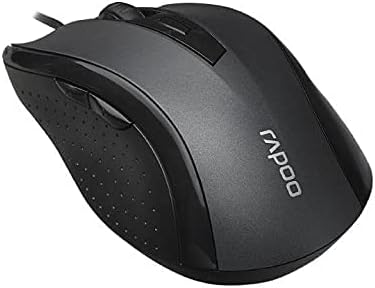
малюнок 3: Під кутом view of the Rapoo N300 mouse, showcasing its ergonomic contour and the placement of the scroll wheel and side buttons.

малюнок 4: Дно view of the Rapoo N300 mouse, displaying the optical sensor, product model number (N300), interface type (USB), and regulatory compliance markings.
3. Інструкції з налаштування
- Підключіть мишку: Locate an available USB port on your computer (desktop or laptop). Insert the USB connector of the Rapoo N300 mouse firmly into the USB port.
- Встановлення драйвера: The Rapoo N300 mouse is a plug-and-play device. Your operating system (Windows XP, Windows 7, Linux, or newer versions) will automatically detect and install the necessary drivers. This process may take a few moments.
- Перевірка: Once the drivers are installed, the mouse cursor should become responsive. Move the mouse to confirm functionality.
No additional software installation is typically required for basic functionality.
4. Інструкція з експлуатації
4.1 Основні функції
- Клацніть лівою кнопкою миші: Primary action, selection, opening items.
- Клацніть правою кнопкою миші: Відкриває контекстні меню.
- Колесо прокрутки: Прокручує документи та web pages vertically. Can also be pressed for middle-click functionality (application-dependent).
4.2 Налаштування DPI
The Rapoo N300 features a dedicated DPI switch button, usually located behind the scroll wheel. Press this button to cycle through different DPI (Dots Per Inch) sensitivity settings. Each press will change the cursor speed, allowing you to adjust it to your preference for various tasks, from precise editing to fast-paced gaming.
4.3 Бічні кнопки
The two side buttons typically function as "Forward" and "Backward" in web браузери та file explorers. Their functionality may be customizable through operating system settings or third-party software, if available.
5. Технічне обслуговування
- Прибирання: Використовуйте м’яку суху тканину для протирання поверхні миші. Для стійкого бруду злегкаampПротріть тканину водою або м’яким миючим розчином. Уникайте використання агресивних хімікатів або абразивних матеріалів.
- Оптичний датчик: Ensure the optical sensor on the bottom of the mouse remains clean and free of dust or debris for optimal tracking performance. Do not attempt to disassemble the mouse.
- Догляд за кабелем: Уникайте різких згинів або надмірного натягування USB-кабелю, щоб запобігти його пошкодженню.
6. Вирішення проблем
| проблема | Можливе рішення |
|---|---|
| Миша не відповідає |
|
| Рух курсора нерівномірний або стрибкоподібний |
|
| Кнопка DPI не змінює чутливість |
|
7. Технічні характеристики
| Особливість | Деталь |
|---|---|
| Модель | N300 |
| Tracking Engine | Оптичний |
| DPI | До 2000 DPI |
| Кількість кнопок | 6 (Left, Right, Scroll Wheel, DPI, Side Button 1, Side Button 2) |
| Колесо прокрутки | 2D Anti-Slip |
| Орієнтація руки | Амбідекстр |
| Тип інтерфейсу | Провідний USB |
| Сумісність операційної системи | Windows XP, Windows 7, Linux, and newer versions |
| Колір | чорний |
| Вага товару | Приблизно 100 г |
| Розміри (упаковка) | 15.4 х 8.4 х 4.2 см |
8. Гарантія та підтримка
Rapoo products are designed for reliability and performance. For specific warranty information and support details, please refer to the warranty card included with your product or visit the official Rapoo webсайт. Зберігайте чек про покупку як підтвердження покупки для гарантійних претензій.
For technical assistance or further inquiries, please contact Rapoo customer support through their official channels.


