вступ
This manual provides essential information for setting up, operating, and maintaining your Amazon Fire TV 4-Series 50-inch 4K UHD Smart TV. The Fire TV 4-Series brings vivid 4K Ultra HD, HDR 10, HLG, and Dolby Digital Plus support, offering a clearer and more vibrant picture than 1080p Full HD. Enjoy access to over 1.5 million movies and TV episodes from various streaming services, along with live TV, video games, and music. The integrated Fire TV platform continuously updates with new Alexa skills, features, smart home capabilities, and voice functionality.

Зображення: спереду view of the Amazon Fire TV 4-Series 50-inch 4K UHD Smart TV, showcasinйого тонку рамку та дисплей.
Що в коробці
Carefully unpack the box and ensure all components are present:
- Fire TV 4-Series 50-inch Television
- Покращений пульт дистанційного керування Alexa Voice
- Шнур живлення
- 2 батарейки типу AAA (для пульта дистанційного керування)
- 4 гвинти (для кріплення підставки)
- Тумба під телевізор (2 ніжки)
- Короткий посібник

Image: All components included in the Amazon Fire TV 4-Series package, laid out for inspection.
Налаштування
1. Attaching the TV Stand or Wall Mounting
The TV is designed to be lightweight for easier handling. For the 50-inch model, one person can typically unbox it, but for larger sizes, two people are recommended. The TV stand legs attach easily to the bottom of the television.
- Обережно покладіть телевізор екраном вниз на м’яку, чисту поверхню, щоб запобігти подряпинам.
- Вирівняйте кожну ніжку підставки з відповідними пазами на нижній панелі телевізора.
- Закріпіть кожну ніжку за допомогою наданих гвинтів.
Alternatively, for wall mounting, the TV supports a VESA Wall Mount Standard of 300 mm x 300 mm. Ensure you use a compatible wall mount (sold separately) and follow its installation instructions carefully.

Image: Visual guide to the TV components and stand assembly.
2. Підключення периферійних пристроїв
Connect your external devices such as cable boxes, gaming consoles, or sound systems to the appropriate ports on the back and side of the TV. The TV features 3 HDMI 2.0 ports and 1 HDMI 2.1 port with eARC, 1 USB port, 1 Ethernet port, and a Digital Optical Audio Port.

Зображення: Детальне view портів підключення телевізора.
3. Початкове увімкнення та налаштування мережі
- Підключіть шнур живлення до телевізора, а потім до розетки.
- Insert the two AAA batteries into the Alexa Voice Remote Enhanced.
- Натисніть кнопку живлення на пульті дистанційного керування, щоб увімкнути телевізор.
- Follow the on-screen prompts to select your language and connect to your Wi-Fi network. You can also use an Ethernet cable for a wired connection.
- The TV may download and install software updates. This process can take 10-15 minutes. Allow it to complete without interruption.
- Sign in with your Amazon account. If you do not have one, you will be prompted to create one.
- Configure any desired parental controls or additional channel subscriptions.
Керування телевізором
Основна навігація
Use the Alexa Voice Remote Enhanced to navigate the Fire TV interface. The remote features a directional pad for menu navigation, a select button, and dedicated buttons for Home, Back, Menu, and various streaming services.
Using Alexa Voice Remote Enhanced
The included Alexa Voice Remote Enhanced allows you to control your TV and access content using voice commands. Press and hold the Alexa button on the remote, then speak your command. You can ask Alexa to:
- Find and launch movies, TV shows, and apps.
- Control playback (play, pause, fast forward, rewind).
- Adjust TV settings like volume and input source.
- Check weather, sports scores, and other information.
- Керуйте сумісними пристроями розумного будинку.
The remote can also control certain functions, such as power and volume, on a wide range of compatible IR-enabled devices, soundbars, and A/V receivers. Note that certain functions may not be available on all IR-enabled devices.
Доступ до вмісту
The Fire TV interface provides access to a vast library of streaming content. Subscription fees may apply for certain services.

Зображення: Прamples of streaming services available on Fire TV.
Підключення
The Amazon Fire TV 4-Series offers various connectivity options for your home entertainment system:
- Порти HDMI: 3 порти HDMI 2.0 та 1 порт HDMI 2.1 з eARC для підключення аудіо та відео високої чіткості.
- Ethernet: 1 Ethernet port for a stable wired internet connection.
- USB: 1 USB port for connecting external storage or other USB devices.
- Цифровий оптичний аудіовихід: Для підключення до саундбарів або аудіоресиверів.
- Бездротове підключення: Supports Wi-Fi for wireless internet access.
- Bluetooth: Bluetooth 5.0 for connecting compatible accessories like headphones.
Технічні характеристики
| Особливість | Специфікація |
|---|---|
| роздільна здатність | 3840 x 2160 (4K UHD) |
| Високий динамічний діапазон (HDR) | HDR 10, HLG |
| Тип підсвічування | Прямий світлодіод |
| Частота оновлення | 60 Гц |
| Розмір екрана | 50 дюймів (49.5 дюймів) viewздатний) |
| Порти HDMI | 3 HDMI 2.0 + 1 HDMI 2.1 з eARC |
| Порт Ethernet | 1 |
| порт USB | 1 |
| Підтримка аудіо | Dolby Digital Plus з наскрізним відтворенням аудіо, закодованого в Dolby |
| Сила звуку | 8W + 8W |
| Операційна система | ОС Fire TV |
| Розмір виробу (без підставки) | 44.2 дюйма x 25.6 дюйма x 3.5 дюйма |
| Вага (без підставки) | 20.6 фунтів |
| Стандарт настінного кріплення VESA | 300 мм х 300 мм |
| Номер SKU | 4K50N400A |
| Підключення | Wi-Fi or Ethernet, Bluetooth 5.0 |
| Alexa Voice Remote Enhanced Compatibility | Fire TV 2-Series, Fire TV 4-Series, Fire TV Omni Series, Fire TV Omni QLED Series, Fire TV Cube (3rd Gen) |
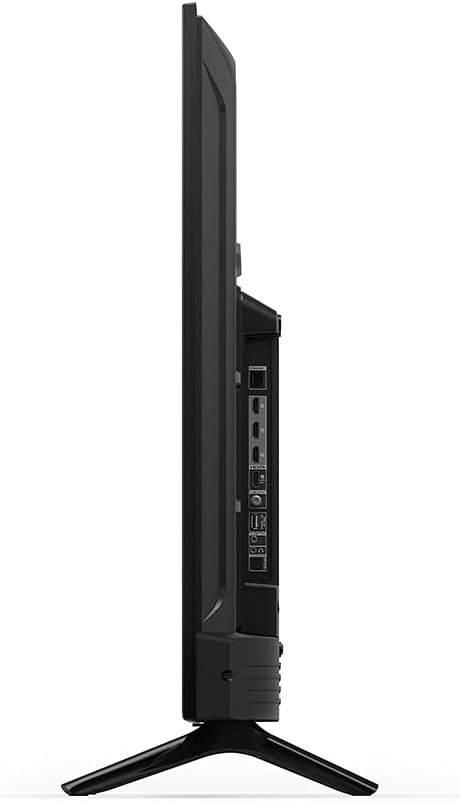
Зображення: Side profile of the TV, highlighting its slimness.
Зображення: Задня частина view of the TV, illustrating the VESA mounting pattern.
Технічне обслуговування
Чистка телевізора
- Завжди відключайте телевізор від мережі перед чищенням.
- Використовуйте м’яку, суху тканину без ворсу, щоб обережно протерти екран і корпус.
- Для стійких плям на екрані злегка протрітьampПромийте тканину водою або розчином для очищення екранів, спеціально призначеним для електроніки. Не розпилюйте рідину безпосередньо на екран.
- Уникайте використання абразивних засобів для чищення, воску або розчинників, оскільки вони можуть пошкодити покриття.
Оновлення програмного забезпечення
Your Fire TV will periodically receive software security updates to improve performance and add new features. Ensure your TV is connected to the internet to receive these updates automatically. You can also check for updates manually through the TV's settings menu.
Усунення несправностей
Якщо у вас виникли проблеми з вашим Fire TV, зверніться до наступних поширених рішень:
- Немає живлення: Переконайтеся, що шнур живлення надійно підключено як до телевізора, так і до справної електричної розетки. Спробуйте іншу розетку.
- Немає зображення/звуку: Verify that the correct input source is selected. Check all cable connections (HDMI, audio) are secure. Restart the TV by unplugging it for 30 seconds and plugging it back in.
- Пульт не відповідає: Replace the AAA batteries in the Alexa Voice Remote Enhanced. Ensure there are no obstructions between the remote and the TV. Re-pair the remote if necessary (hold Home button for 10 seconds).
- Проблеми з підключенням до мережі: Check your Wi-Fi router and modem. Restart your network equipment. Ensure the TV is within range of your Wi-Fi signal or that the Ethernet cable is properly connected.
- Алекса не відповідає: Ensure the remote batteries are fresh. Press and hold the Alexa button firmly when speaking. Check your internet connection.
For more detailed troubleshooting or persistent issues, refer to the online support resources for Fire TV.
Гарантія та підтримка
Інформація про гарантію
Your Amazon Fire TV 4-Series 50-inch includes a 1-year limited warranty and service. Optional 3-Year and 4-Year Extended Warranties are available for U.S. customers and can be purchased separately. Use of Fire TV is subject to the terms found on the official Amazon webсайт.
Підтримка клієнтів
For additional support, frequently asked questions, or to manage your device, please visit the official Amazon Fire TV support pages online. You can find information specific to your device by visiting the 'Manage Your Content and Devices' section on Amazon.