вступ
Thank you for choosing the Rapoo MT750S Multi-Device Wireless Laser Mouse. This advanced ergonomic mouse is designed for seamless connectivity across up to four devices, offering adjustable DPI, programmable buttons, and a side roller for enhanced productivity. This manual provides detailed instructions to help you set up, operate, maintain, and troubleshoot your new mouse, ensuring optimal performance and a comfortable user experience.

Image: The Rapoo MT750S Multi-Device Wireless Laser Mouse, showcasing its ergonomic design and multiple buttons.
Вміст упаковки
- Rapoo MT750S Multi-Device Wireless Laser Mouse
- Зарядний кабель USB-B
- Приймач Nano USB
- Built-in 800mAh Li-ion Rechargeable Battery (pre-installed)
Налаштування
Before first use, ensure the mouse is fully charged. Connect the USB-B cable to the mouse and a power source (e.g., computer USB port, USB wall adapter). The charging indicator light will show progress and turn off when fully charged.
I. 2.4G Wireless Connection Mode
- Turn on the mouse using the switch at the bottom.
- Take out the Nano USB Receiver from the mouse's storage compartment.
- Підключіть USB Nano-приймач до вільного USB-порту на вашому комп'ютері.
- The mouse will automatically connect to your computer. The 2.4G connection indicator light will flash green once.

Image: Visual guide for connecting the Rapoo mouse via 2.4G wireless, showing the USB receiver and mouse.
II. Bluetooth Wireless Connection Mode
- Turn on the switch at the bottom of the mouse (ensure the mouse is powered).
- Short press the device switching button (located on top of the mouse) to select a Bluetooth channel (indicated by 1, 2, or 3 on the display screen).
- Press and hold the device switching button for more than 3 seconds. The device indicator flashes, and the Bluetooth pairing process begins.
- On your computer or device (PC, laptop, MacBook, iPad):
- Windows: Go to Settings > Devices > Bluetooth & other devices > Add Bluetooth or other device > Bluetooth. Select "RAPOO BLE" from the list.
- Mac: Go to System Preferences > Bluetooth. Select "RAPOO BLE" from the list.
- Once paired, the indicator light will stop flashing and remain in a constant state. Matching is successful.
Image: Illustration of the Rapoo mouse connecting via Bluetooth to a laptop, highlighting the wireless range.
Інструкція з експлуатації
Комутація кількох пристроїв
The Rapoo MT750S mouse can connect to up to four devices simultaneously (one 2.4G USB connection and three Bluetooth connections). To switch between connected devices, simply short press the device switching button located on the top of the mouse. The display screen will show the active connection channel (1, 2, 3 for Bluetooth, or 2.4G for USB receiver).

Image: A visual representation of the Rapoo mouse's ability to connect and switch between four different devices, including laptops, tablets, and smartphones.
Регульовані параметри DPI
The mouse features 4 adjustable DPI levels (600/1200/1600/3200) to control cursor speed and sensitivity. Press the DPI button on the mouse (located near the scroll wheel) to cycle through the available DPI settings. Choose the DPI that best suits your activity, whether for precise graphic design or fast-paced browsing.

Image: A graphic illustrating the four adjustable DPI settings (600, 1200, 1600, 3200) and the DPI button on the mouse.
Programmable Buttons and Side Roller
The Rapoo MT750S mouse is equipped with 8 programmable buttons, including a unique side scroll wheel. These buttons can be customized using the Rapoo driver software to perform various functions, such as basic commands, media controls, Windows functions, and advanced features. The side scroll wheel allows for horizontal scrolling, which is highly efficient for applications like AutoCAD, Revit, Excel, and Adobe graphic editing software.

Image: A detailed diagram labeling the various buttons on the Rapoo mouse, including the main clicks, scroll wheels, forward/back buttons, and the side scroll wheel.

Image: A screenshot depicting the Rapoo driver interface, showing options for personalizing mouse button functions and sensitivity settings.
Laser Tracking Technology
The MT750S utilizes a high-performance laser engine, allowing it to track accurately on virtually any surface, including glass or high-gloss surfaces, where traditional optical mice may struggle. This provides superior precision and responsiveness.
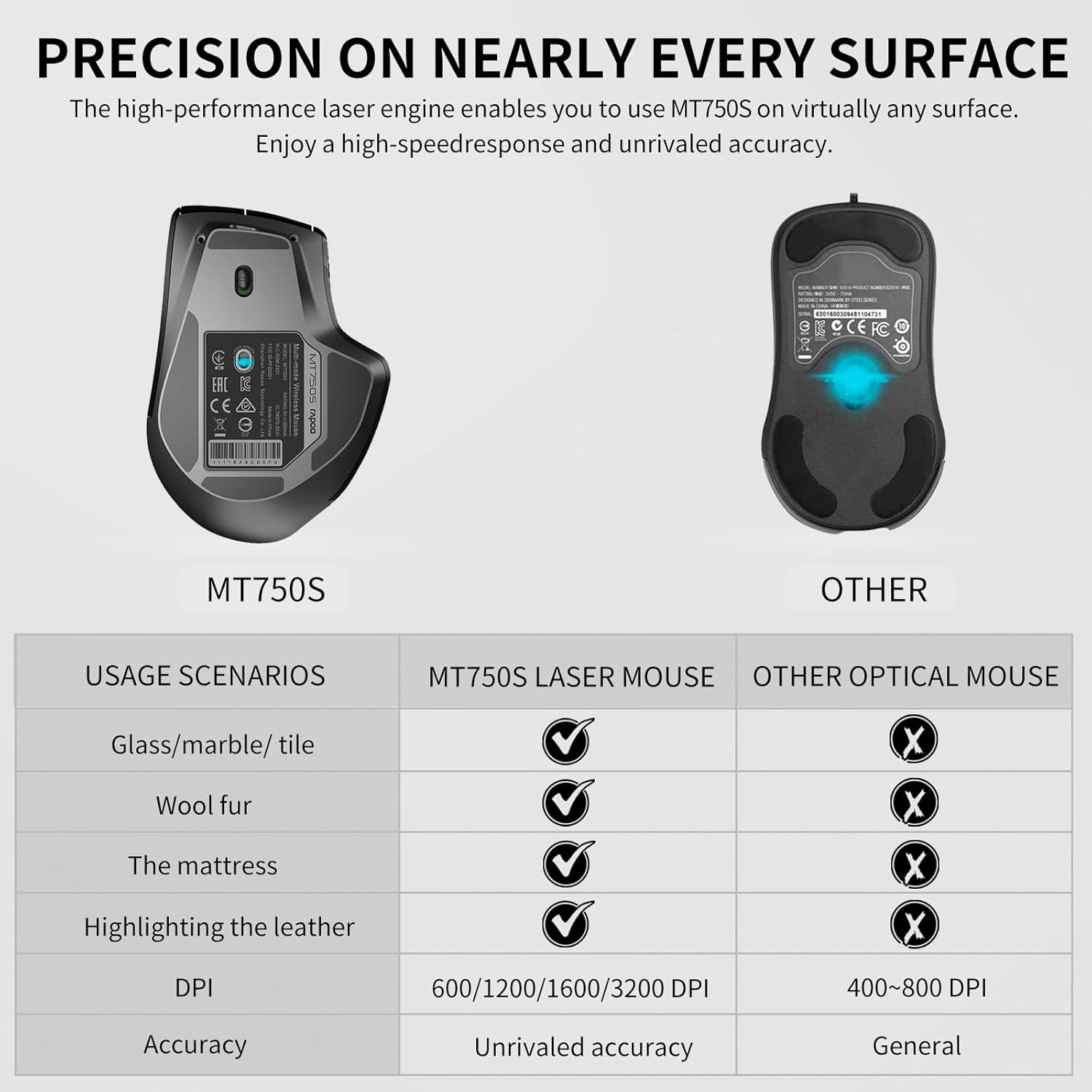
Image: A comparison chart demonstrating the superior tracking capabilities of the Rapoo MT750S laser mouse on various surfaces (glass, marble, wool, mattress, leather) compared to a standard optical mouse.
Технічне обслуговування
Зарядка миші
The Rapoo MT750S features a built-in 800mAh Li-ion rechargeable battery. To charge the mouse, connect the included USB-B cable to the charging port on the front of the mouse and plug the other end into a USB power source. A full charge takes approximately 3 hours and can last up to 30 days with typical use. The mouse has a super long standby time. A low battery indicator (flashing red light) will remind you when charging is needed.

Image: A visual representation of the Rapoo wireless mouse connected to a USB-B cable for charging, with indicators for full charge time, standby time, and working duration.
прибирання
Для очищення миші використовуйте м’яку суху тканину. Для стійкого бруду злегкаampen the cloth with water or a mild, non-abrasive cleaner. Avoid using harsh chemicals or abrasive materials, as these can damage the mouse's surface.
Усунення несправностей
- Миша не реагує:
- Переконайтеся, що миша увімкнена.
- Перевірте рівень заряду акумулятора та за потреби зарядіть його.
- For 2.4G connection, ensure the USB receiver is securely plugged in. Try a different USB port.
- Для підключення Bluetooth переконайтеся, що Bluetooth увімкнено на вашому пристрої, а миша правильно сполучена. Спробуйте повторно сполучити мишу.
- Спробуйте перезавантажити комп’ютер/пристрій.
- Рух курсора нерівномірний або неточний:
- Clean the laser sensor on the bottom of the mouse.
- Ensure you are using the mouse on a suitable surface. While the laser mouse tracks on many surfaces, extreme textures or highly reflective surfaces can sometimes affect performance.
- Зменште значення DPI, якщо курсор рухається занадто швидко.
- Неможливо перемикатися між пристроями:
- Ensure all desired devices are properly paired or connected (2.4G receiver plugged in).
- Short press the device switching button firmly.
- Buttons not working or programmable features not active:
- Ensure the Rapoo driver software is installed and up to date on your computer.
- Verify button assignments within the driver software.
Технічні характеристики
| Номер моделі | MT750S |
| Технологія підключення | 2.4G Wireless, Bluetooth 3.0, Bluetooth 4.0 (Multi-mode) |
| Технологія виявлення руху | Лазерна |
| Регульований DPI | 600/1200/1600/3200 |
| Програмовані кнопки | 8 |
| Тип батареї | Вбудований літій-іонний акумулятор ємністю 800 мАг |
| Термін служби батареї | До 30 днів (типове використання) |
| Розміри продукту | 4.8 x 3.35 x 1.93 дюйми (12.2 x 8.5 x 4.9 см) |
| Вага товару | 4.1 унцій (116 грам) |
| Колір | Матовий чорний |
| Виробник | Shenzhen Rapoo Technology Co., Ltd. |
| Країна походження | Китай |

Зображення: Зверху та збоку views of the Rapoo mouse, indicating its dimensions and the location of various buttons including forward, back, DPI switch, and side scroll wheel.
Гарантія та підтримка
Rapoo provides a один рік гарантії і а 30-денна гарантія повернення грошей for this product. If you encounter any issues or have questions regarding your Rapoo MT750S mouse, please do not hesitate to contact Rapoo customer support. You can typically find support contact information on the official Rapoo webсайт або через вашу платформу для покупок.
For the latest drivers and software for customizing your mouse, please visit the official Rapoo support page.


