1. Вступ
Thank you for choosing the NexiGo 15.6-inch Portable QLED Monitor. This manual provides detailed instructions to help you set up, operate, and maintain your new monitor. Please read this manual thoroughly before use to ensure optimal performance and longevity of your device.
2. Продукт закінчивсяview
2.1 Основні характеристики
- Full HD 1080P QLED Screen: Delivers stunning 1920 x 1080 resolution with a 178° full viewing angle and Eye Care technology.
- Широка сумісність: Connects via USB Type-C or Mini HDMI to various devices including laptops, PCs, Macs, PS4, Xbox, and Switch.
- Smart Cover & Screen Protector: Includes a durable PU leather smart cover that doubles as a stand, and a screen protector for added safety.
- Slim, Lightweight & Portable: Features a 0.3-inch profile and weighs 1.48 pounds, ideal for mobile setups.
- Розширене підключення: Equipped with 2 x USB Type-C Full Function ports (data transfer, power source), 1 x Mini HDMI port, and built-in speakers.
2.2 Вміст упаковки
- NexiGo 15.6-inch Portable QLED Monitor
- Розумна обкладинка
- Захист екрану
- Кабель USB Type-C до Type-C
- Міні -кабель HDMI -HDMI
- USB Type-A to Type-C Power Cable
- Адаптер живлення
- Посібник користувача
2.3 Monitor Layout

Малюнок 2.3.1: Спереду view of the NexiGo 15.6-inch Portable QLED Monitor with its smart cover acting as a stand, displaying a scenic landscape.
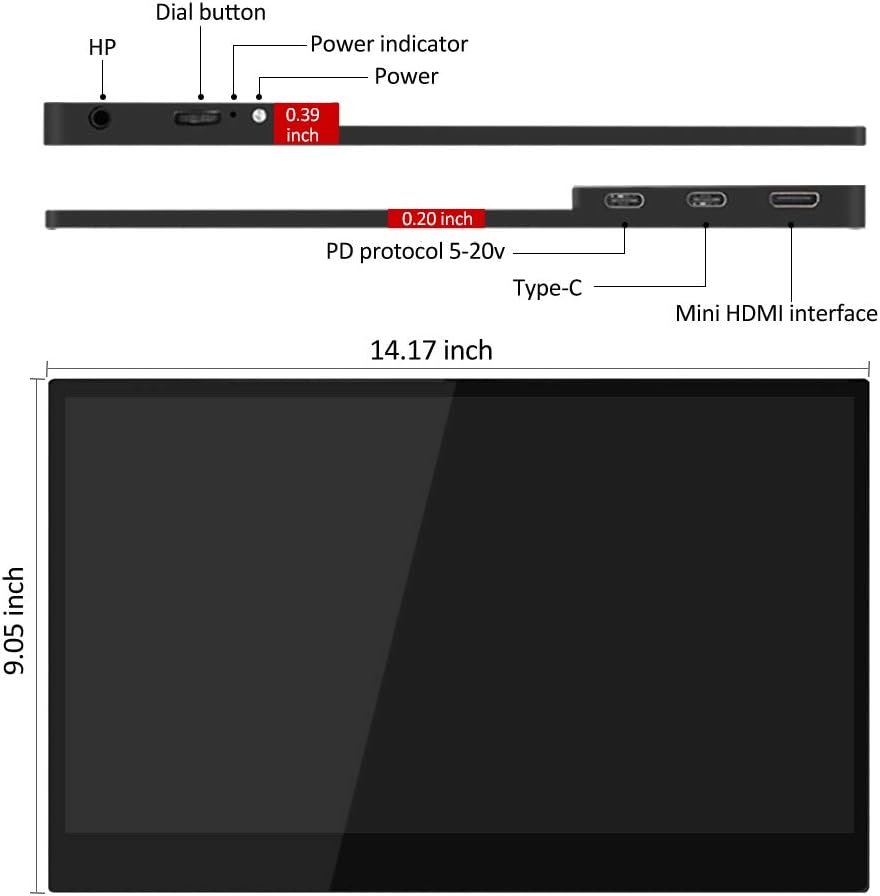
Figure 2.3.2: Diagram illustrating the side and top views of the monitor, highlighting the dial button, power indicator, power port, two Type-C ports, and Mini HDMI interface, along with its dimensions (14.17 inches width, 9.05 inches height, 0.19-0.39 inches thickness).
- Кнопка набору номера: Used for navigating the On-Screen Display (OSD) menu and adjusting settings.
- Індикатор живлення: Illuminates when the monitor is powered on.
- Порт живлення: Connects to the power adapter for external power.
- Type-C Ports (x2): Full-function ports for power, video, and data transfer.
- Mini HDMI Interface: Connects to devices via Mini HDMI for video input.
- HP (Headphone Jack): 3.5-мм аудіовихід для навушників.
3. Інструкції з налаштування
3.1 Using the Smart Cover as a Stand
The included smart cover can be folded into various positions to serve as a stand for your monitor. Position the monitor securely to ensure stability.
3.2 Підключення до пристроїв
The NexiGo portable monitor offers flexible connectivity options. Ensure your device supports video output via the chosen port.

Малюнок 3.2.1: Впрamples of the monitor's wide application, including duplicate monitor setup, connection to a Raspberry Pi, phone screen mirroring, and extended desktop use.
- USB Type-C Connection (Single Cable Solution):
If your device (laptop, smartphone, etc.) has a full-function USB Type-C port (supporting DisplayPort Alternate Mode and power delivery), you can connect the monitor using a single USB Type-C to Type-C cable. This cable will provide both power and video signal.
- Connect one end of the USB Type-C to Type-C cable to your device's full-function USB Type-C port.
- Connect the other end to either of the Type-C ports on the NexiGo monitor.
- The monitor should automatically power on and display your device's screen.
- Mini HDMI Connection (Video) + USB Type-C (Power):
If your device uses HDMI for video output or does not have a full-function USB Type-C port, you will need two cables:
- Connect one end of the Mini HDMI to HDMI cable to your device's HDMI port.
- Connect the Mini HDMI end to the Mini HDMI port on the NexiGo monitor.
- Connect the USB Type-A to Type-C power cable to a power source (e.g., the included power adapter, a USB wall charger, or a laptop's USB-A port).
- Connect the Type-C end of the power cable to one of the Type-C ports on the NexiGo monitor for power.
- The monitor will power on and display the video signal from your device.
- Gaming Console Connection (e.g., PS4, Xbox, Switch):
For gaming consoles, use the Mini HDMI connection for video and a USB Type-C power connection as described above. For Nintendo Switch, ensure the console is powered by its original adapter or a compatible power bank to provide sufficient power to the monitor.

Figure 3.2.2: The NexiGo portable monitor displaying a game from a Nintendo Switch console, demonstrating its use as a gaming display.
4. Інструкція з експлуатації
4.1 Екранне меню (OSD)
The OSD menu allows you to adjust various display settings. Use the dial button located on the side of the monitor to navigate and select options.
- Press the Dial Button: Щоб відкрити екранне меню.
- Roll the Dial Button Up/Down: Для навігації по пунктах меню.
- Press the Dial Button Again: Щоб вибрати опцію або підтвердити налаштування.
- Roll the Dial Button Left/Right: To adjust values within a selected option.
- Long Press the Dial Button: Щоб вийти з екранного меню.
4.2 Загальні налаштування екранного меню
- Яскравість/Контрастність: Налаштуйте рівні яскравості та контрастності дисплея.
- Параметри кольору: Змінити колірну температуру, відтінок та насиченість.
- Джерело введення: Manually select between Type-C and Mini HDMI inputs if auto-detection fails.
- Співвідношення сторін: Choose between 16:9, 4:3, or other available aspect ratios.
- обсяг: Adjust the volume of the built-in speakers or connected headphones.
- Режим HDR: Enable or disable High Dynamic Range (HDR) if supported by your device and content.
- Режим догляду за очима: Activate low blue light filter for reduced eye strain during prolonged use.
4.3 Display Modes (Windows/macOS)
Once connected, your operating system will detect the monitor. You can configure how your computer uses the external display:
- Duplicate Mode (Mirror): Монітор відображає той самий вміст, що й ваш основний екран.
- Розширений режим: The monitor acts as an extension of your desktop, allowing you to drag windows between screens.
- Тільки другий екран: Only the portable monitor displays content, with your primary screen turned off.
Refer to your operating system's display settings for detailed configuration options.
5. Технічне обслуговування
5.1 Очищення монітора
- Завжди вимикайте живлення та від’єднуйте монітор від мережі перед чищенням.
- Злегка протріть м’якою тканиною без ворсу dampводою або неабразивним засобом для чищення екранів.
- Не розпилюйте засіб для чищення безпосередньо на екран. Спочатку нанесіть його на тканину.
- Уникайте використання спирту, аміаку або абразивних засобів для чищення, оскільки вони можуть пошкодити поверхню екрана.
5.2 Screen Protector Care
The included screen protector helps guard against scratches. If applying a new one, ensure the screen is clean and dust-free for best adhesion. Replace if it becomes excessively scratched or damaged.
5.3 Зберігання та портативність

Figure 5.3.1: A person demonstrating the portability of the NexiGo monitor by easily sliding it into a messenger bag.
- When transporting the monitor, always use the smart cover to protect the screen.
- Зберігайте монітор у прохолодному, сухому місці, подалі від прямих сонячних променів та екстремальних температур.
- Уникайте розміщення важких предметів на моніторі.
6. Вирішення проблем
If you encounter issues with your NexiGo portable monitor, please refer to the following common problems and solutions:
| проблема | Можлива причина | Рішення |
|---|---|---|
| "No Signal" message or blank screen |
|
|
| Monitor flickers or disconnects intermittently |
|
|
| Немає звуку з динаміків/навушників |
|
|
| Image quality issues (blurry, distorted colors) |
|
|
7. Технічні характеристики
| Особливість | Деталь |
|---|---|
| Номер моделі | PMFHD15-HS01 |
| Розмір екрана | 15.6 дюймів |
| Тип панелі | QLED |
| роздільна здатність | 1920 x 1080 (FHD 1080p) |
| Співвідношення сторін | 16:9 |
| Яскравість зображення | 400 кд/м² |
| Поверхня екрана | Глянцевий |
| Підключення | 2 x USB Type-C (Full Function), 1 x Mini HDMI, 1 x 3.5mm Headphone Jack |
| Розміри продукту | 13.9 x 8.5 x 0.19 дюймів |
| Вага товару | 1.48 фунта |
| Виробник | NexiGo |
8. Гарантія та підтримка
NexiGo is committed to providing high-quality products and excellent customer service. Your NexiGo portable monitor comes with a standard manufacturer's warranty. Please refer to the warranty card included in your package for specific terms and conditions.
For technical support, troubleshooting assistance, or warranty claims, please contact NexiGo Customer Support:
- Webсайт: www.nexigo.com/support
- Електронна пошта: support@nexigo.com
- Please have your model number (PMFHD15-HS01) and purchase information ready when contacting support.


