1. Вступ
This manual provides essential information for setting up, operating, and maintaining your ViewSonic VX2776-SH 27-inch Full HD IPS monitor. Please read these instructions carefully before using the product.
The ViewSonic VX2776-SH monitor features a 27-inch (68.58 cm) Full HD (1920x1080) IPS display, offering vibrant colors and wide viewing angles. It includes SuperClear IPS Technology, a sleek frameless design, and a 75Hz refresh rate for smooth visuals. Eye-care technologies such as Flicker-Free and a Blue Light Filter are integrated to reduce eye strain. Connectivity options include HDMI and VGA inputs.

малюнок 1: ViewSonic VX2776-SH Monitor Overview з ключовими характеристиками
2. Вміст упаковки
Перевірте наявність усіх елементів в упаковці:
- ViewSonic VX2776-SH Monitor x1
- 3-pin Power Plug (IEC C13 / CEE22) x1
- Кабель HDMI (v1.4; папа-папа) x1
3. Інструкції з налаштування
3.1. Монтаж стенда
Щоб зібрати підставку для монітора:
- Обережно покладіть монітор екраном донизу на м’яку, чисту поверхню, щоб запобігти подряпинам.
- Align the triangular base with the stand neck.
- Secure the base to the neck using the provided screw.
- Attach the assembled stand to the back of the monitor by aligning the mounting points and securing it firmly.
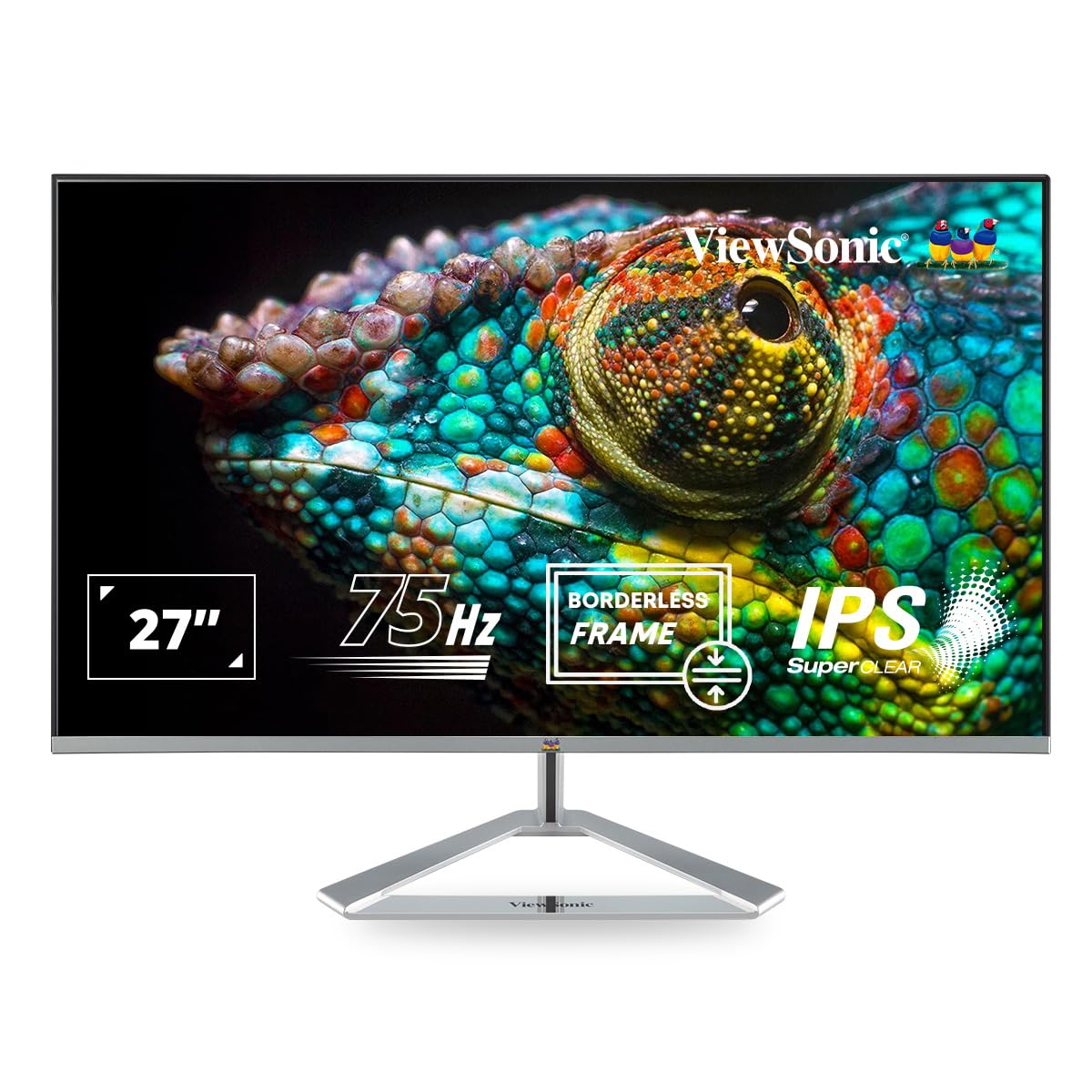
Figure 2: Monitor with Assembled Triangular Stand
3.2. Підключення монітора
Перед будь-якими підключеннями переконайтеся, що монітор і комп'ютер вимкнені.
- Підключення живлення: Підключіть кабель живлення до входу живлення монітора, а потім до розетки.
- Підключення відео: Connect one end of the HDMI cable (or VGA cable) to the corresponding port on your computer's graphics card and the other end to an HDMI or VGA input port on the monitor. The monitor supports dual HDMI inputs.
- Аудіовихід (додатково): If you are using external speakers or headphones, connect them to the monitor's audio out port.

Figure 3: Monitor Connectivity Ports (HDMI, VGA)
3.3. Настінне кріплення VESA (додатково)
The monitor is VESA mount compatible (100x100mm). To mount the monitor on a wall or monitor arm, remove the stand and attach the VESA-compatible bracket (not included) to the mounting holes on the back of the monitor.

Figure 4: VESA Mounting Area on Monitor Back
4. Інструкція з експлуатації
4.1. Увімкнення/вимкнення живлення
Натисніть кнопку живлення, розташовану в правому нижньому куті монітора, щоб увімкнути або вимкнути його. Індикатор живлення світитиметься, коли монітор увімкнено.
4.2. Екранне меню (OSD).
The OSD menu allows you to adjust various display settings. Use the buttons located on the bottom right of the monitor to navigate the menu:
- Натисніть кнопку, щоб активувати екранне меню.
- Використовуйте кнопки навігації для переміщення між опціями.
- Натисніть кнопку вибору, щоб підтвердити вибір.
- Натисніть кнопку виходу, щоб закрити екранне меню.
4.3. ViewНалаштування режиму
ViewMode provides optimized presets for different screen applications. These presets adjust gamma curve, color temperature, contrast, and brightness to enhance your viewнабутий досвід.
- Гра: Оптимізовано для ігрової графіки.
- фільм: Покращено для відтворення відео.
- Web: Suitable for general web перегляд.
- Текст: Ideal for reading documents, reducing eye strain.
- Мононуклеоз: Відображає вміст у відтінках сірого.

малюнок 5: ViewMode Optimized Settings
4.4. Технологія догляду за очима
The monitor incorporates eye-care features to promote comfortable viewing during extended use:
- Без мерехтіння: Eliminates screen flickering, which can cause eye strain and fatigue.
- Фільтр синього світла: Reduces harmful blue light emissions, helping to protect your eyes.

Figure 6: Flicker-Free Technology

Figure 7: Blue Light Filter
4.5. Еко-режим
Eco Mode helps reduce power consumption and prolong the monitor's lifespan. You can enable or disable this feature through the OSD menu.

Figure 8: Eco Mode Functionality
5. Технічне обслуговування
To ensure optimal performance and longevity of your monitor:
- Очищення екрану: Обережно протріть екран м’якою тканиною без ворсу. Для стійких плям, dampПротріть тканину м’яким, неабразивним засобом для чищення екранів. Не розпилюйте засіб для чищення безпосередньо на екран.
- Очищення Casing: Використовуйте м’яку суху тканину для очищення монітора casing. Уникайте використання сильних мийних засобів або абразивних засобів для чищення.
- Вентиляція: Переконайтеся, що вентиляційні отвори на моніторі не заблоковані, щоб запобігти перегріву.
- Вимкнення живлення: Завжди вимикайте монітор, якщо він не використовується протягом тривалого часу.
6. Вирішення проблем
Якщо у вас виникли проблеми з монітором, зверніться до наступних поширених рішень:
| проблема | Можливе рішення |
|---|---|
| На екрані немає зображення |
|
| Зображення розмите або спотворене |
|
| Немає звуку із зовнішніх динаміків/навушників |
|
| Monitor power LED is off |
|
7. Технічні характеристики
| Особливість | Деталь |
|---|---|
| Номер моделі | VX2776-SH |
| Розмір екрана | 27 дюйма (68.58 см) |
| Тип панелі | IPS |
| Рідна роздільна здатність | 1920 x 1080 (Full HD) |
| Частота оновлення | 75 Гц |
| Співвідношення сторін | 16:9 |
| Підключення | 2x HDMI (v1.4), 1x VGA |
| Функції догляду за очима | Flicker-Free, Blue Light Filter |
| Сумісне з кріпленням VESA | 100х100 мм |
| Розміри продукту (ДxШxВ) | 61.4 х 18.4 х 44.3 см |
| Вага товару | 4 кг |
8. Гарантія та підтримка
For warranty information and technical support, please refer to the warranty card included with your product or visit the official ViewСоник webсайт. Ви також можете звернутися ViewSonic customer service for assistance with product registration, troubleshooting, and service inquiries.


