1. Продукт закінчивсяview
The HP EliteDesk 800 G2 Business Desktop Mini Tower is a high-performance computing solution designed for business environments. This renewed product has undergone testing and certification to ensure it functions like new. It features an Intel Core i7 6700 processor, 32GB DDR4 RAM, and a 512GB SSD, running on Windows 11 Pro.

Зображення: Кутове view of the HP EliteDesk 800 G2 Mini Tower desktop computer, showcasinйого компактний дизайн.
2. Вміст упаковки
Перевірте, чи всі наступні елементи входять до вашої упаковки:
- HP EliteDesk 800 G2 Mini Tower Computer
- Шнур живлення
- USB клавіатура
- USB миша
- USB WIFI Adapter
- Інструкція з гарантії

Image: Included USB keyboard and mouse, essential peripherals for desktop operation.
3. Посібник із налаштування
3.1. Розпакування
Carefully remove all components from the packaging. Retain the packaging materials for future transport or service needs.
3.2. Підключення периферійних пристроїв
Connect your monitor, keyboard, mouse, and other devices to the appropriate ports on the desktop.
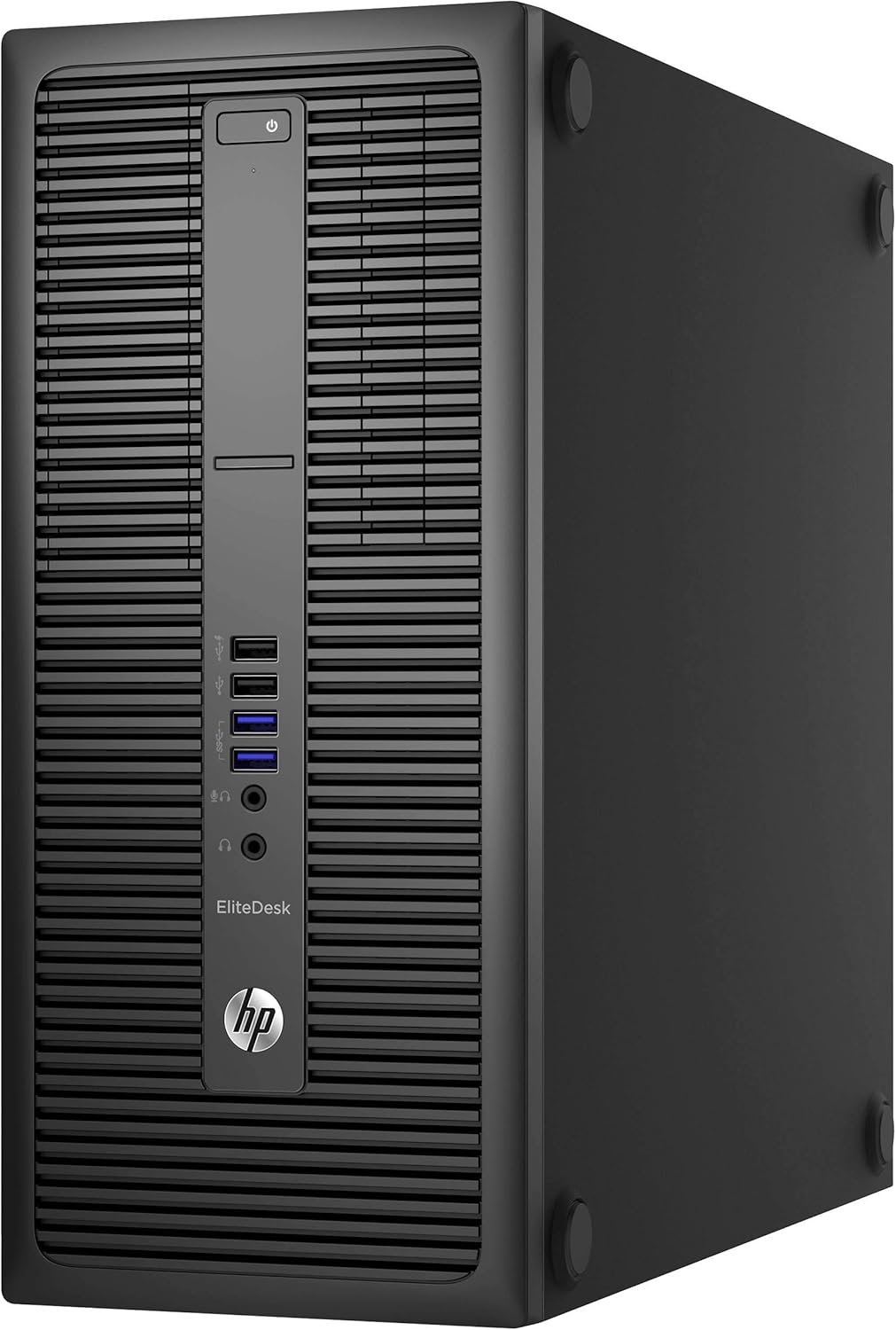
Image: Front panel of the HP EliteDesk 800 G2, showing the power button, optical drive bay, and front USB and audio ports.
- Потужність: Підключіть шнур живлення до входу живлення настільного комп’ютера, а потім до розетки.
- Монітор: Use a DisplayPort or VGA cable to connect your monitor to the corresponding port on the rear of the desktop.
- Клавіатура та миша: Підключіть USB-клавіатуру та мишу до будь-яких доступних USB-портів.
- Мережа: For wired connection, connect an Ethernet cable to the RJ-45 network connector. For wireless, plug in the provided USB WIFI adapter.
- Аудіо: Connect speakers or headphones to the audio output port.

Image: Rear panel of the HP EliteDesk 800 G2, highlighting various connectivity options including DisplayPort, VGA, USB 3.0, Ethernet, and audio ports.
3.3. Початкове увімкнення
Press the power button located on the front of the desktop. The system will begin to boot up.
3.4. Налаштування операційної системи
Follow the on-screen prompts to complete the Windows 11 Pro setup. This typically involves selecting language, region, accepting terms, and creating a user account.
4. Керування робочим столом
4.1. Увімкнення/вимкнення живлення
- Щоб увімкнути: Натисніть кнопку живлення на передній панелі.
- Щоб вимкнути: Натисніть кнопку «Пуск» у Windows, а потім виберіть «Живлення» > «Завершити роботу».
- Щоб перезапустити: Натисніть кнопку «Пуск» у Windows, а потім виберіть «Живлення» > «Перезавантажити».
4.2. Використання USB-портів
The desktop features both USB 2.0 and USB 3.0 ports. USB 3.0 ports (often blue) offer faster data transfer speeds and are recommended for external hard drives or high-speed peripherals. Front USB 2.0 ports include a fast-charging option.
4.3. Звукові підключення
Front panel includes a microphone/headphone combo jack and a dedicated headphone jack. The rear panel has a Line-Out connector for powered audio devices and a Line-In audio connector.
4.4. Підключення дисплея
The desktop supports multiple displays via two DisplayPort connectors and one VGA connector on the rear panel.
4.5. Підключення до мережі
Connect to a wired network using the RJ-45 Ethernet port. For wireless connectivity, ensure the USB WIFI adapter is installed and configured through Windows settings.
5. Технічне обслуговування
5.1. прибирання
- Зовні: Використовуйте м'який, damp тканиною для очищення зовнішніх поверхонь. Уникайте абразивних мийних засобів.
- Віддушини: Періодично очищайте вентиляційні решітки від пилу за допомогою стисненого повітря, щоб забезпечити належний потік повітря та запобігти перегріву.
- Screen (if applicable): For connected monitors, use a screen-specific cleaner and a microfiber cloth.
5.2. Оновлення програмного забезпечення
Regularly check for and install operating system updates (Windows Update) and driver updates to maintain system stability and security.
5.3. Резервне копіювання даних
It is recommended to regularly back up important data to an external drive or cloud storage to prevent data loss.
6. Вирішення проблем
У цьому розділі розглядаються поширені проблеми, з якими ви можете зіткнутися.
- Немає живлення: Ensure the power cord is securely connected to both the desktop and a working power outlet. Test the outlet with another device.
- Немає дисплея: Verify that the monitor is powered on and correctly connected to the desktop. Try a different display cable or monitor if available. Ensure the correct input source is selected on your monitor.
- Повільна продуктивність: Close unnecessary applications. Check for background processes consuming high resources via Task Manager. Ensure sufficient free space on the SSD.
- Проблеми з підключенням до мережі: For wired connections, check the Ethernet cable and router status. For wireless, ensure the USB WIFI adapter is properly installed and drivers are up to date. Restart your router and modem.
- Периферійний пристрій не працює: Ensure the keyboard, mouse, or other peripherals are correctly plugged into the appropriate USB ports. Try a different USB port.
7. Технічні характеристики
| Особливість | Специфікація |
|---|---|
| Процесор | Intel Core i7-6700 (3.4 ГГц, до 4.0 ГГц) |
| ОЗУ | 32 ГБ DDR4 |
| Зберігання | 512 ГБ SSD |
| Графіка | Intel HD Graphics 530 (Dedicated) |
| Операційна система | Windows 11 Pro 64-бітна версія |
| Бездротовий тип | 802.11ac (via USB adapter) |
| Передні порти | USB 2.0 (1x black), USB 2.0 Fast Charging (1x black), USB 3.0 (2x), Microphone/Headphone Combo, Headphone |
| Задні порти | PS/2 Keyboard, PS/2 Mouse, DisplayPort (2x), VGA, USB 3.0 (4x), USB 3.0 with Wake from S4/S5 (2x), Line-Out, Line-In, Serial, RJ-45 Network |
| Розміри (ДxШxВ) | 20 x 17.99 x 10 дюймів |
| вага | 23.6 фунта |
8. Інформація про гарантію та підтримку
8.1. Гарантія
This Certified Refurbished product includes a minimum 90-day warranty. For specific terms and conditions, please refer to the warranty instruction document included in your package or contact the seller directly.
8.2. Технічна підтримка
For technical assistance, troubleshooting beyond this manual, or warranty claims, please contact the seller from whom you purchased this product. You may also visit the official HP support website for general product documentation and drivers related to the EliteDesk 800 G2 series.