1. Вступ
The Microsoft Surface Pro 7 is a versatile 2-in-1 device designed to adapt to various work and lifestyle needs. It combines the power of a laptop with the flexibility of a tablet, making it suitable for a wide range of tasks from productivity to creative work. This manual provides essential information for setting up, operating, and maintaining your Surface Pro 7.
2. Що в коробці
Upon unboxing your Microsoft Surface Pro 7, you will find the following items:
- Microsoft Surface Pro 7 Tablet
- Джерело живлення
- Короткий посібник (QSG)
- Warranty and Compliance Guide (WACG)
Please note: Accessories such as the Type Cover keyboard, Surface Pen, and mouse are sold separately and are not included in the standard package.

Image: The Microsoft Surface Pro 7 tablet, power supply, and placeholders for separately sold accessories like the Type Cover, Surface Pen, and mouse.
3. Продукт закінчивсяview
The Surface Pro 7 features a sleek, ultra-slim design, weighing approximately 1.70 pounds, making it highly portable. Its integrated kickstand allows for flexible positioning in various modes.
3.1 Фізичні характеристики та порти
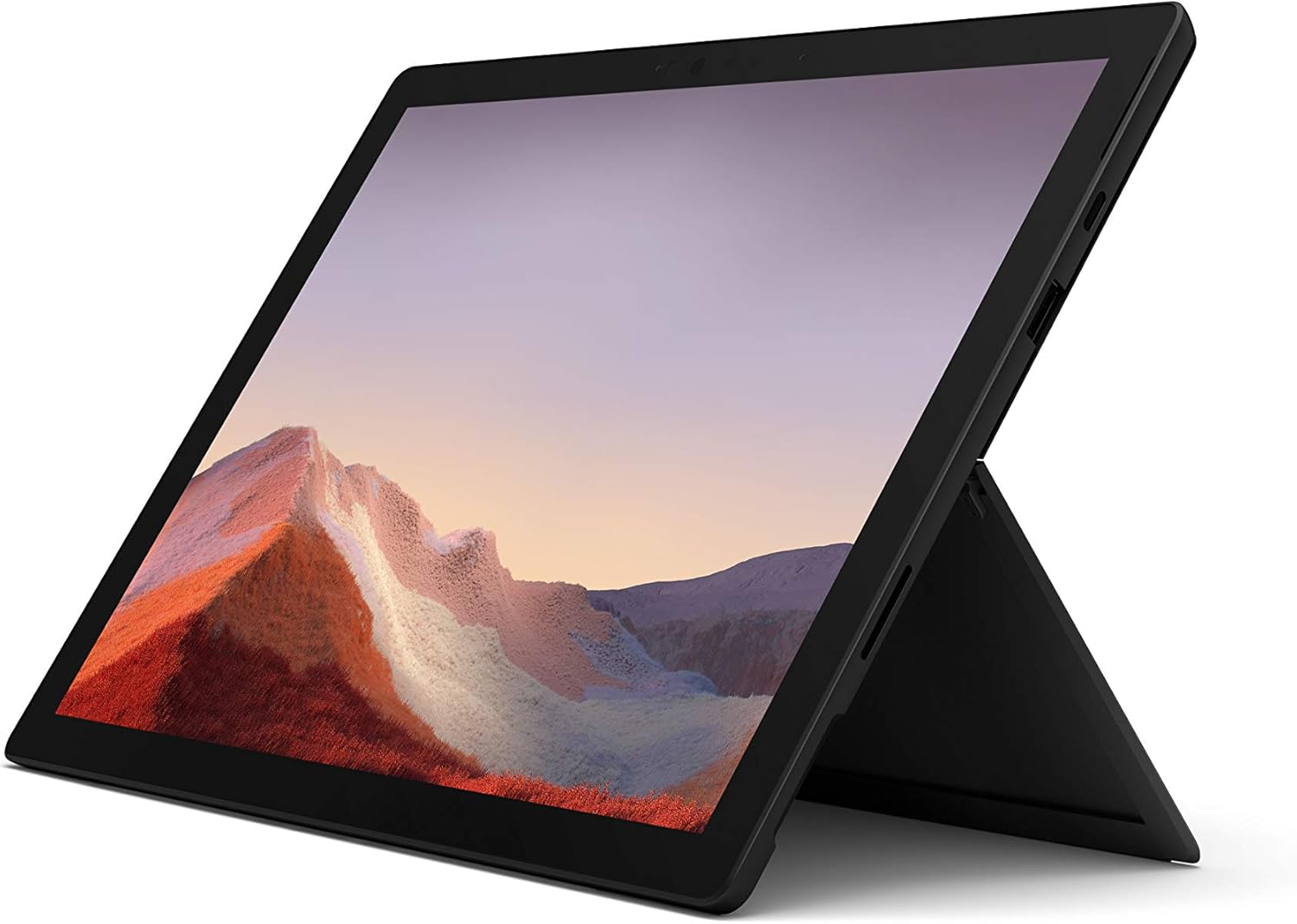
Зображення: спереду view of the Microsoft Surface Pro 7 in an upright position, showcasing its display and kickstand.
- Кнопка живлення: Located on the top edge.
- Гойдалка гучності: Поруч із кнопкою живлення.
- Порт USB-C: A versatile port for data transfer, video output, and charging.
- Порт USB-A: Стандартний USB-порт для підключення периферійних пристроїв.
- Порт Surface Connect: Для заряджання та підключення до аксесуарів Surface Dock.
- Зчитувач карт MicroSD: Located under the kickstand for expandable storage.
- Фронтальна камера: For video calls and Windows Hello facial recognition.
- Задня камера: 8 MP camera for capturing photos and 1080p video.
- Studio Mics: Dual array microphones for enhanced audio input.

Зображення: Side profile of the Surface Pro 7, showing the placement of its USB-C and USB-A ports.

Зображення: Задня частина view of the Surface Pro 7 with its kickstand deployed, revealing the Microsoft logo.
4. Налаштування
4.1 Початкове увімкнення та налаштування Windows
- Зарядіть пристрій: Before first use, connect the Surface Pro 7 to the power supply using the included charger. The device supports fast charging.
- Увімкнення: Press and hold the Power button located on the top edge of the device until the Microsoft logo appears.
- Дотримуйтесь підказок на екрані: Windows 10 Home will guide you through the initial setup process. This includes selecting your region and language, connecting to a Wi-Fi network, accepting the license agreement, and creating a user account or signing in with a Microsoft account.
- Оновлення Windows: After initial setup, it is recommended to check for and install any available Windows updates to ensure optimal performance and security. Your device is eligible for a free upgrade to Windows 11 when available.
5. Основна операція
5.1 Laptop and Tablet Modes
The Surface Pro 7 seamlessly transitions between a full-powered laptop and a versatile tablet. Simply attach the optional Type Cover to use it as a laptop, or detach it for tablet functionality.

Image: The Surface Pro 7 with its Type Cover keyboard, demonstrating its laptop configuration.

Image: The Surface Pro 7 in tablet mode, with the optional Surface Pen positioned beside it.
5.2 Touch, Pen, and Keyboard Input
- Сенсорний екран: Interact directly with the 12.3-inch PixelSense display using multi-touch gestures.
- Surface Pen (Optional): For precise writing, drawing, and navigation. The pen offers natural ink flow and tilt support.
- Type Cover (Optional): Provides a full-size backlit keyboard and a large glass trackpad for comfortable typing and navigation.
6. Підключення
6.1 Бездротові підключення
- Wi-Fi: Connect to wireless networks using the integrated 802.11ax Wi-Fi for high-speed internet access.
- Bluetooth: Pair Bluetooth-enabled devices such as headphones, mice, and keyboards.
6.2 Дротові підключення
- USB-C: Use this port for connecting modern peripherals, external displays, or for charging the device.
- USB-A: Connect traditional USB devices like flash drives, external hard drives, or older peripherals.
7. Продуктивність та час роботи від батареї
The Surface Pro 7 is powered by a 10th Gen Intel Core processor, offering enhanced performance for multitasking and demanding applications. It features improved graphics performance for a smoother visual experience.
Video: An official Microsoft video showcasing the Surface Pro 7's features, including faster multitasking, improved graphics, instant-on capability, and all-day battery life.
Video: An official Microsoft sizzle reel highlighting the Surface Pro 7's 2-in-1 design, high-speed USB-C, PixelSense display, faster processor, Studio Mics, and accessories.
7.1 Термін служби батареї та заряджання
The Surface Pro 7 offers up to 10.5 hours of typical device usage. It supports fast charging, allowing you to charge approximately 80% of the battery in just over an hour. For optimal battery longevity, avoid extreme temperatures and fully discharging the battery frequently.
8. Технічне обслуговування
- Прибирання: Use a soft, lint-free cloth to clean the screen and exterior. For stubborn smudges, a slightly damp cloth with water or a mild screen cleaner can be used. Avoid abrasive materials or harsh chemicals.
- Оновлення програмного забезпечення: Regularly check for and install operating system and driver updates to ensure your device runs smoothly and securely.
- Управління сховищем: Періодично переview and manage your storage to free up space. Utilize the microSD card slot for additional storage if needed.
- Умови навколишнього середовища: Operate the device within recommended temperature and humidity ranges to prevent damage.
9. Вирішення проблем
If you encounter issues with your Surface Pro 7, try the following basic troubleshooting steps:
- Пристрій не відповідає: Press and hold the Power button for about 10 seconds until the device turns off, then press it again to restart.
- Проблеми з відображенням: Ensure all cables are securely connected if using an external display. Try adjusting display settings in Windows.
- Проблеми з підключенням: For Wi-Fi or Bluetooth issues, try turning the respective feature off and on again, or restart your device. Check your router or Bluetooth accessory.
- Швидко розряджається акумулятор: Adjust power settings to battery saver mode, reduce screen brightness, and close unnecessary applications.
- Програмні збої: Ensure your Windows operating system is up to date. If problems persist, consider running Windows Troubleshooters or performing a system restore.
10. Технічні характеристики
| Особливість | Деталь |
|---|---|
| Бренд | Microsoft |
| Назва моделі | Surface Pro 7 |
| Номер моделі товару | ПУВ-00016 |
| Розмір екрана | 12.3 дюймів |
| Роздільна здатність екрана | 2736x1824 (Max 1920x1080) |
| Процесор | Intel Core i10 5-го покоління |
| ОЗУ | 8 ГБ DDR4 |
| Жорсткий диск | 256 ГБ SSD |
| Графічний співпроцесор | Інтегрований Intel Graphics |
| Бездротовий тип | Bluetooth, 802.11ax |
| USB порти | USB-C, USB-A |
| Середній термін служби батареї | До 10.5 годин |
| Операційна система | Windows 10 Home (з можливістю оновлення до Windows 11) |
| Вага товару | 1.7 фунта |
| Розміри продукту | 12.74 x 9.09 x 1.91 дюймів |
| Колір | Матовий чорний |
11. Гарантія та підтримка
For detailed warranty information and technical support, please refer to the Warranty and Compliance Guide included in your product packaging or visit the official Microsoft support website. Microsoft provides resources for troubleshooting, driver downloads, and service options.


