1. Вступ
This manual provides comprehensive instructions for the setup, operation, and maintenance of your NETUM NT-G5 Bluetooth Thermal Label Printer. Please read this guide thoroughly to ensure proper use and optimal performance of your device.
2. Продукт закінчивсяview
2.1 Вміст упаковки
Після відкриття упаковки перевірте наявність усіх елементів:
- NETUM NT-G5 Thermal Label Printer
- USB-кабель для зарядки
- Короткий посібник користувача (якщо включено)
- One roll of labels (pre-installed or separate)
2.2 Компоненти принтера
Familiarize yourself with the main parts of the NT-G5 printer:

Зображення 2.2.1: Детальний view of the NETUM NT-G5 printer, highlighting key components such as the top cover open button, paper exit, OLED display, power/setting button, USB interface, power interface, and feed/OK button.
- Top Cover Open Button: Used to open the printer cover for label roll installation.
- Вихід паперу: Where printed labels emerge. Maximum width: 57mm.
- Paper Tear-off Knife: For cleanly detaching printed labels.
- OLED-дисплей: Shows printer status and settings.
- Power/Setting Button: Powers the device on/off and navigates settings.
- Feed/OK Button: Feeds labels or confirms selections. Controls print speed (20-50mm/s).
- Інтерфейс USB: For charging and data connection (1500mAh battery).
- Інтерфейс живлення: Вхід: 5 В 2 А.
3. Посібник із налаштування
3.1 Заряджання принтера
Before first use, fully charge the printer. Connect the USB charging cable to the printer's USB interface and a 5V 2A power adapter. The OLED display will indicate charging status.
3.2 Завантаження рулону етикеток
- Press the Top Cover Open Button to open the printer's top cover.
- Adjust the paper plate to match the width of your label roll. The adjustable paper plate supports label roll diameters from 20mm to 50mm, with a maximum paper width of 54mm and a largest print width of 48mm.
- Insert the label roll with the printing surface facing upwards. Ensure the leading edge of the labels extends slightly out of the paper exit.
- Щільно закрийте верхню кришку, доки вона не зафіксується почутим клацанням.
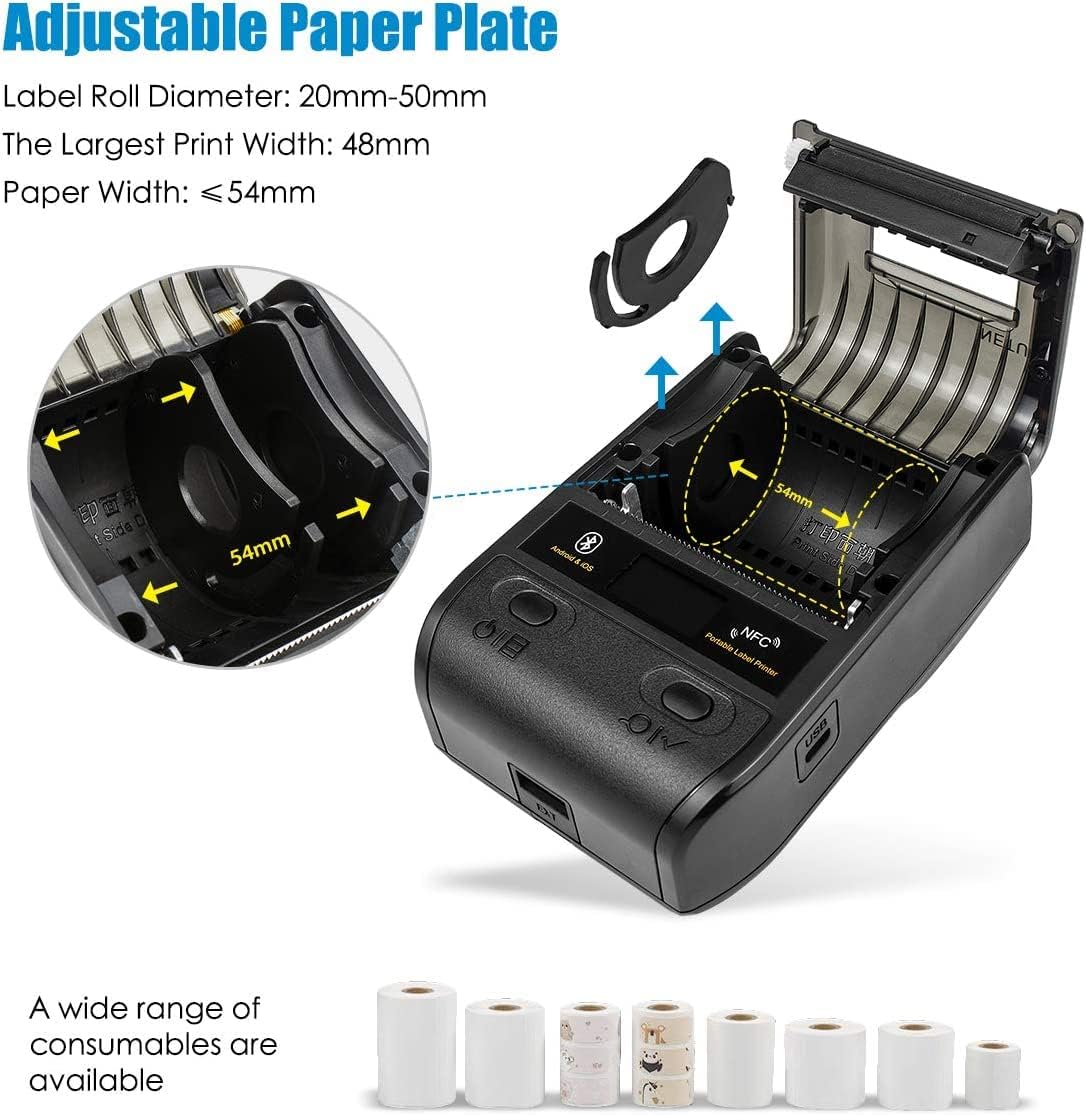
Зображення 3.2.1: Illustration of the adjustable paper plate mechanism and proper label roll insertion. The printer accommodates label rolls with diameters between 20mm and 50mm, and paper widths up to 54mm.
3.3 Встановлення програми та підключення Bluetooth
The NETUM NT-G5 printer operates via Bluetooth connection with a dedicated mobile application.
- Завантажте додаток: шукати the "WeiDa" barcode design app on the Apple App Store (for iOS devices) or Google Play Store (for Android devices).
- Увімкнути Bluetooth: Переконайтеся, що на вашому смартфоні або планшеті увімкнено Bluetooth.
- Увімкнення принтера: Press and hold the Power/Setting Button to turn on the printer.
- Підключення через додаток: Open the WeiDa app, navigate to the device connection section, and select your NT-G5 printer from the list of available Bluetooth devices. The app will guide you through the pairing process.

Зображення 3.3.1: Visual representation of the Bluetooth connection process between a mobile device and the NT-G5 printer, along with icons for downloading the companion app from major app stores.
4. Інструкція з експлуатації
4.1 Basic Printing Steps
Follow these general steps to print labels:

Зображення 4.1.1: A simplified three-step process for operating the NT-G5 printer, covering paper loading, Bluetooth pairing, and label printing.
- Ensure the paper roll is correctly installed (refer to Section 3.2).
- Connect the printer to your smartphone via Bluetooth using the WeiDa app (refer to Section 3.3).
- Within the WeiDa app, design your label using available templates or create a custom layout.
- Once your label design is complete, initiate the print command from the app.
- The printer will produce your high-quality thermal label.
4.2 Supported Label Types and Applications
The NT-G5 printer is versatile and supports various label types for different applications:

Зображення 4.2.1: A collage demonstrating various label applications for the NT-G5 printer, such as jewelry tags, name labels, address labels, clothing tags, price tags, and cable labels.
- Ювелірні вироби Tags: For pricing and product information.
- Name Labels: For organization and identification.
- Мітки адрес: For mailing and shipping.
- Одяг Tags: For retail pricing and product details.
- Ціна Tags: General use for product pricing.
- Cable Labels: For organizing and identifying cables.
4.3 Сумісні операційні системи
The NETUM NT-G5 printer is compatible with a range of operating systems, primarily through its dedicated mobile application:
- iOS: Compatible with Apple iPhones and iPads.
- Android: Compatible with Android smartphones and tablets.
- Windows: Limited compatibility, typically requiring specific drivers or software.
- Linux: Limited compatibility, typically requiring specific drivers or software.
5. Технічне обслуговування
5.1 Очищення друкуючої головки
To maintain print quality and extend the life of your printer, regularly clean the thermal print head. Use a soft cloth dampзмочений ізопропіловим спиртом. Обережно протріть поверхню друкуючої головки. Перед очищенням переконайтеся, що принтер вимкнено та охолонув.
The print head has an estimated life of 50KM of print.
5.2 Догляд за акумулятором
The printer uses a Lithium Polymer battery. To maximize battery life:
- Уникайте частого повного розряджання акумулятора.
- Зберігайте принтер у прохолодному, сухому місці, якщо він не використовується протягом тривалого часу.
- Регулярно заряджайте принтер, навіть якщо він використовується нечасто, щоб запобігти глибокому розряду.
6. Вирішення проблем
6.1 Поширені проблеми та рішення
| Випуск | Можлива причина | Рішення |
|---|---|---|
| Принтер не підключається через Bluetooth | Bluetooth вимкнено на пристрої; принтер вимкнено; програма не розпізнає принтер. | Ensure Bluetooth is enabled on your mobile device. Turn the printer off and on again. Restart the WeiDa app. Ensure the printer is within range. |
| Poor print quality / Faded labels | Low battery; dirty print head; incorrect label type; print density settings. | Charge the printer fully. Clean the print head (refer to Section 5.1). Ensure you are using thermal labels. Adjust print density settings in the app. |
| Етикетки не подаються належним чином | Label roll incorrectly installed; paper plate not adjusted; labels jammed. | Re-install the label roll, ensuring it's properly seated and the paper plate is adjusted to the label width (refer to Section 3.2). Clear any jammed labels. |
| App issues / Crashes | Outdated app version; software conflict. | Update the WeiDa app to the latest version. Restart your mobile device. Reinstall the app if issues persist. |
7. Технічні характеристики
| Особливість | Деталь |
|---|---|
| Номер моделі | NT-G5 |
| Розміри продукту | 4.33 x 3.15 x 2.36 дюймів |
| Вага товару | 10.9 унції |
| Акумулятори | 1 літій-полімерна батарея (у комплекті) |
| Максимальна ширина паперу | 54 мм |
| Largest Print Width | 48 мм |
| Діаметр рулону етикетки | 20 мм-50 мм |
| Швидкість друку | 20-50 мм/с |
| Термін служби друкуючої головки | 50 км |
| Вхідна потужність | 5В 2А |
| Підключення | Bluetooth 4.0, NFC |
| Сумісність операційної системи | iOS, Android, Windows, Linux (via app/drivers) |
8. Гарантія та підтримка
NETUM products are manufactured to high-quality standards. For specific warranty details, please refer to the warranty card included with your product or visit the official NETUM webсайт. Зберігайте чек про покупку як підтвердження покупки.
For technical support, troubleshooting assistance, or inquiries regarding replacement parts and accessories, please contact NETUM customer service through the contact information provided on the official webсайті або в упаковці продукту.