вступ
This manual provides essential instructions for setting up, operating, maintaining, and troubleshooting your Microsoft Surface Pro 2017. The Surface Pro 2017 is a versatile 2-in-1 device designed to function as both a powerful laptop and a portable tablet, offering a seamless computing experience.
Please read this manual thoroughly to ensure proper use and to maximize the lifespan of your device. Keep this manual for future reference.
Що в коробці
Upon unboxing your Microsoft Surface Pro 2017, verify that all components are present:
- Microsoft Surface Pro 2017 device
- Адаптер змінного струму
Note: Additional accessories such as the Surface Pen, Type Cover, or Surface Dial are sold separately and may not be included with your device.
Налаштування
1. Початкове увімкнення та заряджання
- Підключіть адаптер живлення: Plug the AC power adapter into a wall outlet and then connect the magnetic charging connector to the charging port on your Surface Pro. The LED indicator on the connector will illuminate when charging.
- Увімкнення: Press and hold the power button located on the top edge of the device for a few seconds until the Microsoft logo appears on the screen.
2. Windows Setup
Follow the on-screen prompts to complete the initial Windows setup. This process typically includes:
- Вибір регіону та мови.
- Підключення до мережі Wi-Fi.
- Прийняття ліцензійної угоди.
- Створення облікового запису Microsoft або вхід за його допомогою.
- Setting up security features like Windows Hello (facial recognition) or a PIN.
3. Підключення до Wi-Fi
- During Windows setup, you will be prompted to connect to a network. Select your desired Wi-Fi network from the list and enter the password if required.
- If you need to connect later, go to старт > Налаштування > Мережа та Інтернет > Wi-Fi. Turn Wi-Fi on, select your network, and click Підключитися.
Інструкція з експлуатації
Basic Device Orientation and Controls
The Surface Pro 2017 features a 12.3-inch PixelSense display with multi-touch support. Key physical controls include:
- Кнопка живлення: Located on the top edge, used to turn the device on/off, sleep, or wake.
- Кнопки гучності: Located on the side, used to adjust audio volume.
- Підставка: Integrated on the back, allows for multiple viewкути.
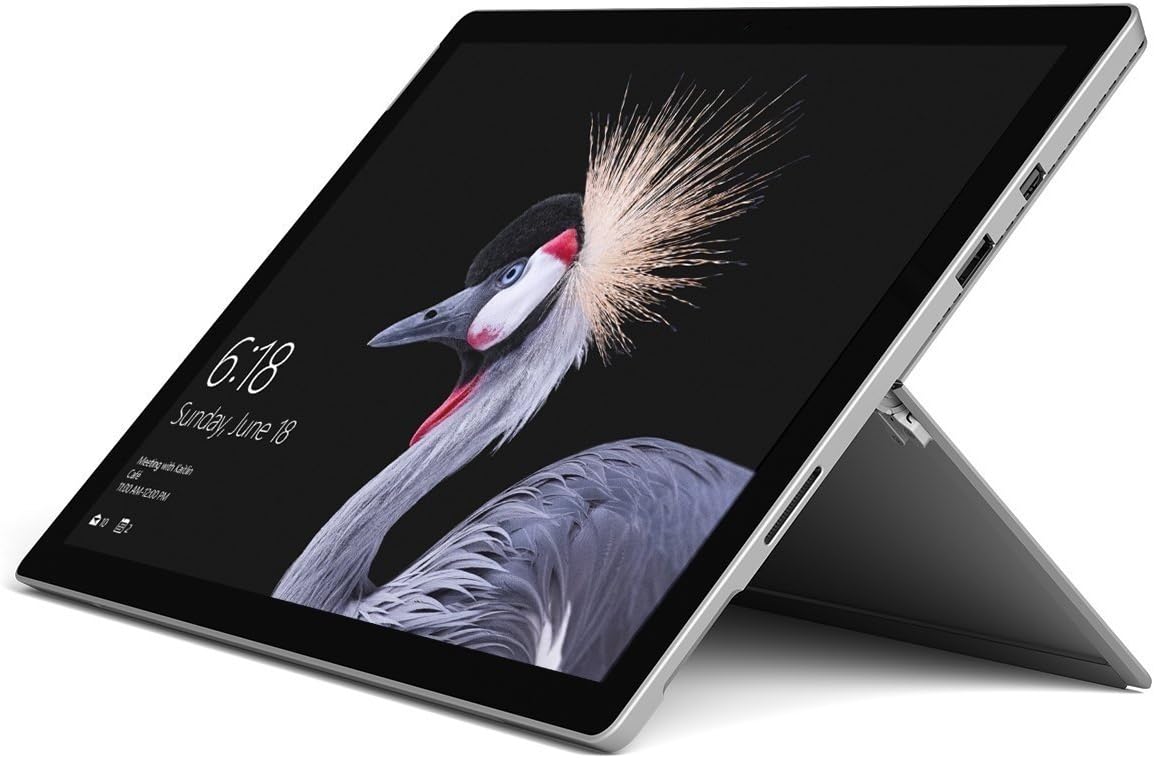
Image: Microsoft Surface Pro 2017 in laptop mode with its kickstand extended, showcasing the device's display.
Використання підставки
The integrated kickstand allows you to position your Surface Pro at various angles for comfortable viewing, typing, or drawing. Gently pull the kickstand out from the back of the device until it reaches your desired angle.
Управління живленням
- Режим сну: Briefly press the power button to put the Surface Pro into sleep mode. Press it again to wake the device.
- Вимкнути: Перейти до старт > потужність > Вимкнути.
- Перезапуск: Перейти до старт > потужність > Перезапустіть.
Підключення периферійних пристроїв
The Surface Pro 2017 includes various ports for connecting external devices:
- Порт USB 3.0: For connecting USB drives, keyboards, mice, and other compatible accessories.
- Mini DisplayPort: Для підключення до зовнішніх моніторів або проекторів.
- Пристрій для читання карт microSD: Для розширення сховища або перенесення fileз карт пам’яті.
- Порт Surface Connect: For power and connecting to Surface Dock accessories.
- Гніздо для навушників 3.5 мм: Для виведення звуку.
Bluetooth: To connect Bluetooth devices (e.g., headphones, mice), go to старт > Налаштування > Пристрої > Bluetooth та інші пристрої. Ensure Bluetooth is turned on, then select "Add Bluetooth or other device" and follow the pairing instructions.

Зображення: Side profile of the Microsoft Surface Pro 2017, highlighting the various ports available for connectivity.
Технічне обслуговування
Cleaning Your Surface Pro
- екран: Злегка протріть м’якою тканиною без ворсу dampened with water or an approved screen cleaner. Avoid harsh chemicals or abrasive materials.
- Тіло: Wipe the exterior with a soft, dry cloth. Do not allow liquids to enter openings.
- Порти: Keep ports free of dust and debris. Use compressed air carefully if needed, holding the can upright.
Догляд за акумулятором
- Уникайте екстремальних температур, оскільки вони можуть знизити термін служби акумулятора.
- Для оптимального стану акумулятора уникайте постійного повного розряду акумулятора або тривалого перебування його на 100% заряді.
- Use only the official Microsoft AC power adapter or a compatible charger.
Оновлення програмного забезпечення
Regularly update your Windows operating system and device drivers to ensure optimal performance, security, and compatibility. Go to старт > Налаштування > Оновлення та безпека > Windows Update щоб перевірити наявність оновлень та встановити їх.
Усунення несправностей
This section addresses common issues you might encounter with your Surface Pro 2017.
Device Will Not Turn On
- Переконайтеся, що пристрій заряджений. Підключіть адаптер живлення та зачекайте кілька хвилин, перш ніж намагатися ввімкнути його.
- Perform a two-button shutdown: Press and hold the volume-up button and the power button simultaneously for at least 15 seconds, then release both. Wait 10 seconds, then press the power button again to turn on the Surface.
Screen Not Responding to Touch
- Перезапустіть пристрій.
- Переконайтеся, що екран чистий і не містить сміття.
- Check for available Windows updates, as driver updates can resolve touch issues.
Проблеми з підключенням до Wi-Fi
- Переконайтеся, що Wi-Fi увімкнено в Налаштування > Мережа та Інтернет > Wi-Fi.
- Restart your Surface Pro and your Wi-Fi router.
- Forget the network and reconnect: Go to Налаштування > Мережа та Інтернет > Wi-Fi, click on your network, then Забути. Reconnect and enter the password.
Технічні характеристики
| Особливість | Специфікація |
|---|---|
| Назва моделі | Surface Pro 2017 |
| Номер моделі товару | 7Y30 |
| Розмір екрана | 12.3 дюймів |
| Роздільна здатність екрана | 2736 x 1824 пікселів |
| Процесор | Intel Core m3-7Y30 (1 GHz Intel_Mobile_CPU) |
| ОЗУ | 4 ГБ DDR4 SDRAM |
| Зберігання | 128 ГБ SSD |
| Графічна карта | Integrated (Intel) |
| Операційна система | вікна |
| Бездротовий тип | 802.11abg |
| Вага товару | 1.89 фунта |
| Розміри продукту | 11.5 x 7.9 x 0.3 дюймів |
| Колір | Срібло |
Гарантія та підтримка
For detailed warranty information, please refer to the warranty card included with your purchase or visit the official Microsoft support webсайт. Гарантійні умови можуть відрізнятися залежно від регіону та продавця.
For technical support, driver downloads, and additional resources, please visit the official Microsoft Support webсайт: support.microsoft.com/surface


