1. Вступ
This manual provides comprehensive instructions for the setup, operation, and maintenance of your Xprinter XP-360B Thermal Label Barcode Printer. Please read this manual thoroughly before using the printer to ensure proper functionality and to prevent damage.
The XP-360B is a high-speed thermal label printer designed for various applications, including barcode printing, shipping labels, and receipt printing. It supports label widths from 20mm to 80mm and offers a maximum print speed of 200mm per second.

Figure 1.1: Xprinter XP-360B Thermal Label Barcode Printer. This image shows the printer from a front-right angle, with labels being fed out of the front slot.
2. Інформація про безпеку
To ensure safe operation and prolong the life of your printer, please observe the following safety precautions:
- Не піддавайте принтер впливу води або надмірної вологості.
- Уникайте розміщення принтера під прямими сонячними променями або поблизу джерел тепла.
- Використовуйте лише адаптер живлення, що постачається з принтером.
- Не намагайтеся розбирати або ремонтувати принтер самостійно. Зверніться до кваліфікованого сервісного персоналу.
- Тримайте принтер подалі від пилу та сміття.
- Переконайтеся, що принтер розміщено на стійкій, рівній поверхні.
- Unplug the printer from the power outlet before cleaning or when not in use for extended periods.
3. Вміст упаковки
Перевірте наявність усіх елементів в упаковці:
- Xprinter XP-360B Thermal Label Barcode Printer
- Адаптер живлення
- USB кабель
- Посібник користувача (цей документ)
- Driver CD (or link to download drivers)
4. Продукт закінчивсяview
4.1. Передня View

Малюнок 4.1: Спереду view of the XP-360B printer, showing the label output slot and control buttons.
- Label Output Slot: Where printed labels exit the printer.
- Кнопки управління:
- ПОТУЖНІСТЬ: Індикатор живлення.
- ПОМИЛКА: Error indicator.
- ПАУЗА: Призупиняє або відновлює друк.
- КОРМЛЕННЯ: Feeds a blank label.
4.2. Бічні View
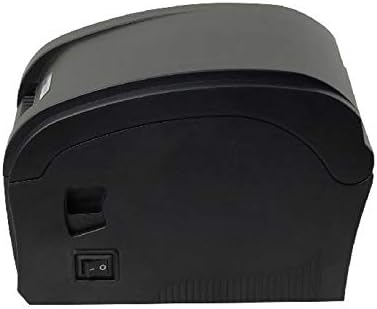
Малюнок 4.2: Сторона view of the XP-360B printer, highlighting the power switch.
- Вимикач живлення: Вмикає або вимикає принтер.
4.3. Внутрішній View (Cover Open)

Малюнок 4.3: Внутрішній view of the XP-360B printer with the top cover open, showing the label roll compartment and print head assembly.
- Print Head Assembly: Contains the thermal print head.
- Відсік для рулону етикеток: Area for loading the label roll.
- Adjustable Paper Guides: Guides to align the label roll.
5. Налаштування
5.1. Розпакування та розміщення
- Обережно вийміть принтер та всі аксесуари з упаковки.
- Розмістіть принтер на стійкій, рівній поверхні з достатньою вентиляцією.
- Ensure there is enough space around the printer for proper operation and maintenance.
5.2. Підключення принтера
- Connect the power adapter to the printer's power input port.
- Підключіть адаптер живлення до відповідної електричної розетки.
- Підключіть один кінець USB-кабелю до USB-порту принтера.
- Під’єднайте інший кінець кабелю USB до вільного порту USB на комп’ютері.
5.3. Завантаження міток
- Переконайтеся, що принтер вимкнено.
- Відкрийте верхню кришку принтера.
- Place the label roll into the label compartment, ensuring the labels feed from the bottom of the roll towards the front of the printer.
- Adjust the movable paper guides to fit the width of your label roll snugly, without being too tight.
- Pull a few labels out past the print head and through the label output slot.
- Щільно закрийте верхню кришку, доки вона не зафіксується почутим клацанням.

Figure 5.1: Loading a roll of thermal labels into the XP-360B printer's internal compartment.
5.4. Встановлення драйвера
Before using the printer, you must install the appropriate drivers on your computer. Drivers are typically provided on a CD or can be downloaded from the manufacturer's official webсайт.
- Insert the driver CD into your computer's CD-ROM drive, or navigate to the official Xprinter support website to download the XP-360B drivers.
- Дотримуйтеся вказівок на екрані, щоб завершити встановлення драйвера.
- After installation, it is recommended to restart your computer.
6. Інструкція з експлуатації
6.1. Увімкнення/вимкнення живлення
- To turn on the printer, flip the power switch located on the side of the printer to the 'ON' position. The POWER indicator light will illuminate.
- To turn off the printer, flip the power switch to the 'OFF' position.
6.2. Базовий друк
- Переконайтеся, що принтер підключено до комп’ютера та увімкнено.
- Open the document or application from which you wish to print labels (e.g., label design software, shipping platform).
- Go to the print settings (File (Друк).
- Select "Xprinter XP-360B" as your printer.
- Adjust the paper size and orientation settings to match your labels (e.g., 4x6 inch, portrait/landscape).
- Click "Print". The printer will automatically detect the label gaps and print accordingly.
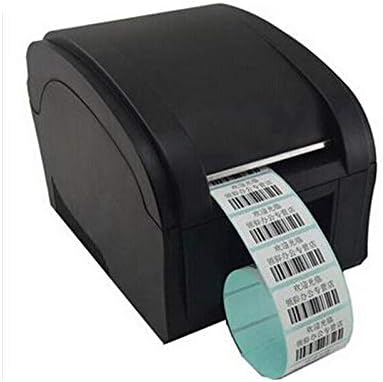
Figure 6.1: The XP-360B printer in operation, feeding out a continuous roll of printed labels.
6.3. Using Control Buttons
- Кнопка FEED: Press this button once to feed a single blank label. This is useful for testing label alignment or advancing to the next label.
- Кнопка ПАУЗА: Press this button to temporarily pause a print job. Press it again to resume printing.
7. Технічне обслуговування
Регулярне технічне обслуговування забезпечує оптимальну продуктивність та подовжує термін служби вашого принтера.
7.1. Очищення друкуючої головки
The print head should be cleaned regularly, especially if print quality degrades or after printing a large volume of labels.
- Вимкніть принтер і від’єднайте його від розетки.
- Відкрийте верхню кришку принтера.
- Wait a few minutes for the print head to cool down if the printer has been recently used.
- Gently wipe the thermal print head surface with an alcohol swab or a lint-free cloth lightly dampзмішаний ізопропіловим спиртом.
- Дайте друкуючій голівці повністю висохнути, перш ніж закривати кришку та вмикати принтер.
7.2. Cleaning the Platen Roller
The platen roller helps feed the labels smoothly. Clean it if you notice feeding issues.
- Follow steps 1-3 from "Cleaning the Print Head".
- Rotate the platen roller manually and wipe its surface with an alcohol swab or a lint-free cloth lightly dampзмішаний ізопропіловим спиртом.
- Allow it to dry completely before closing the cover.
8. Вирішення проблем
This section addresses common issues you might encounter with your XP-360B printer.
| проблема | Можлива причина | Рішення |
|---|---|---|
| Принтер не вмикається | Нещільно прикріплений кабель живлення; несправна розетка живлення; несправність принтера | Check power cable connection; Try a different outlet; Contact support if problem persists. |
| No printing / Printer offline | USB cable loose; Driver not installed; Printer offline in OS | Check USB connection; Install drivers; Check printer status in computer settings. |
| Погана якість друку / Вицвілі відбитки | Dirty print head; Low quality labels; Incorrect print density settings | Clean the print head (see Section 7.1); Use high-quality thermal labels; Adjust print density in driver settings. |
| Етикетки не подаються належним чином | Labels loaded incorrectly; Paper guides not adjusted; Dirty platen roller | Re-load labels correctly; Adjust paper guides; Clean platen roller (see Section 7.2). |
| ERROR light is on | Paper jam; Cover open; Print head overheating | Clear any paper jams; Ensure cover is closed properly; Turn off printer and let it cool down. |
9. Технічні характеристики
| Особливість | опис |
|---|---|
| Модель | XP-360B |
| Метод друку | Прямий термічний |
| Інтерфейс | USB |
| Швидкість друку | До 200 мм/с |
| Максимальна ширина паперу | 80mm (adjustable from 20mm) |
| Режим подачі паперу | Автоматичний |
| Мережевий друк | Провідний |
| Двосторонній друк | немає |
| Розміри | 25 х 22 х 21 см |
| вага | 2 кг |
10. Гарантія та підтримка
Xprinter products are designed for reliability and performance. For specific warranty terms and conditions, please refer to the warranty card included with your product or visit the official Xprinter webсайт.
If you encounter any issues that cannot be resolved using the troubleshooting guide, or if you require technical assistance, please contact Xprinter customer support through their official webсайт або контактну інформацію, надану в документації до вашого продукту.
Please have your model number (XP-360B) and purchase information ready when contacting support.