1. Вступ
The Modecom Oberon Pro Midi Tower is a computer case designed for users seeking a functional and spacious interior with a modern aesthetic. This manual provides essential information for the proper installation, operation, and maintenance of your computer case, ensuring optimal performance and longevity of your components.
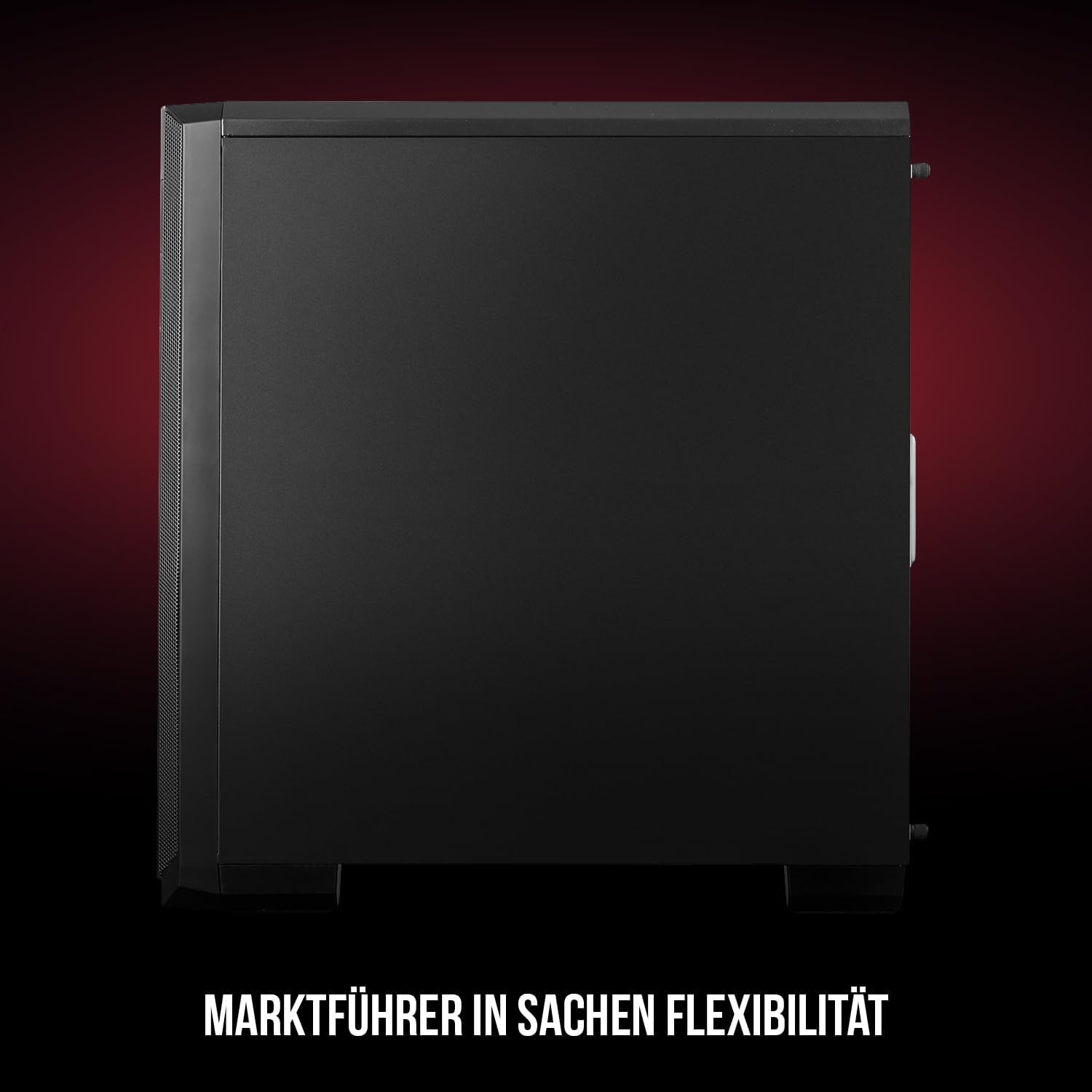
Малюнок 1: спереду та збоку view of the Modecom Oberon Pro Midi Tower computer case.
2. Інформація про безпеку
- Завжди від’єднуйте блок живлення від розетки перед встановленням або видаленням будь-яких компонентів.
- Handle components with care to avoid electrostatic discharge. Consider using an anti-static wrist strap.
- Тримайте дрібні деталі та інструменти подалі від дітей.
- Забезпечте належну вентиляцію навколо корпусу, щоб запобігти перегріву.
- Do not attempt to modify the case structure, as this may void your warranty and pose safety risks.
3. Вміст упаковки
Перевірте, чи всі наступні елементи присутні у вашій упаковці:
- Modecom Oberon Pro Midi Tower Computer Case
- Accessory box (screws, standoffs, cable ties)
- Посібник користувача (цей документ)
4. Ключові характеристики
- Просторий салон: Designed to accommodate high-end components and facilitate good airflow.
- Ефективне охолодження: Includes two pre-mounted 120mm fans (front and rear) to prevent component overheating.
- Встановлення без інструментів: Supports tool-free mounting for SSD/HDD drives and expansion cards.
- Dust Filtration: Features easily dismountable magnetic filters on the top, front, and bottom (under the power supply unit) to keep the interior clean.
- Оптимізоване управління кабелями: Provides a system for convenient wiring organization.
- Long PSU Tunnel: Offers a 240mm space for power supplies, simplifying installation and cable arrangement.
5. Налаштування та встановлення
5.1. Підготовка справи
Before installation, remove the side panels of the case. The Oberon Pro features sound-dampening mats on the side panels to reduce noise.

Рисунок 2: Інтер'єр view showing sound-dampening mats on the side panel.
5.2. Встановлення материнської плати
Install the necessary standoffs for your motherboard form factor (ATX, Micro ATX, ITX). Carefully place your motherboard into the case, aligning it with the standoffs, and secure it with screws.

Figure 3: Interior layout with pre-installed rear fan and motherboard tray.
5.3. Drive Installation (SSD/HDD)
The Oberon Pro supports tool-free installation for three 2.5" SSDs and two 3.5" HDDs. The 3.5" HDD bays are located in the power supply tunnel at the bottom of the case. 2.5" SSDs can be mounted on both sides of the motherboard tray.

Figure 4: Dedicated bays for HDD and SSD storage devices.
5.4. Установка джерела живлення
The case features a long PSU tunnel (240mm) at the bottom. Install your power supply unit into this tunnel and secure it. This design aids in cable management and airflow.
5.5. Expansion Card Installation (PCI/PCIe)
Install your graphics card or other expansion cards into the PCI/PCIe slots. The case supports tool-free mounting for these cards, allowing for easy installation and removal.
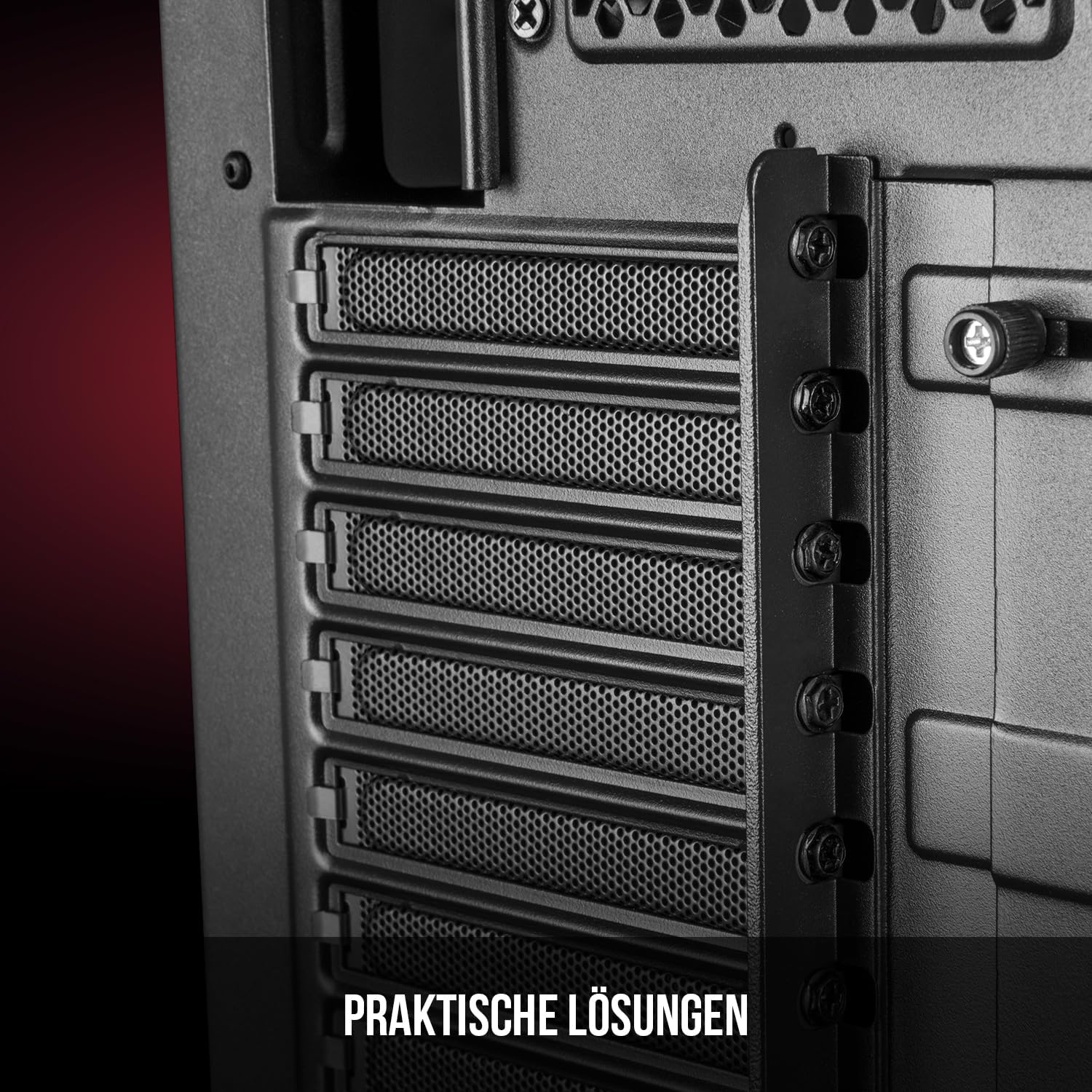
Рисунок 5: Задня частина салону view highlighting the expansion card slots.
5.6. Кабельний менеджмент
Utilize the provided cable routing options and tie-down points behind the motherboard tray to organize cables. This improves airflow and maintains a tidy interior.
6. Система охолодження
The Oberon Pro comes with two pre-installed 120mm fans, one at the front and one at the rear, to ensure adequate airflow. The maximum height for a CPU cooler is 163mm, and the maximum length for a video card is 395mm, allowing for compatibility with a wide range of components.
7. Технічне обслуговування
To maintain optimal performance and prevent dust buildup, regularly clean the dust filters. The magnetic filters on the top, front, and bottom of the case are easily dismountable for cleaning. Use compressed air or a soft brush to remove accumulated dust.
8. Вирішення проблем
- Немає живлення: Ensure all power cables are securely connected to the motherboard, power supply, and wall outlet. Check the power button connection to the motherboard.
- Перегрів: Verify that all fans are spinning correctly and that dust filters are clean. Ensure proper cable management to avoid obstructing airflow.
- Порти передньої панелі не працюють: Check that the front panel connectors (USB, audio) are correctly plugged into the motherboard headers.
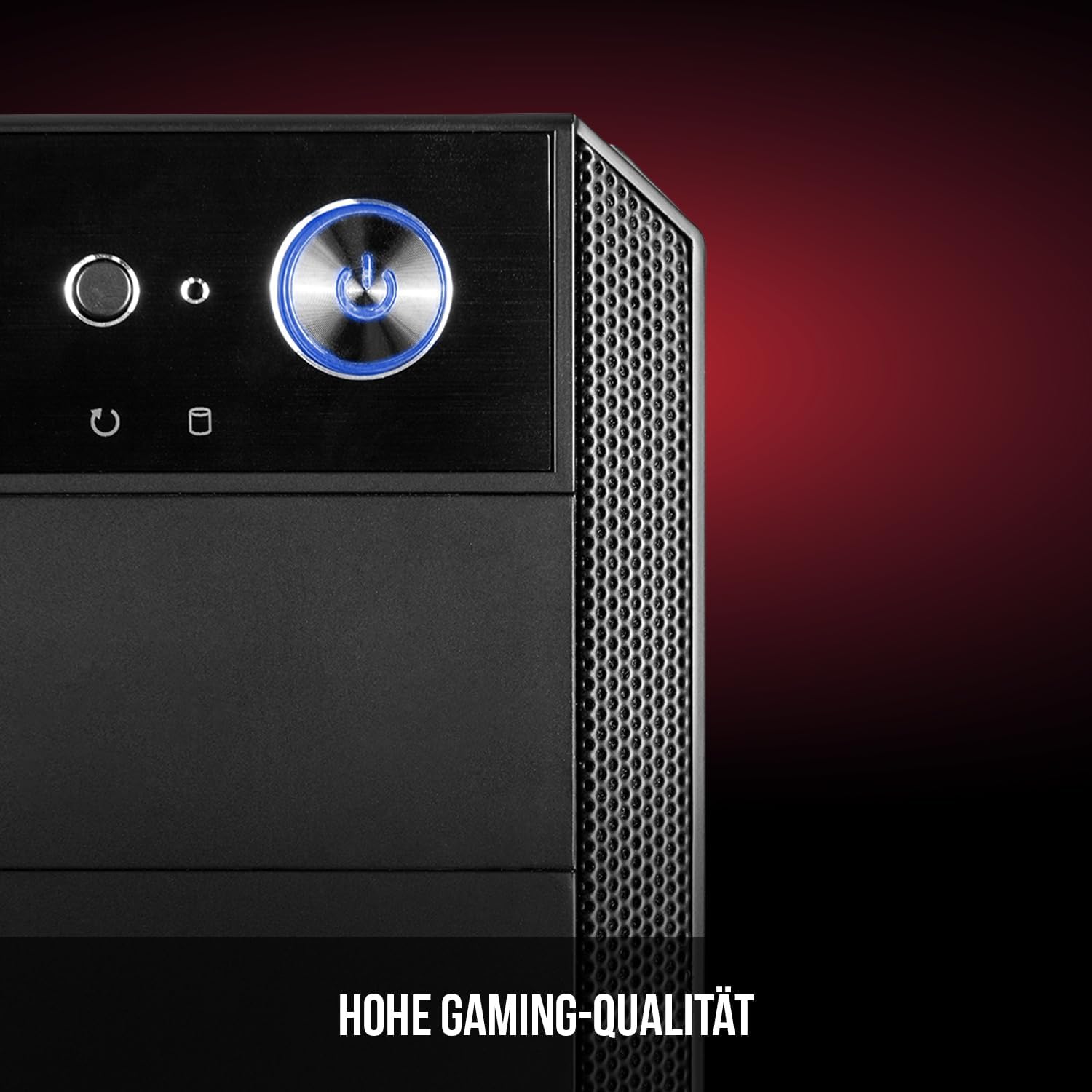
Figure 6: Front panel I/O ports for connectivity.
9. Технічні характеристики
| Особливість | Специфікація |
|---|---|
| Бренд | Modecom |
| Назва моделі | Oberon Pro |
| Номер моделі | AT-OBERON-PS-10-000000-0002 |
| Колір | чорний |
| Тип корпусу | Міді Тауер |
| Сумісність материнської плати | ATX, мікро ATX, ITX |
| матеріал | легована сталь |
| Спосіб охолодження | повітря |
| Попередньо встановлені вентилятори | 2 x 120mm (Front, Rear) |
| Максимальна висота процесорного кулера | 163 мм |
| Максимальна довжина GPU | 395 мм |
| Привідні відсіки | 3 x 2.5-дюймовий SSD, 2 x 3.5-дюймовий HDD |
| Загальна кількість портів USB | 4 |
| Особливості | Reset Button, Dust Filter, LED Indicators, Side Window |
| Вага товару | 5270 грамів |

Figure 7: Rear exterior view of the computer case.
10. Гарантія та підтримка
For warranty information and technical support, please refer to the official Modecom webсайт або зверніться до продавця. Зберігайте чек про покупку для будь-яких гарантійних претензій.


