1. Вступ
This manual provides detailed instructions for the HP DeskJet 3762 multifunction printer. The HP DeskJet 3762 is a compact all-in-one device designed for printing, scanning, and copying. It supports Wi-Fi and AirPrint for convenient wireless operation and is compatible with HP Instant Ink services.
Ключові особливості:
- Compact design, making it one of the smallest all-in-one printers.
- Economical and easy-to-use multifunctionality with high-quality output.
- Wireless printing from smartphones, tablets, and the HP Smart app.
- Support for HP Instant Ink, offering potential savings on ink costs.
- Print speeds of up to 8 pages per minute (ppm) for black/white and 5.5 ppm for color.
- High print resolution of up to 4800 x 1200 dpi.
2. Посібник із налаштування
2.1 Розпакування та початкове розміщення
Carefully remove the printer from its packaging. Ensure all protective tapes and packing materials are removed from the exterior and interior of the printer. Place the printer on a stable, flat surface with adequate space for paper input and output.
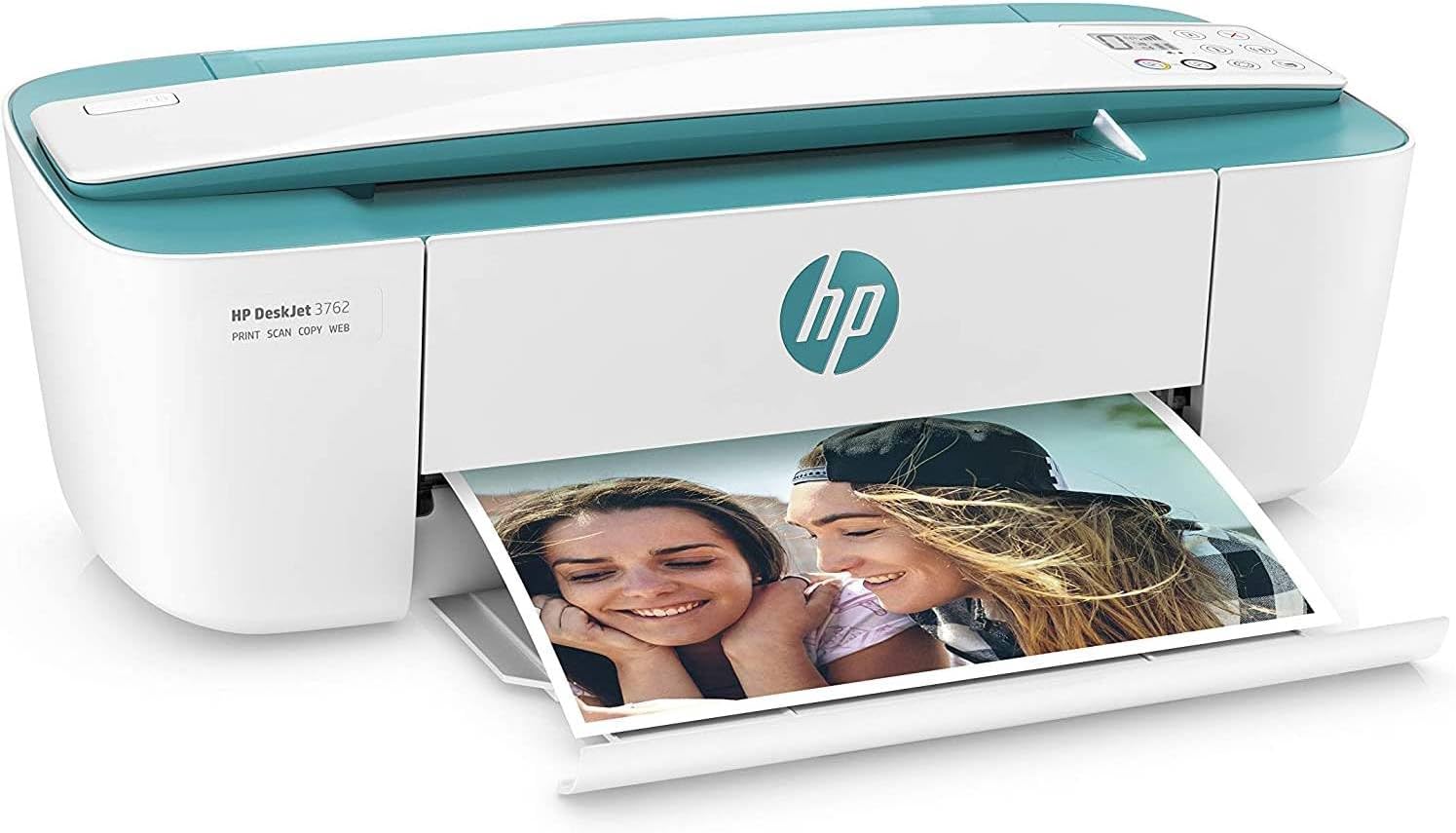
Image: The HP DeskJet 3762 multifunction printer, showcasing its compact design and a photo being printed.
2.2 Підключення живлення
Підключіть шнур живлення до принтера, а потім до розетки. Натисніть кнопку живлення, щоб увімкнути принтер.
2.3 Встановлення чорнильного картриджа
Open the ink cartridge access door. Wait for the carriage to move to the center. Install the HP 304 black and HP 304 color ink cartridges into their respective slots. Close the access door.

Image: HP Instant Ink packaging alongside HP 304 black and color ink cartridges, which are compatible with the DeskJet 3762.
2.4 Завантаження паперу
Завантажте звичайний білий папір у вхідний лоток. Відрегулюйте напрямні паперу відповідно до розміру паперу.
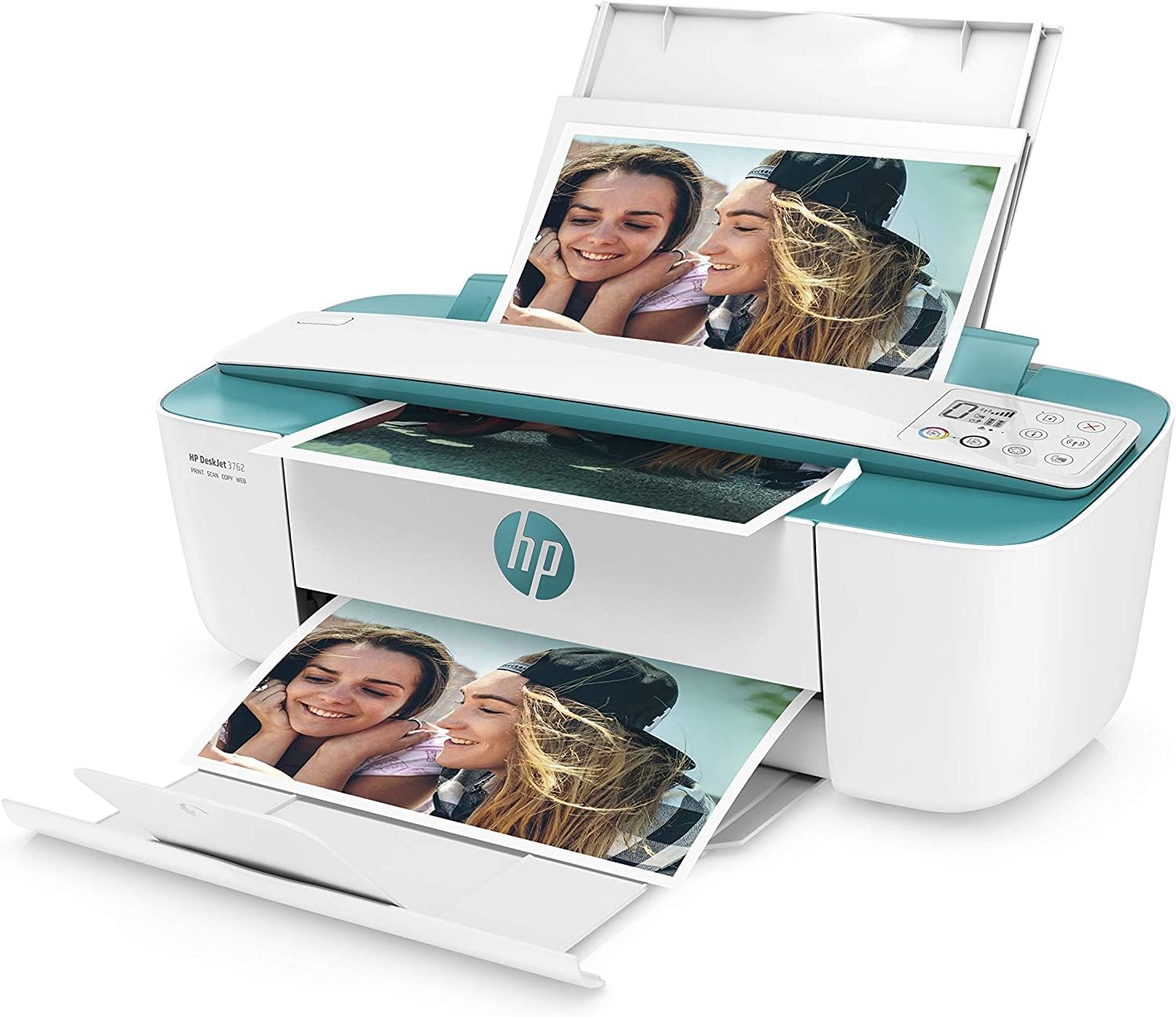
Image: The HP DeskJet 3762 printer with paper loaded in the input tray, ready for printing, and a document exiting the output tray.
2.5 Налаштування програмного забезпечення та бездротового зв'язку
Download and install the HP Smart app on your computer or mobile device. Follow the on-screen instructions in the app to connect your printer to your Wi-Fi network. The app will guide you through the wireless setup process, enabling features like mobile printing and ink level monitoring.

Image: A smartphone displaying the HP Smart app interface, highlighting features such as easy printer installation, ink level monitoring, mobile printing, and on-the-go scanning.
3. Інструкція з експлуатації
3.1 Друк
To print from a computer, ensure the printer drivers are installed. Select 'Print' from your document or application, choose the HP DeskJet 3762, and adjust settings as needed. For mobile printing, use the HP Smart app or AirPrint (for Apple devices) to send documents or photos directly to the printer over Wi-Fi.

Image: The HP DeskJet 3762 printer positioned on a desk, actively printing documents, with a laptop nearby, illustrating a typical home office setup.
3.2 Сканування
Place the document or photo face down on the scanner glass. Use the HP Smart app on your computer or mobile device to initiate a scan. Select scan settings such as resolution and file type, then save the scanned image to your desired location.
3.3 Копіювання
Place the original document face down on the scanner glass. On the printer's control panel, press the copy button (often indicated by a document icon). You may press it multiple times for multiple copies. The printer will automatically scan and print the copy.

Зображення: Детальний view of the HP DeskJet 3762 printer's control panel, showing the power button, Wi-Fi indicator, ink level display, and function buttons for copy, scan, and cancel.
4. Технічне обслуговування
4.1 Заміна чорнильних картриджів
When an ink cartridge is low or empty, the printer's display or the HP Smart app will indicate it. Purchase genuine HP 304 replacement cartridges. Follow the installation steps outlined in Section 2.3 to replace them.
4.2 Очищення принтера
Periodically wipe the exterior of the printer with a soft, lint-free cloth. For print quality issues, use the printer software or HP Smart app to perform printhead cleaning or alignment routines.
5. Вирішення проблем
5.1 Проблеми з підключенням
- Printer not connecting to Wi-Fi: Ensure your printer is within range of your router. Restart both the printer and your router. Use the HP Smart app to re-establish the wireless connection.
- Cannot print from mobile device: Verify that your mobile device is connected to the same Wi-Fi network as the printer. Ensure the HP Smart app is updated.
5.2 Проблеми з якістю друку
- Faded or streaky prints: Check ink levels. Perform a printhead cleaning cycle through the HP Smart app or printer software.
- Incorrect colors: Ensure genuine HP ink cartridges are used. Run a printhead alignment.
5.3 Зминання паперу
If a paper jam occurs, carefully open all access doors and remove any jammed paper. Avoid tearing the paper, as small pieces can remain and cause further issues. Refer to the printer's internal diagrams for specific jam clearance points.
6. Технічні характеристики
| Особливість | Деталь |
|---|---|
| Бренд | HP |
| Назва моделі | HP Deskjet 3762 |
| Розміри продукту | 7.9 Г x 17.7 Ш x 5.9 В сантиметрів |
| Технологія підключення | USB, WLAN |
| Технологія друку | струменевий |
| Особливість | Automatic Duplexing (Note: Product specifications state 'Non' for Duplexage automatique, but feature bullets mention 'Duplexage automatique'. Please verify with product documentation.) |
| Колір | Темно-зелений |
| Вихід на принтер | Колір |
| Максимальна швидкість друку (кольоровий) | 5.5 сторінок за хвилину |
| Максимальна швидкість друку (монохромний) | 8 сторінок за хвилину |
| Вага товару | 2.33 кілограма |
| Максимальний розмір носія | A4 |
| Включені компоненти | HP Deskjet 3762 All-in-One Inkjet Multifunction Printer |
| Тип сканера | Планшетний |
| Максимальна місткість аркушів | 60 |
| Сумісні пристрої | Смартфон, планшет |
| Максимальна роздільна здатність кольорового друку | 4800 x 1200 dpi |
| Максимальна роздільна здатність чорно-білого друку | 4800 x 1200 dpi |
| потужність | 50 Вт |
| Операційна система | Mac OS X 10.6 Snow Leopard (and newer) |
| Загальна кількість портів USB | 1 |
7. Гарантія та підтримка
Щоб отримати інформацію про гарантію та технічну підтримку, зверніться до документації, що додається до вашого принтера, або відвідайте офіційний сайт підтримки HP. webсайт. Там ви можете знайти драйвери, посібники з усунення несправностей та контактну інформацію служби підтримки клієнтів.
Підтримка HP Webсайт: https://support.hp.com