1. Вступ
This manual provides essential information for the installation, configuration, operation, and maintenance of the MOXA AWK-1137C-US-T 802.11n Wireless AP Client. This device is designed for industrial wireless applications, offering reliable 802.11n connectivity in challenging environments with a wide operating temperature range.
2. Інформація про безпеку
- Завжди відключайте живлення перед чищенням або обслуговуванням пристрою.
- Забезпечте належне заземлення, щоб запобігти небезпеці ураження електричним струмом.
- Використовуйте пристрій у зазначених діапазонах температури та вологості.
- Не піддавайте пристрій дії вологи або екстремальних температур.
- Установку та технічне обслуговування повинен виконувати лише кваліфікований персонал.
3. Вміст упаковки
Переконайтеся, що ваш пакет містить такі елементи:
- MOXA AWK-1137C-US-T Wireless AP Client unit
- Посібник із швидкого встановлення
- Documentation CD (or link to online resources)
- Mounting kit (if applicable)
- Power adapter or terminal block (if applicable)
Якщо будь-які товари відсутні або пошкоджені, негайно зверніться до продавця.
4. Закінчилося обладнанняview
The AWK-1137C-US-T features robust industrial design. Key components typically include:
- Порти Ethernet: Для підключення до дротової мережі.
- Антенні роз'єми: For external antennas to optimize wireless signal.
- Споживана потужність: Terminal block for DC power input.
- Світлодіодні індикатори: Provide status information for power, WLAN, and Ethernet activity.
- Кнопка скидання: Для відновлення заводських налаштувань.
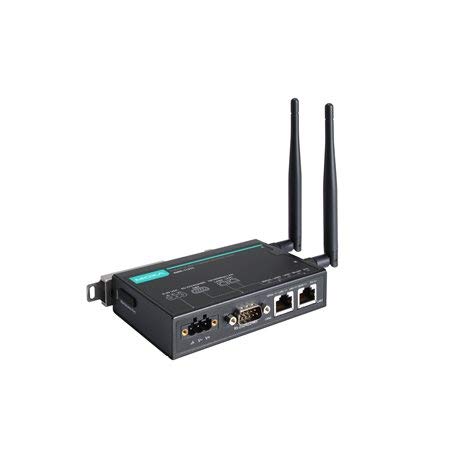
Figure 1: MOXA AWK-1137C-US-T Wireless AP Client. This image shows the compact industrial design of the device, typically featuring antenna ports, Ethernet connections, and power input.
5. Налаштування
5.1 Монтаж
The AWK-1137C-US-T supports DIN-rail mounting. Attach the DIN-rail kit to the device and snap it onto a standard DIN-rail. Ensure the device is securely fastened to prevent vibration or accidental dislodgement.
5.2 Підключення живлення
- Connect a suitable DC power source (e.g., 12-48 VDC) to the device's power input terminal block.
- Ensure correct polarity (+ and -) as indicated on the device.
- Tighten the screws on the terminal block to secure the power wires.
5.3 Мережеве підключення
- Connect an Ethernet cable from your network switch or router to the Ethernet port on the AWK-1137C-US-T.
- Attach appropriate antennas to the antenna connectors. Ensure they are securely tightened.
5.4 Початкова конфігурація
To access the device's webінтерфейс управління на основі:
- Connect a computer directly to the device's Ethernet port or ensure it is on the same network segment.
- Configure your computer's IP address to be in the same subnet as the device's default IP address (refer to the Quick Installation Guide for the default IP).
- Відкрийте a web browser and enter the device's default IP address.
- Увійдіть, використовуючи ім’я користувача та пароль за замовчуванням (див. Посібник зі швидкого встановлення).
- Change the default password immediately for security.
6. Операційна
6.1 Режими роботи
The AWK-1137C-US-T can operate in various modes, including Access Point (AP) and Client mode. Select the appropriate mode based on your network requirements.
- Режим точки доступу (AP): The device acts as a central hub for wireless clients to connect.
- Режим клієнта: The device connects to an existing Access Point, extending wired network connectivity wirelessly.
6.2 Налаштування бездротового зв’язку
Configure the following wireless parameters via the web інтерфейс:
- Ідентифікатор SSID: The name of your wireless network.
- канал: Select an appropriate wireless channel to avoid interference.
- Група: Configure for 2.4 GHz or 5 GHz operation, depending on the model and environment.
- Потужність передачі: Adjust the output power for optimal coverage and compliance.
6.3 Параметри безпеки
Implement strong wireless security to protect your network:
- Шифрування: Use WPA2/WPA3-PSK or Enterprise for robust security.
- Password/Passphrase: Choose a strong, unique password.
- Фільтрування MAC-адрес: Optionally restrict access to specific devices.
7. Технічне обслуговування
7.1 оновлень мікропрограми
Regularly check the MOXA website for the latest firmware updates. Firmware updates can provide new features, performance improvements, and security patches. Follow the instructions provided with the firmware package for a safe update process.
7.2 Очищення
Clean the device periodically with a soft, dry cloth. Do not use liquid or aerosol cleaners. Ensure the device is powered off before cleaning.
7.3 Екологічні міркування
Ensure the operating environment remains within the specified temperature and humidity limits (-40 to 75°C). Avoid placing the device near heat sources or in direct sunlight.
8. Вирішення проблем
8.1 Немає живлення
- Check the power cable connection and ensure the power source is active.
- Перевірте потужність блоку живленняtage is within the device's specified range.
- Inspect the power input terminal block for loose connections.
8.2 Немає мережевого з'єднання
- Check Ethernet cable connections and ensure they are properly seated.
- Verify that the network switch or router is functioning correctly.
- For wireless connections, ensure the SSID, security settings, and channel match the connected AP/client.
- Check the LED indicators for network activity.
8.3 Низька швидкість бездротового з'єднання
- Ensure antennas are properly connected and positioned for optimal signal.
- Check for sources of interference (e.g., other wireless devices, microwave ovens).
- Adjust the wireless channel to a less congested one.
- Verify that the device is operating in 802.11n mode and not a slower standard.
8.4 Скидання до заводських налаштувань
If configuration issues persist, you may need to reset the device to its factory default settings. Locate the reset button (often recessed) and press and hold it for approximately 5-10 seconds while the device is powered on. The device will reboot with default settings.
9. Технічні характеристики
| Особливість | Специфікація |
|---|---|
| Номер моделі | AWK-1137C-US-T |
| Бездротовий стандарт | 802.11н |
| Робочий діапазон | US Band |
| Робоча температура | від -40 до 75°C |
| Розміри упаковки | 7.87 x 6.57 x 1.97 дюймів |
| Вага товару | 1.15 фунта |
| Виробник | MOXA |
| Дата першої доступності | 30 квітня 2018 р |
10. Гарантія та підтримка
10.1 Інформація про гарантію
MOXA products typically come with a standard warranty. For detailed warranty terms and conditions, please refer to the official MOXA webсайт або гарантійний талон, що додається до вашого продукту. Зберігайте підтвердження покупки для гарантійних претензій.
10.2 Технічна підтримка
For technical assistance, product documentation, or driver downloads, please visit the official MOXA support website. You can also contact MOXA's customer support team directly through the contact information provided on their webсайт.


