1. Вступ
This manual provides essential information for the safe and efficient operation of your AUXUS iRis AX32LSP01-SM 32-inch Smart Android LED TV. Please read these instructions thoroughly before using the product and retain them for future reference.
The AUXUS iRis AX32LSP01-SM features a 32-inch HD Ready LED display, integrated Android operating system for smart functionality, wireless display capabilities, and multiple connectivity options. It is designed to provide an immersive viewing and interactive experience.

Малюнок 1.1: Спереду view of the AUXUS iRis 32-inch Smart Android LED TV, showcasinйого дисплей.
2. Інформація про безпеку
Дотримуйтесь наступних запобіжних заходів, щоб запобігти пошкодженню телевізора та забезпечити особисту безпеку:
- Не піддавайте телевізор впливу дощу або вологи, щоб запобігти пожежі або ураженню електричним струмом.
- Не відкривайте телевізорasing. Звертайтеся до кваліфікованого персоналу з усіх питань технічного обслуговування.
- Забезпечте належну вентиляцію. Не блокуйте вентиляційні отвори.
- Розмістіть телевізор на стійкій, рівній поверхні, щоб запобігти його падінню.
- Захищайте шнур живлення від наступання або защемлення.
- Від’єднуйте телевізор від мережі під час грози або якщо він не використовується протягом тривалого часу.
3. Вміст упаковки
Перевірте наявність усіх елементів в упаковці:
- 1 x AUXUS iRis 32-inch LED TV
- 1 x Table Top Stand (set)
- 1 x Посібник користувача (цей документ)
- 1 х гарантійний талон
- 1 x Пульт дистанційного керування
4. Налаштування
4.1 Розпакування
Carefully remove the TV and all accessories from the packaging. Retain the packaging materials for future transport or servicing.
4.2 Встановлення підставки
If using the table-top stand, attach the stand bases to the bottom of the TV using the provided screws. Ensure the stand is securely fastened before placing the TV on a flat, stable surface.
4.3 Настінне кріплення
The TV supports VESA-compatible wall mounts (not included). Consult a professional for wall mounting to ensure proper installation and safety.
4.4 Підключення периферійних пристроїв
Refer to the back panel diagram for port locations. Ensure the TV is powered off before making any connections.
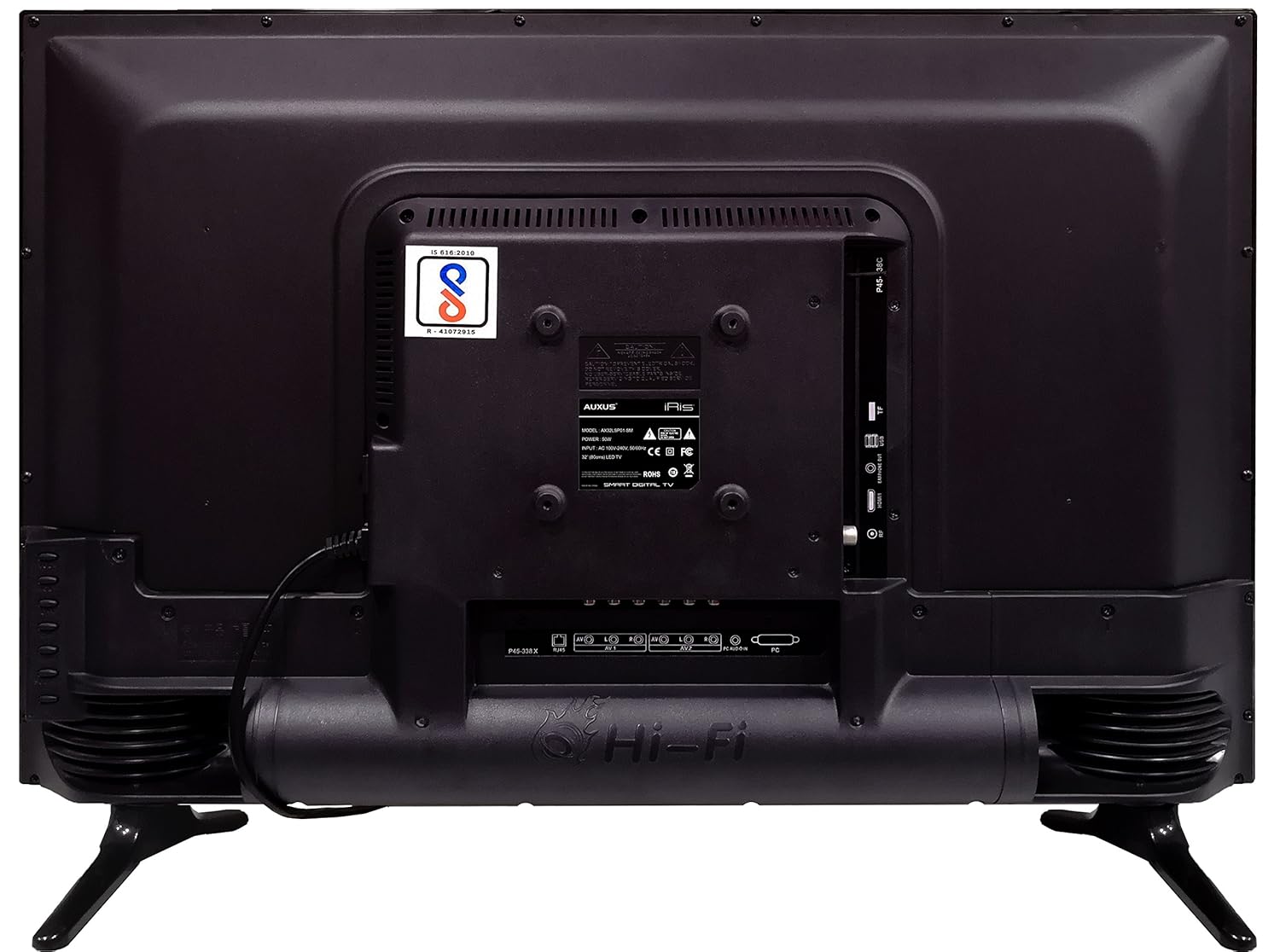
Рисунок 4.1: Задня панель телевізора з різними портами введення/виведення.

Малюнок 4.2: Детально view of the bottom interface ports.

Figure 4.3: Icons representing multiple connectivity options.
- Потужність: Підключіть шнур живлення до телевізора, а потім до розетки.
- Антена/кабель: Connect an antenna or cable TV signal to the RF port.
- USB: Insert USB drives for media playback or software updates into the USB ports. The TV has 2 USB ports.
- Ethernet (RJ45): Підключіть кабель Ethernet для дротового підключення до Інтернету.
- AV (аудіо/відео): Use RCA cables for older devices. The TV has AV1 and AV2 inputs.
- PC IN (VGA): Connect a computer using a VGA cable for video and a 3.5mm audio cable for sound (PC AUDIO IN).
- Навушники: Connect headphones to the 3.5mm jack for private listening.
5. Керування телевізором
5.1 Перше налаштування
- After connecting the power, press the Power button on the remote control or TV.
- Дотримуйтесь підказок на екрані, щоб вибрати мову, країну та часовий пояс.
- Connect to your network: Choose Wi-Fi and enter your password, or ensure an Ethernet cable is connected.
- Complete the channel scan if connecting an antenna/cable.
5.2 Пульт дистанційного керування
The remote control allows you to navigate menus, adjust volume, change channels, and access smart features. Familiarize yourself with its buttons for optimal use.
5.3 Функції Smart TV (ОС Android)
Your TV runs on the Android operating system, providing access to a variety of applications and internet services.

Figure 5.1: TV displaying a smart interface, such as Netflix.
- Навігація: Use the directional pad and 'OK' button on the remote to browse the Android interface.
- Бездротовий дисплей: Utilize the built-in wireless display feature to mirror content from compatible smartphones or tablets to your TV.
- Internet Browsing & Apps: Connect to the internet to browse websites or download and use applications from the app store.
- Ігри: The Android platform supports various games, offering an adrenaline-pumping gaming experience.
5.4 Налаштування зображення та звуку
Access the TV's settings menu to customize picture and sound preferences.
- зображення: Adjust brightness, contrast, color, sharpness, and select picture modes (e.g., Standard, Dynamic, Movie).
- звук: Optimize audio with settings for volume, balance, equalizer, and sound modes. The TV features 'Boomr Speakers' for enhanced audio output.
5.5 Вибір джерела вхідного сигналу
Press the 'Source' or 'Input' button on your remote to switch between connected devices (HDMI 1, HDMI 2, AV 1, AV 2, PC, TV).
6. Технічне обслуговування
6.1 Очищення телевізора
- Завжди відключайте телевізор від мережі перед чищенням.
- Використовуйте м’яку суху тканину для протирання екрана та телевізораasing.
- For stubborn marks on the screen, use a screen cleaner specifically designed for LED displays, applied to the cloth, not directly to the screen.
- Уникайте використання абразивних засобів для чищення, воску або розчинників.
6.2 Оновлення програмного забезпечення
Періодично перевіряйте наявність оновлень програмного забезпечення через меню налаштувань телевізора, щоб забезпечити оптимальну продуктивність і доступ до найновіших функцій.
7. Вирішення проблем
Якщо у вас виникли проблеми з телевізором, зверніться до наступних поширених проблем та способів їх вирішення:
| проблема | Можливе рішення |
|---|---|
| Немає живлення | Check if the power cord is securely connected and the power outlet is working. |
| Немає зображення, але звук є | Переконайтеся, що вибрано правильне джерело вхідного сигналу. Перевірте кабельні з’єднання із зовнішніми пристроями. |
| Звуку немає, але зображення є | Перевірте рівень гучності та стан вимкнення звуку. Перевірте підключення аудіокабелю. |
| Пульт не працює | Замініть батарейки. Переконайтеся, що між пультом дистанційного керування та телевізором немає перешкод. |
| Android system hangs or is slow | Restart the TV by unplugging it for a few minutes. Close unused applications. |
| Проблеми з мережевим підключенням | Check Wi-Fi password or Ethernet cable connection. Restart your router. |
8. Технічні характеристики
| Особливість | Специфікація |
|---|---|
| Бренд | AUXUS |
| Назва моделі | AX32LSP01-SM |
| Розмір екрана | 32 дюймів (82 см) |
| Технологія дисплея | LED, IPS Panel |
| роздільна здатність | HD Ready (1366 x 768p) |
| Viewкут нахилу | 178 градусів |
| Операційна система | Android |
| Ємність цифрового зберігання | 8 ГБ |
| ОЗУ | 1 ГБ |
| Режим аудіовиходу | Surround (Boomr Speakers) |
| Порти HDMI | множинний |
| USB порти | 2 |
| Технологія підключення | Ethernet, Wi-Fi (Wireless Display) |
| Інші порти | AV (RCA), PC IN (VGA), PC Audio In, Headphone (3.5mm), RF (Antenna) |
| Тип монтажу | Настінне кріплення / Настільна підставка |
| Розміри продукту (ДxШxВ) | 84 х 13 х 59 см |
| Вага товару | 6.5 кг |
9. Гарантія та підтримка
Your AUXUS iRis AX32LSP01-SM TV comes with a warranty. Please refer to the included Warranty Card for specific terms, conditions, and duration of the warranty coverage.
For technical support, service requests, or further inquiries, please contact AUXUS customer service. Contact details can typically be found on the warranty card or the official AUXUS webсайт.


