1. Більшеview
The Aerocool Cylon RGB Midi-Tower PC Case, model ACCM-PV10012.11, is designed to house computer components, offering both functionality and aesthetic appeal. It features a side window panel for showcasing internal hardware and an RGB LED illumination strip on the front panel for customizable lighting effects. This case supports ATX motherboards and provides ample space for various components, including multiple storage drives and cooling solutions.

Малюнок 1: Спереду view of the Aerocool Cylon RGB Midi-Tower PC Case, highlighting its distinctive RGB LED strip.
2. Вміст упаковки
Будь ласка, перевірте наявність усіх предметів у упаковці:
- Aerocool Cylon RGB Midi-Tower PC Case (ACCM-PV10012.11)
- Accessory box (containing screws, standoffs, cable ties, etc.)
- Посібник користувача (цей документ)
3. Інформація про безпеку
Read and understand all safety instructions before installing or operating the PC case. Failure to do so may result in injury or damage to the product.
- Завжди від’єднуйте блок живлення від розетки перед будь-яким встановленням або технічним обслуговуванням.
- Поводьтеся з усіма компонентами обережно, щоб запобігти пошкодженням.
- Avoid touching electronic components directly; use anti-static precautions if possible.
- Зберігайте дрібні деталі та аксесуари у недоступному для дітей місці.
- Забезпечте належну вентиляцію навколо корпусу, щоб запобігти перегріву.
4. Налаштування та встановлення
4.1 Підготовка справи
Before installing components, remove the side panels to access the interior of the case.
- Поставте корпус на рівну, стійку поверхню.
- Locate the thumbscrews on the rear of the case securing the side panel.
- Unscrew the thumbscrews and carefully slide the side panel backward, then lift it off. Repeat for the other side panel if necessary.
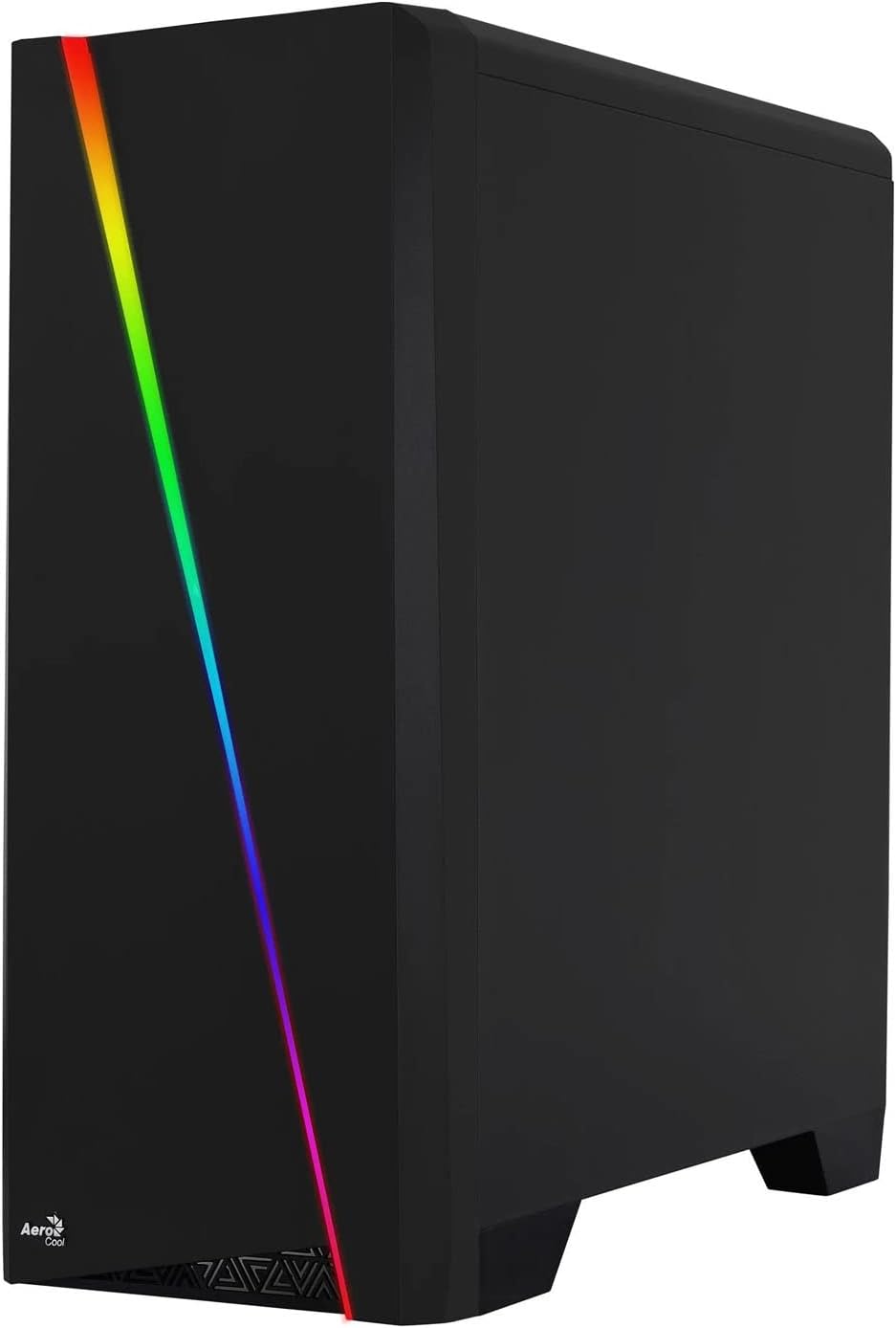

Figure 2: Left image shows the side panel attached, right image shows the side panel removed for access.
4.2 Встановлення материнської плати
The Aerocool Cylon case supports ATX motherboards.
- Install the I/O shield that came with your motherboard into the opening at the rear of the case.
- Ensure motherboard standoffs are correctly aligned with your motherboard's screw holes. Install any missing standoffs from the accessory box.
- Обережно встановіть материнську плату на опори, суміщаючи отвори для гвинтів.
- Закріпіть материнську плату відповідними гвинтами з коробки з аксесуарами.
4.3 Drive Installation (2.5" / 3.5")
The case provides bays for 2.5-inch and 3.5-inch drives.
- Locate the drive bays within the case. Refer to the case diagram for specific locations.
- For 3.5-inch HDDs, slide the drive into the designated tray or bay and secure it with screws.
- For 2.5-inch SSDs, mount the drive onto the designated bracket or tray and secure it with screws.
4.4 Встановлення блоку живлення (БП)
The PSU is typically mounted at the bottom rear of the case.
- Вставте блок живлення у відведений для нього відсік із задньої частини корпусу.
- Align the PSU's screw holes with those on the case.
- Закріпіть блок живлення за допомогою наданих гвинтів.
4.5 Expansion Card (GPU) Installation
Install your graphics card or other expansion cards into the PCIe slots.
- Remove the necessary PCI-E slot covers from the rear of the case corresponding to your expansion card's size.
- Carefully insert the expansion card into the appropriate PCI-E slot on the motherboard until it clicks into place.
- Secure the expansion card with screws.

Малюнок 3: Задня частина view of the PC case, showing the expansion slots and I/O area.
4.6 Fan / Liquid Cooling Radiator Installation
The Aerocool Cylon case supports various cooling configurations.
- задній: 1 x 120mm fan (pre-installed or optional).
- Вгорі: Підтримує 2 x 120-мм вентилятори або 1 x 240-мм радіатор.
- Внизу: Підтримує 2 вентилятори 120 мм.
- Mount fans or radiators to their respective positions using the appropriate screws.
- Connect fan power cables to the motherboard or a fan controller.

Figure 4: An interior shot of the case, illustrating potential fan and liquid cooling radiator placements.
4.7 Організація кабелів
Effective cable management improves airflow and aesthetics.
- Route cables through the cutouts and behind the motherboard tray.
- Use cable ties (included in the accessory box) to bundle and secure cables.
4.8 Connecting Front Panel I/O
Підключіть кабелі передньої панелі до відповідних роз'ємів на материнській платі.
- USB 3.0: Connect the USB 3.0 cable to the motherboard's USB 3.0 header.
- USB 2.0: Connect the USB 2.0 cables (x2) to the motherboard's USB 2.0 headers.
- HD-аудіо: Connect the HD Audio cable to the motherboard's audio header.
- Power/Reset/LEDs: Connect the small individual cables (Power SW, Reset SW, HDD LED, Power LED) to the motherboard's front panel headers according to your motherboard manual.
5. Експлуатація корпусу ПК
Once all components are installed and connected, reattach the side panels and power on your system.
- Увімкнення: Press the power button located on the top I/O panel of the case.
- Керування освітленням RGB: The front panel RGB LED illumination can be controlled via a dedicated button on the top I/O panel or through compatible motherboard software, depending on your setup. Refer to your motherboard manual for software control options.
6. Технічне обслуговування
Регулярне технічне обслуговування допомагає забезпечити оптимальну продуктивність та довговічність корпусу та компонентів вашого ПК.
- Очищення пилового фільтра: The case features dust filters (e.g., on the top and bottom). Regularly remove and clean these filters to prevent dust buildup and maintain good airflow. Use compressed air or a soft brush.
- Генеральне прибирання: Використовуйте м'який, damp cloth to wipe down the exterior of the case. Avoid abrasive cleaners or solvents. For the transparent side panel, use a microfiber cloth to prevent scratches.
7. Вирішення проблем
Якщо у вас виникли проблеми, розгляньте такі поширені кроки усунення несправностей:
- Немає живлення: Ensure the PSU is properly connected to the wall outlet and the power switch on the PSU is in the 'ON' position. Verify all power cables to the motherboard and components are securely seated.
- Вентилятори не обертаються: Check that all fan cables are correctly connected to the motherboard or fan controller. Ensure the system is receiving power.
- RGB не працює: Confirm RGB cables are properly connected. If using motherboard software, ensure it is installed and configured correctly.
- Послаблені з'єднання: Recheck all internal connections (power, data, front panel I/O) to ensure they are firmly seated.
8. Технічні характеристики
| Особливість | Специфікація |
|---|---|
| Назва моделі | ACCM-PV10012.11 |
| Тип корпусу | Міді-вежа |
| Сумісність материнської плати | ATX |
| Розміри (ДxШxВ) | 16.26 x 7.8 x 18.07 дюймів |
| Вага товару | 8.36 фунта |
| матеріал | Акрилові |
| Порти USB 3.0 | 1 |
| Порти USB 2.0 | 2 |
| Спосіб охолодження | повітря |
| Fan Size (Rear) | 120 міліметрів |
| Підсвічування RGB | Front Panel LED Strip |
9. Інформація про гарантію
The Aerocool Cylon RGB Midi-Tower PC Case is covered by a manufacturer's warranty. Please refer to the warranty card included with your product or visit the official AeroCool webсайт для отримання детальних гарантійних умов, включаючи термін дії та процедури подання претензій.
10. Підтримка
For further assistance, technical support, or to download the latest drivers and software, please visit the official AeroCool webсайт:
Webсайт: www.aerocool.io
You may also contact AeroCool customer service through the contact information provided on their webсайт.


