1. Вступ
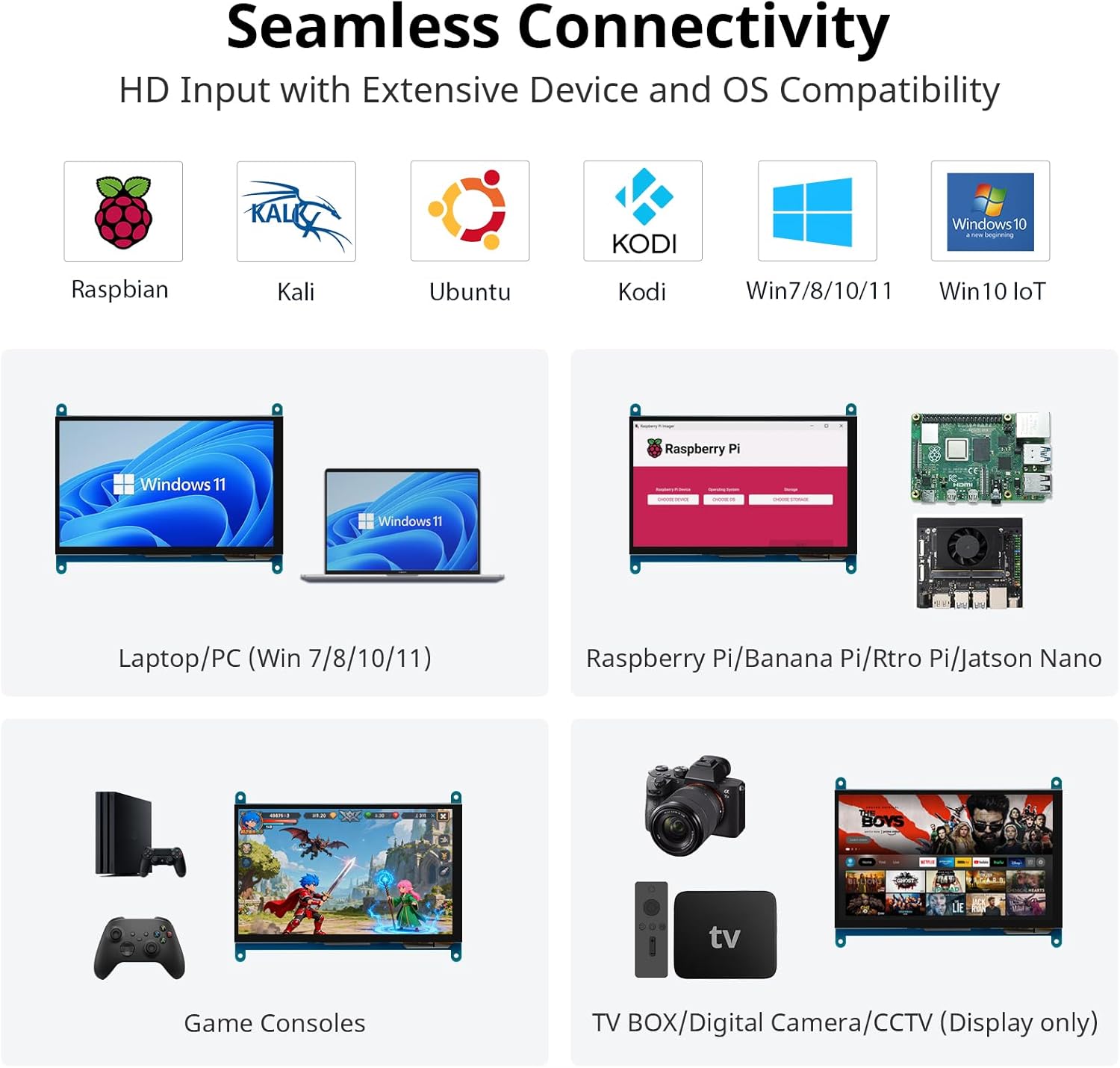
This manual provides detailed instructions for the ELECROW 7-inch 1024x600 HD IPS TFT LCD Touch Monitor. This versatile display is designed for various applications, including use with Raspberry Pi, Windows PCs, and other compatible devices. It features a capacitive USB touch screen and supports multiple display modes.
2. Що в коробці?
Будь ласка, перевірте, чи всі перелічені нижче предмети входять до вашої упаковки:

Зображення: Вміст упаковки продукту.
- 7-inch Touch Monitor x1
- Кабель HD-HD x1
- HD to Micro HD Adapter x1
- USB A to Micro USB Cable x1
- DVD x1 (containing drivers/software)
- Посібник користувача x1
- Copper Screws Pack x1
3. Технічні характеристики
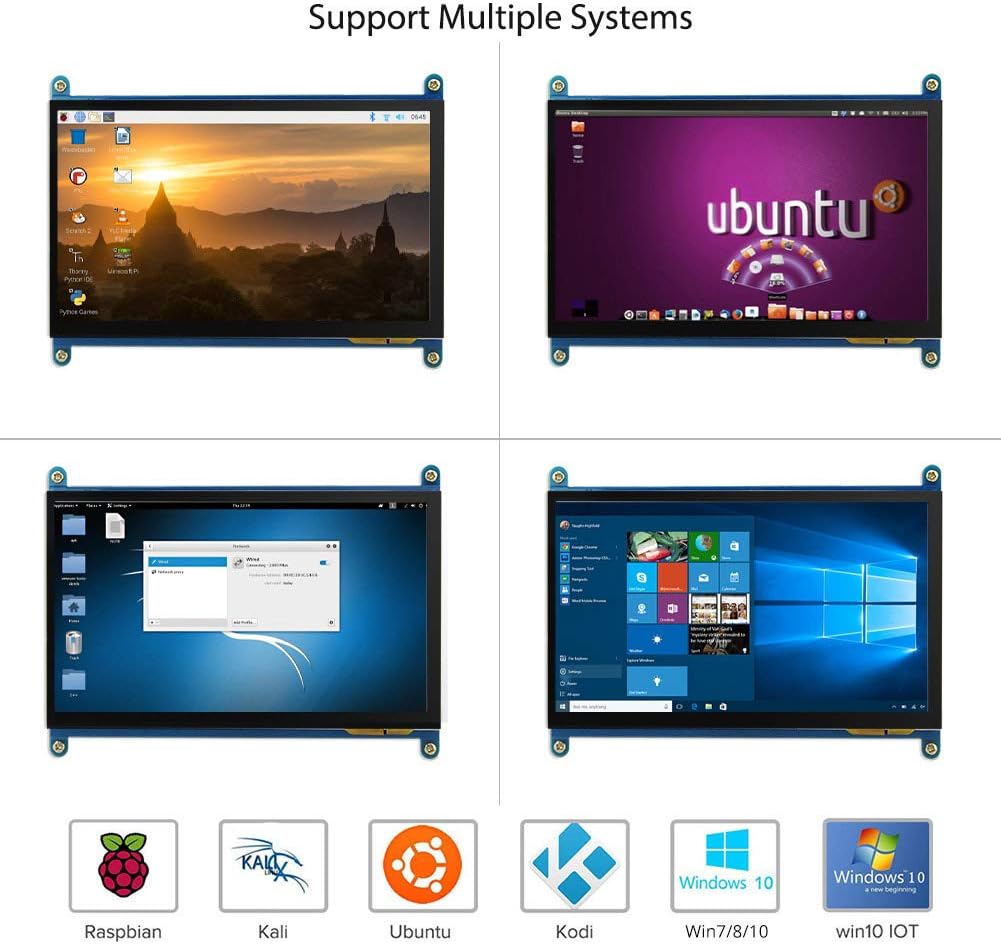
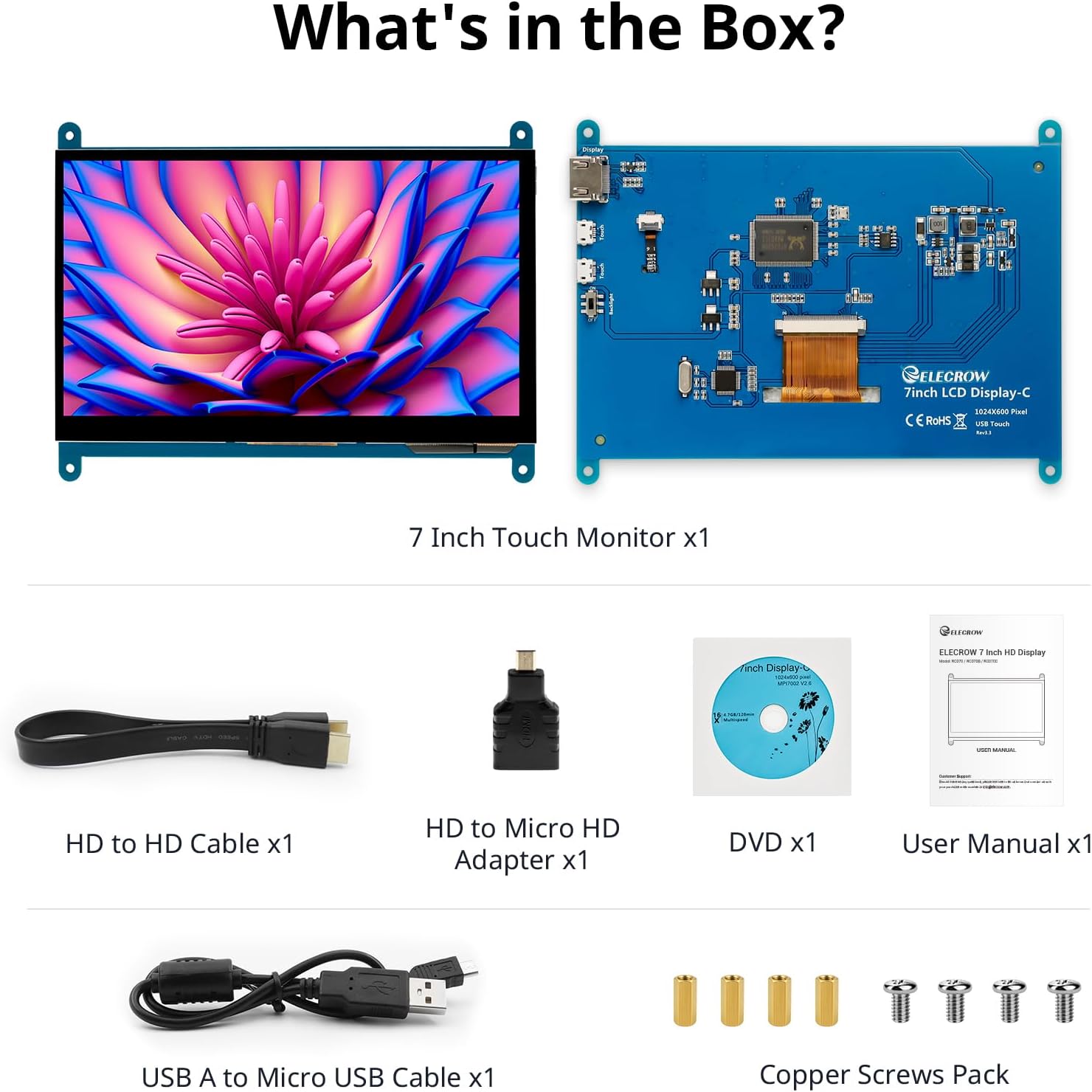
Image: The 7-inch IPS display highlighting its 1024x600 resolution.
| Особливість | Деталь |
|---|---|
| Бренд | ЕЛЕКТРОВОР |
| Номер моделі товару | 7-inch 1024x600 Monitor |
| Серія | Сенсорний екран |
| Колір | Різні кольори |
| Тип екрану | ЖК |
| Розмір екрана | 7 дюймів |
| Роздільна здатність екрана | 1024 х 600 |
| Максимальна роздільна здатність дисплея | 1024 х 600 |
| Апаратний інтерфейс | HDMI, Micro-HDMI, USB |
| Кількість портів HDMI | 1 |
| Тип роз'єму | HDMI, USB |
| Сумісність пристрою | Raspberry Pi (5/400/4/3/2/1/3B+/BB), Banana Pi, Jetson Nano, BB Black |
| Розміри предмета Д х Ш х В | 15 х 164 х 123 міліметрів |
| Особливість | Сенсорний екран |
| Співвідношення сторін | 1.71:1 |
| Опис поверхні екрана | Гладкий |
| Співвідношення контрастності зображення | [Estimated] 800:1 |
| Час відгуку | 5 мілісекунд |
| Частота оновлення | 60 Гц |
| Наявність запасних частин | Інформація недоступна |
| Гарантія оновлень програмного забезпечення до | Інформація недоступна |
4. Інструкції з налаштування
Follow these steps to connect and set up your ELECROW 7-inch monitor.
4.1 Апаратне забезпеченняview
Зображення: Апаратне забезпечення завершеноview of the monitor, indicating ports and backlight.
Особливості монітора:
- Standard HD Port for Data Transfer
- Micro USB Port for Touch and Power
- Backlight (control)
4.2 Загальне підключення
To enable both display and touch functionality, connect the monitor to your device using both the HD cable for video and the USB cable for touch and power.

Image: Seamless connectivity options for various devices.
4.3 Підключення до Raspberry Pi
The monitor is fully compatible with Raspberry Pi models (5/400/4/3/2/1/3B+/BB). For touch functionality with Raspberry Pi, ensure the USB touch port is powered. The monitor supports Raspbian, Ubuntu, and single-touch input.
- Connect the HD cable from the Raspberry Pi to the monitor's HD port.
- Connect the USB A to Micro USB cable from a USB port on the Raspberry Pi to the monitor's Micro USB port. This provides power for the touch function.
- For initial boot or if experiencing issues, use an external power source for the Raspberry Pi, then unplug the USB power from the monitor and reconnect it to the Raspberry Pi's USB port.

Image: Raspberry Pi monitor setup diagram.
4.4 Connecting to a PC (Windows)
When used as a computer monitor, it supports Windows 10/8/7 with 5-point touch. No driver installation is typically required; it's plug and play.
- Connect the HD cable from your PC's HD output to the monitor's HD port.
- Connect the USB A to Micro USB cable from a USB port on your PC to the monitor's Micro USB port. This enables the touch functionality.

Image: Monitor connected to a laptop as a PC monitor.
5. Інструкція з експлуатації
5.1 Сенсорна функціональність
The monitor features a capacitive touch screen. When connected to a Windows PC, it supports 5-point multi-touch for a smooth and responsive experience. With Raspberry Pi, it supports single-touch.
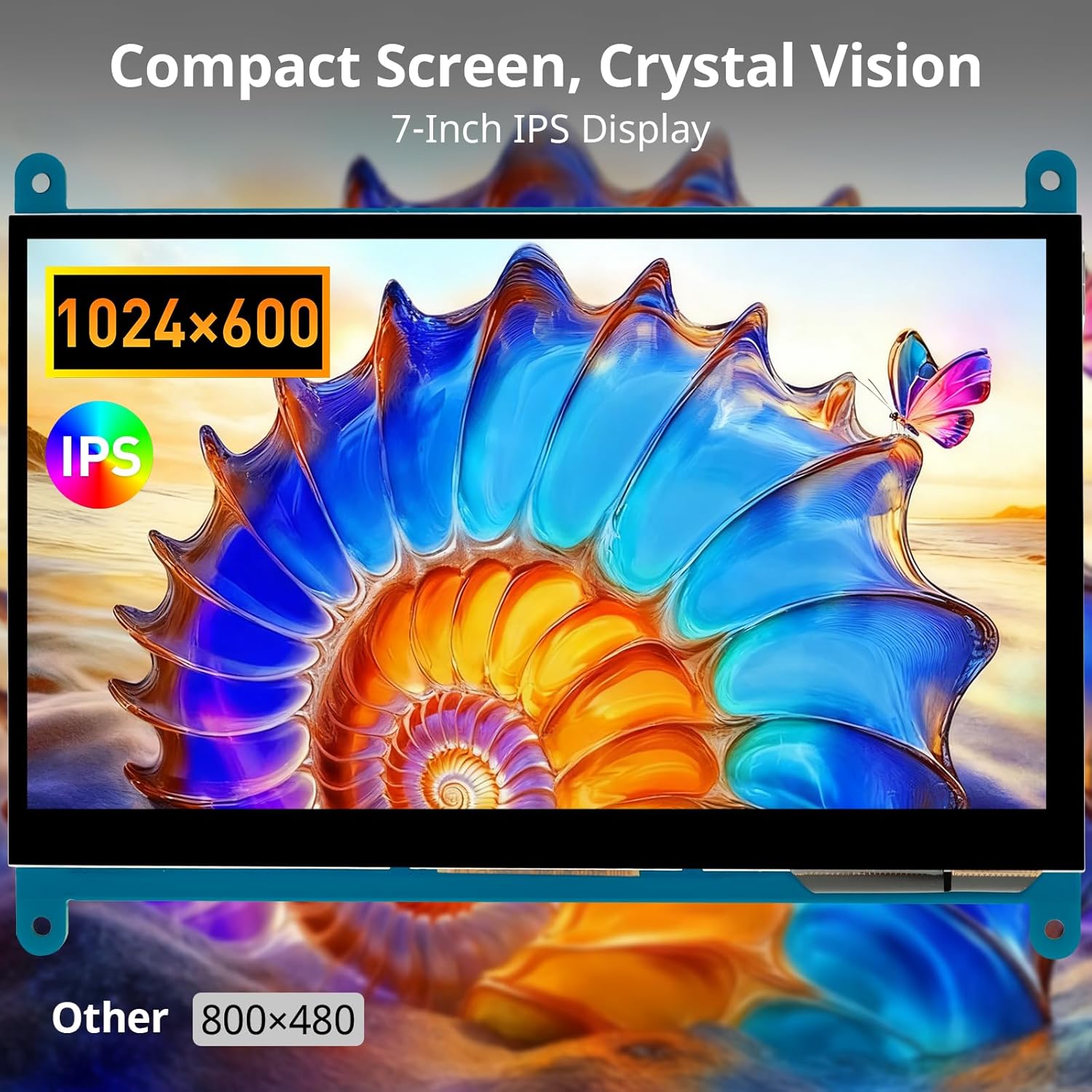
Image: Demonstration of 5-point multi-touch gestures.
5.2 Режими відображення
This mini monitor operates in three modes when connected to a compatible system:
- Режим копіювання: Duplicates the primary display's content.
- Розширений режим: Extends the desktop across both displays, providing more screen real estate.
- Режим другого екрана: Uses only the monitor as the primary display.
5.3 Універсальне застосування
The monitor's compact size and features make it suitable for various uses:
Зображення: Прamples of versatile display applications.
- Raspberry Pi Monitor: Ideal for DIY projects and embedded systems.
- Windows PC Monitor: Functions as a secondary or primary display for Windows 10/8/7.
- Gaming Monitor: Can be used with mini gaming setups.
- Цифрова фоторамка: Display photos or other media.
- Home Monitoring Display: Integrate into smart home systems.
- In-Case System Monitor: Mount inside PC cases for system stats.
6. Технічне обслуговування
Щоб забезпечити довговічність та оптимальну роботу вашого монітора, дотримуйтесь цих інструкцій з обслуговування:
- Очищення екрану: Злегка протріть м’якою тканиною без ворсу dampened with water or a screen-cleaning solution. Avoid harsh chemicals, abrasive materials, or excessive moisture.
- Очищення Casing: Протріть монітор casing м’якою сухою тканиною.
- Зберігання: Якщо монітор не використовується протягом тривалого часу, зберігайте його в прохолодному, сухому місці, подалі від прямих сонячних променів та екстремальних температур.
- Обробка: Avoid dropping the monitor or subjecting it to strong impacts. Do not apply excessive pressure to the screen.
- Вентиляція: Ensure proper airflow around the monitor to prevent overheating.
7. Вирішення проблем
If you encounter issues with your ELECROW monitor, refer to the following common problems and solutions:
| проблема | Можлива причина / рішення |
|---|---|
| Screen remains black / No signal |
|
| Сенсорна функція не працює |
|
| Display resolution incorrect |
|
| Мерехтіння екрана або спотворене зображення |
|
8. Гарантія та підтримка
8.1 Інформація про гарантію
Specific warranty details for this product are typically provided at the point of purchase or within the product packaging. Please refer to your purchase documentation for information regarding warranty duration and terms. Spare parts availability information is not available at this time.
8.2 Підтримка клієнтів
For further assistance, technical support, or inquiries not covered in this manual, please contact ELECROW customer service through their official webсайт або магазин, у якого ви придбали товар.


