1. Вступ
This manual provides comprehensive instructions for the GAMDIAS ZEUS E1 Optical Gaming Mouse and the accompanying NYX E1 Gaming Mouse Mat. Please read this manual carefully before using your new gaming mouse to ensure optimal performance and longevity.
Вміст упаковки:
- Оптична ігрова миша GAMDIAS ZEUS E1
- GAMDIAS NYX E1 Gaming Mouse Mat
Ключові характеристики:
- Double Level Multi-Color Streaming Lighting: Dynamic lighting effects on both sides of the mouse.
- Textured Rubber Design: Provides enhanced grip and comfortable operation.
- 6 Smart Keys: Programmable buttons for macros, profiles, media controls, and Windows functions.
- Регульований DPI: Up to 3200 DPI for precise cursor control.
- Ергономічний дизайн: Engineered to prevent wrist strain and promote smoother movement.
2. Налаштування
2.1 Підключення миші
- Unpack the GAMDIAS ZEUS E1 Optical Gaming Mouse and NYX E1 Gaming Mouse Mat from their packaging.
- Place the NYX E1 Gaming Mouse Mat on a flat, stable surface.
- Connect the USB cable of the ZEUS E1 mouse to an available USB port on your computer.
- Your operating system (Windows, macOS, Linux) should automatically detect and install the necessary basic drivers.
2.2 Встановлення програмного забезпечення (необов'язково)
For advanced customization of buttons, DPI settings, and lighting effects, it is recommended to download and install the GAMDIAS HERA software from the official GAMDIAS website. This software allows for comprehensive configuration of your mouse.
- Visit the official GAMDIAS webсайт.
- Navigate to the support or downloads section for the ZEUS E1 mouse.
- Download and install the HERA software.
- Дотримуйтеся вказівок на екрані, щоб завершити встановлення.

Image: The GAMDIAS ZEUS E1 Optical Gaming Mouse resting on the NYX E1 Gaming Mouse Mat, showcasing its ergonomic design and blue LED lighting.
3. Керування мишею
3.1 Основні функції
- Клацніть лівою кнопкою миші: Кнопка основної дії.
- Клацніть правою кнопкою миші: Кнопка додаткової дії, зазвичай для контекстних меню.
- Колесо прокрутки: Прокручуйте документи вгору або вниз і web сторінки. Також можна натиснути для функції клацання середньою кнопкою миші.

Зображення: Зверху вниз view of the GAMDIAS ZEUS E1 mouse on its mat, highlighting the scroll wheel and DPI button.
3.2 Налаштування DPI
The ZEUS E1 mouse features an adjustable DPI button, allowing you to change the cursor sensitivity on the fly. This is useful for switching between tasks that require different levels of precision, such as general browsing and gaming.
- Натисніть кнопка DPI (located behind the scroll wheel) to cycle through available DPI settings.
- The maximum DPI supported is 3200.
- Specific DPI levels can be configured and assigned via the HERA software.
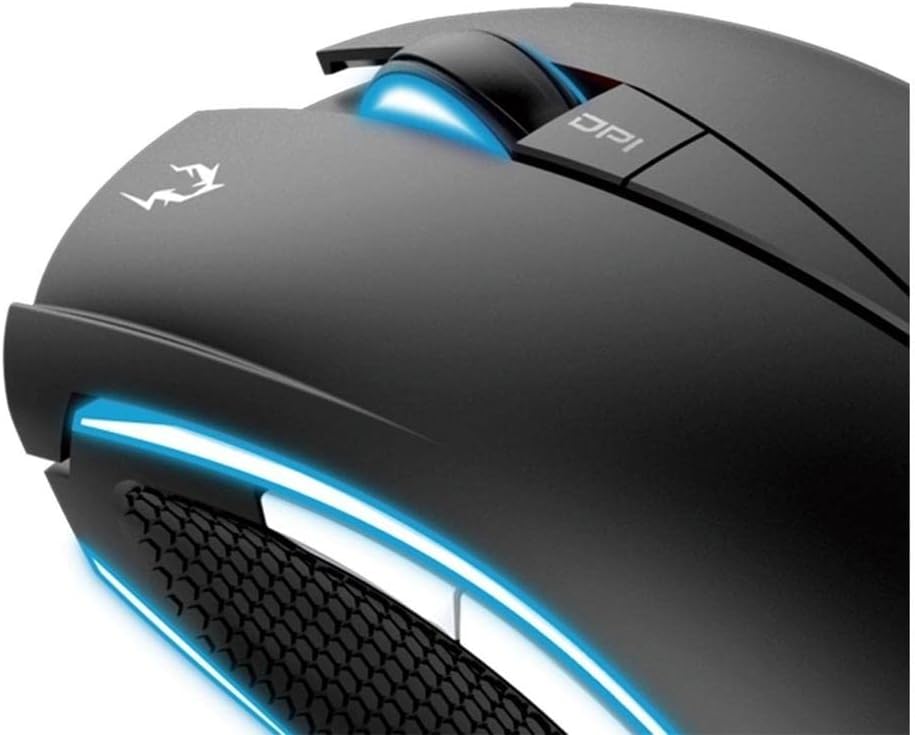
Зображення: Крупний план view of the DPI button and the illuminated scroll wheel on the GAMDIAS ZEUS E1 mouse.
3.3 Programmable Smart Keys
The ZEUS E1 mouse is equipped with 6 smart keys that can be customized for various functions. These keys provide quick access to macros, profile switching, media controls, and Windows functions, enhancing your efficiency in games and applications.
- Utilize the GAMDIAS HERA software to assign specific functions to each of the 6 smart keys.
- Створення та збереження кількох професіоналівfileдля різних ігор або програм.

Зображення: Детальний view of the side buttons and the textured rubber grip on the GAMDIAS ZEUS E1 mouse, designed for comfort and control.
3.4 світлових ефектів
The ZEUS E1 features double-level multi-color streaming lighting on both sides. These lighting effects can be customized through the HERA software to match your preferences or gaming setup.
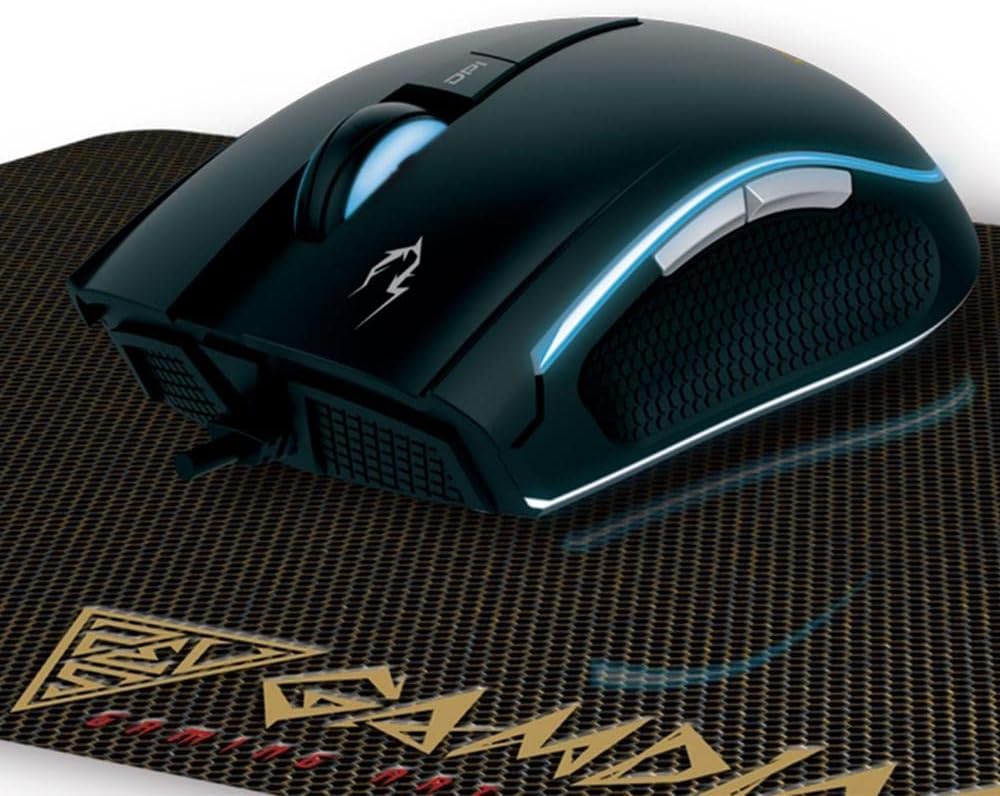
Зображення: Кутовий view of the GAMDIAS ZEUS E1 mouse on its mat, showcasing the vibrant blue streaming lighting along its sides.
4. Технічне обслуговування
4.1 Очищення миші
To maintain optimal performance and appearance, regularly clean your ZEUS E1 mouse.
- Від’єднайте мишу від комп’ютера перед чищенням.
- Використовуйте м’яку, суху тканину без ворсу, щоб протерти поверхню миші.
- Для стійкого бруду злегкаampПротріть тканину водою або м’яким миючим розчином. Уникайте агресивних хімікатів.
- Use a cotton swab or compressed air to clean around buttons and the optical sensor.
4.2 Cleaning the Mouse Mat
The NYX E1 Gaming Mouse Mat can also be cleaned to ensure smooth mouse movement.
- Протріть поверхню рекламоюamp тканину та м’яке мило, якщо необхідно.
- Allow the mat to air dry completely before use.
5. Вирішення проблем
5.1 Миша не реагує
- Переконайтеся, що кабель USB надійно під’єднано до комп’ютера.
- Спробуйте підключити мишу до іншого USB-порту.
- Перезавантажте комп'ютер.
- Перевірте, чи працює миша на іншому комп'ютері, щоб виключити проблему, пов'язану з системою.
5.2 Lighting Not Working or Incorrect
- Verify that the HERA software is installed and configured correctly.
- Check lighting settings within the HERA software.
- Ensure the mouse firmware is up to date. Firmware updates can often resolve unexpected behavior.
5.3 Кнопки не функціонують належним чином
- Open the GAMDIAS HERA software and check the button assignments for the active profile.
- Ensure no conflicting software or drivers are interfering with mouse functions.
- Виконайте оновлення прошивки, якщо доступне.
6. Технічні характеристики
| Бренд | ГАМДІЯ |
| Номер моделі | GD-ZEUS E1 |
| Апаратна платформа | PC |
| Сумісність операційної системи | Windows, macOS, Linux |
| Вага товару | 6.9 унції |
| Розміри продукту (ДxШxВ) | 1.61 x 1.61 x 2.85 дюймів |
| Колір | чорний |
| Джерело живлення | Провідний електричний (USB) |
| Технологія підключення | USB |
| Особливість | Ергономічний дизайн |
| Технологія виявлення руху | Оптичний |
| Максимальний DPI | 3200 |

Зображення: Чіткий вид зверху вниз view of the GAMDIAS ZEUS E1 Optical Gaming Mouse, showcasinйого елегантний дизайн та брендинг.
7. Гарантія та підтримка
For warranty information, technical support, or to download the latest drivers and software, please visit the official GAMDIAS website or contact GAMDIAS customer service. Keep your purchase receipt as proof of purchase for warranty claims.
Офіційний представник GAMDIAS Webсайт: www.gamdias.com