1. Продукт закінчивсяview
The NETGEAR Powerline 1000 Adapter Kit (PL1000-100PES) provides a simple solution to extend your internet network using your home's existing electrical wiring. This kit includes two Powerline 1000 adapters, enabling you to connect devices like smart TVs, gaming consoles, and computers to the internet in areas where Wi-Fi signals may be weak or unreliable.
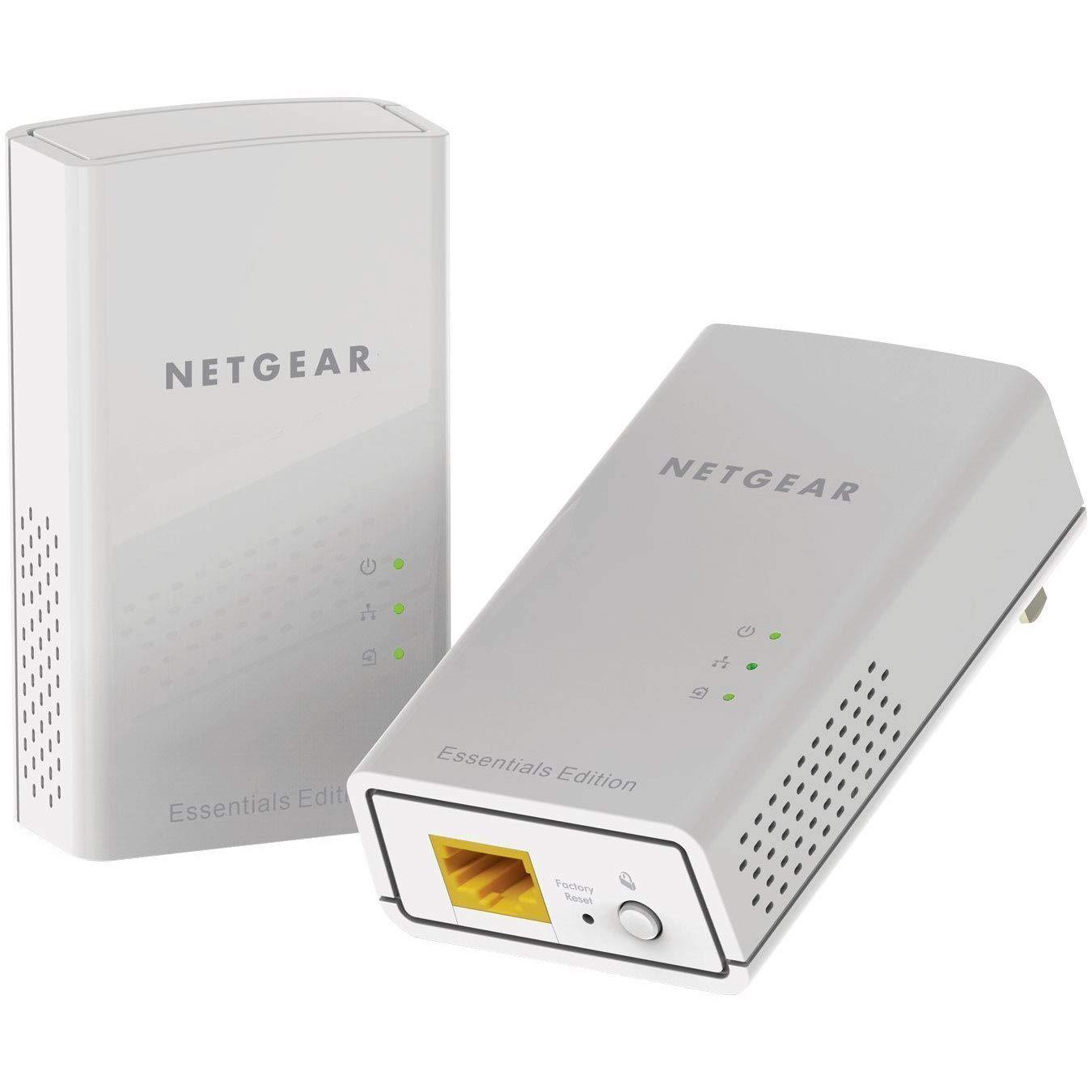
Зображення: спереду view of the NETGEAR Powerline 1000 Adapter.
2. Налаштування
2.1 Вміст упаковки
Переконайтеся, що ваш пакет містить такі елементи:
- Two (2) NETGEAR Powerline 1000 Adapters (PL1000)
- Два (2) кабелі Ethernet
- Короткий посібник (не входить до цього посібника)
2.2 Етапи встановлення
Виконайте такі кроки, щоб налаштувати мережу Powerline:
- Підключіть перший адаптер: Plug one Powerline adapter directly into an electrical outlet near your internet router or modem. Do not use a power strip or extension cord, as this can degrade performance.
- Підключення до маршрутизатора/модему: Use one of the provided Ethernet cables to connect the Powerline adapter to an available LAN port on your router or modem.
- Підключіть другий адаптер: Plug the second Powerline adapter directly into an electrical outlet in the room where you want to extend your network.
- Підключіть свій пристрій: Use the second Ethernet cable to connect your network-enabled device (e.g., computer, smart TV, gaming console) to the second Powerline adapter.
- Перевірте підключення: Зачекайте, поки світлодіод Powerline на обох адаптерах не засвітиться зеленим світлом, що свідчить про успішне підключення.

Image: A NETGEAR Powerline 1000 Adapter plugged into a wall outlet, ready for connection.

Image: Diagram illustrating how two Powerline adapters connect to a router and an Ethernet-enabled device in different rooms, utilizing the home's electrical wiring.
3. Операційна
3.1 Розуміння світлодіодних індикаторів
The Powerline adapters feature LED indicators to show their status:
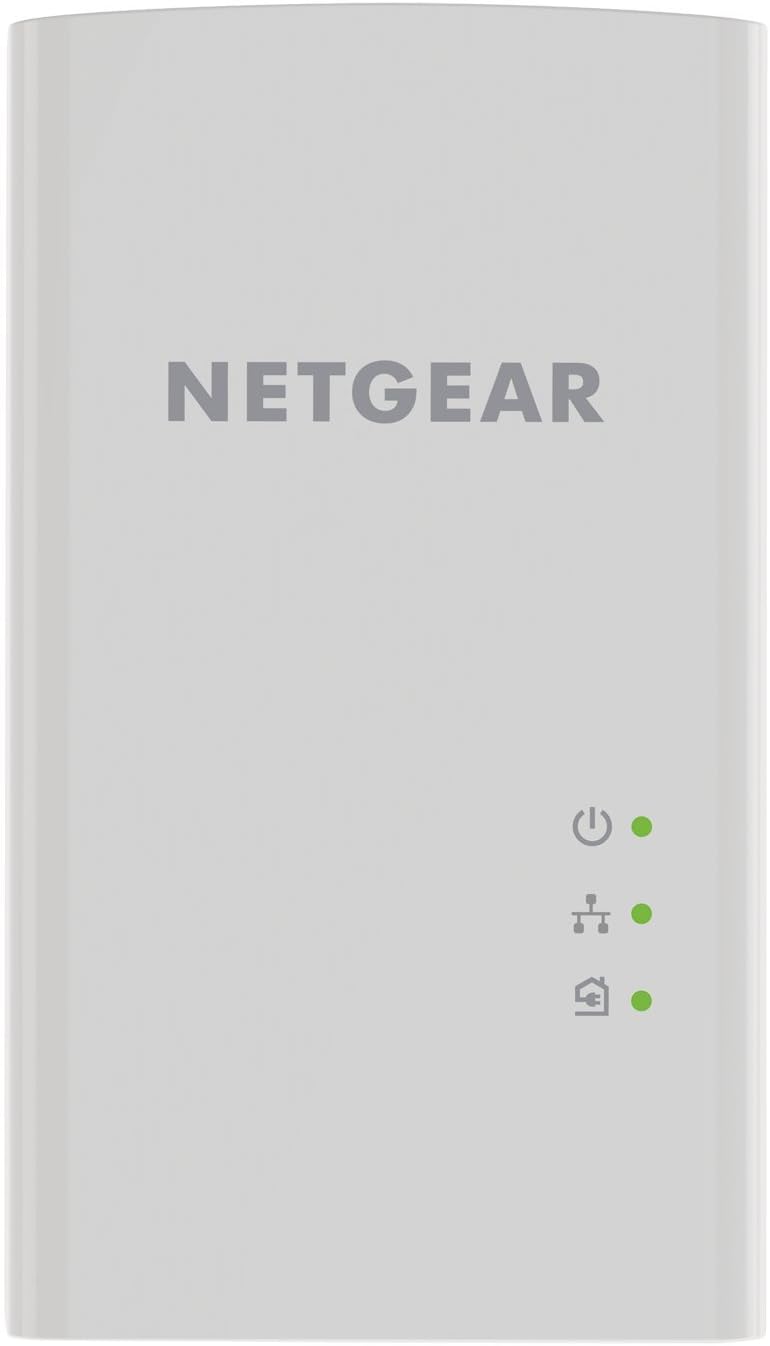
Зображення: спереду view of the Powerline 1000 Adapter showing the Power, Powerline, and Ethernet LED indicators.
| Світлодіодний індикатор | Статус | опис |
|---|---|---|
| Індикатор живлення | Світиться зеленим | The Powerline adapter is powered on. |
| Індикатор живлення | Вимкнено | The Powerline adapter is off. |
| Світлодіод Powerline | Світиться зеленим | The Powerline adapter is connected to a Powerline network. |
| Світлодіод Powerline | Блимає зеленим | The Powerline adapter is in pairing mode. |
| Світлодіод Powerline | Вимкнено | The Powerline adapter is not connected to a Powerline network. |
| Індикатор Ethernet | Світиться зеленим | Пристрій Ethernet підключено до порту Ethernet адаптера. |
| Індикатор Ethernet | Блимає зеленим | Data is being transmitted or received through the Ethernet port. |
| Індикатор Ethernet | Вимкнено | Жоден пристрій Ethernet не підключено. |
3.2 Pairing Powerline Adapters
Your Powerline adapters are typically pre-paired from the factory. If they do not connect automatically (Powerline LED is off or blinking), you may need to pair them manually:
- Plug both Powerline adapters into electrical outlets in the same room.
- Press the Security button (often labeled 'Pair' or 'Security') on the side or bottom of the first adapter for 2 seconds. The Powerline LED will start blinking.
- Within two minutes, press the Security button on the second adapter for 2 seconds. Its Powerline LED will also start blinking.
- After a short period, the Powerline LEDs on both adapters should turn solid green, indicating a successful secure connection.
4. Технічне обслуговування
4.1 Догляд і очищення
- Keep the adapters in a dry environment, away from excessive heat or moisture.
- Do not block the ventilation holes on the adapters.
- To clean, gently wipe the surface with a soft, dry cloth. Do not use liquid or aerosol cleaners.
4.2 Скидання до заводських налаштувань
If you experience persistent issues or wish to clear all settings, you can perform a factory reset:

Зображення: Нижня частина view of the Powerline 1000 Adapter, highlighting the Ethernet port and the recessed Factory Reset button.
- With the adapter plugged into an electrical outlet, use a paperclip or similar pointed object to press and hold the recessed Скидання до заводських налаштувань приблизно 10 секунди.
- Release the button when the LEDs briefly flash. The adapter will restart with factory default settings.
5. Вирішення проблем
5.1 Поширені проблеми та рішення
- Немає підключення до електромережі (індикатор Powerline вимкнено):
Ensure both adapters are plugged directly into wall outlets, not power strips. Try different outlets. Perform manual pairing as described in Section 3.2. - Низька швидкість з'єднання:
Avoid plugging adapters into outlets on different electrical circuits if possible. Remove any high-power electrical appliances (e.g., washing machines, refrigerators) from outlets near the adapters, as they can cause interference. - Без доступу до Інтернету:
Verify that your router/modem is working correctly and has an active internet connection. Ensure the Ethernet cable between the first adapter and the router is securely connected. Check the Ethernet LED on both adapters. - Adapter Not Responding:
Unplug the adapter from the wall outlet, wait 10 seconds, and plug it back in. If the issue persists, perform a factory reset (Section 4.2).
6. Технічні характеристики
6.1 Технічні характеристики
| Особливість | Деталь |
|---|---|
| Бренд | NETGEAR |
| Номер моделі | PL1000-100PES |
| Розміри (ДxШxВ) | 2.32 x 1.41 x 3.94 дюйми (5.89 x 3.58 x 10.01 см) |
| Вага товару | 4.4 унцій (126 грам) |
| Колір | Білий |
| Швидкість передачі даних | Up to 1000 Mbps (Megabytes Per Second) |
| Протокол зв'язку даних | Gigabit Ethernet, IEEE 802.3 |
| Апаратний інтерфейс | Порт Ethernet (RJ-45) |
| Сумісні пристрої | Desktop, Laptop, Smart TV, Gaming Console, Smartphone, Tablet (via Ethernet connection to adapter) |
| томtage | 15.0V (Internal) |
| UPC | 606449109825 |
7. Гарантія та підтримка
7.1 Інформація про гарантію
NETGEAR products typically come with a limited hardware warranty. For specific warranty terms and conditions applicable to your region and product, please refer to the warranty card included with your purchase or visit the official NETGEAR webсайт.
7.2 Підтримка клієнтів
For further assistance, technical support, or to download the latest firmware and documentation, please visit the official NETGEAR support webсайт. Там ви можете знайти детальні запитання щодо поширених запитань, посібники з усунення несправностей та контактну інформацію служби підтримки клієнтів.


