вступ
Дякуємо за покупкуasing the Insignia 10-inch Digital Photo Frame. This device allows you to display your favorite digital photos and videos in a high-quality format. This manual provides detailed instructions for setup, operation, maintenance, and troubleshooting to ensure you get the most out of your new digital photo frame.
Вміст упаковки
Before you begin, please check that all items are present in the package:
- Insignia 10-inch Digital Photo Frame
- Адаптер живлення
- Пульт дистанційного керування
- Посібник користувача (цей документ)
Налаштування
1. Підключення живлення
Connect the included power adapter to the DC IN 9V port on the back of the digital photo frame. Plug the other end of the adapter into a standard wall outlet. The frame will typically power on automatically or can be turned on using the power switch.
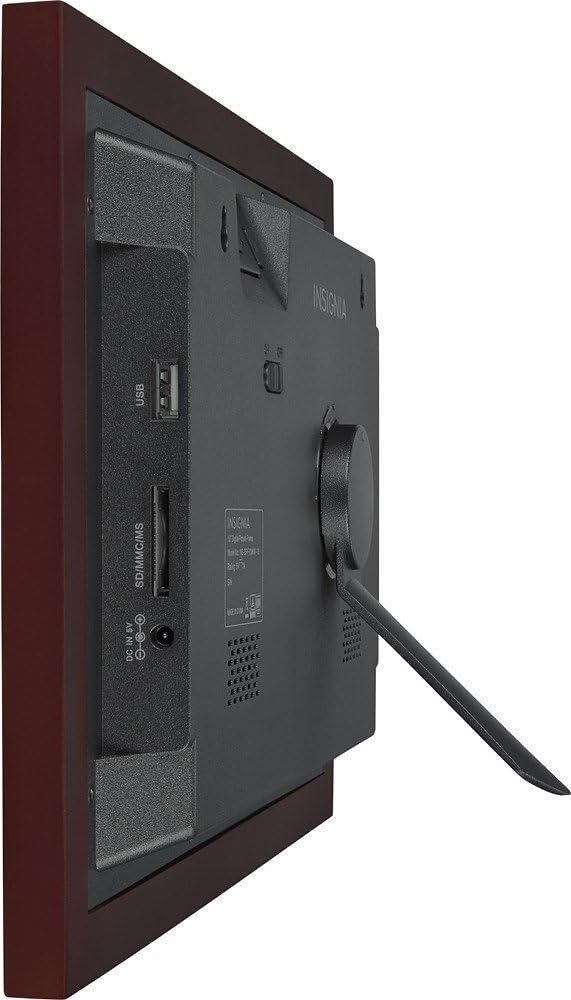
Зображення: Задня частина view of the digital photo frame, highlighting the USB port, SD/MMC/MS card slot, and DC IN 9V power input.
2. Inserting Memory Cards or USB Drives
The frame supports SD, MMC, and MS memory cards, as well as USB flash drives. Insert your memory card into the appropriate slot or your USB drive into the USB port on the side/back of the frame. Ensure the card or drive is inserted correctly. The frame will automatically detect the storage device.
3. Початкові налаштування
Upon first power-on, you may be prompted to set the language, time, and date. Use the navigation buttons on the frame or the remote control to make your selections and confirm.
Operating the Digital Photo Frame
1. Контрольview
Your digital photo frame can be operated using the buttons on the back of the frame or the included remote control.
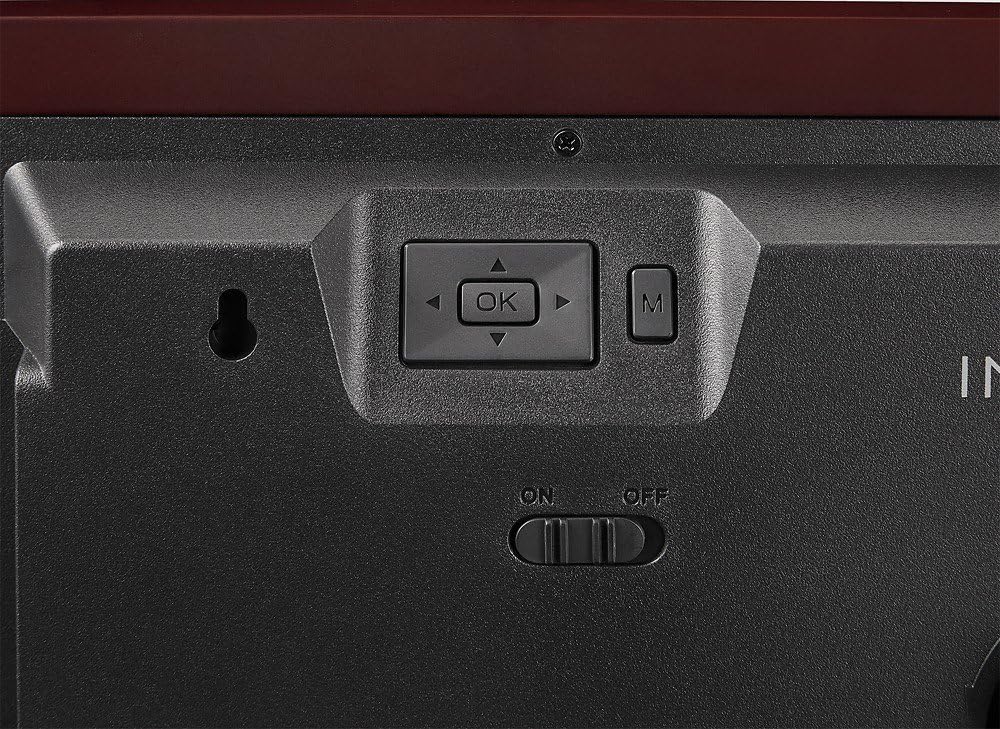
Image: Close-up of the control buttons located on the rear of the digital photo frame. These include directional arrows, an 'OK' button for selection, and an 'M' button for menu access, alongside the power switch.
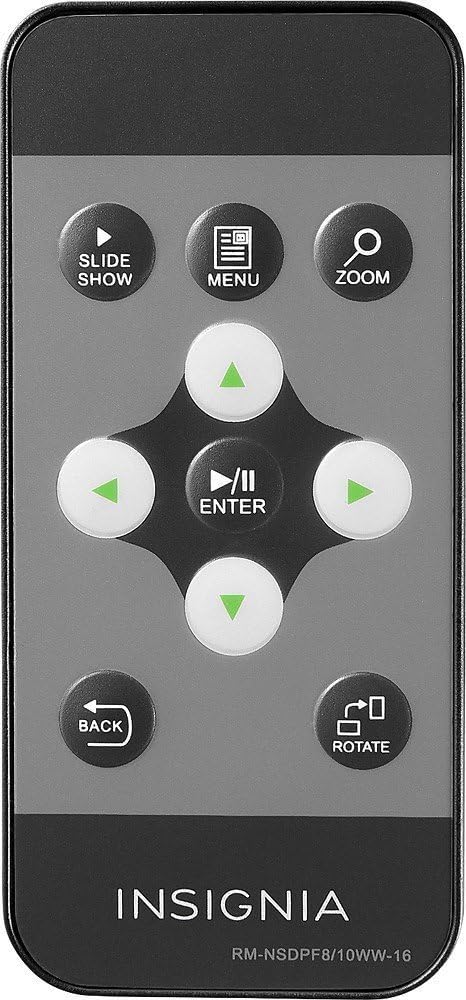
Image: The remote control for the digital photo frame, featuring dedicated buttons for slideshow, menu, zoom, directional navigation, enter, back, and image rotation functions.
2. Навігація по меню
Натисніть МЕНЮ кнопку на пульті дистанційного керування або M button on the frame to access the main menu. Use the directional arrows (▲ ▼ ◀ ▶) to navigate through options and press ENTER or OK щоб підтвердити свій вибір. Натисніть НАЗАД щоб повернутися до попереднього екрана або вийти з меню.
3. Viewзавантажувати фотографії та відео
Once a memory card or USB drive is inserted, the frame will typically start a slideshow automatically. You can manually browse files by selecting the "Photo" or "Video" option from the main menu. Use the navigation buttons to select a file і натисніть ENTER or OK до view це.
4. Slideshow Settings
From the main menu, navigate to "Settings" or "Slideshow Settings" to customize your slideshow. Options may include:
- Режим відображення: Adjust how photos fit the screen (e.g., original, fit to screen, crop).
- Час інтервалу: Встановіть тривалість відображення кожної фотографії.
- Ефект переходу: Вибирайте з різних стилів переходу між фотографіями.
- Режим повторення: Loop the slideshow continuously.
5. Clock and Calendar
Your frame may include a clock and calendar function. Access these features through the main menu. You can set the time and date in the settings menu.
Технічне обслуговування
Очищення рами
Щоб очистити екран, обережно протріть його м’якою тканиною без ворсу. Для стійких плям злегка протрітьampen the cloth with water or a non-abrasive screen cleaner. Avoid using harsh chemicals or abrasive materials, as these can damage the screen and frame finish. Ensure the frame is powered off and unplugged before cleaning.
Зберігання
When not in use for extended periods, store the digital photo frame in a cool, dry place, away from direct sunlight and extreme temperatures. It is recommended to keep the original packaging for storage.
Усунення несправностей
| проблема | Можливе рішення |
|---|---|
| Рамка не вмикається. |
|
| No photos or videos display. |
|
| Пульт дистанційного керування не працює. |
|
| Images appear distorted or stretched. |
|
Технічні характеристики
| Особливість | Деталь |
|---|---|
| Номер моделі | NS-DPF10WW-16 |
| Розмір екрана | 10 дюймів |
| роздільна здатність | WXGA |
| Розміри продукту | 12.6 x 1.5 x 9 дюймів |
| Вага товару | 2 фунта |
| Технологія підключення | USB |
| Підтримувані карти пам'яті | SD, MMC, MS (Memory Stick) |
| Виробник | Знаки розрізнення |
Гарантія та підтримка
For warranty information, please refer to the warranty card included with your product or visit the official Insignia website. If you encounter issues not covered in this troubleshooting section, please contact Insignia customer support for assistance.
Інтернет-підтримка: www.insigniaproducts.com/support