1. Вступ
This manual provides comprehensive instructions for the installation, operation, and maintenance of your Lorex LNR1141TC4 4-Channel 1TB Network Video Recorder (NVR) system with four 1080p HD cameras. This system is designed to provide high-definition surveillance for your property, offering real-time recording and remote access capabilities.
Please read this manual thoroughly before setting up and operating your system to ensure proper functionality and to maximize its features.
2. Вміст упаковки
Verify that all components listed below are included in your package. If any items are missing or damaged, please contact Lorex support.
- 1 x NVR with Pre-Installed 1TB HDD
- 1 кабель HDMI
- 1 х адаптер живлення для NVR
- 1 х USB миша
- 1 х Ethernet-кабель
- Quick Start Guides
- 4 x IP Bullet Cameras (1080p HD)
- 4 x Mounting Kits for Cameras
- 4 x 60ft (18m) Cat5e Ethernet Cables
3. Система закінченаview
The Lorex LNR1141TC4 system consists of a Network Video Recorder (NVR) and four 1080p HD IP cameras. The NVR manages video recording, storage, and network connectivity, while the cameras capture high-definition video footage.
3.1 NVR and Camera Components

малюнок 3.1: Lorex LNR1141TC4 NVR system with four 1080p HD bullet cameras. This image displays the main components of the surveillance system, including the central NVR unit and the four included bullet-style IP cameras.
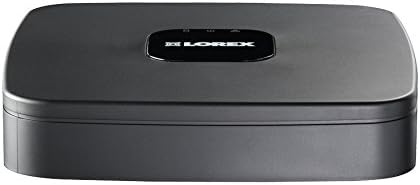
малюнок 3.2: Топ view of the Lorex LNR1141TC4 NVR. The NVR unit features a sleek black design with the Lorex logo prominently displayed on the top surface.

малюнок 3.3: Rear panel of the Lorex LNR1141TC4 NVR. This view shows the various input and output ports, including HDMI, VGA, USB, Ethernet, and the four Power over Ethernet (PoE) ports for camera connections.

малюнок 3.4: Close-up of a Lorex 1080p HD bullet camera lens. This image highlights the camera's lens, infrared LEDs for night vision, and light sensor.
4. Налаштування
Follow these steps to set up your Lorex LNR1141TC4 NVR system.
4.1 Підключення NVR
- Підключення монітора: Connect the NVR to a monitor using the supplied HDMI cable or a VGA cable (not included).
- Підключіть мишку: Plug the USB mouse into one of the USB ports on the NVR's rear panel.
- Мережеве підключення (необов'язково, але рекомендовано): Connect the NVR to your router using the supplied Ethernet cable for remote access and system updates.
- Увімкнення: Connect the NVR power adapter to the NVR and then to a power outlet. The NVR will power on automatically.
4.2 Connecting the Cameras
The Lorex LNR1141TC4 NVR features Power over Ethernet (PoE) ports, simplifying camera installation.
- Монтування камер: Securely mount each camera in your desired location using the provided mounting kits. Ensure the camera's field of view covers the area you wish to monitor.
- Підключіть кабелі Ethernet: Connect one end of the supplied 60ft Cat5e Ethernet cable to the camera's Ethernet port and the other end to one of the PoE ports on the NVR's rear panel. The NVR will automatically detect and power the cameras.
- Відрегулюйте кут камери: Once connected, adjust each camera's angle to optimize surveillance coverage.
5. Операція
This section covers the basic operation of your Lorex NVR system.
5.1 Майстер початкового налаштування
Upon first power-up, the NVR will guide you through an initial setup wizard to configure basic settings such as language, date/time, network settings, and password creation. Follow the on-screen prompts.
5.2 Запис
- Безперервне записування: The NVR is configured for continuous recording by default, utilizing the pre-installed 1TB hard drive.
- Запланований запис: You can customize recording schedules for each camera through the NVR's menu. This allows you to set specific times for recording.
- Запис руху: Configure motion detection zones and sensitivity to trigger recording only when movement is detected. This helps conserve storage space.
- High Definition 1080p: The system records in 1080p resolution at 30/25 frames per second (fps) per channel, ensuring clear and detailed footage.
5.3 Відтворення
Доступ до записаного footage through the NVR's playback menu. You can search by date, time, and event type (e.g., motion detection). The system supports selectable area digital zoom during live view and playback for detailed examination.
5.4 Remote Access (FLIR Cloud)
The FLIR Cloud connectivity solution enables remote viewing of your surveillance system.
- Завантажити додаток: Download the free Lorex FLIR Cloud app on your iOS or Android smartphone or tablet.
- Сканувати QR-код: Use the app to scan the QR code located on your NVR or in the quick start guide.
- Підключити: Follow the app's instructions to connect to your NVR. This allows you to view live feeds, playback recordings, and receive push notifications for motion events and instant email alerts with snapshot attachments from anywhere with an internet connection.
6. Технічне обслуговування
Regular maintenance ensures the longevity and optimal performance of your surveillance system.
- Прибирання: Періодично очищуйте об'єктиви камери м'якою губкоюamp cloth to remove dust and smudges. Ensure the NVR's ventilation openings are clear of obstructions.
- Стан жорсткого диска: The NVR's hard drive is crucial for recording. Monitor its health through the NVR's system settings. Consider backing up important footagрегулярно.
- Оновлення прошивки: Перевірте Лорекс website for any available firmware updates for your NVR to ensure you have the latest features and security enhancements.
7. Вирішення проблем
This section addresses common issues you might encounter with your Lorex LNR1141TC4 system.
- Немає відеовиходу на монітор:
- Переконайтеся, що кабель HDMI/VGA надійно підключено як до відеореєстратора, так і до монітора.
- Перевірте, чи монітор налаштовано на правильне джерело вхідного сигналу.
- Спробуйте інший кабель HDMI/VGA або монітор.
- Камери не відображаються:
- Check that the Ethernet cables are securely connected to both the cameras and the NVR's PoE ports.
- Переконайтеся, що NVR увімкнено.
- If a camera is still not detected, try connecting it to a different PoE port on the NVR.
- A power cycle of the NVR (unplug and replug) can sometimes resolve camera detection issues.
- Віддалений доступ не працює:
- Verify the NVR is connected to your router and has internet access.
- Ensure your smartphone/tablet has a stable internet connection.
- Double-check the QR code scan and account login details in the FLIR Cloud app.
- Проблеми із записом:
- Check the hard drive status in the NVR's system settings.
- Ensure recording schedules are correctly configured.
- Verify that motion detection settings are appropriate if using motion-triggered recording.
8. Технічні характеристики
| Особливість | Деталь |
|---|---|
| Номер моделі | LNR1141TC4 |
| Роздільна здатність захоплення відео | 1080p HD |
| Кількість каналів | 4 |
| Ємність пам'яті | 1 TB (Pre-installed HDD) |
| Технологія підключення | Wired (Ethernet, PoE for cameras) |
| Особливість | Motion Sensor, Remote Access (FLIR Cloud) |
| Частота кадрів | 30/25 fps per channel |
| Режим запису | Continuous, Scheduled, Motion |
| Джерело живлення | Провідний електричний |
| Розміри відеореєстратора (Д x Ш x В) | 8.1 x 8.1 x 1.8 дюйми (20.6 x 20.6 x 4.6 см) |
| NVR Item Weight | 1.1 фунта (0.5 кг) |
| Сумісні пристрої | Cameras, Personal Computers, Smartphones, Tablets |
9. Гарантія та підтримка
For warranty information and technical support, please refer to the documentation included with your product or visit the official Lorex website. Lorex provides resources and customer service to assist with any questions or issues you may encounter.
Інтернет-ресурси: www.lorex.com/support


