вступ
This manual provides essential information for setting up, operating, maintaining, and troubleshooting your Microsoft Surface Pro 3. The Surface Pro 3 is a versatile device designed to function as both a tablet and a laptop, powered by the Windows 10 operating system.
It features a 12-inch high-resolution screen, ample internal storage, dual HD cameras, and robust connectivity options, including a full-size USB 3.0 port. Its integrated kickstand allows for comfortable viewing in various positions, and the magnesium frame ensures a lightweight and durable design.
Інформація про безпеку
- Не піддавайте пристрій впливу екстремальних температур, прямих сонячних променів або високої вологості.
- Уникайте падіння або сильних ударів пристрою.
- Use only Microsoft-approved power adapters and accessories.
- Keep the device away from liquids. In case of liquid contact, power off immediately and seek professional assistance.
- Не намагайтеся розбирати або ремонтувати пристрій самостійно. Це може призвести до анулювання гарантії та пошкодження.
- Забезпечте належну вентиляцію під час використання пристрою, щоб запобігти перегріву.
Налаштування
1. Розпакування та первинна перевірка
Carefully remove the Surface Pro 3 and all accessories from the packaging. Inspect the device for any visible damage. Retain the packaging for future transport or service needs.
2. Увімкнення та початкове налаштування
- Connect the power supply to the Surface Pro 3 and a power outlet.
- Press the power button located on the top edge of the device.
- Follow the on-screen prompts to complete the Windows 10 initial setup, including language selection, network connection, and user account creation.
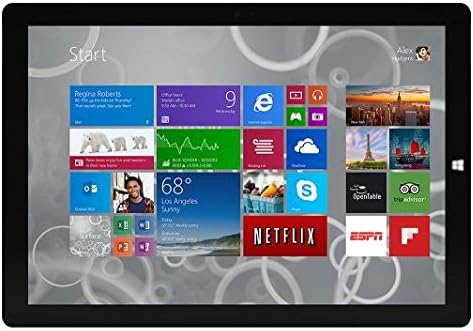
Figure 1: Windows 10 Start Screen during initial setup.
This image shows the Microsoft Surface Pro 3 screen displaying the Windows 10 Start menu, characterized by a grid of live tiles representing various applications and services. This is typically seen during the initial setup or when navigating the operating system.
3. Attaching Accessories (Sold Separately)
The Surface Pro 3 is compatible with various accessories, such as the Surface Type Cover keyboard and the Surface Pen, which are sold separately.
- Surface Type Cover: Align the magnetic connector of the Type Cover with the bottom edge of the Surface Pro 3 until it clicks into place.
- Surface Pen: The Surface Pen can be magnetically attached to the side of the Surface Pro 3 for storage. For initial pairing, follow the instructions provided with the pen.
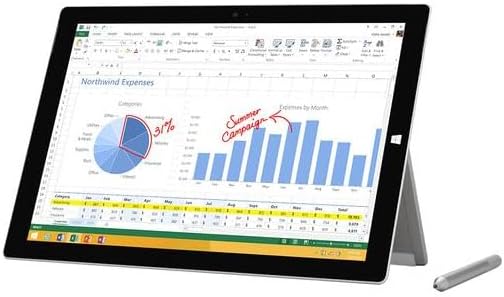
Figure 2: Surface Pro 3 with optional Surface Pen.
This image illustrates the Microsoft Surface Pro 3 in use, displaying an Excel spreadsheet on its screen. A Surface Pen is positioned next to the device, highlighting its compatibility for precise input and navigation.
4. Expanding Storage with a MicroSD Card
You can expand the internal storage of your Surface Pro 3 using a microSD card (sold separately).
- Locate the microSD card slot on the side of the Surface Pro 3, typically behind the kickstand.
- Вставте карту microSD у гніздо до клацання.
- The device will automatically detect the card. You may need to format it if it's a new card or if prompted by the system.

Figure 3: MicroSD card slot.
This close-up image shows the microSD card slot on the side of the Microsoft Surface Pro 3, with a microSD card partially inserted, demonstrating how to expand the device's storage.
Інструкція з експлуатації
1. Navigating Windows 10
- Меню Пуск: Клацніть піктограму Windows у лівому нижньому куті, щоб отримати доступ до програм, налаштувань і параметрів живлення.
- Сенсорний екран: Use gestures for navigation, zooming, and scrolling.
- Edge Browser: Utilize the pre-installed Edge browser for web browsing, which includes features for marking up web сторінки.

Figure 4: Using the Surface Pro 3 for productivity.
This image depicts the Microsoft Surface Pro 3 in an active use scenario, showcasing a note-taking application open on its screen. The display features handwritten notes, diagrams, and sketches, illustrating the device's capability for creative and productive tasks.
2. Використання вбудованої підставки
The multi-position kickstand allows you to adjust the viewing angle for optimal comfort, whether you are typing, watching videos, or drawing.
- Gently pull the kickstand out from the back of the device.
- Adjust it to your desired angle. The kickstand offers a wide range of positions for versatility.
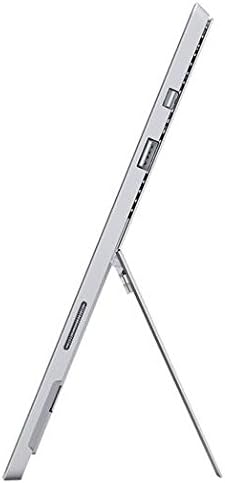
Figure 5: Adjustable kickstand.
Це зображення надає бічну сторону view of the Microsoft Surface Pro 3, clearly showing its integrated kickstand extended to support the device at an angle, demonstrating its versatile viewможливості.
3. Функціональність камери
The Surface Pro 3 is equipped with 5.0MP front and rear cameras.
- Open the Camera application from the Start Menu.
- Switch between front and rear cameras as needed for photos or video calls.

Figure 6: Front camera.
This close-up image focuses on the front-facing camera and associated sensors located at the top edge of the Microsoft Surface Pro 3 screen.
4. Підключення
The full-size USB 3.0 port allows for connecting various peripherals and transferring data.
- Insert USB devices (e.g., flash drives, external hard drives, printers) into the USB 3.0 port.
- The device also supports Wi-Fi (802.11a/b/g/n/ac) for wireless internet connectivity.
Технічне обслуговування
1. Cleaning Your Surface Pro 3
- Використовуйте м’яку безворсову тканину dampened with water or a screen cleaner specifically designed for electronics.
- Уникайте використання агресивних хімікатів, абразивних мийних засобів або аерозольних спреїв.
- Обережно протріть екран та зовнішні поверхні.
2. Оновлення програмного забезпечення
Регулярно перевіряйте наявність оновлень Windows та встановлюйте їх, щоб переконатися, що ваш пристрій має найновіші оновлення безпеки та покращення продуктивності.
- Перейти до Налаштування > Оновлення та безпека > Windows Update.
- Click "Check for updates" and install any available updates.
3. Управління зберіганням
To maintain optimal performance, manage your device's storage space.
- Регулярно видаляйте непотрібні files і програми.
- Utilize cloud storage services or external drives for large files.
- Consider using the Disk Cleanup tool in Windows to remove temporary files.
Усунення несправностей
This section addresses common issues you might encounter with your Surface Pro 3.
Пристрій не вмикається
- Ensure the power supply is securely connected to both the device and a working power outlet.
- Спробуйте іншу розетку.
- Press and hold the power button for 10-15 seconds to perform a forced shutdown, then press it again to restart.
Проблеми з підключенням до Wi-Fi
- Перевірте, чи ввімкнено Wi-Fi у налаштуваннях Windows.
- Перезавантажте свій Wi-Fi роутер.
- Забудьте про мережу та підключіться знову, знову ввівши пароль.
- Запустіть засіб усунення несправностей мережі Windows.
Повільна продуктивність
- Закрийте непотрібні програми, що працюють у фоновому режимі.
- Перевірте наявність та встановіть будь-які оновлення Windows, що очікують на оновлення.
- Переконайтеся, що у вас достатньо вільного місця для зберігання.
- Запустіть перевірку на віруси.
For more detailed troubleshooting or issues not covered here, please refer to the official Microsoft Support webсайту або зв’яжіться зі службою підтримки клієнтів.
Технічні характеристики
| Особливість | Деталь |
|---|---|
| Модель | Microsoft Surface 1631 Pro 3 |
| Операційна система | Windows 10 |
| Розмір екрана | 12 дюймів |
| Роздільна здатність екрана | 2160 х 1440 |
| Процесор | Intel Core i3 1.5 ГГц |
| ОЗУ | 4 ГБ |
| Внутрішня пам'ять | 128 GB Flash Storage |
| Графічний співпроцесор | Intel HD Graphics |
| Фотоапарати | 5.0MP Front and Rear |
| Бездротовий тип | 802.11b, 802.11a, 802.11g |
| Порти | Full-size USB 3.0 |
| Вага товару | 1.8 фунта |
| Розміри продукту | 11.5 x 0.36 x 7.93 дюймів |
| Колір | Срібло |
Гарантія та підтримка
Your Microsoft Surface Pro 3 comes with a standard manufacturer's warranty. For detailed warranty terms and conditions, please refer to the documentation included with your purchase or visit the official Microsoft support webсайт.
For technical assistance, troubleshooting guides, driver downloads, and service requests, please visit the Підтримка Microsoft Surface сторінки.


