вступ
This manual provides comprehensive instructions for the installation, operation, maintenance, and troubleshooting of your Intel DC S3710 800 GB 2.5" Internal Solid State Drive. Please read this manual thoroughly before using the product to ensure optimal performance and longevity.
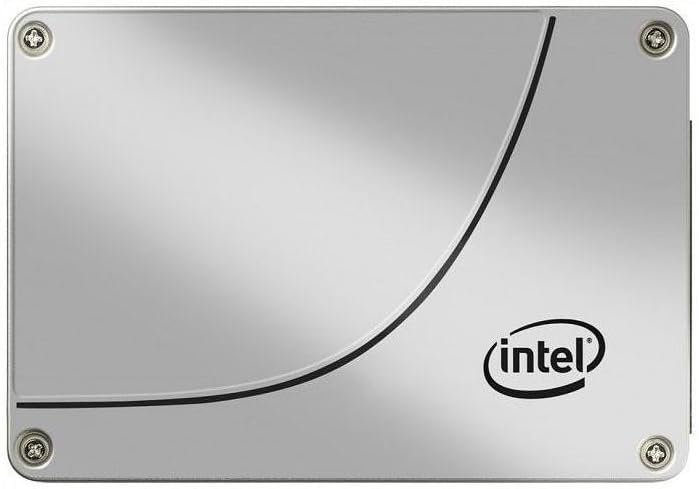
Малюнок 1: Спереду view of the Intel DC S3710 800 GB 2.5" Internal Solid State Drive, showcasing its metallic silver casing with the Intel logo and a distinctive curved line design.
Налаштування та встановлення
The Intel DC S3710 SSD is designed for internal installation in desktop computers. Ensure your system is powered off and disconnected from the power source before proceeding.
Вимоги:
- Desktop computer with an available 2.5-inch drive bay.
- Кабель для передачі даних SATA.
- Кабель живлення SATA від блоку живлення (БЖ).
- Screwdriver (Phillips head recommended).
Кроки встановлення:
- Підготуйте свій комп'ютер: Power down your desktop computer and unplug all cables. Open the computer case.
- Знайдіть відсік для дисковода: Identify an available 2.5-inch drive bay. Some cases may require a 3.5-inch to 2.5-inch adapter bracket (not included).
- Монтування SSD: Secure the SSD into the drive bay using screws. Ensure it is firmly seated to prevent movement.
- Підключення кабелю передачі даних: Connect one end of the SATA data cable to the SSD's SATA data port and the other end to an available SATA port on your motherboard.
- Підключіть кабель живлення: Connect a SATA power cable from your PSU to the SSD's SATA power port.
- Закрити справу: Once all connections are secure, close your computer case and reconnect all cables.
- живлення: Power on your computer. The system should detect the new SSD.
Інструкція з експлуатації
After physical installation, the SSD needs to be initialized and formatted before use. If you plan to install an operating system, refer to your operating system's installation guide.
Initializing and Formatting (Windows 10 Example):
- Відкрийте «Керування дисками»: Клацніть правою кнопкою миші кнопку «Пуск» і виберіть «Керування дисками».
- Ініціалізація диска: A pop-up window may appear prompting you to initialize the new disk. Select MBR (Master Boot Record) or GPT (GUID Partition Table) based on your system's requirements (GPT is recommended for modern systems and drives larger than 2TB, though this drive is 800GB). Click OK.
- Створити новий простий том: Locate the unallocated space on your new SSD. Right-click it and select "New Simple Volume...".
- Слідкуйте за майстром: Follow the New Simple Volume Wizard to specify the volume size, assign a drive letter, and format the partition (NTFS file system is standard for Windows).
- Завершено: Once the wizard completes, your SSD will be ready for use.
Передача даних:
Можна передати files to and from the SSD like any other storage drive. For optimal performance, ensure your motherboard's SATA ports are configured for AHCI mode in the BIOS/UEFI settings.
Технічне обслуговування
Solid State Drives generally require less maintenance than traditional Hard Disk Drives. However, following these practices can help maintain performance and extend lifespan:
- Увімкнути TRIM: Ensure TRIM is enabled in your operating system. TRIM helps the SSD manage data more efficiently, preventing performance degradation over time. Most modern operating systems (Windows 7+, macOS, Linux) enable TRIM by default.
- Уникайте дефрагментації: Do not defragment an SSD. Defragmentation is designed for HDDs and can reduce the lifespan of an SSD by causing unnecessary write cycles.
- Зберігайте вільний простір: Намагайтеся залишати вільним щонайменше 10-15% ємності SSD. Це дозволяє алгоритмам вирівнювання зносу SSD працювати оптимально.
- Оновлення прошивки: Періодично перевіряйте офіційну інформацію Intel website for firmware updates for your SSD model. Firmware updates can improve performance, stability, and address known issues.
- Proper Shutdowns: Always shut down your computer properly. Abrupt power loss can potentially lead to data corruption or drive issues.
Усунення несправностей
If you encounter issues with your Intel DC S3710 SSD, refer to the following common problems and solutions:
| проблема | Можлива причина | Рішення |
|---|---|---|
| SSD not detected by BIOS/OS. | Loose cables, incorrect BIOS settings, faulty port. |
|
| Повільна продуктивність. | TRIM not enabled, nearly full drive, outdated firmware. |
|
| Operating system not booting from SSD. | Неправильний порядок завантаження, пошкоджена інсталяція ОС. |
|
Технічні характеристики
| Особливість | Деталь |
|---|---|
| Бренд | Intel |
| Модель серії | SSDSC2BA800G4 |
| Ємність зберігання | 800 ГБ |
| Форм-фактор | 2.5 дюймів |
| Інтерфейс | SATA 6 Гбіт/с |
| Тип установки | Внутрішній жорсткий диск |
| Сумісні пристрої | Робочий стіл |
| Вага товару | 2.53 унції |
| Розміри продукту (ДxШxВ) | 4.1 x 2.7 x 0.3 дюймів |
| Виробник | Корпорація Intel |
| Перша доступна дата | 16 лютого 2015 р |
Гарантія та підтримка
For warranty information and technical support, please refer to Intel's official webсайт або зверніться до служби підтримки клієнтів. Зберігайте чек про покупку як підтвердження покупки для гарантійних претензій.
Intel may offer various support resources including:
- Онлайн-база знань та розділ поширених запитань.
- Driver and firmware downloads.
- Community forums.
- Direct customer support via phone or email.
Розгляньте можливість покупкиasing additional data recovery plans for enhanced protection of your valuable data. Options such as 2-Year or 3-Year Data Recovery Plans may be available from various retailers.


