1. Продукт закінчивсяview
The Gioteck EX-05S High Definition Headset is designed to deliver superior stereo game sound and crystal-clear voice communication. It is compatible with multiple platforms including PS4, PS3, Xbox 360, PC, and Mac. This headset features 40mm high-quality stereo drivers, a noise-isolating microphone, and breathable micro-fibre ear cups for extended comfort.
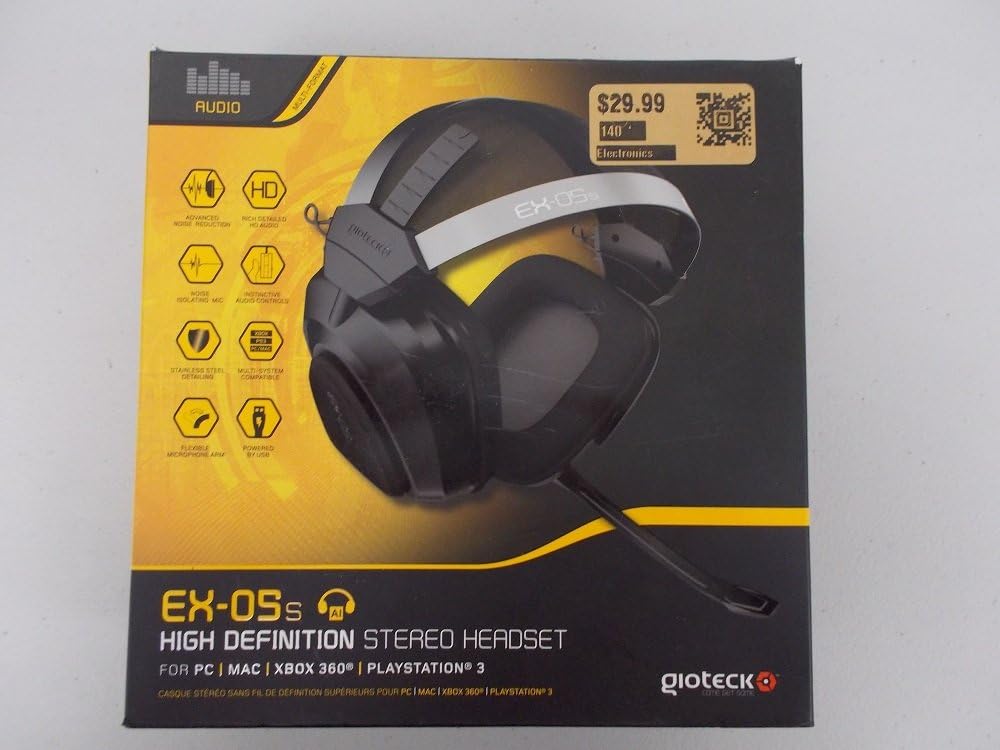
Figure 1.1: Gioteck EX-05S Headset packaging, highlighting key features and compatibility.

Малюнок 1.2: Сторона view of the Gioteck EX-05S Headset, showing the ear cup and microphone arm.
2. особливості
- 40mm High Quality Stereo Drivers: Delivering rich, detailed audio for an immersive gaming experience.
- Шумоізоляційний мікрофон: Designed to eliminate echo and external noise for clear communication.
- Breathable Micro-Fibre Ear Cups: Забезпечує комфорт під час тривалих ігрових сесій.
- Розширене шумозаглушення: Minimizes game sound interference from external speakers.
- Flexible and 180-Degree Rotating Microphone Arm: Allows for optimal microphone positioning.
- Instinctive and Accessible Controls: Conveniently located controls for voice and game sound adjustments.
- Stainless Steel Detailing: Забезпечує довговічність та преміальне покриття.
- Мультиплатформна сумісність: Works with PS4, PS3, Xbox 360, PC, and Mac.
3. Вміст упаковки
Будь ласка, переконайтеся, що у вашій упаковці є всі наступні предмети:
- Gioteck EX-05S Universal High Definition Stereo Headset
4. Посібник із налаштування
4.1 Connecting to Gaming Consoles (PS4, PS3, Xbox 360)
- Locate the 3.5mm audio jack on your gaming controller or console.
- Insert the 3.5mm connector from the EX-05S headset firmly into the audio jack.
- Ensure your console's audio settings are configured to output game audio and chat through the connected headset. Refer to your console's system settings for specific audio output configurations.
4.2 Підключення до ПК/Mac
- For PCs with separate audio and microphone jacks, you may need a PC splitter cable (not included) to connect the single 3.5mm headset jack to your computer's audio output and microphone input ports.
- For devices with a combined 3.5mm audio/microphone jack, simply plug the headset's 3.5mm connector directly into the port.
- Adjust your computer's sound settings to select the EX-05S headset as the default playback and recording device.
5. Інструкція з експлуатації
5.1 Регулювання гучності
The EX-05S headset features an inline control box on the cable. Use the volume dial to adjust the overall audio level of your game and chat sound.
5.2 Вимкнення звуку мікрофона
A switch or button on the inline control box allows you to quickly mute or unmute your microphone. Ensure the microphone is unmuted when you wish to communicate.
5.3 Розташування мікрофона
The flexible microphone arm can be rotated 180 degrees. Position the microphone approximately 1-2 inches from your mouth for optimal voice clarity and to minimize background noise.
6. Технічне обслуговування та догляд
- Прибирання: Use a soft, dry cloth to clean the headset. For ear cups, a slightly damp Можна використовувати тканину, але переконайтеся, що волога не потрапляє на решітки динаміків. Не використовуйте агресивні хімікати або абразивні засоби для чищення.
- Зберігання: Зберігайте гарнітуру в прохолодному, сухому місці, подалі від прямих сонячних променів та екстремальних температур. Уникайте заплутування кабелю.
- Обробка: Always grasp the plug when disconnecting the cable, rather than pulling on the cable itself, to prevent damage to the wiring.
- Амбушури: The breathable micro-fibre ear cups can be gently wiped clean. Avoid excessive pressure or stretching.
7. Вирішення проблем
7.1 Немає звуку з гарнітури
- Переконайтеся, що гніздо 3.5 мм повністю вставлено в аудіопорт.
- Check the inline volume control on the headset cable and ensure it is turned up.
- Verify your device's (console, PC, Mac) audio output settings are configured to send sound to the headset.
- Перевірте гарнітуру на іншому пристрої, щоб виключити проблему, пов’язану з певним пристроєм.
7.2 Мікрофон не працює
- Check the microphone mute switch on the inline control box and ensure it is unmuted.
- Verify your device's (console, PC, Mac) microphone input settings are configured to receive input from the headset.
- Ensure the microphone arm is positioned correctly and not obstructed.
- Test the microphone on another device or application to confirm functionality.
7.3 Static or Distorted Audio
- Переконайтеся, що з'єднання надійне та не містить сміття.
- Try adjusting the volume levels on both the headset and the connected device.
- Move away from potential sources of electromagnetic interference (e.g., Wi-Fi routers, cordless phones).
- Перевірте з іншим джерелом аудіо або пристроєм.
8. Технічні характеристики
| Особливість | Деталь |
|---|---|
| Назва моделі | E5SUNI-11-MU |
| Технологія підключення | Провідний |
| Включені компоненти | Навушники |
| Віковий діапазон (опис) | Дорослий |
| матеріал | Нержавіюча сталь |
| Конкретне використання продукту | Ігри |
| Сумісні пристрої | Gaming Consoles, Computers |
| Тип управління | Регулювання гучності |
| Функція кабелю | Висувний |
| Вага товару | 669 грами (1.47 фунта) |
| Спосіб контролю | Голос |
| Тип аудіо драйвера | Динамічний драйвер |
| Форма навушника | Накладні |
| Гніздо для навушників | 3.5 мм джек |
| Розміри продукту | 8.46 x 7.87 x 3.94 дюймів |
9. Гарантія та підтримка
Gioteck products are manufactured to high standards and undergo rigorous testing. For information regarding warranty coverage, technical support, or service, please refer to the official Gioteck webсайт або зверніться безпосередньо до служби підтримки клієнтів. Зберігайте чек про покупку для будь-яких гарантійних претензій.
Щоб отримати найактуальнішу інформацію про підтримку, відвідайте: www.gioteck.com/support


