1. Вступ
The Canon PowerShot S110 is a compact digital camera designed for high-quality imaging and versatile shooting. It features a 12.1 Megapixel High-Sensitivity CMOS sensor, a DIGIC 5 Image Processor, and a bright f/2.0 lens with 5x Optical Zoom. This camera also includes built-in Wi-Fi for convenient image sharing and a capacitive touch panel LCD for intuitive operation. This manual provides essential information for setting up, operating, and maintaining your PowerShot S110 camera.

малюнок 1.1: Фронт view of the Canon PowerShot S110 Digital Camera. This image displays the camera's lens, flash, and overall compact design.
2. Що в коробці
Перевірте, чи всі наступні елементи входять до вашої упаковки:
- Цифрова камера Canon PowerShot S110
- Акумулятор
- Зарядний пристрій
- USB кабель
- Кабель HDMI
- Ремінець на зап'ясті
- Software CD-ROM (for bundled software)
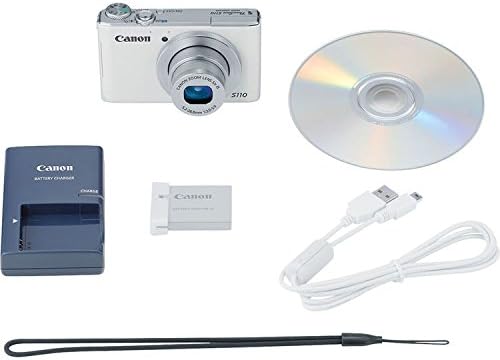
малюнок 2.1: The Canon PowerShot S110 camera alongside its standard accessories, including the battery, charger, cables, and software disc.
3. Налаштування
3.1. Зарядка батареї
- Insert the battery pack into the provided battery charger.
- Підключіть зарядний пристрій до розетки. Індикатор заряджання засвітиться.
- Після завершення заряджання індикатор змінить колір або згасне. Вийміть акумулятор.
3.2. Встановлення акумулятора та карти пам’яті
- Відкрийте кришку відсіку для акумулятора/картки на нижній частині камери.
- Щільно вставте заряджений акумуляторний блок до клацання.
- Insert an SD/SDHC/SDXC memory card into the card slot with the label facing the correct direction, pushing until it clicks.
- Надійно закрийте кришку відділення.
3.3. Початкові налаштування
Upon first power-on, you will be prompted to set the date, time, and language. Follow the on-screen instructions using the camera's controls or touch screen.
3.4. Підключення до Wi-Fi
The PowerShot S110 features built-in Wi-Fi for image transfer. To connect:
- Натисніть МЕНЮ button and navigate to the Wi-Fi settings.
- Select your desired connection method (e.g., connect to a smartphone, computer, or Wi-Fi printer).
- Follow the on-screen prompts to establish a connection. For smartphone connectivity, download the free Canon CameraWindow app.
4. Операція
4.1. Базова фотографія
Щоб зробити фото:
- Увімкніть камеру, натиснувши кнопку ПОТУЖНІСТЬ кнопку.
- Скомпонуйте кадр за допомогою 3.0-дюймового РК-екрана.
- Натисніть кнопку спуску затвора наполовину, щоб сфокусуватися. Рамка фокусування стане зеленою після досягнення фокуса.
- Повністю натисніть кнопку спуску затвора, щоб зробити знімок.
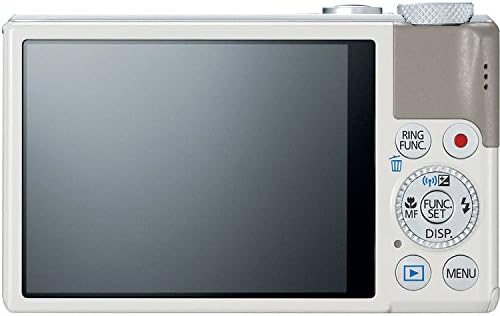
малюнок 4.1: Задня view of the Canon PowerShot S110, showing the LCD screen, control buttons, and the control ring.
4.2. Режими зйомки
The PowerShot S110 offers various shooting modes accessible via the mode dial or menu:
- Smart AUTO: The camera automatically selects optimal settings based on the scene.
- Програма АЕ (П): The camera sets aperture and shutter speed, while you control other settings like ISO and white balance.
- Автоекспозиція з пріоритетом витримки (Tv): You set the shutter speed, and the camera adjusts the aperture. Ideal for controlling motion blur.
- АЕ з пріоритетом діафрагми (Av): You set the aperture, and the camera adjusts the shutter speed. Useful for controlling depth of field.
- Інструкція (М): Full control over aperture, shutter speed, and ISO.
- Користувацький (C): Save and recall your preferred settings.
- Режими спеціальних сцен (SCN): Includes modes like Portrait, Smooth Skin, Handheld Night Scene, Snow, and Fireworks for specific situations.
- Творчі фільтри: Apply effects such as Toy Camera Effect, Miniature Effect, Super Vivid, and Color Accent.
- Дайджест фільмів: Records a short video clip before each still image and compiles them into a daily video.
4.3. Запис відео
To record Full HD (1080p) video:
- Натисніть виділену КІНО button (red dot icon) located on the rear of the camera.
- Натисніть кнопку ще раз, щоб зупинити запис.
The camera supports zooming during video recording, and audio is captured in stereo. Videos can be viewed on an HDTV via the HDMI output.
4.4. Image Stabilization (Intelligent IS)
The Intelligent IS system automatically selects the optimal image stabilization mode for your shooting conditions:
- Normal IS: Corrects general camera movement for stills.
- Panning IS: Disables vertical shake correction when panning horizontally.
- Macro (Hybrid) IS: Corrects shift-type shake common in close-up photography.
- Динамічний IS: Effective for video shooting at wide-angle, reducing shake while walking.
- Powered IS: Compensates for hand movement during telephoto video recording.
- Tripod IS: Automatically disables IS when a tripod is detected.
4.5. Touch Panel LCD and Control Ring
The 3.0-inch capacitive touch panel allows for intuitive control:
- Touch Shutter: Tap the screen to focus and take a picture.
- Playback Gestures: Use pinch-to-zoom and swipe gestures to navigate images.
- Налаштування параметрів: Quickly select camera settings by tapping.
The control ring around the lens barrel can be customized to adjust settings such as focus, aperture, shutter speed, ISO, or exposure compensation. Use the dedicated RING FUNC. button to select its function.
4.6. RAW+JPEG Recording
The camera supports simultaneous recording of RAW and JPEG images, providing maximum flexibility for post-processing. RAW files capture all sensor data, while JPEG files are processed in-camera for immediate use.
4.7. GPS Tagging
Utilize the Canon CameraWindow app on your smartphone to record GPS data. This data can then be wirelessly transferred to your camera to tag images with location information, aiding in organization.
4.8. Image Transfer and Printing
Images and videos can be transferred wirelessly to social networking sites via CANON iMAGE GATEWAY, to a PC, or to iOS/Android devices using the Canon CameraWindow app. You can also print directly to Wi-Fi compatible printers.
5. Технічне обслуговування
5.1. Очищення камери
- Корпус камери: Протріть м’якою сухою тканиною. Для стійкого бруду використовуйте тканину, злегка протертуampпромивають водою, а потім ретельно висушують.
- Об'єктив: Використовуйте грушу для видалення пилу, а потім обережно протріть її серветкою для чищення об’єктивів. Уникайте дотику до поверхні об’єктива пальцями.
- РК-екран: Use a soft, dry cloth. For smudges, use a screen cleaner specifically designed for electronics.
Do not use organic solvents such as alcohol, benzene, or paint thinner, as these can damage the camera finish.
5.2. Догляд за акумулятором
- Зберігайте батареї в прохолодному сухому місці, коли вони не використовуються.
- Уникайте частого повного розряджання акумулятора, щоб продовжити термін його служби.
- Якщо камера не використовуватиметься протягом тривалого часу, вийміть акумулятор.
5.3. Зберігання
Store the camera in a dry, well-ventilated area, away from direct sunlight, high temperatures, and humidity. Consider using a desiccant to prevent mold growth, especially in humid environments.
6. Вирішення проблем
6.1. Камера не вмикається
- Переконайтеся, що акумулятор повністю заряджений та правильно вставлений.
- Перевірте, чи кришка відсіку для батарейок щільно закрита.
6.2. Lens Error / Lens Not Extending
- Check for any obstructions around the lens barrel.
- Turn the camera off and then on again. If the error persists, contact customer support.
6.3. Зображення розмиті
- Переконайтеся, що лінза чиста.
- Confirm that the camera has focused correctly (focus frame turns green).
- In low light, use a higher ISO setting or enable flash.
- Hold the camera steady or use a tripod, especially with slower shutter speeds.
6.4. Проблеми з підключенням до Wi-Fi
- Ensure your smartphone or computer's Wi-Fi is enabled and within range.
- Verify that the correct password or network settings are entered.
- Restart both the camera and the connecting device.
- Ensure the Canon CameraWindow app is updated to the latest version.
7. Технічні характеристики
| Назва моделі | Canon PowerShot S110 |
| Роздільна здатність фотодатчика | 12.1 Мп |
| Тип фотодатчика | CMOS |
| Оптичний зум | 5x |
| Мінімальна фокусна відстань | 24 мм |
| Максимальна фокусна відстань | 120 мм |
| Максимальна діафрагма | f/2.0 |
| Стабілізація зображення | Оптичний |
| Тип дисплея | 3.0-дюймовий сенсорний РК-екран |
| Роздільна здатність відео | Full HD 1000p |
| Підключення | HDMI, USB, Wi-Fi |
| Підтримується File Формат | JPEG, RAW |
| Тип флеш-пам'яті | SD/SDHC/SDXC |
| Вага товару | 6.98 унції |
8. Гарантія та підтримка
8.1. Інформація про гарантію
Цифрова камера Canon PowerShot S110 постачається з Обмежена 1-річна гарантія. This warranty covers defects in materials and workmanship under normal use. For full terms and conditions, please refer to the warranty card included with your product or visit the official Canon webсайт.
8.2. Підтримка клієнтів
For technical assistance, service, or additional information, please contact Canon customer support. You can find contact details and support resources on the official Canon webсайт: www.usa.canon.com/support.
Before contacting support, please have your camera's model name (PowerShot S110) and serial number ready.


