1. Вступ
The SteelSeries Sensei Laser Gaming Mouse is designed for precision and customization, catering to both casual and competitive gamers. It features an advanced laser sensor, an ambidextrous design, and extensive customization options through its dedicated software. This manual provides detailed instructions for setup, operation, maintenance, and troubleshooting to ensure optimal performance of your device.

Зображення 1: Зверху вниз view of the SteelSeries Sensei Laser Gaming Mouse, showcasing its sleek grey finish and central scroll wheel.
2. Вміст упаковки
Будь ласка, перевірте наявність усіх предметів у вашій упаковці:
- SteelSeries Sensei Laser Gaming Mouse
- Короткий посібник користувача (якщо включено)

Image 2: Retail packaging for the SteelSeries Sensei Laser Gaming Mouse, displaying the product name and brand logo.
3. Налаштування
3.1 Підключення обладнання
- Unpack the SteelSeries Sensei Laser Gaming Mouse from its packaging.
- Connect the USB cable of the mouse to an available USB port on your computer. The mouse is plug-and-play compatible, and your operating system should automatically detect and install the necessary basic drivers.
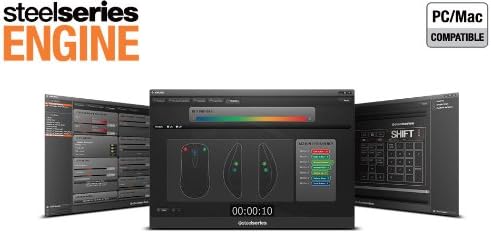
3.2 Software Installation (SteelSeries Engine)
For full customization and advanced features, it is recommended to install the SteelSeries Engine software:
- Відвідайте офіційний сайт SteelSeries webсайт (steelseries.com/engine) to download the latest version of the SteelSeries Engine software.
- Дотримуйтеся вказівок на екрані, щоб встановити програмне забезпечення.
- Once installed, launch the SteelSeries Engine to configure your mouse settings, including CPI, button assignments, macros, and lighting effects.
Зображення 3: Нижня частина view of the SteelSeries Sensei Laser Gaming Mouse, showing the laser sensor and product information label.
4. Керування мишею
4.1 Ambidextrous Design
The Sensei mouse features an ambidextrous shape, making it comfortable for both left-handed and right-handed users. The side buttons are mirrored on both sides to accommodate different grip styles and preferences.
4.2 Програмовані кнопки
The mouse is equipped with 7 programmable buttons. These buttons can be customized using the SteelSeries Engine software to perform various functions, including:
- Standard mouse clicks (left, right, middle)
- Keyboard key assignments
- Complex macros
- CPI switching

Зображення 4: Збоку view of the SteelSeries Sensei Laser Gaming Mouse, highlighting the two programmable side buttons.
4.3 CPI Adjustment
The Sensei mouse allows for on-the-fly CPI (Counts Per Inch) adjustment. The dedicated CPI indicator button, typically located behind the scroll wheel, allows you to cycle between two user-defined CPI settings. These settings can be configured within the SteelSeries Engine software to match your preferred sensitivity levels for different tasks or games.
4.4 Освітлення
The mouse features three-zone illumination: the scroll wheel, the CPI indicator, and the SteelSeries logo. The color and lighting effects (e.g., steady, pulse) for these zones can be customized through the SteelSeries Engine software.
5. SteelSeries Engine Software
The SteelSeries Engine is a powerful software suite that unlocks the full potential of your Sensei mouse. Key functionalities include:
- Відображення кнопок: Assign any function, keyboard key, or macro to any of the 7 programmable buttons.
- CPI Settings: Fine-tune and save multiple CPI profileдля різних програм або ігор.
- Редактор макросів: Create and manage complex macros for in-game actions or productivity tasks.
- Швидкість опитування: Налаштуйте частоту опитування миші для оптимальної реакції.
- Контроль освітлення: Customize LED colors and effects for the scroll wheel, CPI indicator, and logo.
- Profile Управління: Створення та збереження кількох професіоналівfiles, allowing you to switch between different configurations quickly.
- Оновлення прошивки: Keep your mouse's firmware up-to-date for improved performance and new features.

Image 5: Screenshot of the SteelSeries Engine software interface, showing options for button mapping, CPI adjustment, and lighting customization.
6. Технічне обслуговування
To ensure the longevity and optimal performance of your SteelSeries Sensei mouse, follow these maintenance guidelines:
- Прибирання: Використовуйте м’яку суху тканину для протирання поверхні миші. Для стійкого бруду злегкаamp Можна використовувати тканину, але переконайтеся, що волога не потрапляє всередину миші. Уникайте використання агресивних хімікатів або абразивних засобів для чищення.
- Догляд за датчиком: Keep the laser sensor on the bottom of the mouse clean and free from dust or debris. Use a cotton swab or compressed air if necessary.
- Управління кабелем: Уникайте різких згинів або надмірного натягування USB-кабелю, щоб запобігти його пошкодженню.
7. Вирішення проблем
If you encounter issues with your SteelSeries Sensei mouse, refer to the following common solutions:
- Миша не реагує:
- Переконайтеся, що кабель USB надійно під’єднано до комп’ютера.
- Спробуйте підключити мишу до іншого USB-порту.
- Перезавантажте комп'ютер.
- Нестабільне відстеження:
- Clean the laser sensor on the bottom of the mouse.
- Переконайтеся, що ви використовуєте мишу на відповідній поверхні (наприклад, килимку для миші).
- Check for dust or debris on your mouse pad.
- Кнопки не працюють:
- Verify button assignments in the SteelSeries Engine software.
- Ensure the software is running correctly and profileзавантажені.
- Проблеми з програмним забезпеченням:
- Update the SteelSeries Engine software to the latest version.
- Reinstall the SteelSeries Engine software.
- Перевірте наявність доступних оновлень прошивки для вашої миші в програмному забезпеченні.
8. Технічні характеристики
| Особливість | Деталь |
|---|---|
| Бренд | SteelSeries |
| Номер моделі | 62150 |
| Технологія виявлення руху | Лазерна |
| Технологія підключення | USB |
| Колір | Сірий |
| Апаратна платформа | PC |
| Сумісність операційної системи | All Major PC Operating Systems |
| Вага товару | 14.6 унції |
| Розміри продукту (ДxШxВ) | 7.9 x 6.8 x 2.3 дюймів |
| Програмовані кнопки | 7 |
| Illumination Zones | 3 (Scroll Wheel, CPI Indicator, Logo) |
9. Гарантія та підтримка
The SteelSeries Sensei Laser Gaming Mouse is covered by a manufacturer's warranty. For detailed information regarding warranty terms, conditions, and duration, please refer to the warranty card included with your product or visit the official SteelSeries website. For technical support, driver downloads, and frequently asked questions, please visit the SteelSeries support page.
SteelSeries Official Webсайт: steelseries.com
Підтримка SteelSeries: support.steelseries.com


