
1. Вступ
The SABLUTE K21Pro is a large print, backlit, wired USB keyboard designed for enhanced readability and ergonomic comfort. It features oversized characters, 7-color adjustable backlighting, an integrated wrist rest, and a convenient phone/tablet holder. This manual provides instructions for setup, operation, maintenance, and troubleshooting to ensure optimal use of your keyboard.
2. Вміст упаковки
- SABLUTE K21Pro Large Print Backlit Wired USB Keyboard
- Integrated Wrist Rest
- Integrated Palm Rest
3. Налаштування
To set up your SABLUTE K21Pro keyboard, follow these simple steps:
- Розпакуйте клавіатуру з упаковки.
- Locate an available USB-A port on your computer (desktop, laptop, or Mac).
- Підключіть USB-роз'єм клавіатури до порту USB-A.
- Your operating system (Windows, macOS, etc.) should automatically detect and install the necessary drivers. No additional software installation is typically required.
- The keyboard is ready for use once detected.

Примітка: For optimal performance, ensure the USB cable is securely connected.
4. Основні характеристики та експлуатація
4.1 Large Print Keys
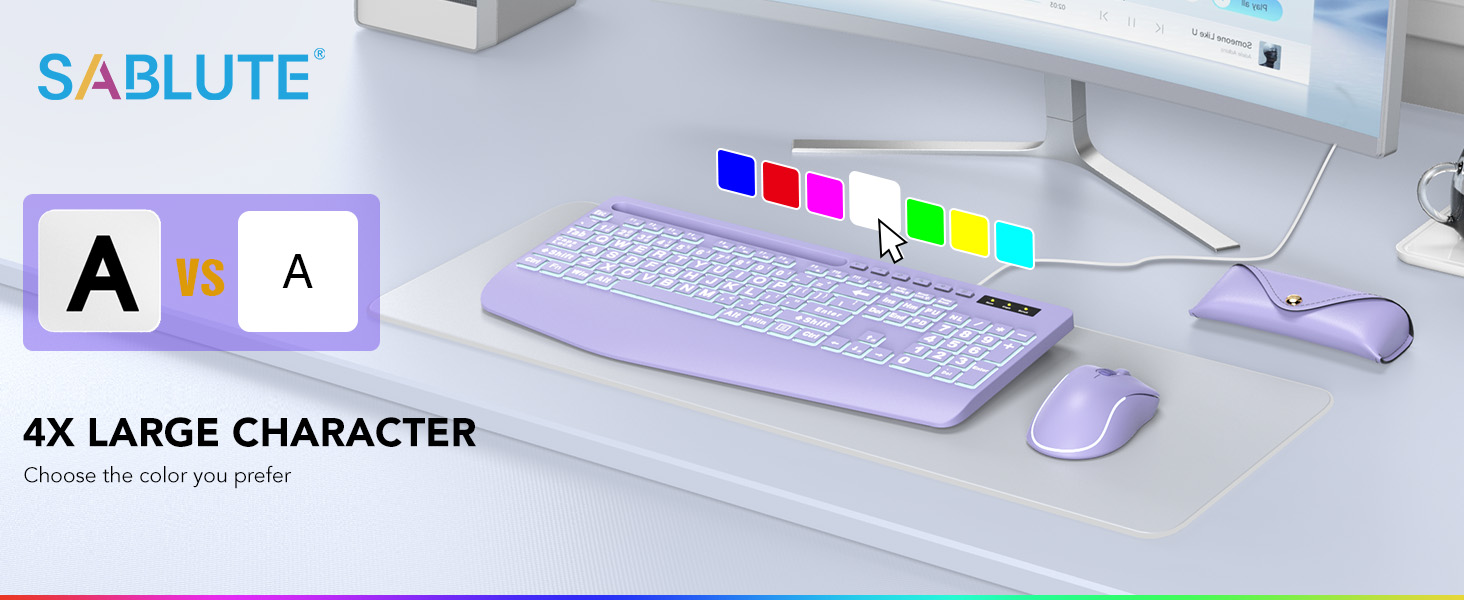
The SABLUTE K21Pro features oversized characters on each key, making them significantly easier to read compared to standard keyboards. This design helps reduce eye strain and improves typing accuracy, especially for users with visual impairments, seniors, or those working in low-light conditions.
4.2 7-Color Backlight
The keyboard includes a vibrant 7-color backlight system with adjustable brightness and multiple modes. Use the Function (Fn) key in combination with other keys to control the backlighting:
- Toggle Backlight Color: Прес Fn + 1 to cycle through the 7 available backlight colors.
- Keep One Backlight Color: Прес Fn + 2 repeatedly until your desired single color is displayed. The backlight will remain this color.
- Backlighting While Typing: Прес Fn + 3 to activate a mode where keys light up as you type.
- Backlight Color Changes Back and Forth: Прес Fn + 4 to enable a dynamic mode where backlight colors transition.
- Налаштувати яскравість: Прес Fn + ↑ (стрілка вгору) to increase backlight brightness and Fn + ↓ (стрілка вниз) to decrease brightness. There are 8 levels of brightness.


4.3 Ergonomic Design with Wrist Rest
The keyboard is designed with an integrated palm and wrist rest to provide support and reduce strain during extended typing sessions. This ergonomic feature helps maintain a neutral wrist position, contributing to comfort and potentially preventing discomfort.

4.4 Integrated Phone/Tablet Holder
A dedicated slot at the top of the keyboard serves as a convenient holder for your smartphone or tablet. This allows you to keep your device upright and visible while working, facilitating multitasking such as watching videos, video conferencing, or reading documents.

4.5 мультимедійних клавіш
The keyboard includes standard function keys (F1-F12) which, when combined with the Fn key, can activate various multimedia and system controls. Refer to your operating system's documentation for specific functions associated with these keys.
5. Технічне обслуговування
Proper care and maintenance will extend the lifespan of your keyboard:
- Прибирання: Use a soft, dry, lint-free cloth to wipe the surface of the keyboard. For deeper cleaning, a slightly damp можна використовувати тканину з м’яким милом, переконавшись, що рідина не потрапить на клавіші або внутрішні компоненти.
- Видалення пилу: Використовуйте стиснене повітря, щоб видалити пил та сміття між клавішами.
- Уникайте рідин: Не розливайте рідини на клавіатуру. У разі розливання негайно від’єднайте клавіатуру від комп’ютера та дайте їй повністю висохнути, перш ніж знову під’єднувати.
- Зберігання: Store the keyboard in a clean, dry environment away from extreme temperatures.
6. Вирішення проблем
If you encounter issues with your SABLUTE K21Pro keyboard, try the following troubleshooting steps:
- Клавіатура не реагує:
- Переконайтеся, що USB-кабель надійно підключено як до клавіатури, так і до USB-порту комп’ютера.
- Спробуйте підключити клавіатуру до іншого USB-порту на комп'ютері.
- Перезавантажте комп'ютер.
- Перевірте клавіатуру на іншому комп’ютері, щоб визначити, чи проблема в клавіатурі, чи у вашій системі.
- Підсвічування не працює або не змінюється:
- Ensure the backlight is turned on. Use Fn + ↑ (стрілка вгору) щоб збільшити яскравість.
- Перемикайтеся між режимами підсвічування за допомогою Fn + 1, Fn + 2, Fn + 3, і Fn + 4 to see if a different mode activates the lights.
- Verify that the keyboard is receiving power (e.g., if other keys are functioning).
- Specific Keys Not Working or Registering Incorrectly:
- Check for any physical obstructions or debris under the affected key. Use compressed air to clear.
- If multiple keys are affected, try the general troubleshooting steps for
Ask a question about this manual
Ask about setup, troubleshooting, compatibility, parts, safety, or missing instructions. Manuals+ will review the question and use this page’s manual context to help answer it.