
вступ
Thank you for choosing the CHIVALZ PM220 Portable Thermal Label Printer. This manual provides essential information for setting up, operating, maintaining, and troubleshooting your device. Please read it thoroughly before use to ensure optimal performance and longevity of your printer.
The CHIVALZ PM220 is a compact, wireless thermal label printer designed for various labeling needs, including clothing, addresses, barcodes, and household products. It connects seamlessly with smartphones via Bluetooth for convenient printing.
Вміст упаковки
Перш ніж продовжити налаштування, перевірте, чи всі елементи присутні в упаковці:
- CHIVALZ PM220 Thermal Label Printer
- USB-кабель для зарядки
- One roll of thermal labels
- Посібник користувача (цей документ)
Налаштування
1. Заряджання принтера
Before initial use, fully charge the printer. Connect the provided USB charging cable to the printer's charging port and a compatible USB power adapter (not included) or a computer's USB port. The charging indicator light will show the charging status.
2. Loading Thermal Labels
- Відкрийте кришку відсіку для етикеток.
- Insert the thermal label roll with the printing surface facing upwards. Ensure the labels are aligned correctly with the feed mechanism.
- Pull a small portion of the label roll out past the print head.
- Щільно закрийте кришку відсіку для етикеток.
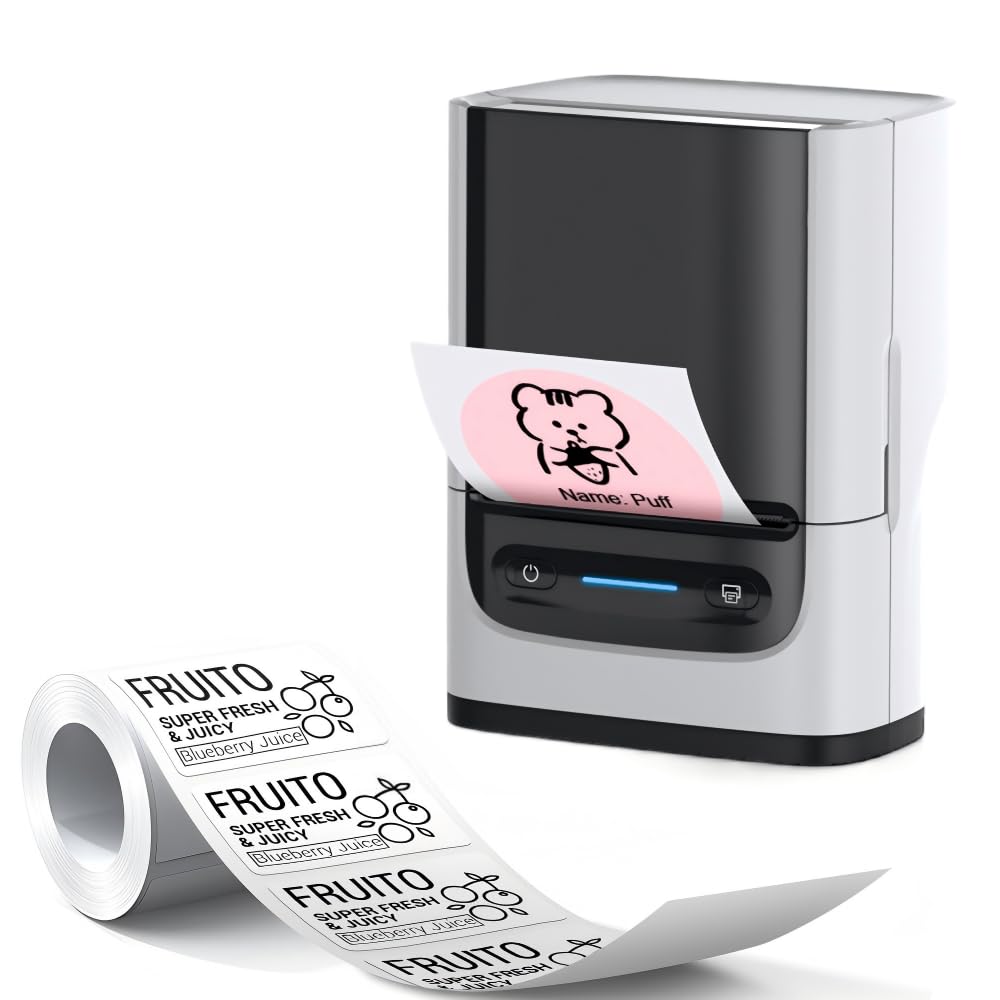
Image: The CHIVALZ PM220 printer with a thermal label roll correctly inserted into its compartment. The label roll is visible, extending slightly from the printer's output slot.
3. Installing the Mobile Application
шукати the official CHIVALZ label printing application on your smartphone's app store (e.g., Apple App Store for iOS or Google Play Store for Android). Download and install the application.
4. Підключення через Bluetooth
- Ensure your CHIVALZ PM220 printer is powered on.
- Увімкніть Bluetooth на своєму смартфоні.
- Open the CHIVALZ label printing application.
- Within the app, navigate to the device connection settings. Select the CHIVALZ PM220 from the list of available Bluetooth devices. The printer's name typically includes "CHIVALZ" or "PM220".
- Follow any on-screen prompts to complete the pairing process. A successful connection will usually be indicated within the app.
Інструкція з експлуатації
1. Увімкнення/вимкнення живлення
- Щоб увімкнути: Натисніть і утримуйте кнопку живлення приблизно 3 секунди, доки не засвітиться індикатор.
- Щоб вимкнути: Натисніть і утримуйте кнопку живлення приблизно 3 секунди, доки індикатор не згасне.
2. Створення та друк етикеток
- Ensure the printer is connected to your smartphone via Bluetooth.
- Open the CHIVALZ label printing application.
- Select a label template or create a new label design. The app allows for text, images, barcodes, and QR codes.
- Customize your label content as needed.
- попередньоview етикетку, щоб переконатися, що вона виглядає належним чином.
- Tap the "Print" button within the application. Select the number of copies if applicable.
- The printer will feed and print the labels. Carefully tear off the printed labels along the perforation.
Технічне обслуговування
1. Очищення друкуючої головки
Regular cleaning of the print head ensures optimal print quality. Use a soft, lint-free cloth lightly dampened with isopropyl alcohol. Gently wipe the print head surface. Allow it to dry completely before using the printer.
- Частота: Clean the print head after every 5-10 rolls of labels or if print quality degrades.
- Увага: Do not touch the print head with bare hands as oils can affect print quality.
2. Догляд за акумулятором
Щоб продовжити термін служби акумулятора:
- Уникайте частого повного розряджання акумулятора.
- Зберігайте принтер у прохолодному, сухому місці, якщо він не використовується протягом тривалого часу.
- Charge the printer at least once every three months if stored for a long time.
3. Зберігання етикеток
Store thermal labels in a cool, dry place away from direct sunlight and heat sources. Exposure to heat or light can cause labels to fade prematurely.
Усунення несправностей
| проблема | Можлива причина | Рішення |
|---|---|---|
| Принтер не вмикається. | Низький заряд батареї; кнопка живлення натиснута неправильно. | Charge the printer; Press and hold the power button for 3 seconds. |
| Не вдається підключитися через Bluetooth. | Bluetooth off on phone/printer; Printer not discoverable; App issue. | Ensure Bluetooth is enabled on both devices; Restart printer and phone; Reinstall app. |
| Poor print quality (faint, blank lines). | Print head dirty; Incorrect label orientation; Low battery. | Clean the print head; Re-insert labels correctly; Charge the printer. |
| Labels not feeding or jamming. | Labels incorrectly loaded; Label compartment not closed properly. | Open and re-load labels, ensuring proper alignment; Close cover firmly. |
| Принтер перестає відповідати. | Тимчасовий збій програмного забезпечення. | Perform a soft reset by powering off and on the printer. |
Технічні характеристики
| Особливість | Деталь |
|---|---|
| Бренд | CHIVALZ |
| Назва моделі | PM220 |
| Технологія підключення | Bluetooth |
| Технологія друку | Теплові |
| Колір | Білий |
| Вихід на принтер | Монохромний |
| Максимальна швидкість монохромного друку | 203 dpi (точок на дюйм) |
| Розміри продукту (Д x Ш x В) | 13 x 8 x 10 centimeters (approx. 5.1 x 3.1 x 3.9 inches) |
| Максимальний розмір носія | 4 x 6 дюйма |
| Включені компоненти | Рулон етикетки |
| Виробник | CHIVALZ |
| ASIN | B0GSGB976P |
Гарантія та підтримка
Інформація про гарантію
The CHIVALZ PM220 Thermal Label Printer comes with a standard manufacturer's warranty. Please refer to the warranty card included in your package or visit the official CHIVALZ webсайт для отримання детальних умов щодо гарантійного покриття та терміну дії.
Підтримка клієнтів
For technical assistance, troubleshooting not covered in this manual, or warranty claims, please contact CHIVALZ customer support. Contact details can typically be found on the official CHIVALZ webсайті або на упаковці продукту.
When contacting support, please have your product model (PM220) and purchase information ready.