
вступ
This manual provides comprehensive instructions for setting up, operating, maintaining, and troubleshooting your Apple iPad Air (M4) 13-inch. Please read this manual thoroughly to ensure proper use and to maximize the device's capabilities. The iPad Air features a Liquid Retina display, the powerful M4 chip, advanced cameras, Wi-Fi 7, and 5G Cellular connectivity.
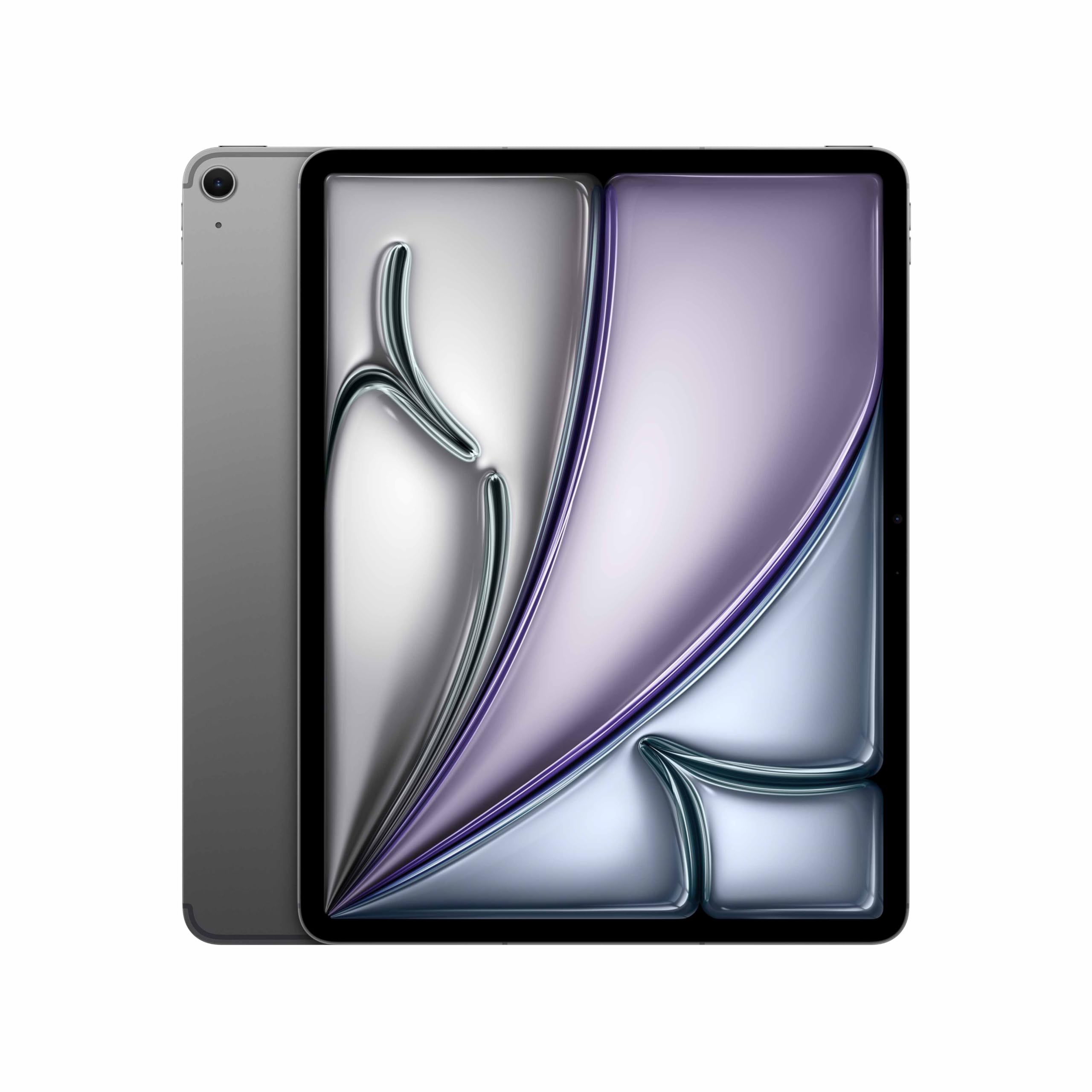
Image: The Apple iPad Air (M4) 13-inch in Space Gray, showcasinйого елегантний дизайн.
1. Налаштування
1.1 Розпакування та включені компоненти
Обережно вийміть усі предмети з упаковки. Переконайтеся, що є такі компоненти:
- iPad Air (M4) 13-inch
- Зарядний кабель USB-C
- 20 Вт адаптер живлення USB-C

Image: The iPad Air, USB-C charge cable, and 20W USB-C power adapter, illustrating the contents of the box.
1.2 Початкове ввімкнення та базова конфігурація
- Увімкнення: Натисніть і утримуйте верхню кнопку, поки не з'явиться логотип Apple.
- Дотримуйтесь інструкцій на екрані: Виберіть свою мову та регіон.
- Підключіться до Wi-Fi: Виберіть мережу Wi-Fi і введіть пароль.
- Дані та конфіденційність: Review Інформація про дані та конфіденційність Apple.
- Налаштування Touch ID: Follow the prompts to set up Touch ID for secure authentication.
- Create a Passcode: Set a six-digit passcode for additional security.
- Перенесення програм і даних: Choose to restore from a backup (iCloud or computer) or set up as a new iPad.
- Apple ID: Sign in with your Apple ID or create a new one. This is essential for App Store, iCloud, and other Apple services.
- Location Services & Siri: Configure these settings as desired.
- Час екрану: Set up parental controls or monitor your usage.
- Аналітика додатків: Choose whether to share analytics with Apple.
- Відображення справжніх тонів: Enable or disable True Tone for automatic white balance adjustment.
1.3 Charging the iPad Air
Connect the USB-C Charge Cable to the iPad Air's USB-C port and the 20W USB-C Power Adapter. Plug the power adapter into a wall outlet. The battery icon in the status bar will indicate charging status.
2. Інструкція з експлуатації
2.1 Базова навігація та жести
- Головний екран: Проведіть пальцем вгору від нижнього краю екрана, щоб перейти на головний екран.
- Перемикач програм: Проведіть пальцем вгору від нижнього краю та затримайтеся посередині екрана, щоб view відкривати програми.
- Центр управління: Проведіть пальцем униз від верхнього правого кута, щоб отримати доступ до швидких налаштувань.
- Сповіщення: Проведіть пальцем униз від верхнього лівого кута або центру, щоб view сповіщення.
- пошук: Swipe down from the middle of the Home Screen to open Search.
2.2 Using Touch ID
Touch ID is integrated into the top button. Place your registered finger on the top button to unlock your iPad, make purchases, or authenticate within apps.
2.3 Wi-Fi and 5G Cellular Connectivity
- Wi-Fi: Перейти до Налаштування > Wi-Fi to connect to available networks. The iPad Air supports Wi-Fi 7 for faster wireless speeds.
- 5G стільниковий зв'язок: Insert a nano-SIM card or set up an eSIM. Go to Settings > Cellular Data to manage your cellular plan and data usage.
2.4 Камери
The iPad Air features 12MP front and back cameras. Open the Camera app to take photos, record videos, or use features like Center Stage for video calls.
2.5 iPadOS and Apple Intelligence
iPadOS provides a powerful and intuitive operating system. The M4 chip enhances performance for demanding tasks and enables advanced Apple Intelligence features, offering personalized assistance and improved productivity.

Image: The iPad Air screen showing a presentation outline and a trend search report, highlighting the M4 chip and iPadOS for speed, power, and flexibility.

Image: The iPad Air screen showing detailed notes on whale vocalizations, illustrating how Apple Intelligence provides effortlessly helpful features.

Image: The iPad Air attached to a Magic Keyboard, showcasing an enhanced typing and trackpad experience.
3. Технічне обслуговування
3.1 Cleaning Your iPad Air
To clean your iPad Air, use a soft, lint-free cloth. Avoid abrasive materials, aerosols, solvents, or ammonia-based cleaners. For stubborn marks, slightly dampen the cloth with water. Do not spray cleaners directly onto the device.
3.2 Догляд за акумулятором
For optimal battery life, avoid exposing your iPad to extreme temperatures. Charge your device regularly, but it is not necessary to fully discharge it before recharging. If storing the iPad for an extended period, charge it to about 50% to prevent deep discharge.
3.3 Оновлення програмного забезпечення
Keep your iPad Air's software up to date to ensure the latest features, security enhancements, and performance improvements. Go to Налаштування > Загальні > Оновлення програмного забезпечення щоб перевірити наявність доступних оновлень та встановити їх.
4. Вирішення проблем
4.1 Поширені проблеми та рішення
- Пристрій не відповідає: If your iPad is unresponsive, force restart it. Press and quickly release the Volume Up button, press and quickly release the Volume Down button, then press and hold the Top button until the Apple logo appears.
- Проблеми з підключенням до Wi-Fi: Try turning Wi-Fi off and on in Control Center or Settings. Restart your Wi-Fi router. If issues persist, reset network settings (Settings > General > Transfer or Reset iPad > Reset > Reset Network Settings).
- Збої або зависання програм: Close the app from the App Switcher and reopen it. If the problem continues, restart your iPad. Ensure the app and iPadOS are updated to the latest versions.
- Швидко розряджається акумулятор: Перевірте використання батареї в Налаштування > Акумулятор to identify apps consuming significant power. Reduce screen brightness, disable unnecessary background app refresh, and ensure software is up to date.
4.2 Скидання до заводських налаштувань
As a last resort for persistent issues, you can factory reset your iPad. This will erase all data and settings. Before proceeding, ensure you have backed up your data to iCloud or a computer. Go to Settings > General > Transfer or Reset iPad > Erase All Content and Settings.
5. Технічні характеристики
| Бренд | Яблуко |
| Назва моделі | 13-inch iPad Air (M4, 2026) |
| Номер моделі | MH9H4HN/A |
| Розмір екрана | 13 дюймів (32.78 см) |
| Максимальна роздільна здатність дисплея | 2732 x 2048 пікселів |
| Операційна система | iPadOS |
| Процесор | Apple M4 |
| Встановлена оперативна пам'ять | 12 ГБ |
| Hard-Drive Size | 256 ГБ |
| Тип бездротової технології | Wi-Fi 7, 5G Cellular |
| Тип батареї | Lithium Ion (36.59 Watt Hours) |
| Вага товару | 0.62 кілограма |
| Розміри предмета (Д x Ш x Товщина) | 21.5L x 28.1W x 0.6Th Centimeters |
| Включені компоненти | iPad Air, USB-C Charge Cable, 20W USB-C Power Adapter |
6. Інформація про гарантію
Your Apple iPad Air (M4) 13-inch is covered by an Обмежена гарантія на рік Apple (1) from the date of original retail purchase. This warranty covers manufacturing defects and workmanship under normal use. For full terms and conditions, please refer to the warranty documentation included with your product or visit the official Apple support webсайт.
The warranty does not cover damage caused by accidents, unauthorized modifications, or misuse. Proof of purchase may be required for warranty service.
7. Підтримка
For further assistance, technical support, or service inquiries, please contact Apple Support:
- Інтернет-підтримка: Visit the official Apple Support website for articles, troubleshooting guides, and contact options. support.apple.com
- Контактна особа виробника: Apple Inc, One Apple Park Way, Cupertino, CA 95014, USA.
- India Specific Contact: Apple India Private Limited, 13th Floor, Prestige Minsk Square, Municipal No. 6, Cubbon Road, Bengaluru, Karnataka - 560001, India.
Before contacting support, it is recommended to have your device's serial number available. This can be found in Налаштування > Загальні > Про програму.