
1. Вступ
The TP-Link UB600 is a compact Bluetooth 6.0 USB adapter designed for PCs. It enhances connection security and stability compared to previous Bluetooth generations, providing reliable wireless connectivity for various Bluetooth-enabled devices. Its ultra-small nano design allows it to remain discreetly plugged into a USB port, making it ideal for mobile use or permanent connection.
This adapter supports Windows 11, 10, 8.1, and 7. For Windows 11, 10, and 8.1, it offers Plug & Play functionality. For Windows 7, driver installation is required.
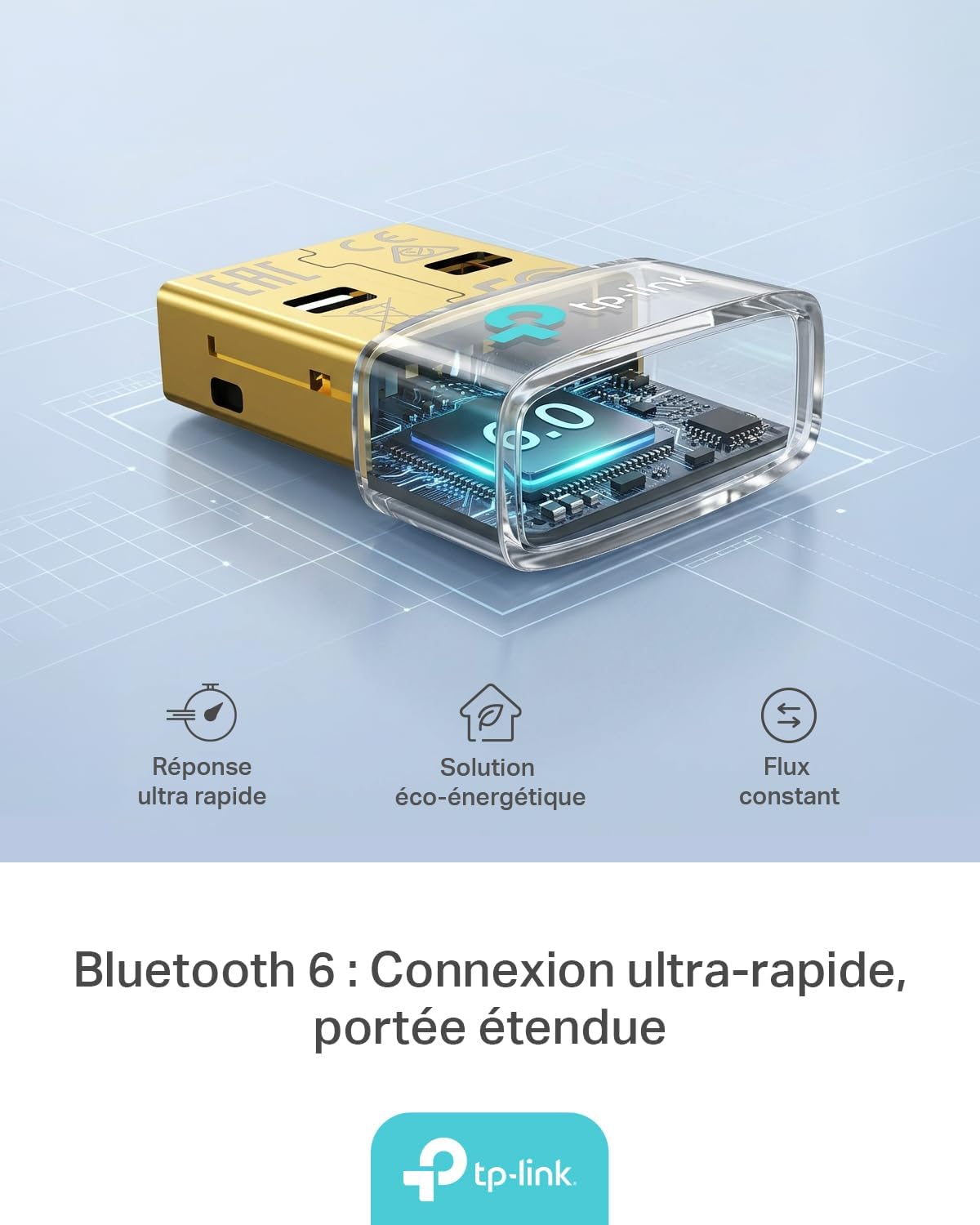
Figure 1: TP-Link UB600 Bluetooth 6.0 USB Adapter showcasing its key features: ultra-fast response, energy-saving solution, and constant data flow.
2. Інструкції з налаштування
2.1 Системні вимоги
- Operating System: Windows 11, Windows 10, Windows 8.1, Windows 7.
- Доступний USB-порт.
2.2 Встановлення
- Вставте адаптер: Plug the TP-Link UB600 Bluetooth USB adapter into an available USB port on your computer.

Figure 2: The UB600 adapter discreetly plugged into a laptop's USB port, demonstrating its compact design.
- Встановлення драйвера:
- For Windows 11, 10, 8.1: The adapter is Plug & Play. Your operating system should automatically detect and install the necessary drivers. No manual installation is typically required.
- Для Windows 7: Driver installation is required. Please visit the official TP-Link webсайт (www.tp-link.com) to download the latest drivers for the UB600 model. Follow the on-screen instructions to complete the installation.

Figure 3: Visual representation of the UB600's compatibility with different Windows versions and various Bluetooth peripherals like smartphones, headphones, controllers, and keyboards.
- Перевірка: After installation, check your computer's Device Manager to ensure the Bluetooth adapter is recognized and functioning correctly.
3. Інструкція з експлуатації
3.1 Сполучення пристроїв Bluetooth
Once the UB600 adapter is installed, you can pair it with your Bluetooth-enabled devices:
- Увімкнути Bluetooth: Ensure Bluetooth is enabled on your computer. You can usually find this in the Windows Settings (Settings > Devices > Bluetooth & other devices).
- Переведіть пристрій у режим сполучення: Place your Bluetooth device (e.g., headphones, mouse, keyboard) into pairing mode. Refer to your device's manual for specific instructions.
- Додати пристрій: On your computer, click "Add Bluetooth or other device" and select "Bluetooth".
- Виберіть пристрій: Ваш комп’ютер просканує пристрої Bluetooth поблизу. Виберіть свій пристрій зі списку та дотримуйтесь підказок на екрані, щоб завершити процес сполучення.
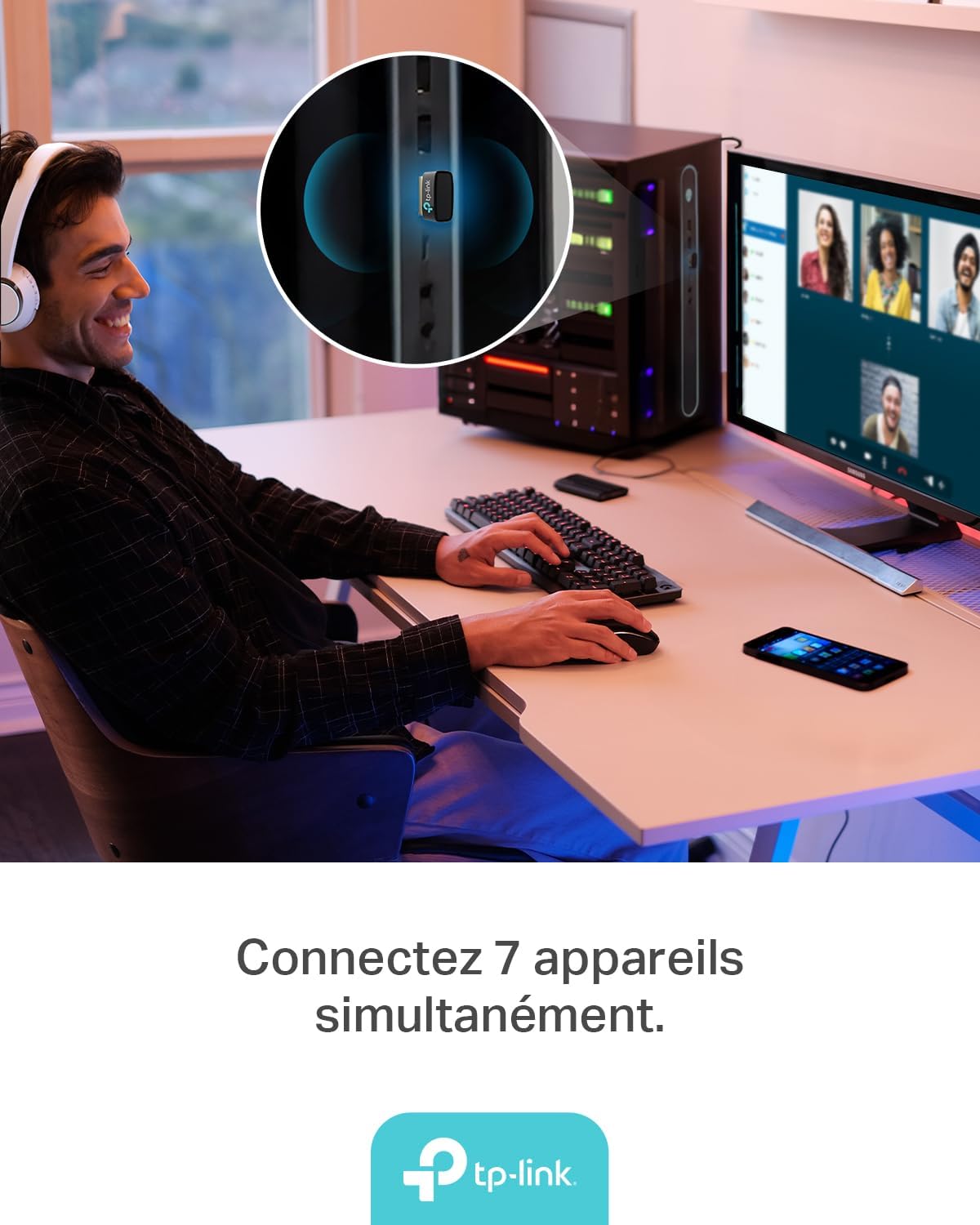
Figure 4: The UB600 adapter allows simultaneous connection of up to 7 Bluetooth devices, enhancing productivity and convenience.
3.2 Bluetooth 6.0 Advantages
The UB600 utilizes Bluetooth 6.0 technology, offering several improvements:
- Покращена безпека: Provides improved security features for your wireless connections.
- Підвищена стабільність: Offers a more stable and reliable connection compared to older Bluetooth versions.
- Faster Speeds (EDR): Supports Enhanced Data Rate (EDR) for quicker data transfer.
- Reduced Power Consumption (BLE): Utilizes Bluetooth Low Energy (BLE) for energy-efficient operation, especially beneficial for battery-powered devices.

Figure 5: The UB600 adapter contributes to daily efficiency with faster speeds (EDR) and reduced power consumption (BLE).
4. Технічне обслуговування
The TP-Link UB600 is designed for durability and requires minimal maintenance. To ensure optimal performance and longevity:
- Тримати в чистоті: Periodically clean the adapter's exterior with a soft, dry cloth. Avoid using liquid cleaners or solvents.
- Захист від пошкоджень: While compact, avoid subjecting the adapter to physical shocks, extreme temperatures, or moisture.
- Тверде підключення: Ensure the adapter is securely plugged into the USB port to prevent intermittent connections.
5. Вирішення проблем
If you encounter issues with your TP-Link UB600 adapter, consider the following steps:
- Адаптер не виявлено:
- Спробуйте підключити адаптер до іншого USB-порту.
- Перезавантажте комп'ютер.
- For Windows 7, ensure drivers are correctly installed from the TP-Link webсайт.
- Не вдається підключити пристрої:
- Ensure Bluetooth is enabled on your computer and the device you are trying to pair.
- Make sure your device is in pairing mode.
- Check if the device is already paired with another computer or adapter.
- Move the device closer to the computer to rule out range issues.
- Переривчасте підключення:
- Ensure there are no major obstructions between the adapter and the Bluetooth device.
- Avoid placing the adapter near sources of strong electromagnetic interference (e.g., Wi-Fi routers, microwaves).
- Оновіть операційну систему та драйвери Bluetooth вашого комп’ютера до останніх версій.
Для отримання додаткової допомоги, будь ласка, відвідайте офіційну службу підтримки TP-Link webсайт.
6. Технічні характеристики
| Особливість | Деталь |
|---|---|
| Номер моделі | UB600 |
| Інтерфейс | USB |
| Версія Bluetooth | Bluetooth 6.0 |
| Швидкість передачі даних | 2 Мбіт/с |
| Сумісні операційні системи | Windows 11, Windows 10, Windows 8.1, Windows 7 |
| Сумісні пристрої | Computer, Laptop (for connecting mouse, keyboard, headset, smartphone, controller, etc.) |
| Розміри (Д x Ш x В) | 0.68 х 1.89 х 1.48 см |
| вага | 10 грамів |
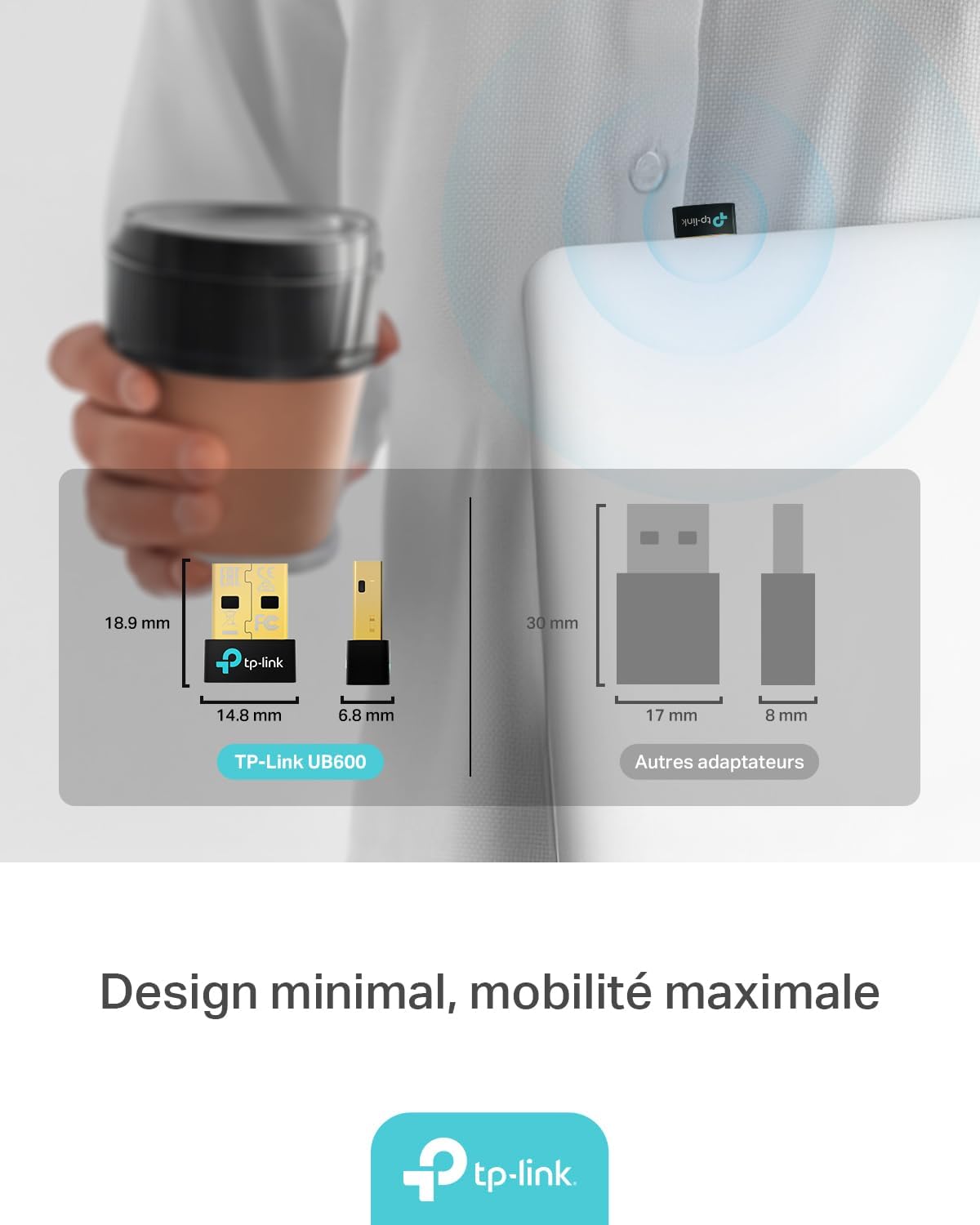
Figure 6: The UB600's minimal design ensures maximum mobility and discreet integration with your device.
7. Інформація про гарантію
Для отримання детальної інформації про гарантію, будь ласка, зверніться до гарантійного талона, що додається до вашого продукту, або відвідайте офіційний веб-сайт TP-Link. webсайт. Гарантійні умови можуть відрізнятися залежно від регіону.
8. Технічна підтримка
If you require technical assistance or have questions regarding your TP-Link UB600 Bluetooth USB Adapter, please visit the TP-Link support webсайт:
You can find FAQs, driver downloads, and contact information for customer service on their webсайт.