
1. Вступ
This manual provides essential information for setting up, operating, maintaining, and troubleshooting your TCL TAB A1 Plus tablet. Please read this manual thoroughly before using your device to ensure proper and safe operation.
The TCL TAB A1 Plus features a large 12.2-inch 2.4K display with a 120 Hz refresh rate, powered by a 4 nm Qualcomm Snapdragon 4 Gen 2 processor. It boasts a slim metal unibody design and integrates AI features like Google Gemini for enhanced productivity and an intuitive user interface for seamless multitasking.
2. Налаштування
2.1 Розпакування та початковий огляд
Carefully remove all components from the packaging. Verify that all items are present and undamaged. If any items are missing or damaged, contact your retailer.
2.2 Зарядка пристрою
Before first use, fully charge your TCL TAB A1 Plus. Connect the provided USB cable to the tablet's charging port and the other end to a compatible power adapter. Plug the adapter into a wall outlet. The charging indicator will show the charging status.
2.3 Увімкнення та початкове налаштування
- Натисніть і утримуйте кнопку живлення, доки не з’явиться логотип TCL.
- Дотримуйтесь підказок на екрані, щоб вибрати мову, підключитися до мережі Wi-Fi та налаштувати обліковий запис Google.
- Complete the initial setup steps, including setting up security features like a PIN, pattern, or fingerprint.
3. Керування планшетом
3.1 Дисплей та візуальний досвід
The TCL TAB A1 Plus features a 12.2-inch 2.4K display with a 120 Hz refresh rate, providing a sharp, fluid, and natural viewing experience for videos, browsing, and multitasking.

Image: The TCL TAB A1 Plus display showcasing vibrant colors and a large screen. This image highlights the immersive visual experience.

Image: A visual representation of the 120Hz refresh rate on the TCL TAB A1 Plus, indicating smooth motion and responsiveness.
3.2 Performance and Processor
Powered by a Qualcomm Snapdragon 4 Gen 2 (4 nm) processor, the tablet delivers quick responses, stable performance, and efficient power consumption, suitable for daily tasks, entertainment, and multitasking.

Image: A close-up of the Snapdragon 4 Gen 2 processor, illustrating the advanced technology powering the tablet.
3.3 AI Features with Google Gemini
The integrated Google Gemini AI assistant enhances daily activities, making them smoother and smarter. Features like Circle to Search, Writing Assist, Text Assist, and Smart Translator assist with research, writing, summarizing, and translation.
3.4 User Interface and Multitasking
The intuitive user interface includes Magic Hub, Sidebar, and Large Folders for organization. Quick-launch Split Screen and Floating Window features enable seamless multitasking, allowing you to work, watch, and interact simultaneously.

Image: A screenshot of the Magic Hub feature on the TCL TAB A1 Plus, demonstrating its organizational capabilities for saving and sharing content.
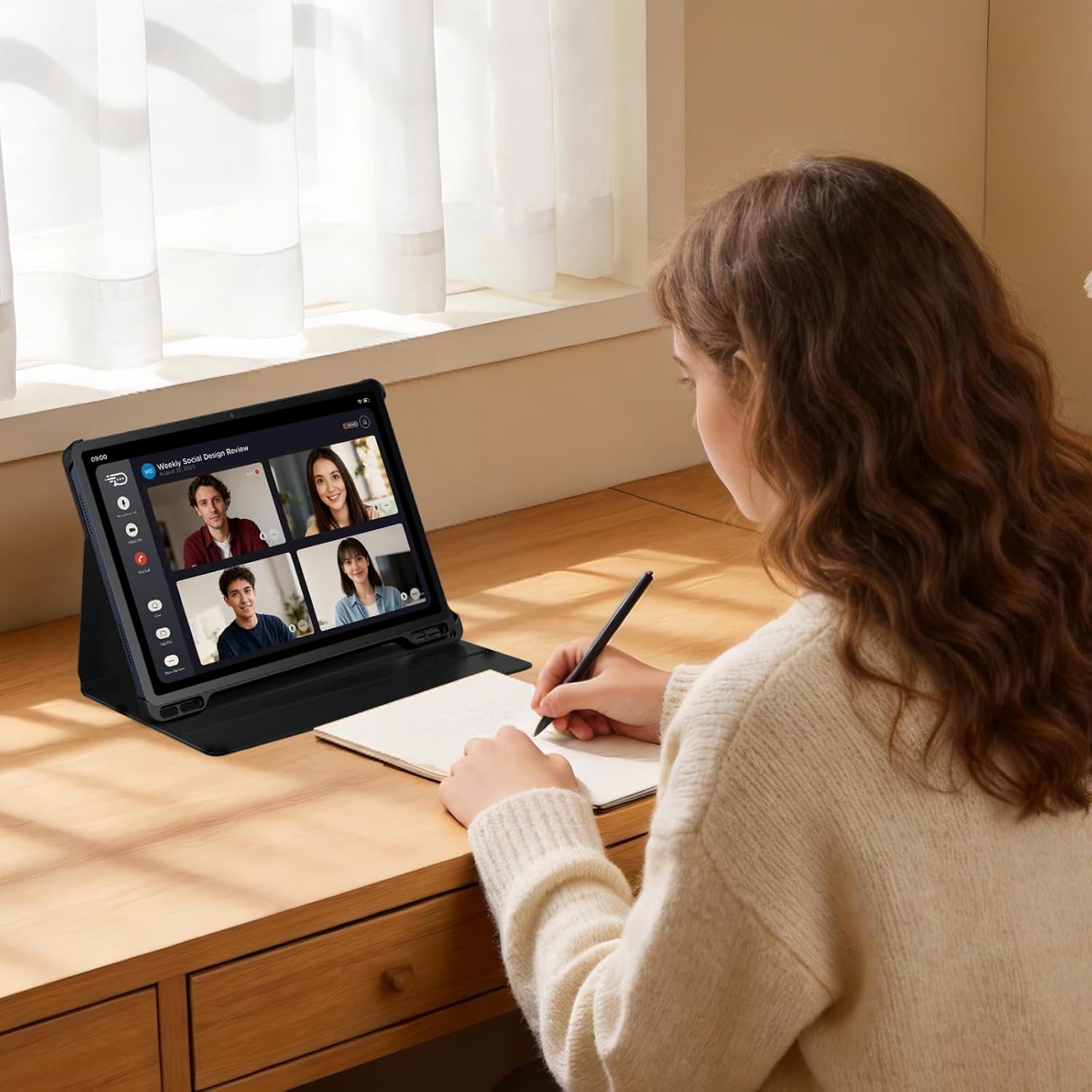
Image: A user participating in a video call on the TCL TAB A1 Plus, illustrating its use for communication and productivity.

Image: A user interacting with the TCL TAB A1 Plus using a T-Pen, demonstrating its suitability for creative and note-taking tasks.
4. Технічне обслуговування
4.1 Очищення планшета
Для очищення планшета використовуйте м’яку тканину без ворсу. Для стійких плям злегкаampen the cloth with water or a screen cleaner specifically designed for electronics. Avoid using harsh chemicals, abrasive materials, or aerosol sprays.
4.2 Догляд за акумулятором
To prolong battery life, avoid exposing the tablet to extreme temperatures. Do not leave it fully charged or fully discharged for extended periods. For optimal performance, keep the battery charge between 20% and 80% when possible.
4.3 Оновлення програмного забезпечення
Regularly check for and install software updates to ensure your tablet has the latest features, security patches, and performance improvements. You can usually find this option in the tablet's settings under "System" or "About tablet."
5. Вирішення проблем
5.1 Пристрій не вмикається
- Ensure the battery is sufficiently charged. Connect the tablet to a charger and wait a few minutes before attempting to power it on again.
- Натисніть і утримуйте кнопку живлення щонайменше 10-15 секунд, щоб виконати примусовий перезапуск.
5.2 Екран не реагує
- Перезапустіть планшет.
- If the screen remains unresponsive, try a factory reset (note: this will erase all data). Consult the TCL support webсайт для отримання детальних інструкцій щодо скидання до заводських налаштувань.
5.3 Проблеми з підключенням до Wi-Fi
- Переконайтеся, що на вашому планшеті увімкнено Wi-Fi.
- Перезавантажте свій Wi-Fi роутер.
- Забудьте про мережу в налаштуваннях Wi-Fi вашого планшета та підключіться знову.
5.4 Загальні проблеми з продуктивністю
- Закрийте невикористовувані програми, що працюють у фоновому режимі.
- Clear cache data for apps that are slowing down.
- Переконайтеся, що є достатньо місця для зберігання.
6. Технічні характеристики

Зображення: Оверview graphic highlighting key features of the TCL TAB A1 Plus, including 120Hz refresh rate, 2.4K display, Snapdragon 4 Gen 2 processor, metal unibody design, 8000mAh battery, and Google Gemini integration.
| Особливість | Деталь |
|---|---|
| Бренд | TCL |
| Назва моделі | TCL TAB A1 Plus |
| Ємність зберігання | 128 ГБ |
| Розмір екрана | 12.2 дюймів |
| Максимальна роздільна здатність дисплея | 2560 Pixels (2.4K) |
| Операційна система | Android 16 |
| Колір | Space Blue |
| Розмір оперативної пам'яті | 6 ГБ |
| Особливості | 2.4K Display with 120 Hz, Advanced 4 nm Processor, AI with Google Gemini, Intuitive User Interface |
| Рік моделі | 2026 |
7. Гарантія та підтримка
Щоб отримати детальну інформацію про гарантію, зверніться до гарантійного талона, що додається до вашого продукту, або відвідайте офіційну службу підтримки TCL. webсайт. Там ви можете знайти ресурси підтримки, відповіді на поширені запитання та контактну інформацію служби підтримки клієнтів.
TCL Official Support: https://www.tcl.com/global/en/support