
1. Налаштування
1.1 Вміст упаковки
Перед складанням перевірте наявність усіх компонентів в упаковці:
- KTC H24F7 24 Inch 240Hz Monitor
- База монітора
- Стенд для монітора
- Адаптер живлення
- Кабель HDMI
- Короткий посібник (QSG)
1.2 Інструкція по збірці
Щоб зібрати монітор, виконайте такі дії:
- Обережно вийміть монітор та всі компоненти з упаковки.
- Attach the monitor stand to the monitor base. Ensure it clicks securely into place.
- Connect the assembled stand and base to the back of the monitor. The stand is designed for easy snap-in installation.
- Поставте монітор на стійку рівну поверхню.

1.3 Встановлення кріплення VESA
The KTC H24F7 monitor supports VESA 100mm x 100mm mounting for alternative stand or wall mount solutions. Ensure you use M4-0.7 x 10mm screws (not included) for secure installation.

1.4 Підключення до пристроїв
Підключіть комп’ютер або інші пристрої до монітора за допомогою відповідних кабелів.
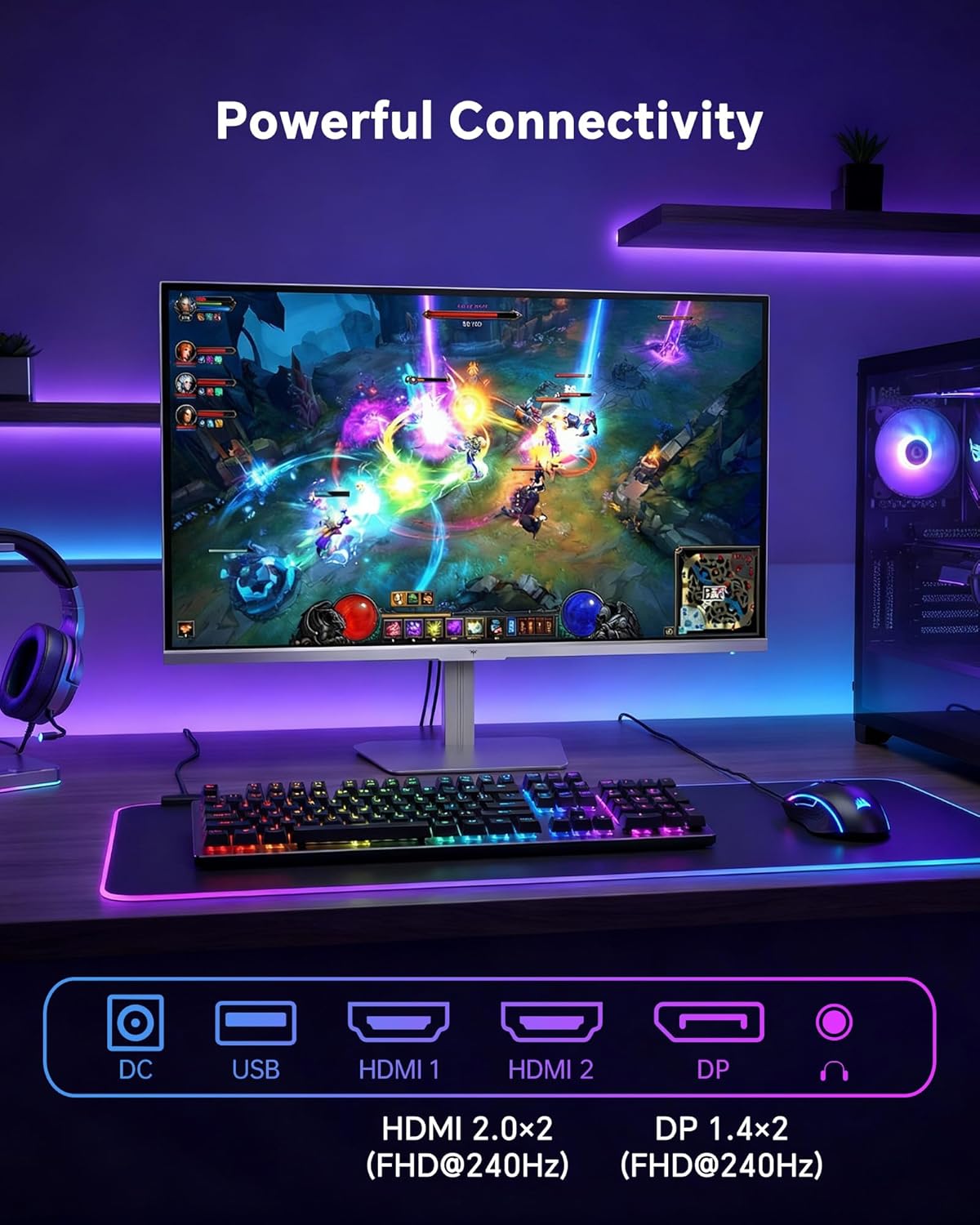
- HDMI: Use an HDMI cable to connect to devices with HDMI output. The monitor has two HDMI 2.0 ports, supporting FHD at 240Hz.
- DisplayPort: Use a DisplayPort cable for devices with DisplayPort output. The monitor has one DisplayPort 1.4, supporting FHD at 240Hz.
- Потужність: Connect the power adaptor to the DC input on the monitor and then to a power outlet.
- USB: A USB 2.0 port is available for connecting peripherals.
- Аудіо вихід: A 3.5mm audio jack is available for connecting headphones or external speakers.
2. Інструкція з експлуатації
2.1 Увімкнення/вимкнення живлення
Натисніть кнопку живлення, розташовану на моніторі, щоб увімкнути або вимкнути його. Індикатор живлення світитиметься, коли монітор активний.
2.2 Екранне меню (OSD)
The OSD menu allows you to adjust various monitor settings. Use the control buttons (typically located on the back or bottom of the monitor) to navigate the menu and select options. Refer to the Quick Start Guide for specific button functions.
2.3 Налаштування дисплея
Оптимізуйте свій viewпокращення досвіду, налаштувавши такі параметри:
- Частота оновлення: The monitor supports a 240Hz refresh rate for smooth motion. Ensure your graphics card settings are configured to utilize this rate.

- Адаптивна синхронізація: This technology synchronizes the monitor's refresh rate with your graphics card's frame rate to eliminate screen tearing and stuttering. Enable Adaptive Sync in the OSD menu and ensure it is also enabled in your graphics card control panel (FreeSync/G-Sync compatible).

- HDR 400: High Dynamic Range 400 provides enhanced contrast and color accuracy, delivering brighter highlights and deeper shadows. Activate HDR in the OSD menu and your operating system display settings for compatible content.

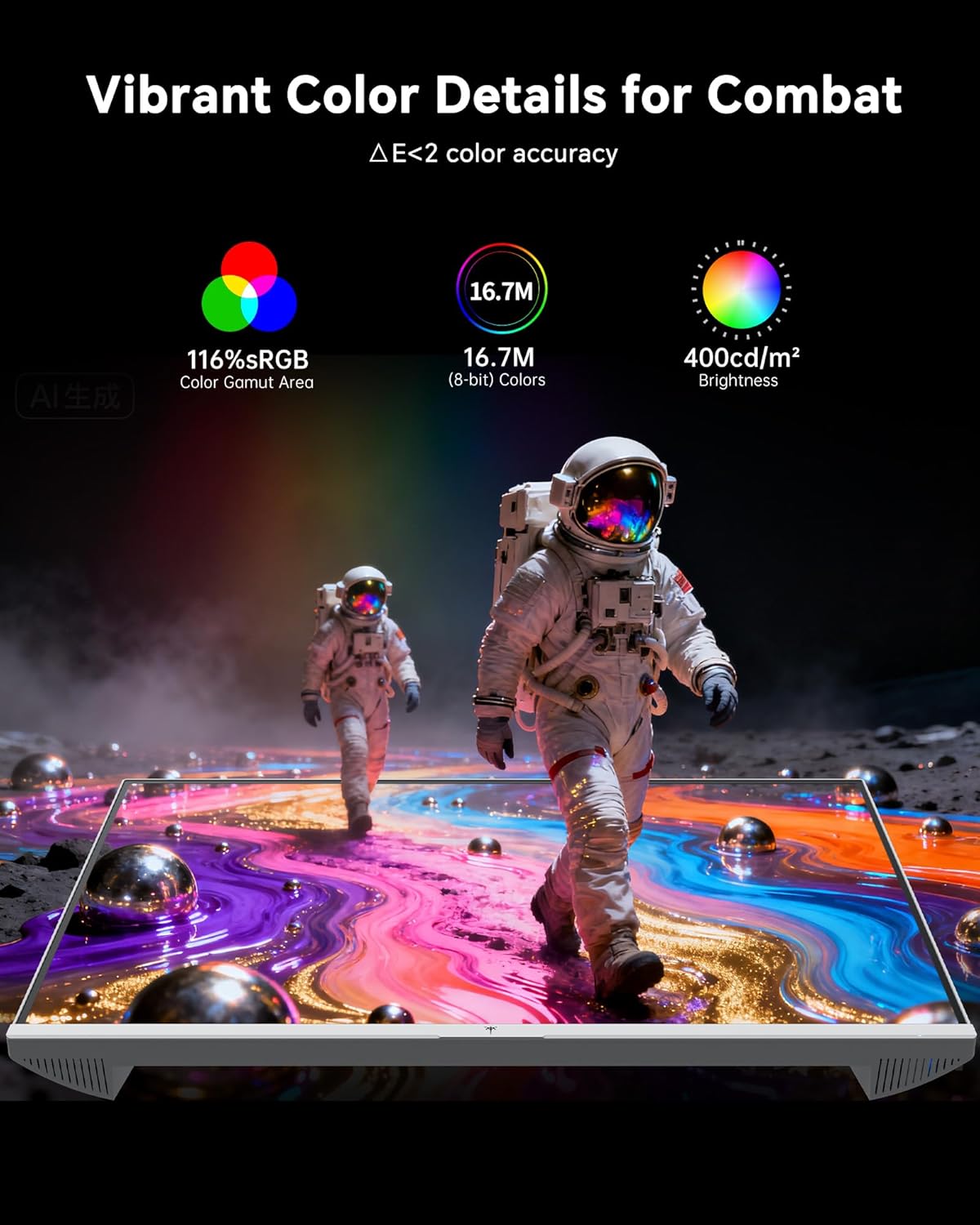
- Параметри кольору: The monitor offers 116% sRGB color gamut and 16.7 million colors. Adjust brightness (up to 400 cd/m²) and color temperature through the OSD menu to suit your preference.
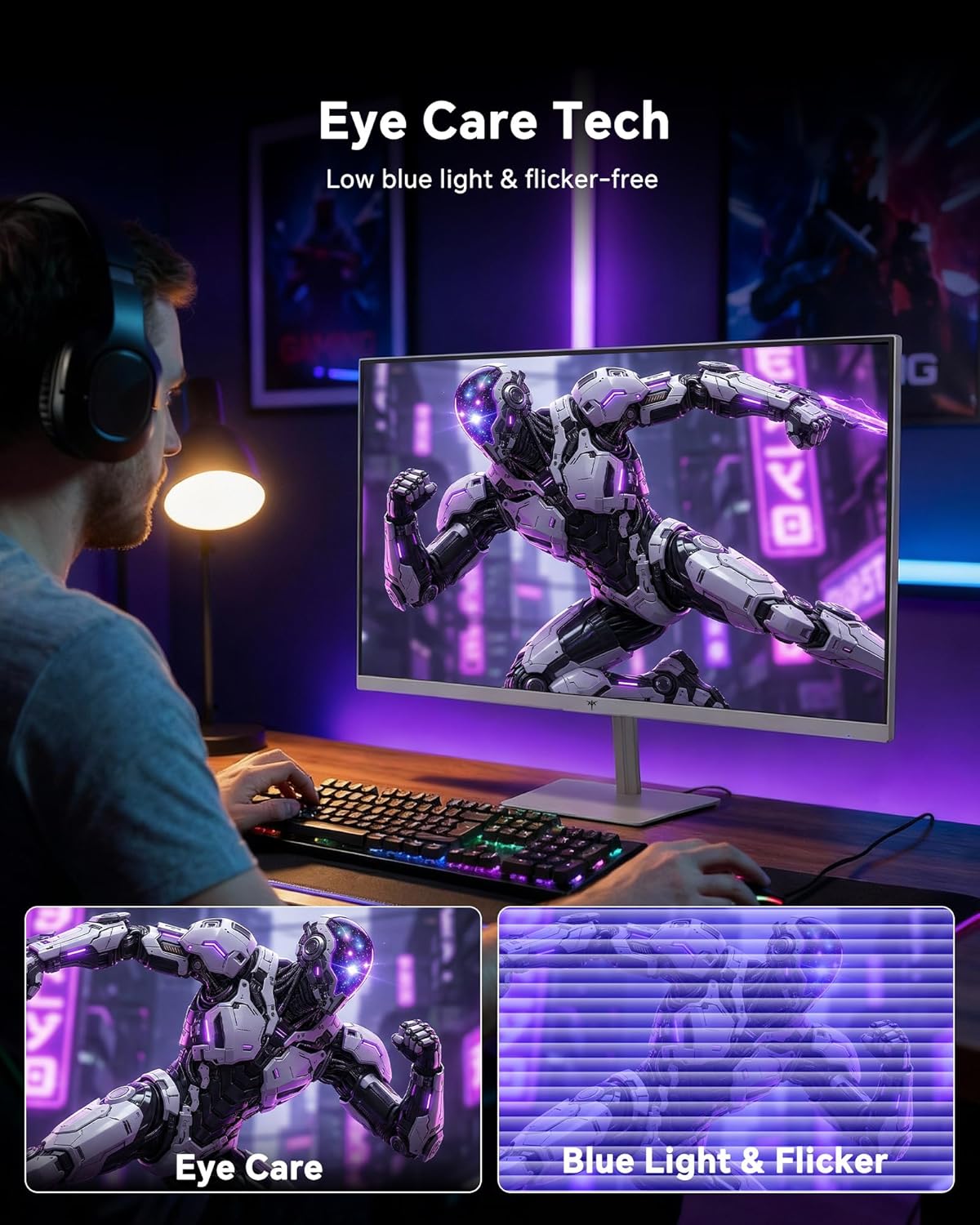
- Технологія догляду за очима: The monitor features low blue light and flicker-free technology to reduce eye strain during prolonged use. These settings can typically be adjusted or enabled within the OSD menu.
2.4 Monitor Tilt Adjustment
The monitor supports tilt adjustment from -5° to 15° (±3°). Gently adjust the monitor panel to your desired viewкут.
3. Технічне обслуговування
3.1 Очищення монітора
Щоб очистити екран монітора таasing:
- Завжди вимикайте монітор та від’єднуйте шнур живлення від мережі перед чищенням.
- Злегка протріть м’якою тканиною без ворсу dampводою або м’яким, неабразивним засобом для чищення екранів.
- Обережно протріть екран, щоб видалити пил і плями. Уникайте надмірного тиску.
- Для casing, use a dry, soft cloth. Do not use alcohol, ammonia, or abrasive cleaners, as these can damage the surface.
3.2 Загальний догляд
- Уникайте розміщення важких предметів на моніторі або його кабелях.
- Не піддавайте монітор впливу прямих сонячних променів, надмірного тепла або сильного холоду.
- Тримайте монітор подалі від рідин та високої вологості.
- Забезпечте належну вентиляцію навколо монітора, щоб запобігти перегріванню.
4. Вирішення проблем
If you encounter issues with your KTC H24F7 monitor, refer to the following common problems and solutions:
| проблема | Можлива причина | Рішення |
|---|---|---|
| На екрані немає зображення | Відключено кабель живлення; відключено або нещільно прикріплено відеокабель; вибрано неправильне джерело вхідного сигналу; монітор вимкнено. | Ensure power cable is securely connected and monitor is on. Check video cable connections (HDMI/DisplayPort) at both the monitor and computer. Press the input source button on the monitor to cycle through inputs. |
| Мерехтіння або розриви зображення | Adaptive Sync not enabled; Graphics card driver issues; Faulty video cable. | Enable Adaptive Sync in the OSD menu and your graphics card control panel. Update graphics card drivers. Try a different video cable. If using DisplayPort 1, try DisplayPort 2 or HDMI if available, as some units may experience issues with specific ports. |
| Кольори виглядають неправильно або розмитими | Color settings incorrect; HDR not properly configured; Faulty video cable. | Adjust color settings (brightness, contrast, color temperature) in the OSD menu. Ensure HDR is enabled in both the OSD and your operating system for HDR content. Try a different video cable. |
| Монітор не досягає 240 Гц | Graphics card limitations; Incorrect display settings in OS; Cable bandwidth limitations. | Ensure your graphics card supports 240Hz at 1080p. Verify display settings in your operating system (e.g., Windows Display Settings or NVIDIA/AMD control panel) are set to 240Hz. Use the provided HDMI cable or a certified DisplayPort 1.4 cable. |
| Stuck or dead pixels | Виробничий брак. | A small number of stuck or dead pixels (typically 1-3) may be considered normal for LCD panels. If the issue is severe or persistent, contact customer support. |
5. Технічні характеристики
| Особливість | Деталь |
|---|---|
| Бренд | КТК |
| Номер моделі | H24F7 |
| Розмір екрана | 24 дюймів |
| роздільна здатність | FHD 1080p (1920 x 1080 пікселів) |
| Тип панелі | Майже IPS |
| Частота оновлення | 240 Гц |
| Час відгуку | 1 Millisecond (MPRT) |
| Співвідношення сторін | 16:9 |
| Яскравість | 400 кандел на квадратний метр |
| Коефіцієнт контрастності | 1000:1 |
| Колірна гамма | 116% sRGB |
| Підтримка HDR | HDR 400 |
| Адаптивна синхронізація | FreeSync, G-Sync Compatible |
| Підключення | 2x HDMI 2.0, 1x DisplayPort 1.4, 1x USB 2.0, 1x Audio Out (3.5mm) |
| Функції догляду за очима | Low Blue Light, Flicker-Free, Anti-Glare Screen |
| коригування | Нахил (від -5° до 15°) |
| Гора VESA | 100 мм х 100 мм |
| Розміри (Д x Ш x В) | 5.39" Г x 21.25" Ш x 15.74" В |
| Вага товару | 3.2 кілограма |
| Колір | Білий |
6. Гарантія та підтримка
6.1 Інформація про гарантію
The KTC H24F7 monitor comes with a three-year manufacturer warranty. Ця гарантія поширюється на дефекти матеріалів і виготовлення за нормального використання.
Зберігайте підтвердження покупки для гарантійних претензій.
6.2 Підтримка клієнтів
For technical assistance, warranty claims, or any questions regarding your KTC H24F7 monitor, please contact KTC customer support. KTC aims to provide responsive customer support and typically responds within 12 hours.
You can usually find contact information on the official KTC website or through the retailer where you purchased the product. When contacting support, please have your monitor model number (H24F7) and purchase details ready.


