
GeekShare GC1201A
GeekShare Hall Effect Switch Controller (GC1201A) User Manual
Model: GC1201A
1. Вступ
The GeekShare Hall Effect Switch Controller is a versatile gaming controller designed for multi-platform compatibility, including Nintendo Switch (OLED/NS2/1/Lite), PC (Steam, Windows), and mobile devices (Android, iOS). It features dual-mode connectivity (Bluetooth and 2.4G wireless), a 1000mAh battery, 6-axis gyroscope, dual vibration motors, and customizable RGB lighting for an immersive gaming experience.
Вміст упаковки
- 1 x GeekShare Hall Effect Wireless Controller
- 1 x USB-C зарядний кабель
- 1 x 2.4G бездротовий приймач
- 1 х посібник користувача
2. Ключові характеристики
- Джойстики на ефекті Холла: Provides precise control and prevents stick drift.
- Подвійні режими підключення: Seamlessly switch between Bluetooth 5.0 for mobile and consoles, and 2.4G wireless with the included dongle for PC.
- Мультиплатформна сумісність: Supports Nintendo Switch (OLED/NS2/1/Lite), PC (Steam, Windows), Android, and iOS devices.
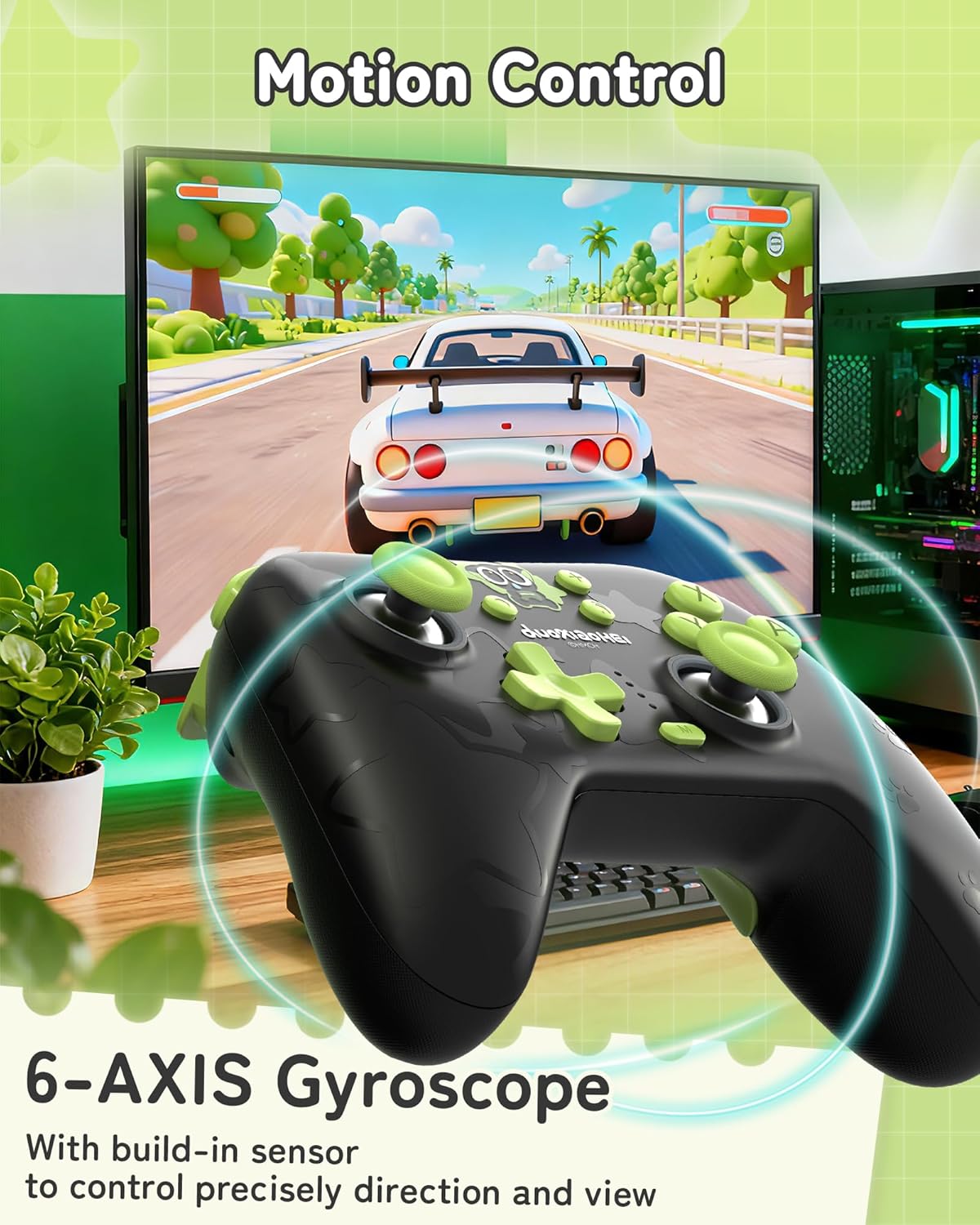
- Імерсивний зворотній зв'язок: Features a 6-axis gyroscope for motion control and dual vibration motors with 5-level adjustment for realistic haptic feedback.
- Довговічний акумулятор: Integrated 1000mAh rechargeable battery offers up to 15 hours of continuous gameplay.
- Настроюване освітлення RGB: Enhance your gaming setup with personalized RGB light effects.
- Програмовані кнопки: Two back buttons (M1, M2) can be mapped to complex commands for quick execution.
- Турбофункція: Auto and manual turbo settings for rapid-fire actions.
Параметри підключення
The controller supports three connection methods: Bluetooth, 2.4G wireless (with dongle), and wired USB-C.

Програмовані кнопки
The M1 and M2 buttons on the back can be programmed to perform specific actions, allowing for quick execution of complex in-game commands.

Відгук про вібрацію
Equipped with dual motors, the controller provides adjustable vibration feedback to enhance immersion. There are 5 levels of vibration intensity.

Термін служби батареї
The built-in 1000mAh battery provides extended gameplay. A full charge takes approximately 2.5 hours and offers up to 20 hours of continuous use.

Турбофункція
The controller supports both automatic and manual turbo functions, allowing for rapid, repeated input of a button press. This is typically activated by pressing the 'M' button along with a desired action key.

Контроль руху
A built-in 6-axis gyroscope enables precise motion control, allowing for intuitive direction and view adjustments in compatible games.
3. Налаштування та підключення
3.1 Заряджання контролера
Before first use, fully charge the controller. Connect the included USB-C cable to the controller's charging port and the other end to a USB power source (e.g., console, PC, or USB wall adapter). The indicator lights will show charging status and turn off when fully charged.
3.2 Connecting to Nintendo Switch (Bluetooth)
- On your Nintendo Switch, go to the HOME Menu.
- Виберіть «Контролери» > «Змінити хват/порядок».
- Press and hold the Pairing button on the top of the GeekShare controller until the indicator lights begin to flash rapidly.
- The Switch will detect the controller. Once paired, the indicator light(s) on the controller will remain solid.
- Note: This controller may not support waking up the Switch console from sleep mode. You may need to manually wake the console before connecting.
3.3 Connecting to PC (2.4G Wireless)
- Insert the 2.4G wireless receiver into an available USB port on your PC.
- Turn on the GeekShare controller.
- The controller should automatically connect to the receiver. The indicator light(s) on the controller will remain solid once connected.
- If connection fails, press the pairing button on the controller and the button on the 2.4G receiver simultaneously to initiate pairing.
3.4 Connecting to Mobile Devices (Bluetooth)
- Переконайтеся, що Bluetooth увімкнено на вашому пристрої Android або iOS.
- On your device, go to Bluetooth settings and scan for new devices.
- Press and hold the Pairing button on the top of the GeekShare controller until the indicator lights begin to flash rapidly.
- Select "GeekShare Controller" (or similar name) from the list of available devices.
- Після сполучення індикатор(и) на контролері світитиметься постійно.
3.5 Дротове підключення
Connect the controller directly to your device (Switch dock, PC) using the USB-C cable. The controller will function as a wired controller and will also charge simultaneously.
4. Інструкція з експлуатації
4.1 Основні елементи керування
The controller features standard button layouts including A/B/X/Y buttons, D-pad, Left/Right joysticks, L/R/ZL/ZR shoulder buttons, and Home/Capture/Plus/Minus buttons. Refer to in-game prompts for specific button functions.
4.2 Programming M1/M2 Buttons
The M1 and M2 buttons on the back can be assigned to replicate other button presses or sequences. Consult the full user manual (included in the box) for detailed programming instructions, as the process may vary based on desired complexity.
4.3 Turbo Function Activation
To activate the Turbo function for a specific button:
- Натисніть і утримуйте кнопку «М».
- While holding 'M', press the desired action button (e.g., A, B, X, Y, L, R, ZL, ZR).
- Release both buttons. The selected button will now have the Turbo function enabled.
To adjust between manual and auto turbo, or to clear the turbo setting, refer to the detailed instructions in the included user manual.
4.4 Регулювання інтенсивності вібрації
The controller offers 5 levels of vibration intensity. Specific button combinations (e.g., 'M' button + D-pad Up/Down) are typically used to cycle through these levels. Refer to the included user manual for the exact key combinations.
4.5 Керування RGB-підсвічуванням
The RGB lighting can be customized. This usually involves pressing a dedicated button or a combination of buttons to change colors, patterns, or turn the lighting on/off. Consult the included user manual for specific instructions.
5. Технічне обслуговування та догляд
- Тримайте контролер сухим та подалі від екстремальних температур.
- Протирайте контролер м’якою сухою тканиною. Не використовуйте агресивні хімікати або абразивні матеріали.
- Уникайте падіння контролера та сильних ударів.
- Store the controller in a clean, dust-free environment when not in use.
- Charge the controller regularly, even if not used frequently, to maintain battery health.
6. Вирішення проблем
6.1 Контролер не підключається
- Переконайтеся, що контролер достатньо заряджений.
- Verify that the correct connection mode (Bluetooth, 2.4G, Wired) is selected or attempted for your device.
- For Bluetooth, ensure your device's Bluetooth is on and the controller is in pairing mode (flashing lights).
- For 2.4G, ensure the receiver is properly inserted into the PC and try re-pairing if necessary.
- Спробуйте перезавантажити і контролер, і пристрій, до якого ви намагаєтеся підключитися.
- Якщо ви підключаєтесь до Switch, переконайтеся, що ви знаходитесь у меню «Змінити хват/порядок».
6.2 Затримка вхідного сигналу або обриви з'єднання
- Переконайтеся, що поблизу немає сильних електромагнітних перешкод.
- Move closer to the connected device (for wireless connections).
- For PC, ensure the 2.4G receiver is in a clear line of sight and not obstructed.
- Try a wired connection to rule out wireless interference.
6.3 Кнопки або джойстики не реагують
- Перевірте, чи контролер правильно підключений та увімкнений.
- Restart the controller and the gaming device.
- Переконайтеся, що навколо кнопок або джойстиків немає сміття.
- If the issue persists, a factory reset (if available, consult the included manual) might be necessary.
6.4 Controller Not Charging
- Ensure the USB-C cable is securely connected to both the controller and the power source.
- Спробуйте інший кабель USB-C або джерело живлення.
- Verify the power source is active and providing sufficient power.
7. Технічні характеристики
| Номер моделі | GC1201A |
| Підключення | Bluetooth 5.0, 2.4G Wireless (with receiver), USB-C Wired |
| Сумісність | Nintendo Switch (OLED/NS2/1/Lite), PC (Windows), Android, iOS |
| Ємність акумулятора | 1000 мАг |
| Час відтворення | Up to 15-20 hours (approx.) |
| Час зарядки | прибл. 2.5 години |
| Датчик руху | Вісь 6-гіроскоп |
| вібрація | Dual Motors with 5-level adjustment |
| Особливості | Hall Effect Joysticks, Programmable M1/M2 buttons, Turbo function, RGB Lighting |
8. Гарантія та підтримка
For warranty information and technical support, please refer to the official GeekShare website or contact their customer service directly. Details can typically be found on the product packaging or the included user manual.
GeekShare Official Webсайт: Visit GeekShare Store on Amazon
Ask a question about this manual
Ask about setup, troubleshooting, compatibility, parts, safety, or missing instructions. Manuals+ will review the question and use this page’s manual context to help answer it.