
1. Вступ
The Bisofice Z58-IV is a compact 58mm thermal receipt printer designed for various business environments. It offers high-speed printing, clear output, and flexible connectivity options including Bluetooth and USB. This manual provides detailed instructions for setup, operation, maintenance, and troubleshooting to ensure optimal performance of your printer.

Figure 1.1: Bisofice Z58-IV Thermal Receipt Printer in a retail setting.
2. Інформація про безпеку
- Переконайтеся, що принтер розміщено на стійкій, рівній поверхні.
- Не піддавайте принтер впливу води, вологи або екстремальних температур.
- Використовуйте лише наданий адаптер живлення.
- Уникайте дотику до друкуючої головки одразу після друку, оскільки вона може бути гарячою.
- Зберігати в недоступному для дітей місці.
- Від’єднайте живлення перед чищенням або технічним обслуговуванням.
3. Вміст упаковки
Перевірте наявність усіх елементів в упаковці:
- Bisofice Z58-IV Thermal Receipt Printer
- Адаптер живлення
- USB кабель
- Рулон термопаперу
- Посібник користувача (цей документ)
4. Продукт закінчивсяview
Familiarize yourself with the printer's components and ports:
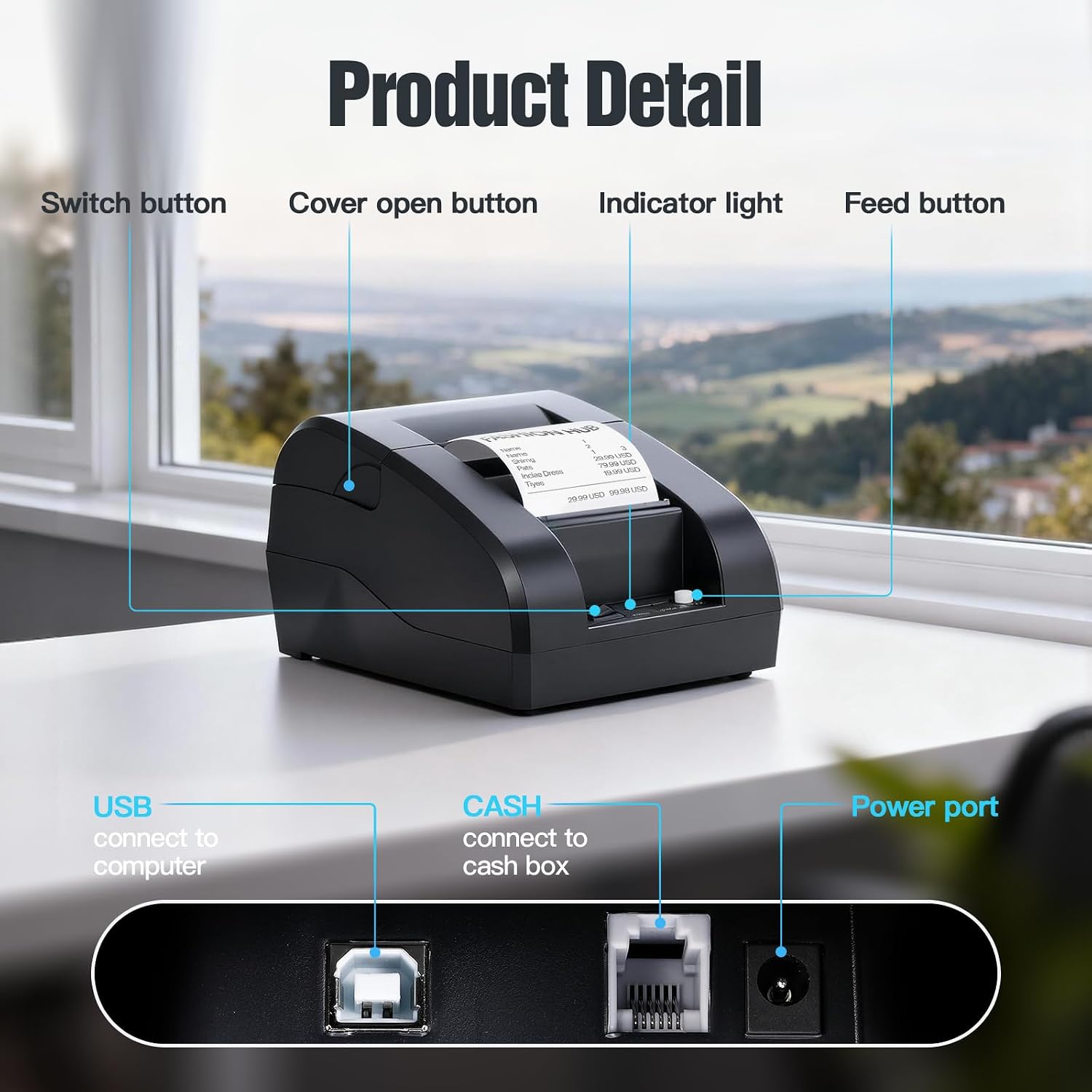
Figure 4.1: Front and Rear Panel Details.
- Кнопка перемикання: Powers the printer On/Off.
- Cover Open Button: Releases the top cover for paper roll installation.
- Світловий індикатор: Displays printer status (e.g., power, error, paper out).
- Кнопка подачі: Manually feeds paper.
- Порт USB: Connects the printer to a computer via USB cable.
- CASH Port: Connects to a cash drawer.
- Порт живлення: Підключається до адаптера живлення.
5. Налаштування
5.1. Встановлення рулону паперу
- Press the Cover Open Button to open the top cover.
- Insert a 58mm thermal paper roll into the compartment, ensuring the paper feeds from the bottom and the leading edge extends slightly out of the printer.
- Щільно закрийте верхню кришку, доки вона не зафіксується почутим клацанням.

Figure 5.1: Installing the thermal paper roll.
5.2. Підключення живлення
Connect the power adapter to the printer's Power Port and then plug the adapter into a power outlet.
5.3. Connecting to a Computer (USB)
The printer supports USB connection for Windows and Linux operating systems. Note: This printer is not compatible with iOS or Mac OS via USB.
- Підключіть принтер до комп’ютера за допомогою USB-кабелю, що входить до комплекту.
- Увімкніть принтер.
- Download and install the appropriate printer driver for your operating system (Windows/Linux) from the Bisofice official webсайт або наданий інсталяційний носій.
- Дотримуйтеся вказівок на екрані, щоб завершити встановлення драйвера.
5.4. Підключення до мобільного пристрою (Bluetooth)
The printer supports Bluetooth connection for Android smartphones. Note: This printer is not compatible with iOS via Bluetooth.
- Переконайтеся, що принтер увімкнено.
- Enable Bluetooth on your Android smartphone.
- шукати available Bluetooth devices and select the printer (usually named 'Z58-IV' or similar).
- Enter the pairing PIN if prompted (common PINs are '0000' or '1234').
- Once paired, you can use compatible Android applications (e.g., Loyverse, iREAP, CasierStock, Kyte) to print.

Figure 5.2: Connectivity options: USB to computer and Bluetooth to mobile phone.
6. Інструкція з експлуатації
6.1. Друк квитанції
After successful setup and connection, you can initiate printing from your application or system. The printer supports ESC/POS commands for various printing functions.
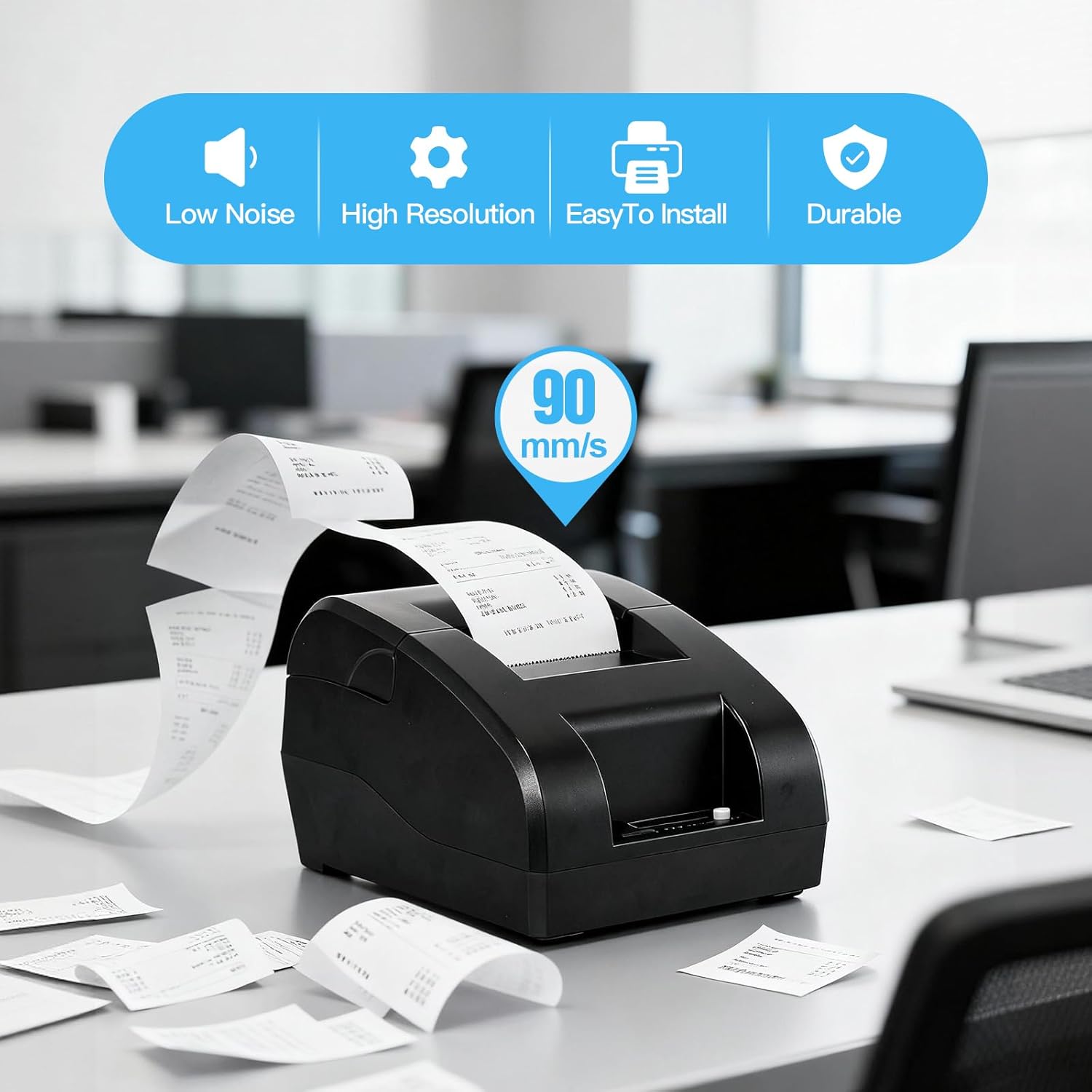
Figure 6.1: High-speed printing at 90mm/s.
6.2. Manual Paper Feed
Press the Feed Button briefly to advance the paper by one line. Press and hold the Feed Button to continuously feed paper.
7. Технічне обслуговування
7.1. Очищення друкуючої головки
To maintain print quality, clean the thermal print head regularly (e.g., once a month or after every 10 rolls of paper). Use a cotton swab lightly moistened with isopropyl alcohol. Gently wipe the print head surface. Allow it to dry completely before use.
7.2. Зовнішнє прибирання
Протріть зовнішню частину принтера м’якою,amp тканина. Не використовуйте агресивні хімікати або абразивні засоби для чищення.
7.3. Заміна рулону паперу
Refer to Section 5.1 for instructions on replacing the thermal paper roll when it runs out.
8. Вирішення проблем
- Принтер не вмикається: Перевірте підключення адаптера живлення та переконайтеся, що розетка справна.
- Принтер не друкує:
- Ensure the paper roll is correctly installed and not empty.
- Check the connection (USB or Bluetooth) to your device.
- Перевірте, чи на вашому комп’ютері встановлено та вибрано правильний драйвер принтера.
- For Bluetooth, ensure the printer is paired and connected to your Android device.
- Погана якість друку: Clean the print head as described in Section 7.1. Ensure you are using high-quality thermal paper.
- Проблеми сумісності:
- Принтер є не сумісний with iOS and Mac OS.
- Принтер є не сумісний with POS systems such as Square, Hellocash, and Zettle.
- For Android, ensure your application supports this printer model.
9. Технічні характеристики
| Особливість | Специфікація |
|---|---|
| Бренд | Бісофіс |
| Назва моделі | Z58-IV |
| Технологія підключення | Bluetooth, USB |
| Технологія друку | Теплові |
| Колір | чорний |
| Вихід на принтер | Однотонні |
| Максимальна швидкість друку (чорно-білий) | 90 мм/с |
| Max Paper Size Supported | 58 мм |
| Розміри продукту | 18P x 10.5L x 13H cm |
| Включені компоненти | Термопапір |
| Додаткові функції принтера | Лише друк |
10. Гарантія та підтримка
For warranty information and technical support, please refer to the documentation provided with your purchase or visit the official Bisofice webсайт. Зберігайте чек про покупку як підтвердження покупки для гарантійних претензій.