
вступ
Welcome to the user manual for your new TABWEE T50 11-inch Android Tablet. This guide provides essential information on setting up, operating, maintaining, and troubleshooting your device. The TABWEE T50 combines the latest Android 16 system with Gemini AI for a fast, intelligent, and smooth user experience. It features an Unisoc T7250 Octa-Core processor, 24GB RAM, 128GB ROM (expandable to 2TB), an 8000mAh battery, a 90Hz HD+ display, and 13MP rear and 8MP front cameras.
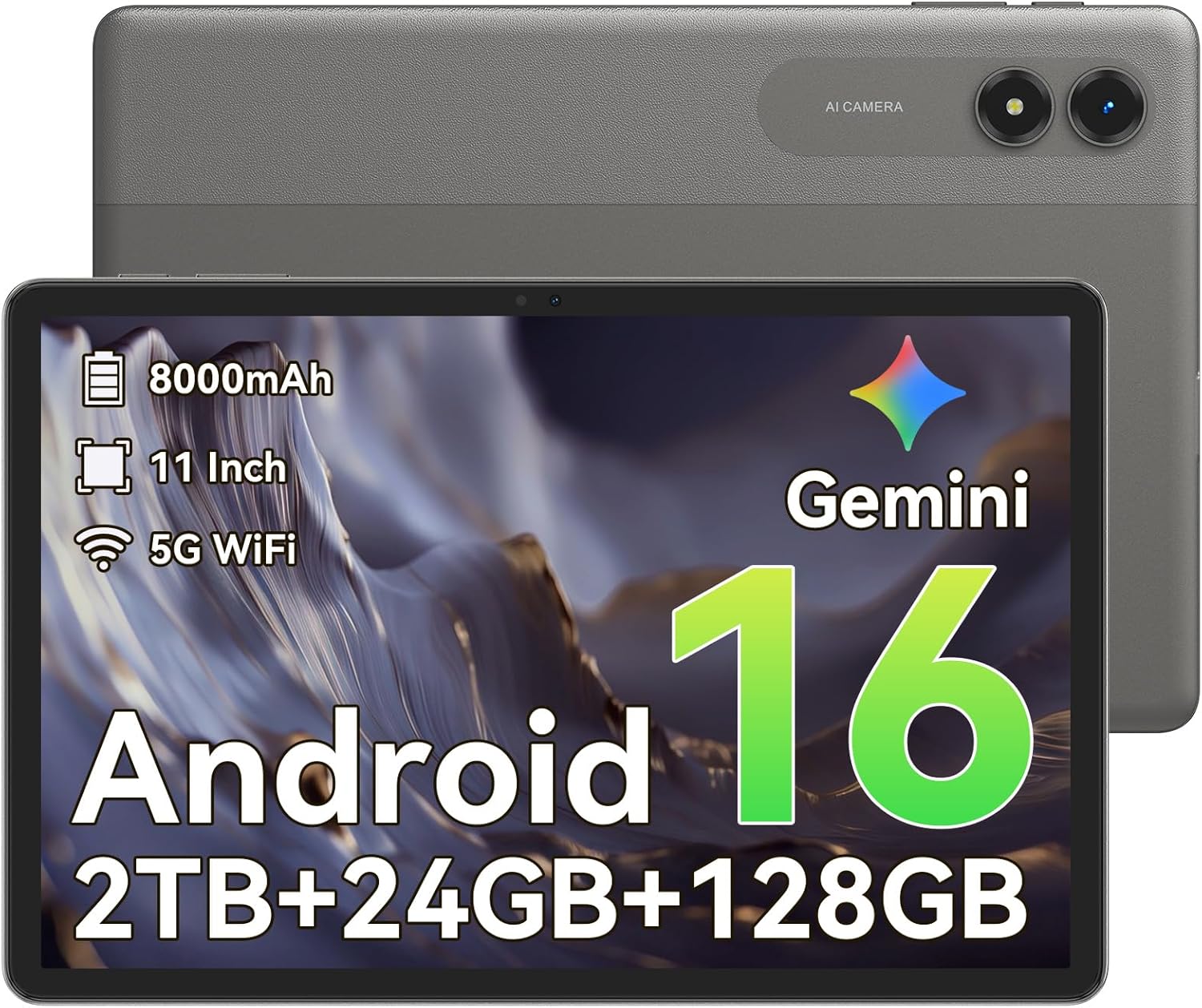
Зображення: спереду view of the TABWEE T50 Tablet.
Вміст упаковки
Після відкриття упаковки переконайтеся, що всі предмети присутні:
- TABWEE T50 Tablet
- USB-кабель для зарядки
- Інструмент для витягування SIM-карти
- Короткий посібник (цей посібник)
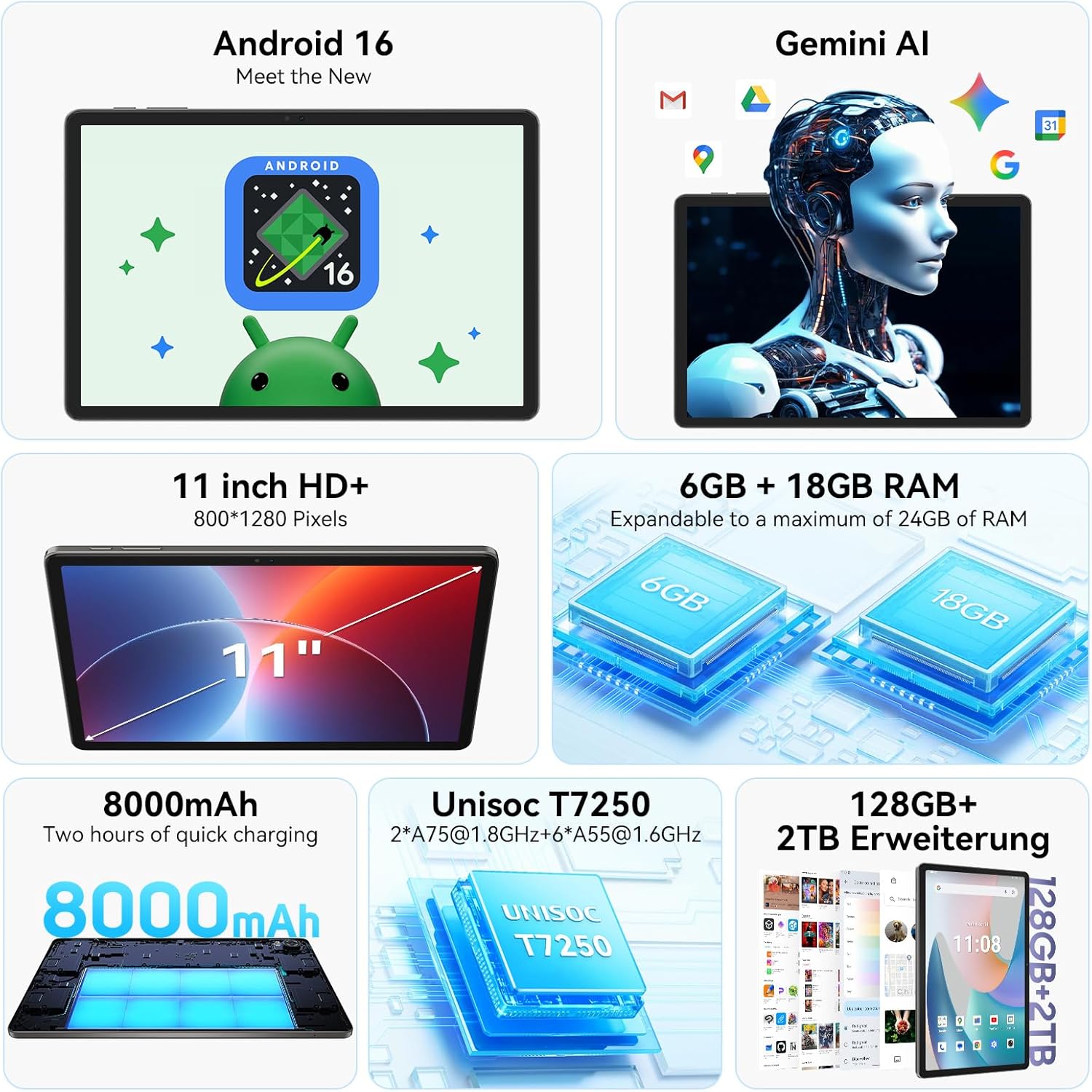
Image: The TABWEE T50 Tablet along with its standard accessories, including a charging cable and SIM ejector tool.
Налаштування
1. Початкове заряджання
Before first use, fully charge your TABWEE T50 Tablet.
- Підключіть USB-кабель для зарядки до порту зарядки планшета.
- Connect the other end of the cable to a compatible USB power adapter (not included) and plug it into a power outlet.
- Allow the tablet to charge until the battery indicator shows 100%. This may take approximately 5 hours for a full charge.

Image: Illustration of the tablet's 8000mAh battery and charging process.
2. Увімкнення та початкове налаштування
Press and hold the power button until the TABWEE logo appears. Follow the on-screen prompts to complete the initial setup:
- Виберіть свою мову.
- Підключіться до мережі Wi-Fi.
- Увійдіть за допомогою свого облікового запису Google або створіть новий.
- Review та прийміть умови та положення.
- Set up screen lock (PIN, pattern, password, or facial unlock).
3. Вставлення карти MicroSD (додатково)
To expand storage up to 2TB, insert a microSDXC card.
- Знайдіть лоток для SIM-картки/microSD на бічній панелі планшета.
- Використайте наданий інструмент для викидання SIM-картки, щоб відкрити лоток.
- Place the microSD card into the designated slot with the gold contacts facing down.
- Обережно вставте лоток назад у планшет, доки він не зафіксується на місці з клацанням.
Інструкція з експлуатації
Дисплей і навігація
The TABWEE T50 features an 11-inch HD+ IPS display with a 1280x800 resolution and a 90Hz refresh rate for smooth visuals. It includes eye protection features to reduce blue light and minimize eye strain.

Image: The tablet's 11-inch HD+ display showcasing a vibrant mountain landscape.
- Жести на сенсорному екрані: Tap, swipe, pinch-to-zoom, and long-press for various interactions.
- Головний екран: Налаштуйте за допомогою віджетів, ярликів програм та шпалер.
- Панель сповіщень: Проведіть пальцем униз від верхньої частини екрана, щоб отримати доступ до швидких налаштувань та сповіщень.
Android 16 зі штучним інтелектом Gemini
Your tablet runs on Android 16, offering enhanced privacy controls, adaptive battery optimization, and an intuitive user interface. Gemini AI provides intelligent assistance for tasks, content creation, and learning.

Image: The tablet displaying the Gemini AI interface with various AI-powered features.
- Багатозадачність: Utilize split-screen mode for running multiple applications simultaneously.
- Контроль конфіденційності: Manage app permissions and data access through system settings.
- Адаптивний акумулятор: The AI-powered battery management optimizes power consumption based on your usage patterns.
Функціональність камери
The TABWEE T50 is equipped with an 8MP front camera and a 13MP rear camera.
- Відкрийте програму «Камера» на головному екрані або в панелі програм.
- Перемикайтеся між передньою та задньою камерами за допомогою значка камери.
- Tap the shutter button to take photos or the video icon to record videos.
- Explore various camera modes and settings for optimal results.

Image: The tablet's screen displaying the camera interface, capturing a selfie.
Підключення
The tablet supports WiFi 5G and Bluetooth 5.0 for seamless connectivity.
- Wi-Fi: Перейдіть до Налаштування > Мережа та інтернет > Wi-Fi, щоб підключитися до доступних мереж.
- Bluetooth: Go to Settings > Connected devices > Bluetooth to pair with Bluetooth accessories like headphones or keyboards.
- OTG (У дорозі): The tablet supports OTG for connecting USB devices or for reverse charging other devices.

Image: Visual representation of the tablet's Bluetooth 5.0 and 5G WiFi connectivity features.

Image: The tablet connected to a smartphone, illustrating its power-sharing capability via OTG.
Технічне обслуговування
- Прибирання: Використовуйте м’яку тканину без ворсу для очищення екрана та корпусу. Уникайте абразивних матеріалів або агресивних хімікатів.
- Оновлення програмного забезпечення: Регулярно перевіряйте наявність оновлень системи в розділі Налаштування > Система > Оновлення системи, щоб забезпечити оптимальну продуктивність і безпеку.
- Догляд за акумулятором: To prolong battery life, avoid extreme temperatures and do not let the battery drain completely frequently.
- Управління сховищем: Періодично очищайте від непотрібного files and apps to maintain performance. Go to Settings > Storage to manage your storage.
Усунення несправностей
- Планшет не включається: Ensure the tablet is sufficiently charged. If it doesn't respond, press and hold the power button for 10-15 seconds to force a restart.
- Збої/зависання програм: Закрийте та знову відкрийте програму. Якщо проблема не зникає, очистіть кеш програми (Налаштування > Програми > [Назва програми] > Пам’ять і кеш > Очистити кеш).
- Проблеми з підключенням до Wi-Fi: Перезавантажте планшет і Wi-Fi роутер. Забудьте про мережу та підключіться знову.
- Повільна продуктивність: Close background apps, clear cache, or consider a factory reset if issues persist (backup data first).
- Екран не реагує: Restart the tablet. If the problem continues, contact customer support.
Технічні характеристики
| Особливість | Деталь |
|---|---|
| Назва моделі | TABWEE T50 |
| Операційна система | Android 16 зі штучним інтелектом Gemini |
| Процесор | Восьмиядерний Unisoc T7250 |
| ОЗУ | 24 ГБ (6 ГБ фізичної + 18 ГБ віртуальної) |
| Внутрішня пам'ять | 128 ГБ |
| Розширюване сховище | Up to 2 TB via microSDXC |
| Розмір дисплея | 11-дюймовий HD+ IPS-дисплей |
| Роздільна здатність дисплея | 1280x800 пікселів |
| Частота оновлення | 90 Гц |
| Задня камера | 13 Мп |
| Фронтальна камера | 8 Мп |
| Ємність акумулятора | 8000 мАг |
| Тип батареї | Літій-полімер |
| Середній термін служби батареї | До 8 годин (потокове відео) |
| Підключення | WiFi 5G (802.11ac), Bluetooth 5.0, GPS, OTG |
| вага | 640 грамів |
| Колір | Сірий |
| Рік моделі | 2026 |
| UPC | 721718099727 |

Image: Diagram illustrating the Unisoc T7250 Octa-Core processor architecture.

Image: The tablet displaying its storage and RAM specifications, including 24GB RAM and 128GB ROM with 2TB expansion.
Гарантія та підтримка
The TABWEE T50 Tablet comes with a 2 рік обмеженої гарантії. TABWEE also provides довічна підтримка клієнтів to assist with any questions or issues you may encounter.
- Гарантійне покриття: Гарантія покриває виробничі дефекти протягом двох років з дати покупки.
- Підтримка клієнтів: For technical assistance, troubleshooting, or warranty claims, please contact TABWEE customer service. Refer to the official TABWEE webна сайті для отримання контактної інформації.
- Запчастини: EU spare part availability is guaranteed for 2 years.

Image: A badge indicating TABWEE's warranty and lifetime support. Please note that the warranty duration is 2 years as per product specifications.