
1. Вступ
This manual provides instructions for the SABLUTE Wireless Trackball Mouse. This ergonomic device is designed to enhance comfort and efficiency during computer use by reducing wrist and arm movement.
The mouse features an adjustable ergonomic angle, multi-device connectivity, and customizable DPI settings. It is suitable for various operating systems including PC, Mac, and Windows.
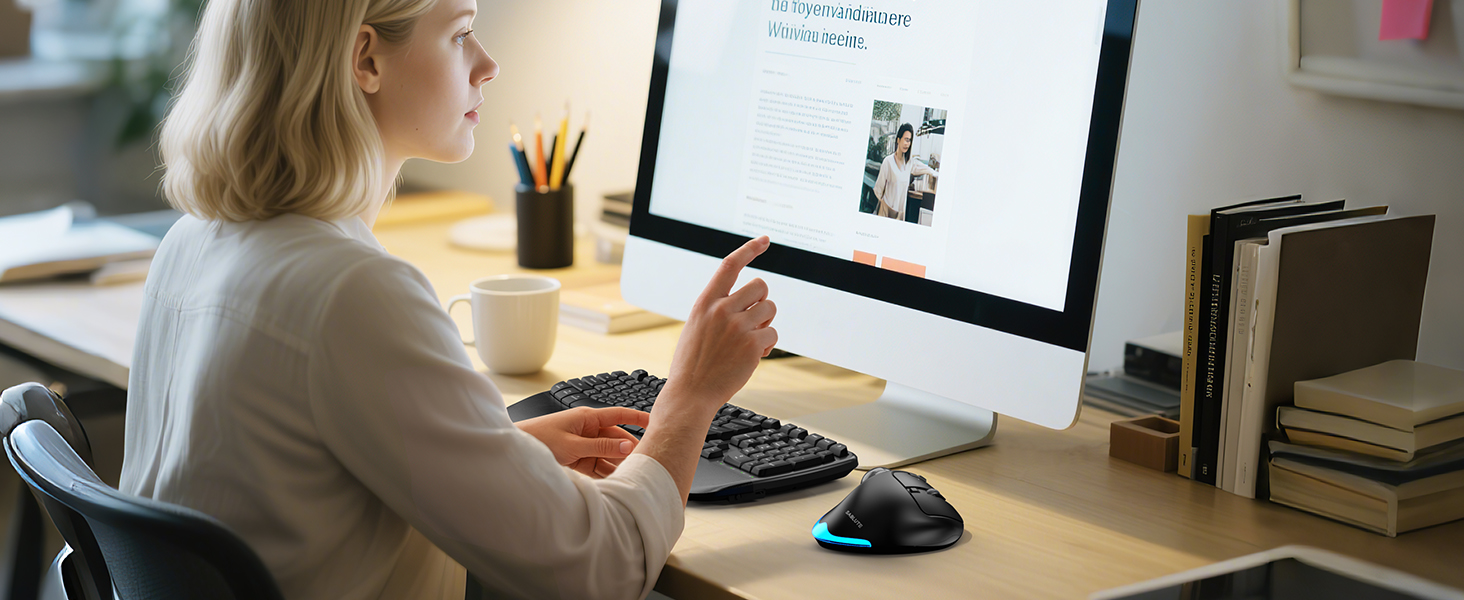
Image: A woman using the SABLUTE Wireless Trackball Mouse at a computer desk, demonstrating its use in a typical work environment.
Важлива примітка: If you are new to using a trackball mouse, an adaptation period of 1-2 weeks is recommended to become accustomed to its operation and fully benefit from its ergonomic design.
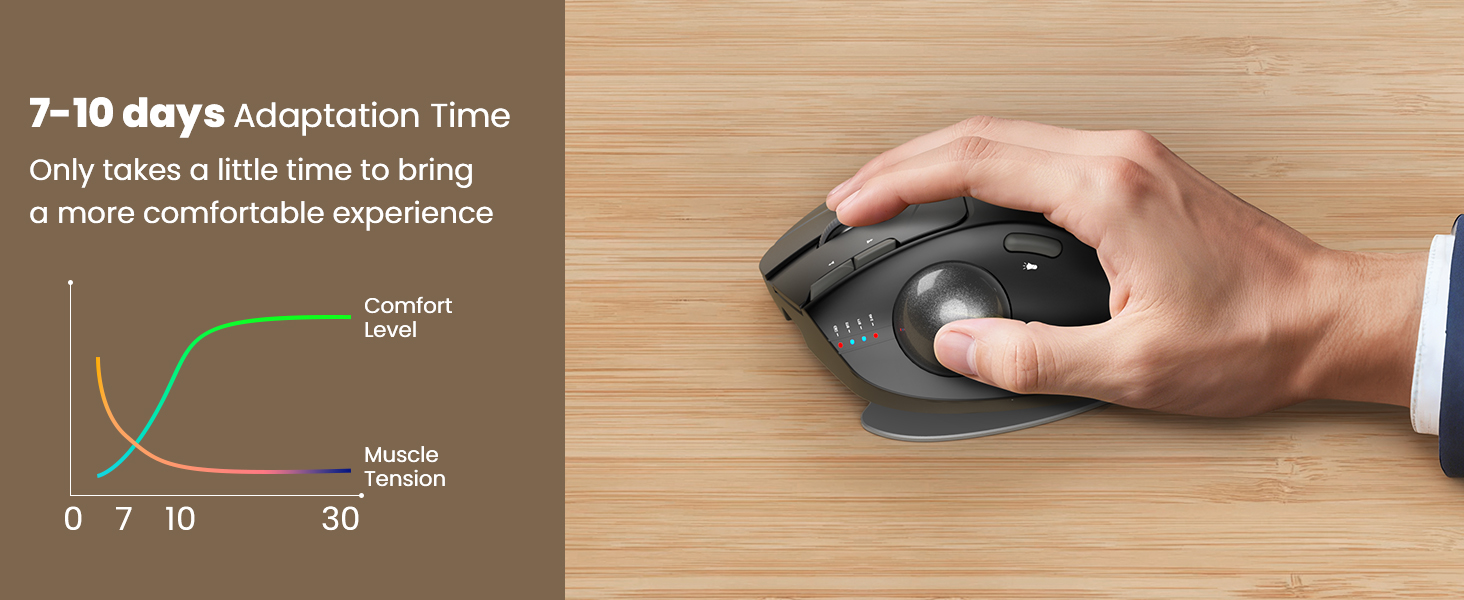
Image: A graph illustrating the adaptation period for a trackball mouse, showing increasing comfort and decreasing muscle tension over 7-10 days.
2. Що в коробці
Перевірте наявність усіх елементів в упаковці:
- SABLUTE Wireless Trackball Mouse
- Жорсткий дорожній кейс
- USB-приймач
- Зарядний кабель USB-C
- Посібник користувача (цей документ)

Image: The SABLUTE Wireless Trackball Mouse securely stored within its hard travel case, positioned next to a laptop bag.

Image: A diagram illustrating the protective features of the hard travel case, including a nylon outer layer, EVA hard shell middle layer, and soft velvet lining, offering fall protection, scratch resistance, and water resistance.
3. Продукт закінчивсяview
Familiarize yourself with the components and controls of your SABLUTE Wireless Trackball Mouse:

Image: A detailed diagram of the SABLUTE Wireless Trackball Mouse, highlighting its various buttons and features with numbered labels for easy identification.
- Ліва кнопка: Стандартна функція клацання лівою кнопкою миші.
- Права кнопка: Стандартна функція клацання правою кнопкою миші.
- Колесо прокрутки: Для вертикального прокручування. Також можна натиснути для функції середньої кнопки миші.
- Low Battery/Bluetooth/2.4G Indicator: Відображає стан з'єднання та рівень заряду батареї.
- Кнопка DPI: Циклічно перемикає рівні чутливості DPI.
- Кнопка вперед: Переміщується вперед web браузери або file дослідники.
- Кнопка Назад: Переміщується назад web браузери або file дослідники.
- Кнопка живлення: Вмикає або вимикає мишу.
- USB-приймач: Зберігає USB-адаптер 2.4 ГГц.
- Переключити режим світла: Changes or turns off the ambient backlight.
- Трекбол: For cursor movement.
- Light Area: Emits ambient backlight.
- Режим перемикання: Button on the bottom to switch between connected devices (BT1, BT2, 2.4G).
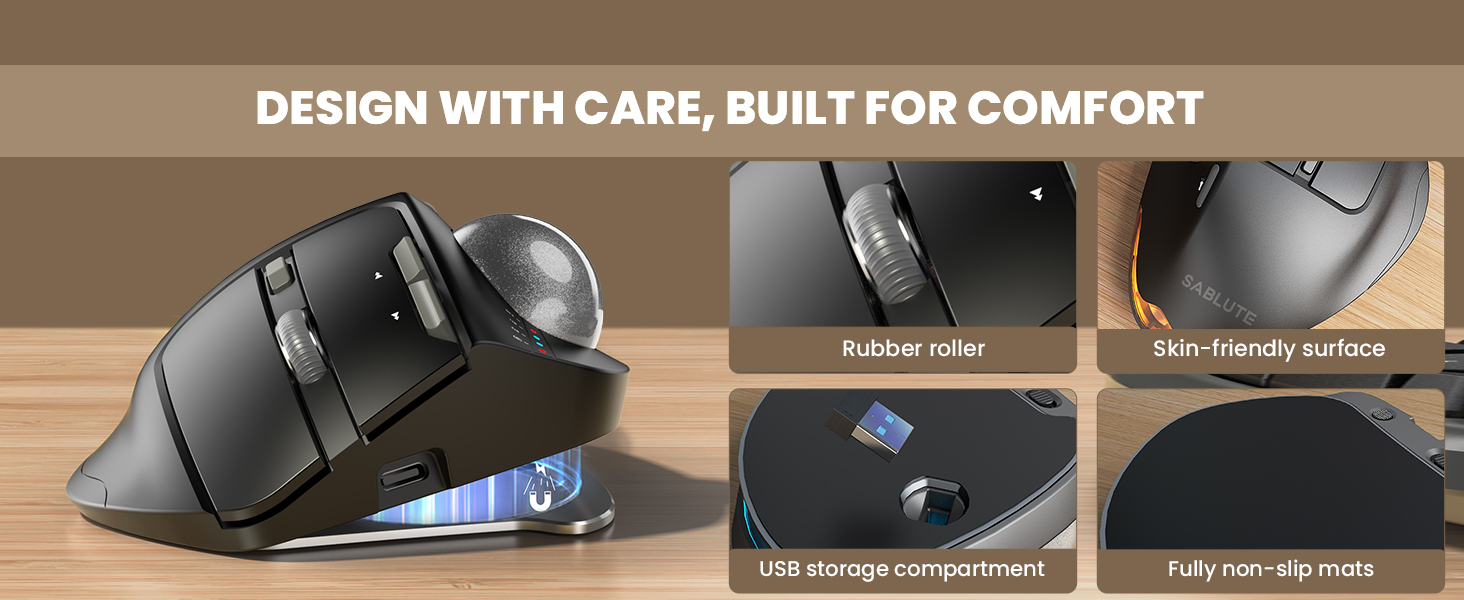
Зображення: Крупний план views highlighting key design elements of the mouse, including the rubber scroll wheel, skin-friendly surface, USB receiver storage, and fully non-slip mats.
4. Налаштування
4.1 Заряджання миші
Before first use, fully charge the mouse using the provided USB-C cable.
- Connect the USB-C cable to the charging port on the front of the mouse.
- Підключіть інший кінець кабелю до джерела живлення USB (наприклад, USB-порту комп'ютера, настінного USB-адаптера).
- The indicator light will show charging status. A full charge typically takes 3-4 hours.
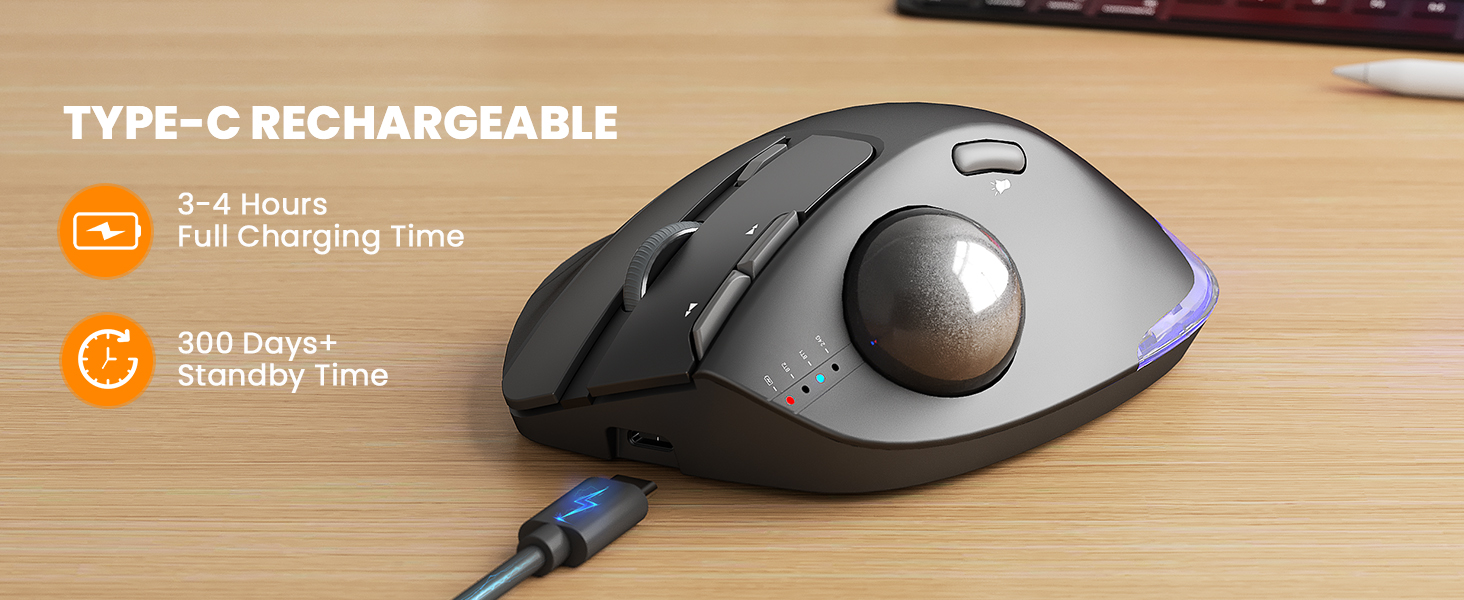
Image: The SABLUTE Wireless Trackball Mouse being charged via its USB-C port, with an indication of 3-4 hours for full charging and over 300 days of standby time.
4.2 Підключення до пристроїв
The mouse supports connection to up to three devices via Bluetooth (BT1, BT2) and a 2.4GHz USB receiver.

Image: The SABLUTE Wireless Trackball Mouse demonstrating multi-device connectivity, showing connections to a laptop (Bluetooth 1), an iPad (Bluetooth 2), and a desktop computer (2.4GHz USB receiver).
2.4GHz USB Receiver Connection:
- Вийміть USB-приймач з гнізда для зберігання на нижній частині миші.
- Підключіть USB-приймач у вільний USB-порт на комп’ютері.
- Turn on the mouse using the Power Button (8).
- Press the Mode Switch button (13) on the bottom of the mouse until the 2.4G indicator light (4) illuminates. The mouse should connect automatically.
З’єднання Bluetooth (BT1/BT2):
- Turn on the mouse using the Power Button (8).
- Press the Mode Switch button (13) on the bottom of the mouse to select either BT1 or BT2. The corresponding indicator light (4) will flash.
- On your device (PC, Mac, iPad), go to Bluetooth settings and search for new devices.
- Select "SABLUTE Trackball Mouse" from the list of available devices to pair. The indicator light will become solid once connected.
4.3 Adjusting Ergonomic Angle
The mouse features an adjustable base for 0° or 18° tilt to optimize wrist comfort.
- The base can be adjusted to provide a flat (0°) or tilted (18°) position.
- Choose the angle that feels most natural and reduces strain on your wrist and forearm. The 18° tilt is designed to match the natural drop of the wrist when seated.
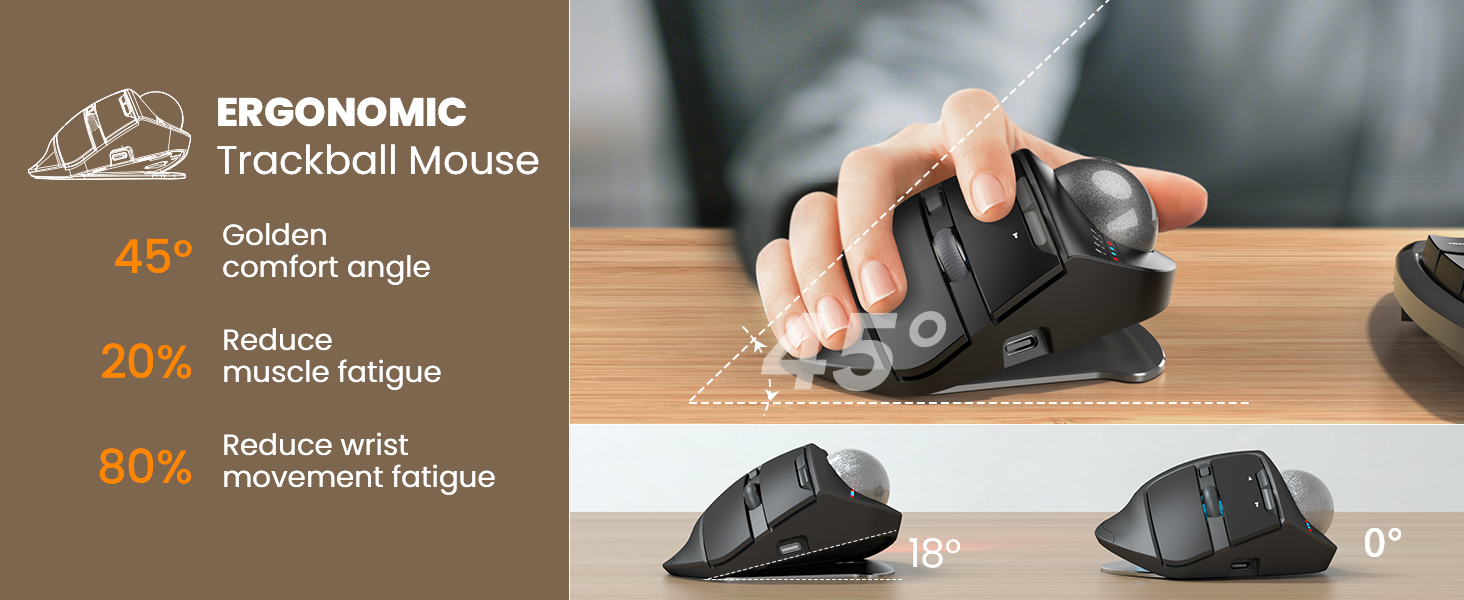
Image: The SABLUTE Wireless Trackball Mouse demonstrating its adjustable ergonomic angles, showing both the 0-degree flat position and the 18-degree tilted position for improved wrist comfort.
5. Керування мишею
5.1 Cursor Control with Trackball
Move the cursor by rolling the trackball with your thumb. This eliminates the need to move your entire arm, reducing fatigue and saving desk space.
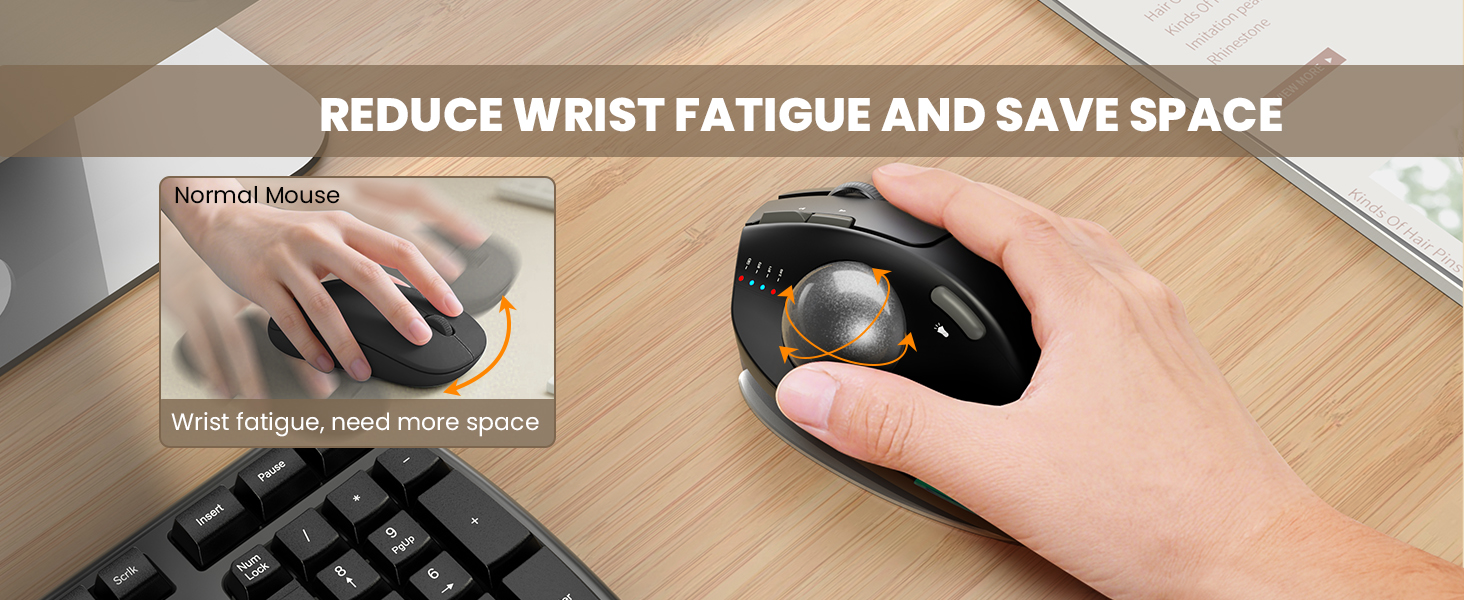
Image: A visual comparison showing how a traditional mouse requires arm movement and desk space, while the trackball mouse allows for stationary use, reducing wrist fatigue and saving space.
5.2 Перемикання між пристроями
To switch between connected devices (BT1, BT2, 2.4G), press the Mode Switch button (13) on the bottom of the mouse. The corresponding indicator light (4) will illuminate to show the active connection.
5.3 Налаштування чутливості DPI
The mouse offers 5 adjustable DPI levels (800-1200-1600-2400-4800) for precise control.
- Press the DPI Button (5) to cycle through the available sensitivity settings.
- Choose a DPI level that suits your task and screen size for optimal cursor speed and precision.
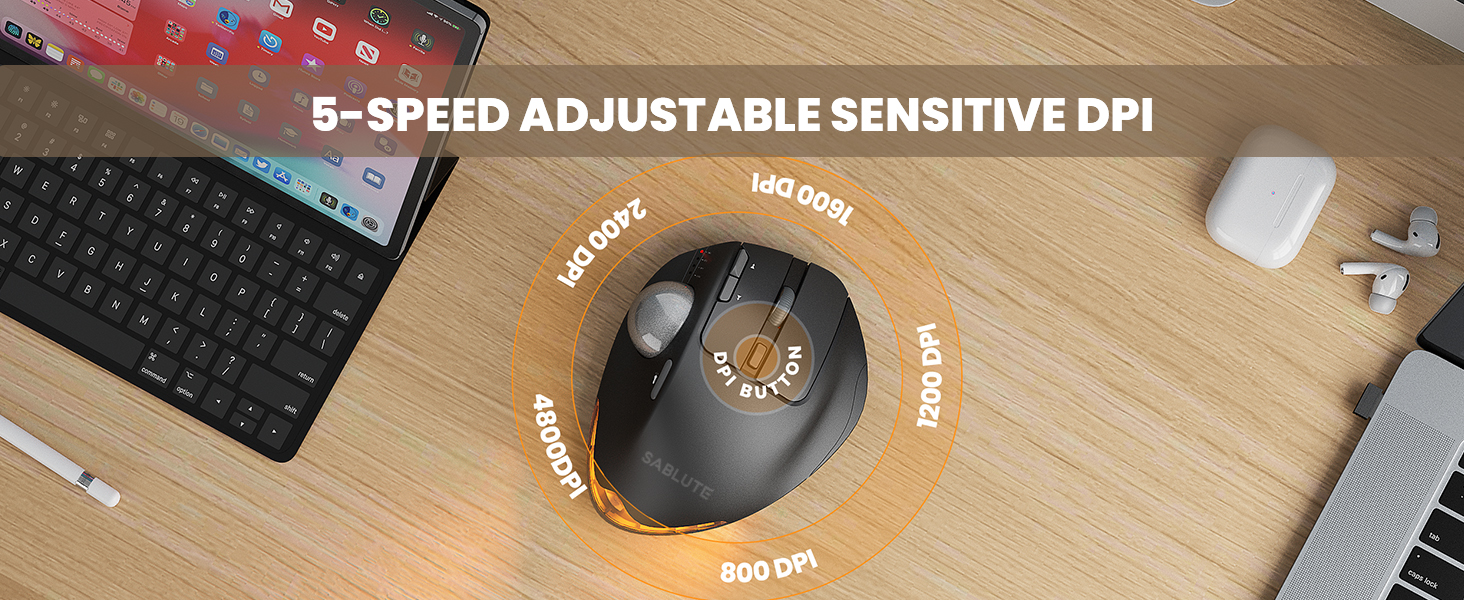
Image: A visual representation of the 5 adjustable DPI levels (800, 1200, 1600, 2400, 4800) available on the SABLUTE Wireless Trackball Mouse, indicating how to change sensitivity.
5.4 Контроль підсвічування
The mouse features an ambient backlight with multiple breathing light modes.
- Press the Switch Light Mode button (10) to cycle through different light modes or to turn the backlight off.
- The backlight can be turned off to avoid distraction during focused work.

Image: The SABLUTE Wireless Trackball Mouse showcasing its quiet click and breathing light features, with various light colors displayed. A sleeping cat nearby emphasizes the quiet operation.
5.5 Driver Customization (Windows Only)
A driver is available for Windows users to customize mouse settings and fine-tune preferences. This driver is not compatible with Mac OS.
- Refer to the official SABLUTE website or contact customer support for driver download instructions.
- Install the driver and follow the on-screen prompts to customize button functions, DPI settings, and other features.
6. Технічне обслуговування
6.1 Очищення трекбола
Regular cleaning of the trackball and its socket ensures smooth and accurate cursor movement.
- Turn off the mouse using the Power Button (8).
- Gently push the trackball from the underside opening to remove it from its socket.
- Use a clean, soft, lint-free cloth to wipe the trackball and the inside of the trackball socket, removing any dust or debris.
- Carefully place the trackball back into its socket until it clicks into place.
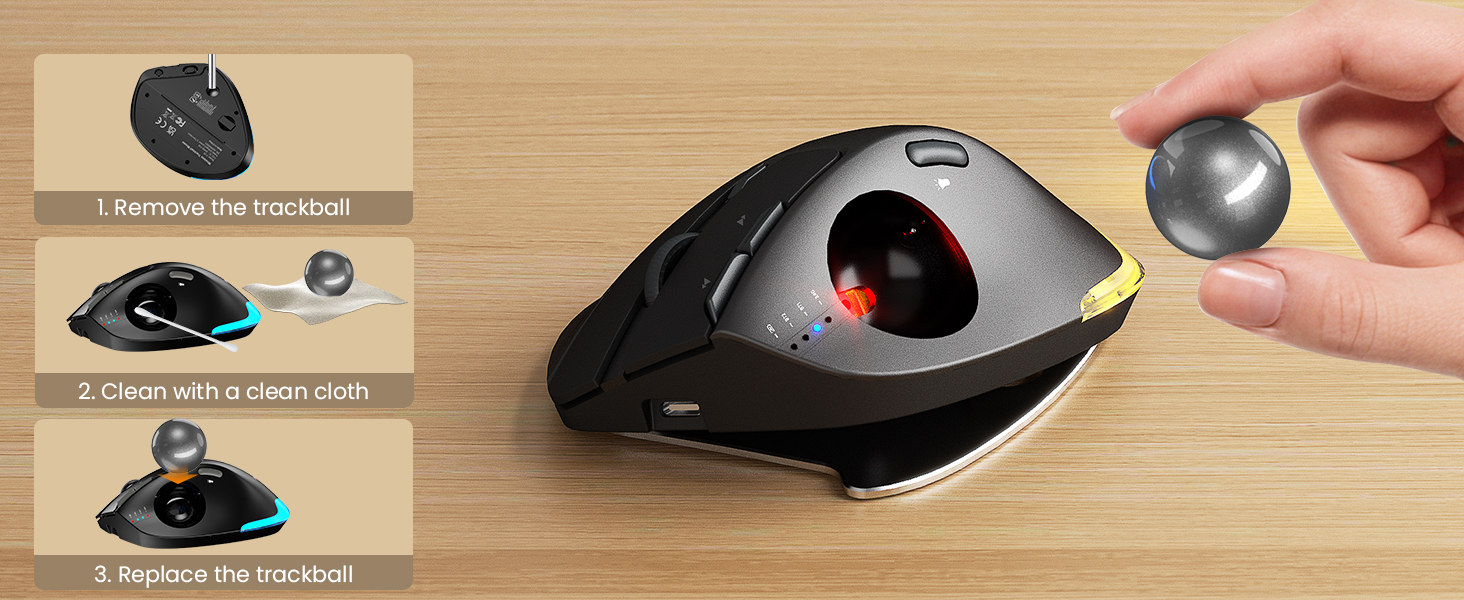
Image: A step-by-step visual guide on how to clean the trackball: 1. Remove the trackball, 2. Clean with a clean cloth, 3. Replace the trackball.
6.2 Загальний догляд
- Avoid exposing the mouse to extreme temperatures, direct sunlight, or liquids.
- Use the provided hard travel case for protection when transporting the mouse.
- Clean the exterior of the mouse with a soft, damp тканину за потреби.
7. Вирішення проблем
If you encounter issues with your SABLUTE Wireless Trackball Mouse, refer to the following common solutions:
| проблема | Можлива причина | Рішення |
|---|---|---|
| Миша не відповідає | Низький заряд батареї; Миша вимкнена; Неправильний режим підключення; USB-приймач не підключено; Bluetooth не сполучено. | Charge the mouse; Turn on the mouse; Select the correct connection mode (BT1/BT2/2.4G); Ensure USB receiver is securely plugged in; Re-pair Bluetooth. |
| Рух курсора нерівномірний або залипає | Trackball or socket is dirty. | Clean the trackball and its socket as described in the Maintenance section. |
| Не вдається підключитися через Bluetooth | Миша не в режимі сполучення; Bluetooth пристрою вимкнено; Перешкоди. | Ensure mouse is in BT1/BT2 mode and indicator is flashing; Turn on Bluetooth on your device; Move closer to the device; Try re-pairing. |
| Налаштування DPI не змінюється | Кнопка DPI натиснута неправильно. | Press the DPI button firmly to cycle through settings. Observe the indicator lights for changes. |
| Не працює підсвічування | Backlight is off; Low battery. | Press the Switch Light Mode button (10) to turn on or change modes; Charge the mouse. |
8. Технічні характеристики
| Особливість | Деталь |
|---|---|
| Модель | Бездротова трекбольна миша |
| Технологія підключення | Bluetooth (BT1, BT2), 2.4GHz USB Receiver |
| Виявлення руху | Трекбол |
| Рівні DPI | 800 / 1200 / 1600 / 2400 / 4800 |
| Ергономічний кут | 0° / 18° Adjustable |
| Тип батареї | Вбудований перезаряджається |
| Порт зарядки | USB-C |
| Час повної зарядки | 3-4 годин |
| Час очікування | 300+ днів |
| Вага товару | 1 фунт (приблизно) |
| Розміри упаковки | 6.73 x 5.24 x 2.8 дюймів |
| Сумісність | PC, Mac, Windows (Driver for Windows only) |
| Особливості | Ergonomic Design, Portable, Soundless Clicks, Water Resistant (case), Wireless, Ambient Backlight |
9. Гарантія та підтримка
9.1 Інформація про гарантію
SABLUTE products are designed and manufactured to the highest quality standards. For specific warranty details regarding your Wireless Trackball Mouse, please refer to the warranty card included in your product packaging or visit the official SABLUTE webсайт.
9.2 Підтримка клієнтів
If you require further assistance, have questions, or encounter issues not covered in this manual, please contact SABLUTE customer support:
- Інтернет-підтримка: Visit the official SABLUTE website for FAQs, driver downloads, and contact forms.
- Підтримка електронною поштою: Refer to your product packaging or the SABLUTE webсайт для адреси електронної пошти служби підтримки клієнтів.
When contacting support, please have your product model number and purchase date available.