
1. Налаштування
1.1 Розпакування та вміст упаковки
Carefully remove all items from the packaging. Ensure all components are present before proceeding with installation.
- 55-дюймовий телевізор Roku Select Series 4K
- Стійки та гвинти
- Пульт дистанційного керування
- Посібник користувача

Figure 1: Contents of the Roku Select Series 55-inch TV package.
1.2 Фізичне встановлення
The Roku Select Series TV can be installed using the included stands for table mounting or by using a compatible VESA wall mount (200 x 100 mm, sold separately).
Встановлення на столі:
- Покладіть телевізор екраном вниз на м’яку, чисту поверхню, щоб запобігти подряпинам.
- Прикріпіть дві підставки для телевізора до призначених для цього отворів на нижній панелі телевізора за допомогою наданих гвинтів. Переконайтеся, що вони надійно закріплені.
- Обережно підніміть телевізор і поставте його на стійку, рівну поверхню.
Монтаж настінного кріплення:
For wall mounting, refer to the instructions provided with your VESA 200 x 100 mm compatible wall mount kit. Ensure the wall can support the weight of the television (approximately 20.1 pounds without stand).

Figure 2: TV dimensions and package contents overview.
1.3 Підключення периферійних пристроїв
The TV features multiple ports for connecting external devices. Refer to the back panel diagram for port locations.

Figure 3: Rear panel connections including HDMI, USB, and network ports.
- HDMI Ports (3 total): Connect gaming consoles, Blu-ray players, soundbars, or other HDMI-enabled devices.
- USB Port (1 total): Підключіть USB-накопичувачі для відтворення медіафайлів.
- Порт Ethernet (LAN): Для дротового підключення до Інтернету.
- Вхід антени/кабельного телебачення: Підключіть антену для ефірного мовлення або кабельного телебачення.
- Optical (S/PDIF) Output: Для цифрового аудіовиходу на звукову систему.
1.4 Початкове увімкнення та підключення до мережі
- Підключіть кабель живлення до телевізора та розетки.
- Натисніть кнопку живлення на пульті дистанційного керування, щоб увімкнути телевізор.
- Follow the on-screen instructions to complete the initial setup, including language selection (English, Spanish, French, Portuguese are supported).
- Select your preferred network connection:
- Wi-Fi: Виберіть свою мережу Wi-Fi зі списку та введіть пароль.
- Ethernet: If an Ethernet cable is connected, the TV will automatically attempt to establish a wired connection.
- The TV will guide you through linking to a Roku account, which is necessary to access streaming channels and features.
2. Інструкція з експлуатації
2.1 Функції дистанційного керування
The included voice remote provides intuitive control over your TV. It operates via Bluetooth, eliminating the need for direct line-of-sight.

Figure 4: Roku Voice Remote layout and key functions.
- Кнопка живлення: Вмикає або вимикає телевізор.
- Directional Pad (OK button in center): Навігація по меню та вибір елементів.
- Збільшення/зменшення гучності: Регулює гучність телевізора.
- Кнопка вимкнення звуку: Вмикає або вимкнення звуку телевізора.
- Голосова кнопка: Activates voice search and control.
- Миттєвий повтор: Перемотує на кілька секунд назад під час відтворення відео.
- Кнопка прямого ефіру: Accesses the live TV channel guide.
- Кнопки швидкого запуску: Dedicated buttons for popular streaming apps (e.g., Netflix, Disney+, Apple TV, Prime Video). These can be customized for your favorite apps.
- Загублений дистанційний пошук: If the remote is misplaced, use the Roku mobile app to activate an audible alert from the remote.
2.2 Home Screen Navigation and Streaming
The Roku home screen provides quick access to all your streaming channels, inputs, and settings.
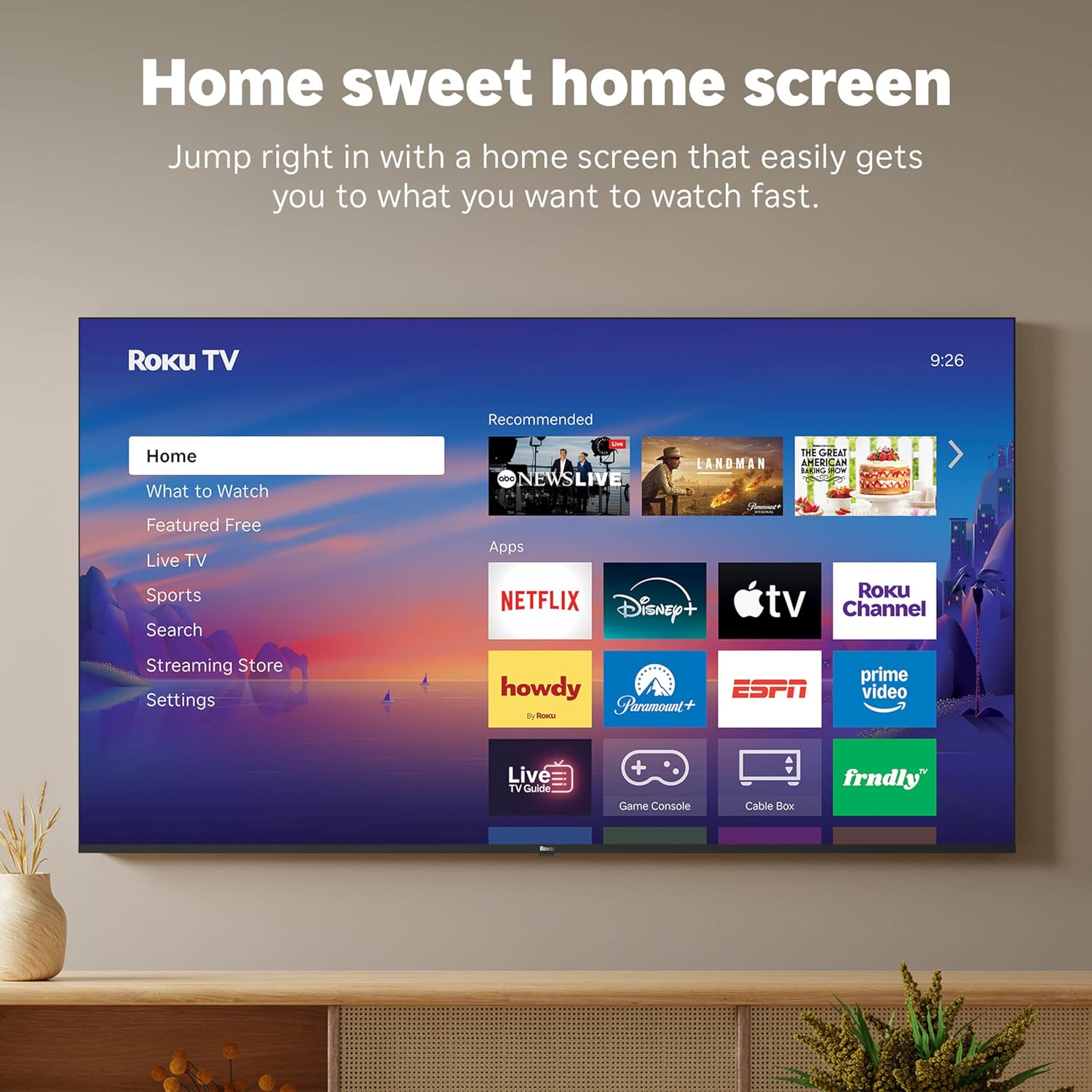
Figure 5: The Roku TV home screen interface.
- Use the directional pad on your remote to navigate through the menu options on the left side of the screen (Home, What to Watch, Live TV, Sports, Search, Streaming Store, Settings).
- Select an app icon from the main grid to launch your desired streaming service.
- The TV's fast Wi-Fi and optimized app launch ensure quick access to entertainment.
2.3 Налаштування зображення та звуку
The Roku Select Series TV offers advanced picture and sound technologies for an enhanced viewнабутий досвід.
- 4K QLED дисплей: Provides sharp 4K resolution and accurate colors.
- Підтримка HDR10: Enhances contrast and color depth for compatible content.
- Roku Smart Picture: Automatically optimizes incoming TV signals and selects the appropriate picture mode for content.
- Dolby Audio: Delivers clear speech and enhanced sound quality through the integrated 2.1 channel speakers (20 Watts maximum output power).
- Режим Bluetooth-навушників: Connect Bluetooth headphones for private listening without disturbing others.
2.4 Voice Control and Smart Home Integration
Control your TV and integrate it into your smart home ecosystem.

Figure 6: Roku TV's smart home compatibility.
- Roku Voice: Use the voice button on your remote to search for content, launch apps, or control playback.
- Сумісність із Smart Assistant: The TV is compatible with Siri, Alexa, and Google Assistant for voice control through external smart devices.
- Apple AirPlay: Share videos, photos, music, and more from your Apple devices directly to your TV.
2.5 Live TV Access
Access live television channels directly from the home screen.

Figure 7: Live TV channel guide interface.
- Connect an antenna to the TV's Antenna/Cable input.
- Use the 'Live TV' option on the home screen or the dedicated button on the remote to access the channel guide.
- The TV supports ATSC tuner type for digital broadcasts.
3. Технічне обслуговування
3.1 Очищення телевізора
- Завжди відключайте телевізор від мережі перед чищенням.
- Використовуйте м’яку, суху тканину без ворсу, щоб обережно протерти екран і корпус.
- Для стійких плям злегка протрітьampПротріть тканину водою або м’яким, неабразивним засобом для чищення екранів. Не розпилюйте засіб для чищення безпосередньо на екран.
- Уникайте використання агресивних хімікатів, абразивних губок або розчинників, оскільки вони можуть пошкодити покриття телевізора.
3.2 Оновлення програмного забезпечення
The Roku TV receives automatic software updates to provide new features and improvements. Ensure your TV is connected to the internet to receive these updates.
4. Вирішення проблем
If you encounter issues with your Roku TV, consider the following basic troubleshooting steps:
- Немає живлення: Переконайтеся, що шнур живлення надійно підключено як до телевізора, так і до справної електричної розетки. Спробуйте іншу розетку.
- Немає зображення/звуку: Verify that the correct input source is selected. Check all cable connections (HDMI, antenna, etc.) for looseness.
- Пульт не відповідає: Replace the AAA batteries in the remote control. Ensure there are no obstructions between the remote and the TV (though Bluetooth reduces this issue). Re-pair the remote if necessary (refer to Roku support documentation).
- Проблеми з мережевим підключенням: Перейти до Налаштування > Мережа > Перевірити з'єднання to diagnose network problems. Restart your router and modem.
- Додаток не завантажується/виходить з ладу: Try restarting the app. If the issue persists, remove the app and reinstall it from the Streaming Store.
- Погана якість зображення: Check your internet speed for streaming content. For broadcast TV, adjust your antenna. Ensure the TV's picture settings are appropriate for the content being viewвид.
For more detailed troubleshooting or persistent issues, visit the Roku support website or consult the full User Manual PDF available online.
5. Технічні характеристики
| Особливість | Деталь |
|---|---|
| Назва моделі | Roku 55" Select Series 4K |
| Номер моделі | 55R5D5 |
| Розмір екрана | 55 дюймів |
| Технологія дисплея | 4K UHD, LED, QLED |
| роздільна здатність | 4K (3840 x 2160) |
| Частота оновлення | 60 Гц |
| Підтримується формат HDR | HDR10, HDR10+, HLG |
| Picture Quality Enhancement | 4K, Roku Smart Picture |
| Вихідна потужність аудіо | 20 Вт |
| Integrated Surround Sound | Dolby Audio |
| Технологія підключення | Bluetooth, Ethernet, USB C, Wi-Fi |
| Порти HDMI | 3 |
| USB порти | 1 |
| Операційна система | Roku OS |
| Голосове керування | Roku Voice, Siri, Alexa, Google Assistant |
| Віддзеркалення екрана | AirPlay 2, Miracast |
| Розміри продукту (Д x Ш x В) | 12.7" Г x 48.3" Ш x 30.5" В |
| Вага товару | 20.5 фунта |
| Стандарт кріплення VESA | 200 х 100 мм |
| Споживана потужність | 160 Вт |
| UPC | 829610009322 |
6. Гарантія та підтримка
6.1 Обмежена гарантія
Roku warrants the hardware of this device against defects in materials and workmanship under normal use for a period of один (1) рік from the date of purchase (“Warranty Period”), provided it is used in accordance with the provided documentation.
If Roku determines that the device’s hardware is defective during the Warranty Period, Roku’s sole obligation, and your exclusive remedy, will be to either repair or replace the unit with either a new or rebuilt device, at its option.
Important information about warranty returns and replacements is available on the Roku support site.
6.2 Product Returns
You may return a device for any reason, subject to the terms of the applicable return policy:
- Within thirty (30) days from the date of purchase from Roku.
- Within the applicable return period if purchased from an authorized reseller or distributor.
Additional details regarding product returns can be found on the Roku support site.
6.3 Додаткова підтримка
For further assistance, including detailed guides and FAQs, please refer to the official Roku support website. A downloadable PDF version of the User Manual is also available for reference: Посібник користувача (PDF).