
1. Вступ
Thank you for choosing the Pisichen 27-inch 4K UHD Touchscreen Monitor with Webcam. This manual provides essential information for the safe and efficient operation of your new monitor. Please read it thoroughly before use and retain it for future reference.
2. Інформація про безпеку
- Джерело живлення: Використовуйте лише адаптер живлення, що постачається з монітором. Переконайтеся, що розетка відповідає вимогам до напруги.tage вимоги.
- Вентиляція: Не блокуйте вентиляційні отвори. Забезпечте достатній простір навколо монітора для належної циркуляції повітря.
- Вплив рідини: Тримайте монітор подалі від рідин. Не піддавайте його впливу дощу або вологи.
- Прибирання: Disconnect the power cable before cleaning. Use a soft, dry cloth. Avoid abrasive cleaners.
- Розміщення: Розмістіть монітор на стійкій, рівній поверхні, щоб запобігти його падінню.
- Обслуговування: Не намагайтеся обслуговувати монітор самостійно. Зверніться до кваліфікованого персоналу для проведення будь-яких робіт з обслуговування.
3. Вміст упаковки
Будь ласка, перевірте вміст упаковки після розпакування. Якщо будь-які елементи відсутні або пошкоджені, зверніться до продавця.
- Pisichen 27-inch 4K UHD Touchscreen Monitor
- Підставка для монітора (основа та кронштейн)
- Адаптер живлення
- Кабель HDMI
- USB-B to USB-A Cable (for Touch Function)
- Посібник користувача
4. Продукт закінчивсяview
4.1 Основні характеристики
- Ultra HD 4K Touchscreen Display: 27-inch 4K Ultra HD screen with vibrant colors, sharp details, and wide viewing angles. Features a responsive 10-point touchscreen for intuitive control.
- Built-in High-Definition Webкамера: Інтегрований webcam for video calls, online meetings, and streaming, reducing desk clutter.
- Універсальний підключення: Multiple ports including HDMI, DisplayPort, and USB-C for easy connections to various devices. Supports both touch and traditional input.
- Optimized for Productivity and Creativity: Large 4K touch display for precise control and streamlined workflows, ideal for graphic designers, content creators, and multitasking.
- Sleek and Functional Design: Modern design with an adjustable stand for optimal viewing angles and comfort during extended use.
4.2 Порти моніторингу
The monitor features various ports for connecting to your devices. Refer to the image below for port identification.
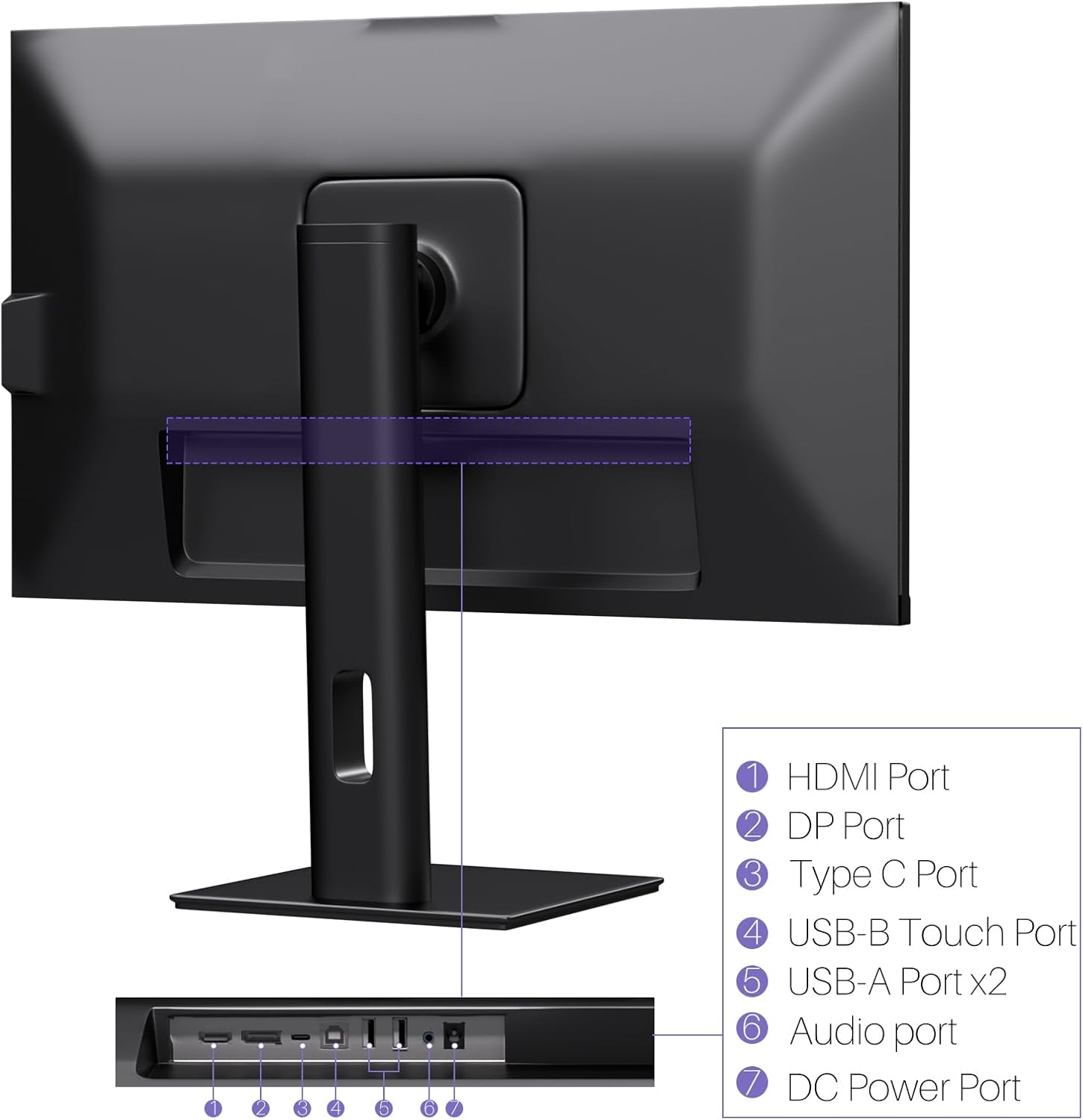
Зображення: Задня частина view of the monitor displaying the HDMI, DP, Type-C, USB-B Touch, USB-A, Audio, and DC Power ports.
- Порт HDMI: Connects to devices via HDMI cable for video and audio input.
- Порт DP: Connects to devices via DisplayPort cable for video and audio input.
- Порт типу C: Connects to devices via USB-C cable for video, audio, and power delivery. (Requires USB-C port on signal device to support DisplayPort Alternate Mode for touch functionality).
- USB-B Touch Port: Connects to your computer via USB-B to USB-A cable to enable touchscreen functionality.
- Порт USB-A (x2): Для підключення периферійних USB-пристроїв.
- Аудіо порт: Для підключення зовнішніх аудіопристроїв.
- Порт живлення постійного струму: Підключається до адаптера живлення.
5. Інструкції з налаштування
5.1 Збірка підставки
- Обережно вийміть компоненти монітора та підставки з упаковки.
- Attach the stand arm to the monitor's VESA mounting points.
- Secure the stand base to the arm using the provided screws.
- Ensure all connections are tight and the monitor is stable.
5.2 Підключення до пристрою
The monitor supports various connection types. Choose the appropriate cable for your device.

Image: Connection diagrams illustrating how to connect the monitor as a secondary display (HDMI/DP + DC), a touchscreen monitor (HDMI/DP + USB-B + DC), or via USB-C (USB-C + DC).
- For Video and Audio (Non-Touch): Connect an HDMI or DisplayPort cable from your computer to the corresponding port on the monitor.
- For Video, Audio, and Touch (Windows PC): Connect an HDMI or DisplayPort cable for video/audio. Additionally, connect the USB-B to USB-A cable from the monitor's USB-B Touch Port to a USB-A port on your computer.
- For Video, Audio, and Touch (USB-C Compatible Device): Connect a USB-C cable from your device to the monitor's Type-C port. Ensure your device's USB-C port supports DisplayPort Alternate Mode for touch functionality.
5.3 Підключення живлення
- Connect the power adapter to the monitor's DC Power Port.
- Підключіть адаптер живлення до настінної розетки.
6. Інструкція з експлуатації
6.1 Увімкнення/вимкнення живлення
Натисніть кнопку живлення, розташовану на моніторі, щоб увімкнути або вимкнути його.
6.2 Екранне меню (OSD)
Use the control buttons (typically located on the back or bottom of the monitor) to navigate the OSD menu. This menu allows you to adjust settings such as brightness, contrast, color temperature, input source, and other display parameters.
6.3 Функціональність сенсорного екрана
The monitor features a 10-point multi-touch screen. Ensure the USB-B to USB-A cable (or USB-C cable for compatible devices) is connected to enable touch functionality.

Image: A user's hand interacting with the monitor screen, highlighting the responsive 10-point touch experience.
- Базовий дотик: Tap to click, swipe to scroll.
- Мультисенсорні жести: Use two fingers to zoom in/out, rotate, or pan, depending on the application.
- Touch Calibration (Windows Only): If the cursor does not align with your touch, calibration may be required. Go to Control Panel > Hardware and Sound > Tablet PC Settings > Calibrate. Follow the on-screen prompts.
6.4 Використання вбудованого Webкулачок
Інтегрований webcam is automatically detected by most operating systems and video conferencing applications. No additional drivers are typically required.

Image: The monitor displaying a video conference call, showcasing its integrated webcam for seamless communication.
- Open your preferred video conferencing software (e.g., Zoom, Microsoft Teams, Skype).
- Select the integrated webcam as your video input device in the application's settings.
6.5 Adjusting Display Resolution
To set the resolution of the monitor (Windows):
- Right-click on your desktop and select "Display Settings."
- Find your monitor (if multiple displays are connected).
- Under "Display resolution," select the recommended resolution of 3840 x 2160.
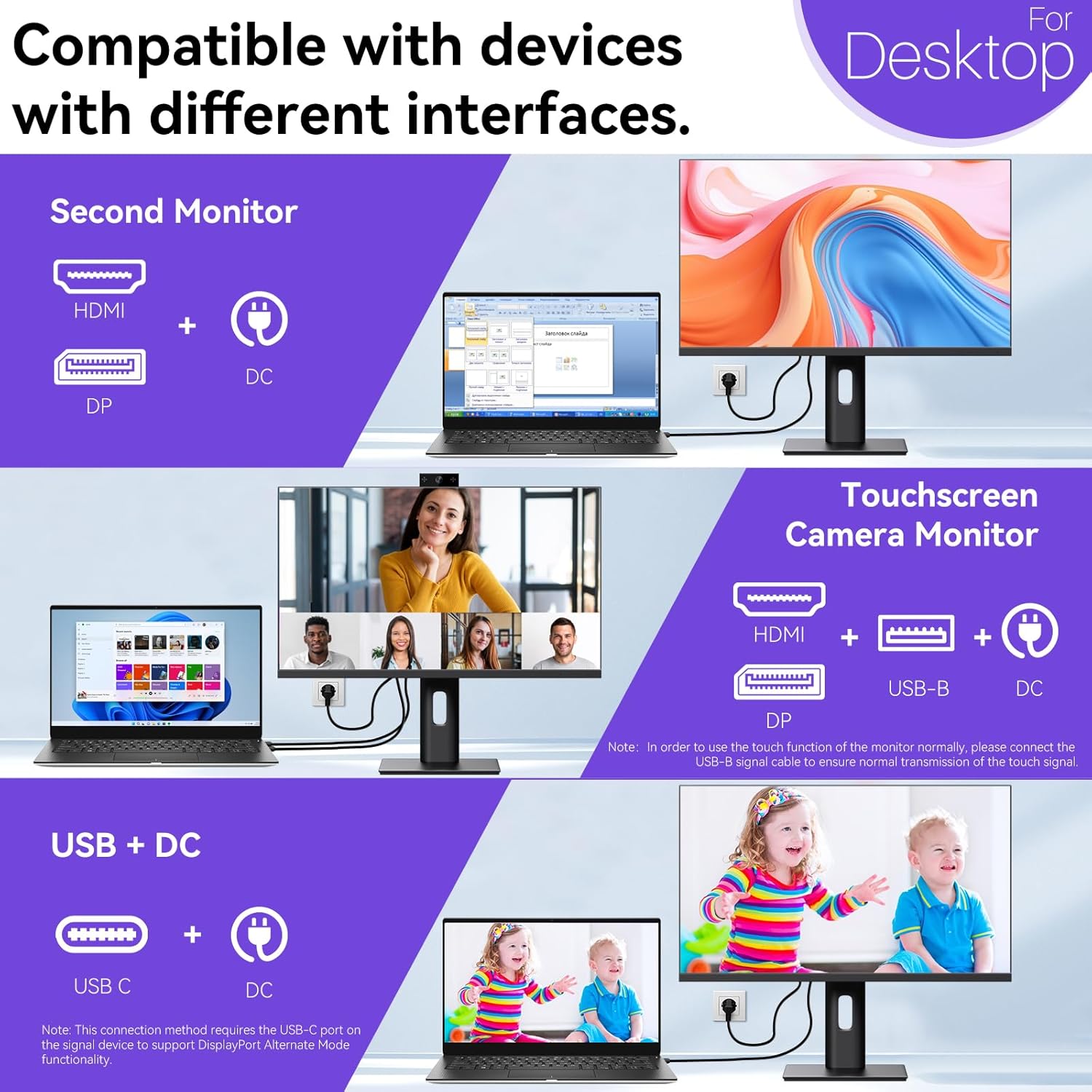
Image: A visual comparison demonstrating the superior clarity of 4K UHD (3840x2160) compared to FHD (1920x1080) and QHD (2560x1440) resolutions.
7. Технічне обслуговування
- Очищення екрану: Обережно протріть екран м’якою тканиною без ворсу. Для стійких плям злегка протрітьampПротріть тканину водою або спеціальним розчином для чищення екранів. Не розпилюйте рідину безпосередньо на екран.
- Очищення Casing: Використовуйте м’яку суху тканину для очищення монітора casing.
- Зберігання: If storing the monitor for an extended period, disconnect it from power, pack it in its original packaging, and store it in a cool, dry place.
8. Вирішення проблем
If you encounter issues with your monitor, refer to the following troubleshooting guide. For problems not listed, please contact customer support.
| проблема | Можлива причина | Рішення |
|---|---|---|
| На екрані немає зображення | Відключено кабель живлення; відключено відеокабель; вибрано неправильне джерело вхідного сигналу. | Ensure power cable is securely connected. Check video cable (HDMI/DP/USB-C) connections. Select correct input source via OSD menu. |
| Сенсорний екран не реагує | USB-B cable not connected; USB-C port not supporting DisplayPort Alternate Mode; Device incompatibility (e.g., iPhone). | Ensure the USB-B to USB-A cable is connected from the monitor to your computer. If using USB-C, verify your device's USB-C port supports DisplayPort Alternate Mode. Note: Touch function is not supported when connected to an iPhone due to iOS system restrictions. |
| Cursor moves incorrectly (Windows) | Touchscreen calibration required. | Perform touchscreen calibration: Go to Control Panel > Hardware and Sound > Tablet PC Settings > Calibrate. |
| Webкамеру не виявлено | USB connection issue; Software settings. | Ensure all necessary USB cables are connected. Check your application's settings to select the correct webкулачок. |
9. Технічні характеристики
| Особливість | Деталь |
|---|---|
| Бренд | Пісичен |
| Номер моделі | 27INTSCMR-4K |
| Розмір екрана | 27 дюймів |
| роздільна здатність | 3840 x 2160 пікселів (4K UHD 2160p) |
| Співвідношення сторін | 16:9 |
| Яскравість зображення | 400 Кандела |
| Опис поверхні екрана | Глянцевий |
| Розміри продукту | 14.37 x 24.21 x 16.54 дюймів |
| Вага товару | 16.59 фунта |
| Виробник | Shenzhen Konowa Electronics Co., LTD |
| Підключення | HDMI, DisplayPort, USB-C, USB-B (for touch), USB-A (x2), Audio Port |
10. Гарантія та підтримка
This product comes with a manufacturer's warranty. Please refer to the warranty card included in your package for specific terms and conditions. For technical support or inquiries, please contact Pisichen customer service at support_2308@163.com. When contacting support, please provide your model number and a detailed description of the issue, including any relevant pictures or videos.